
 DaisyDisk
 Dash
 DataSpell
 DaVinci Resolve Studio
 Cycling '74 Max
 dBpoweramp Music Converter
 DCommander
 Cursor Pro
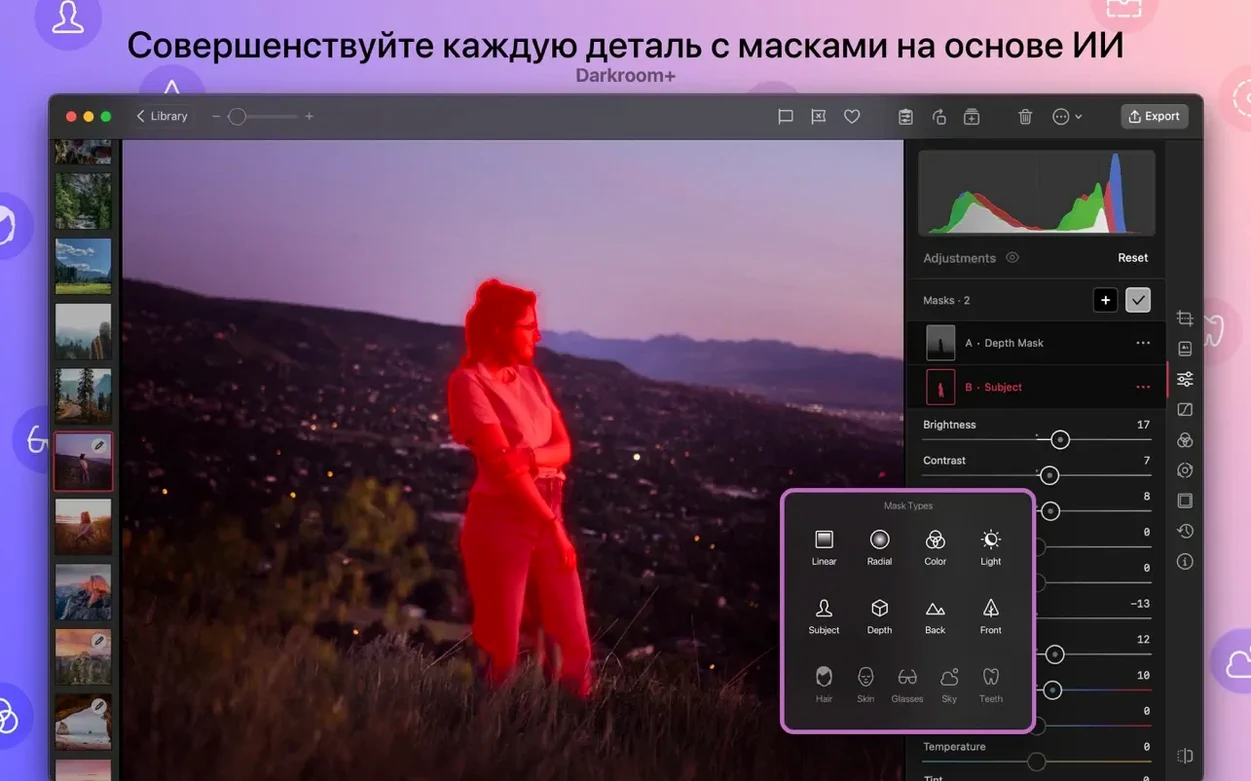
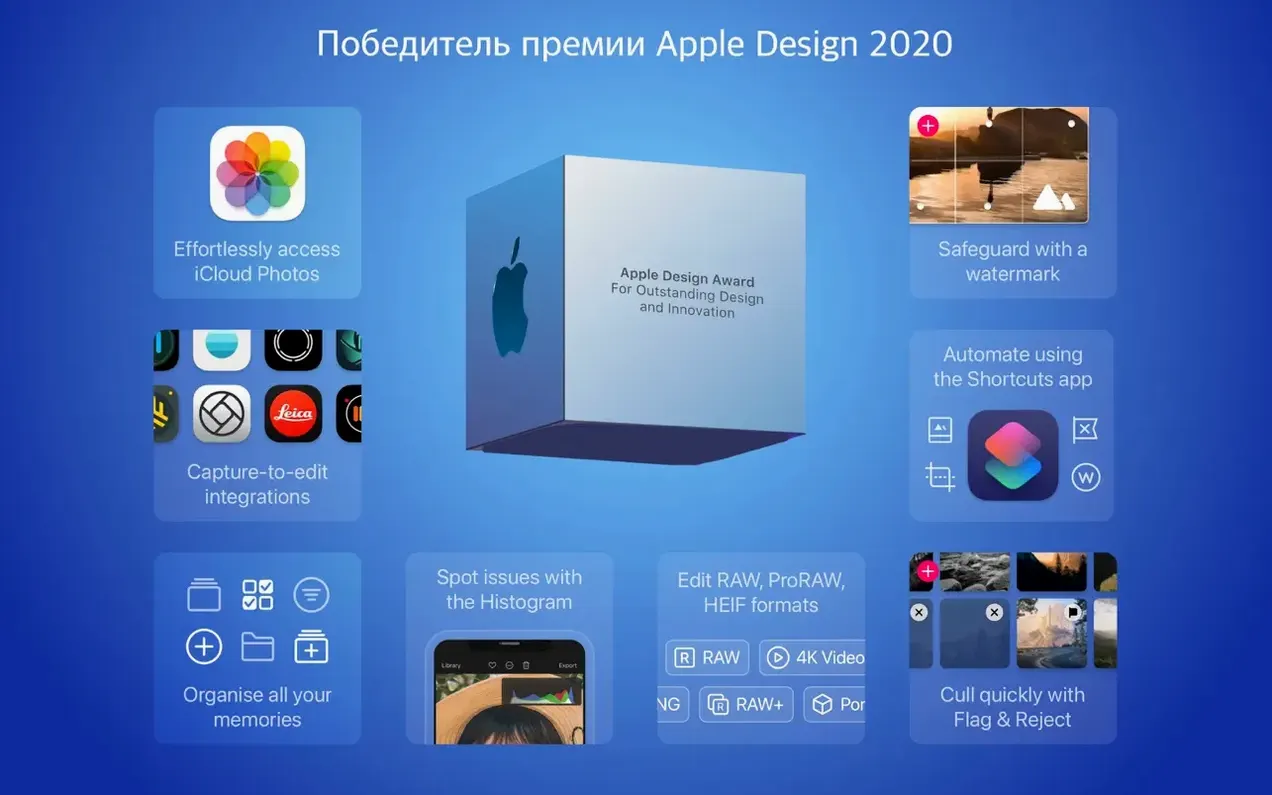
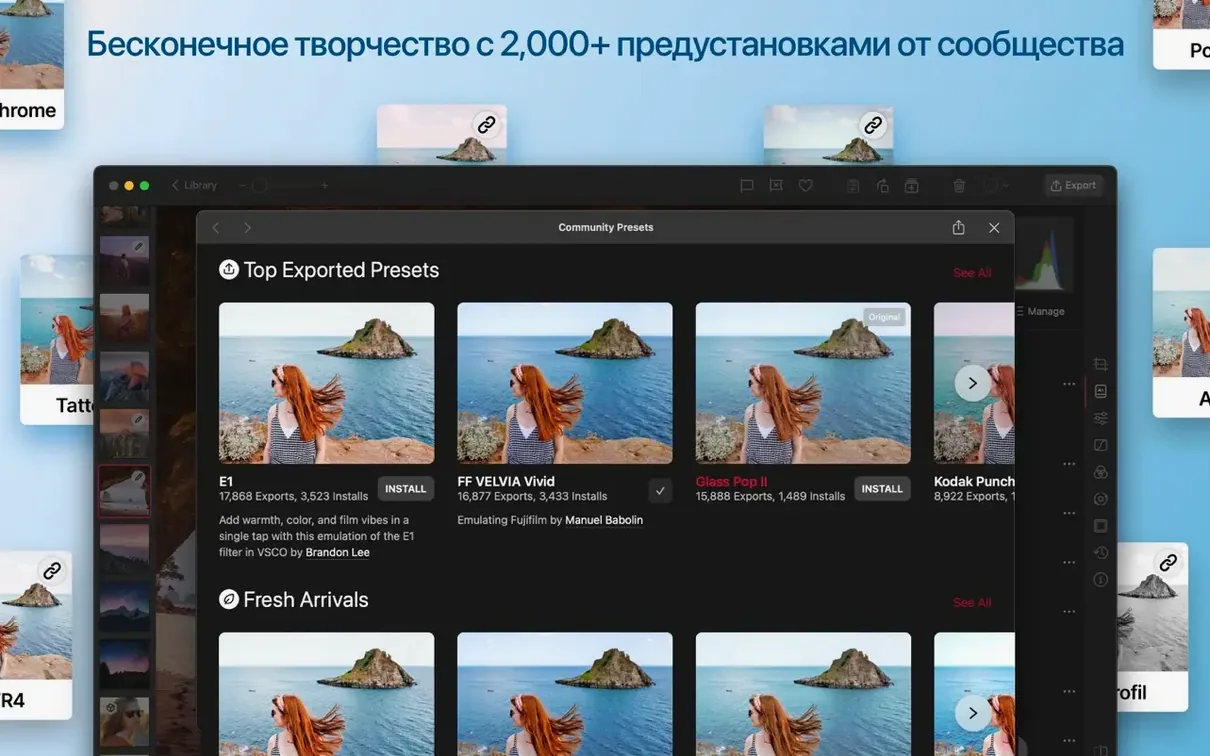
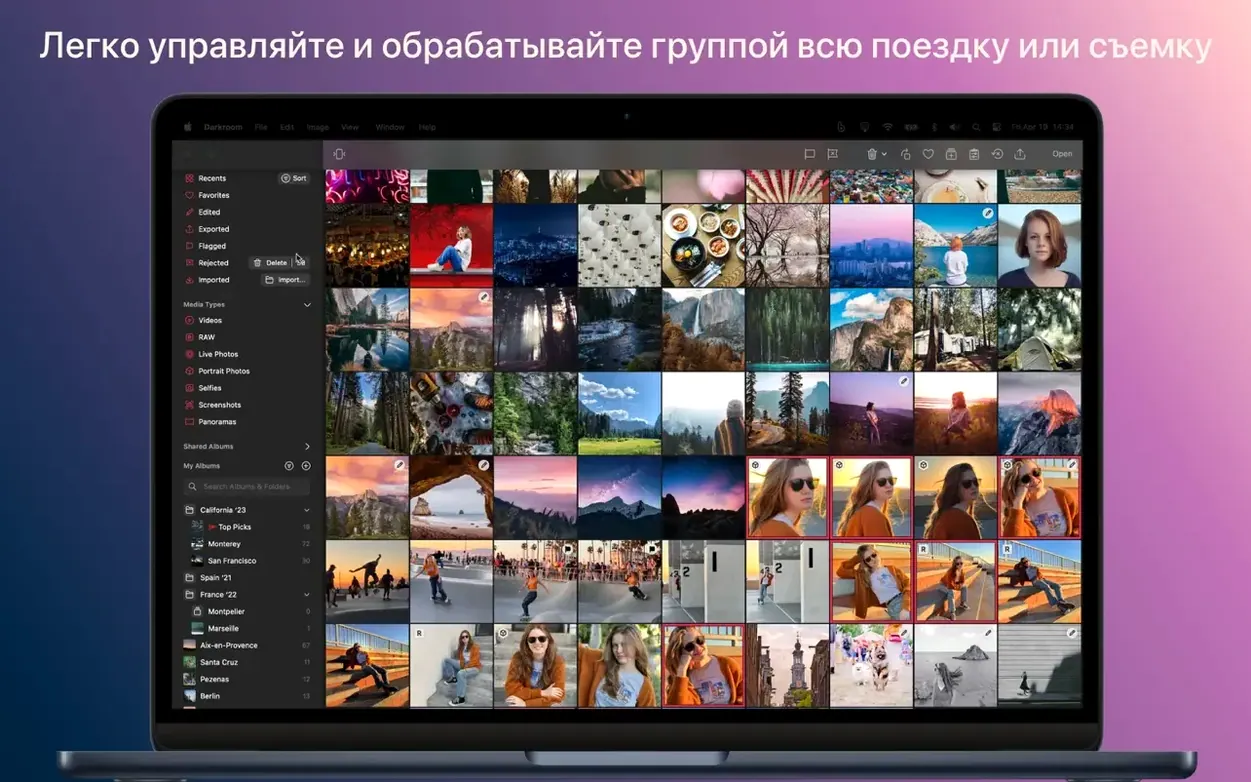
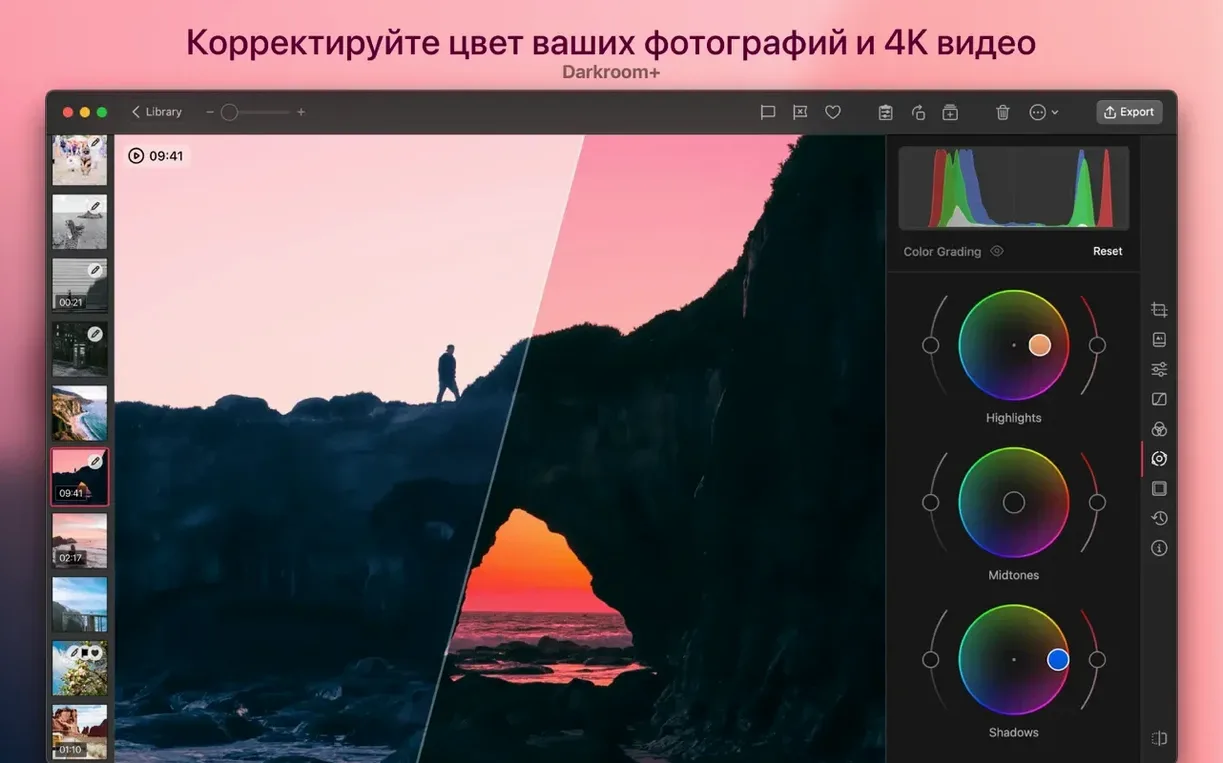
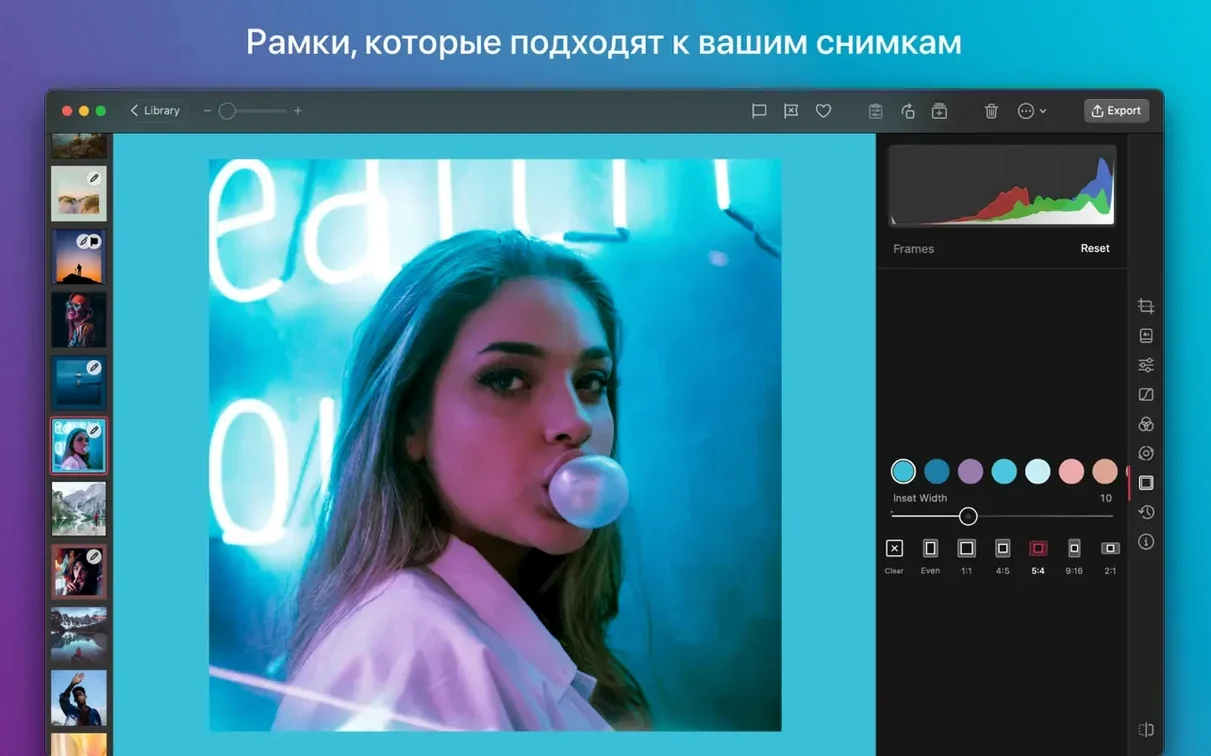
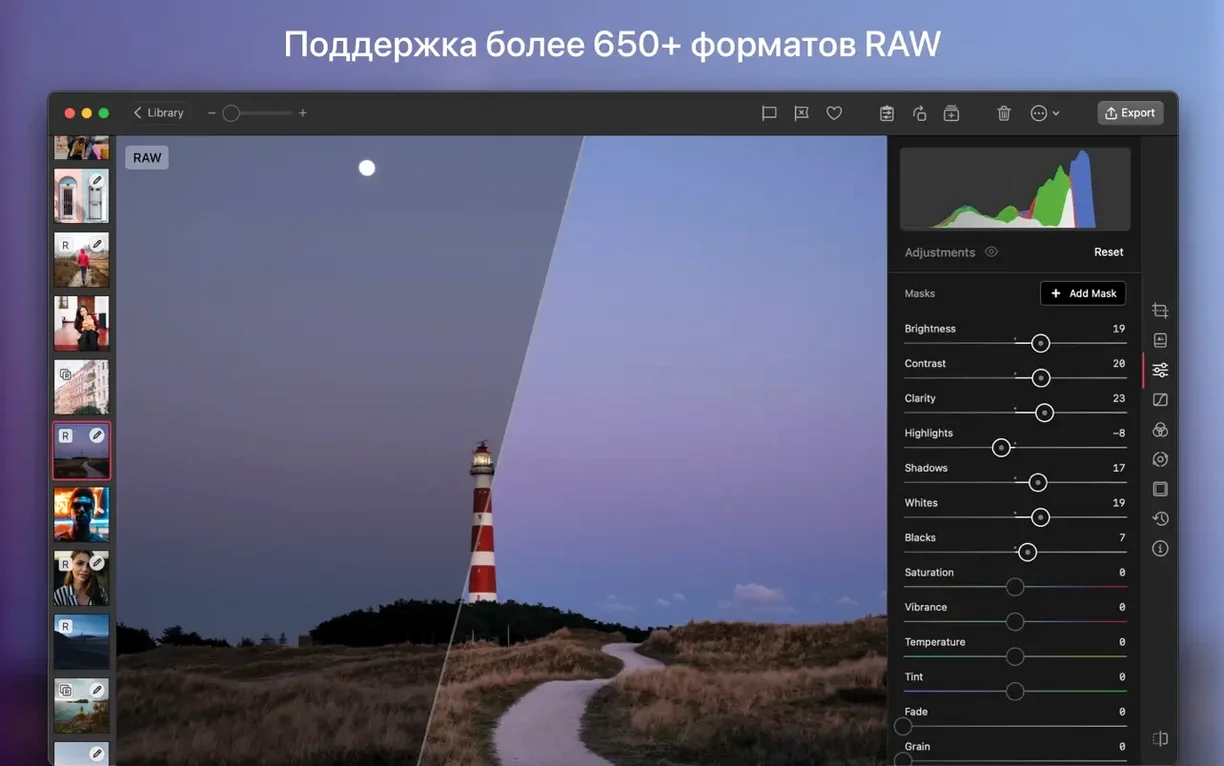
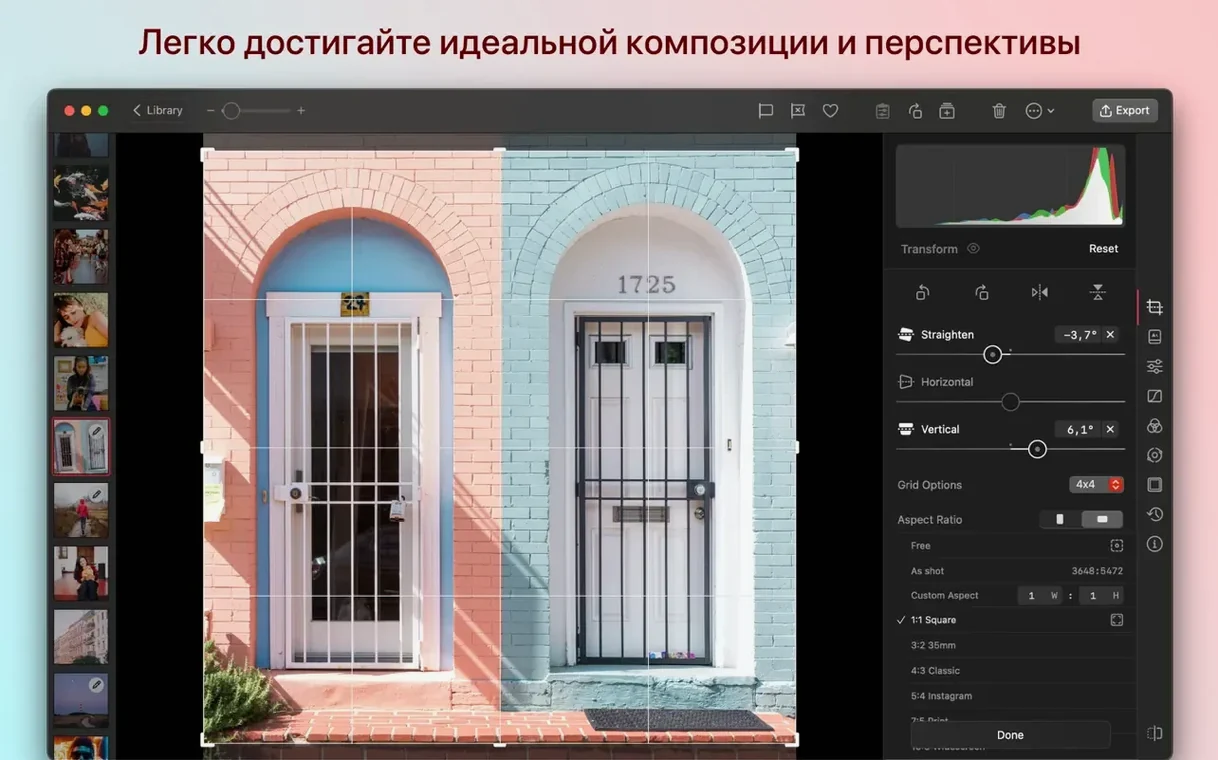
You’re back from a shoot with a card full of raw stills and a few video clips you grabbed in the moment. Darkroom opens straight into your iCloud library, so everything is already there. You flag the keepers with a custom hashtag set, rough-crop the video, then move to the stills where the real work lives.
| Key detail | What it means |
|---|---|
| Version | 7.4 |
| Mac support | Apple Silicon, Intel 64-bit |
| System | macOS 15.4 or later |
| Edits apply to | iCloud photo library |
Version 7.4 pushes deeper into territory experienced editors care about. The Curves tool now allows unconstrained point placement and introduces five HSL Curves—you can pull luminance or saturation on a single colour band without touching the rest of the image. White Balance gets a full rebuild with an automatic correction that actually reads the scene well, saving you from the eyedropper dance. Print support lands on Mac for the first time, and the interface adopts the Liquid Glass design language that feels lighter on larger screens. Because Darkroom reads and writes edits through the standard Apple Photos workflow, nothing locks you in.
Most photographers using a darkroom mac setup worry about one thing first: will this duplicate my library? It won’t. Darkroom reads your iCloud Photos database directly—everything stays in place. Edits are non-destructive and written back through Apple’s own editing pipeline, so you can pick up where you left off in Photos.app anytime.
Another common question is about RAW support. Yes, the app handles RAW from most current cameras, and the processing happens on-device without uploading full-resolution source files somewhere else. People who search for darkroom for mac often ask about performance on Intel machines too. The app is compiled for both Apple Silicon and Intel 64-bit, and the Liquid Glass update in 7.4 actually reduces interface overhead on older Macs—less translucency work, faster window resizing.
And no, you don’t need to learn a new library system. There’s no catalog to manage. The app mirrors your existing album structure and respects any smart albums you’ve already defined.
You launch Darkroom and see your last shoot already sorted by date. This darkroom mac os workflow feels immediate because the app doesn’t scan on startup—it uses the prebuilt Photos index.
You tap into a portrait session. The blur adjustment slider catches your eye first: you pull it back a little, reposition the focus point, and the simulated depth changes in real time. Satisfied, you swipe to a landscape shot where the sky looks clinical. You open Curves, drop two points on the blue channel, and lift the upper quarter just enough to warm the horizon without shifting the greens below. The new HSL Curves let you do that in one move now—no masking required.
You select five frames that share the same lighting, apply your custom filter to the batch, then print a contact sheet directly from the app. The whole session—from library to edits to paper—stays inside one window.
Long-pressing any tool icon reveals a last-used setting, so you don’t retrace menu paths. If you shoot regularly and rely on darkroom macos for quick turnarounds, set up a Siri shortcut to open the app into your most-used album—it’s faster than Finder navigation at 9 a.m.
The hashtag sets aren’t just for social media. You can bind a set to a keyboard shortcut and tag images during review; later, a smart album built on those tags surfaces everything you flagged. On the video side, trimming is frame-accurate and the edit is written back to the original file container without re-encoding the whole clip.
Darkroom 7.6.4 has landed with a handful of under-the-hood tweaks. If you were running into small glitches with the last build, this one smooths them out.
Yes. You can apply edits to video clips directly inside Darkroom on Mac, alongside your photo library.






Chat 0
Hop in or make an account to join the chat.
Quiet in here so far. If you have used this build, tell me what the install actually did.