

Download TechSmith Snagit for macOS
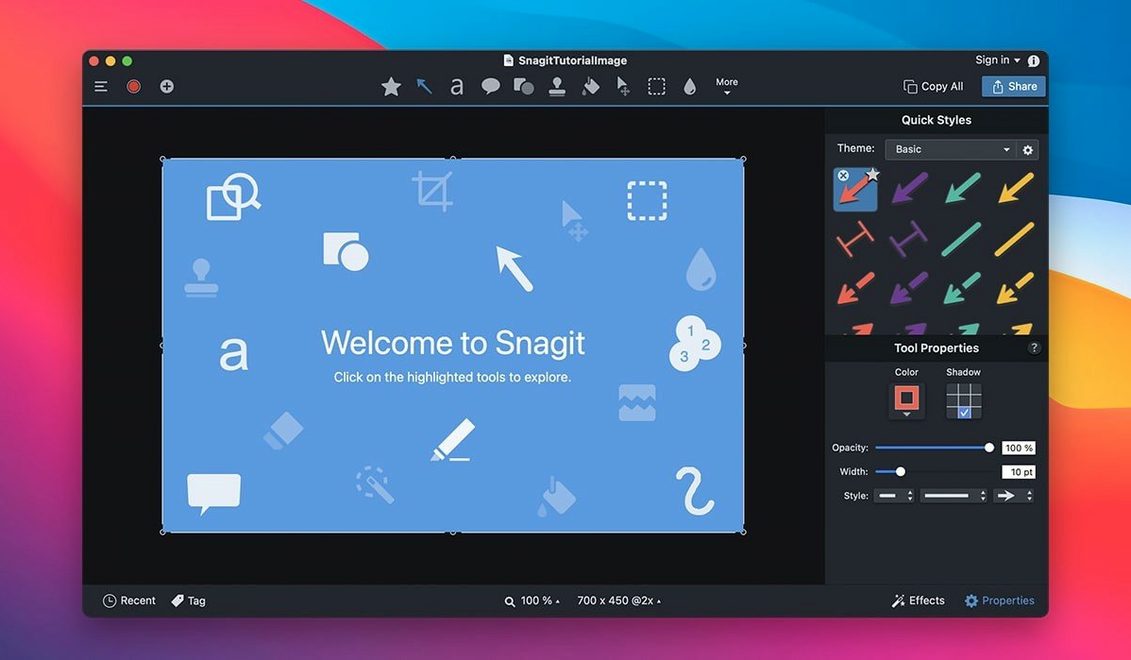
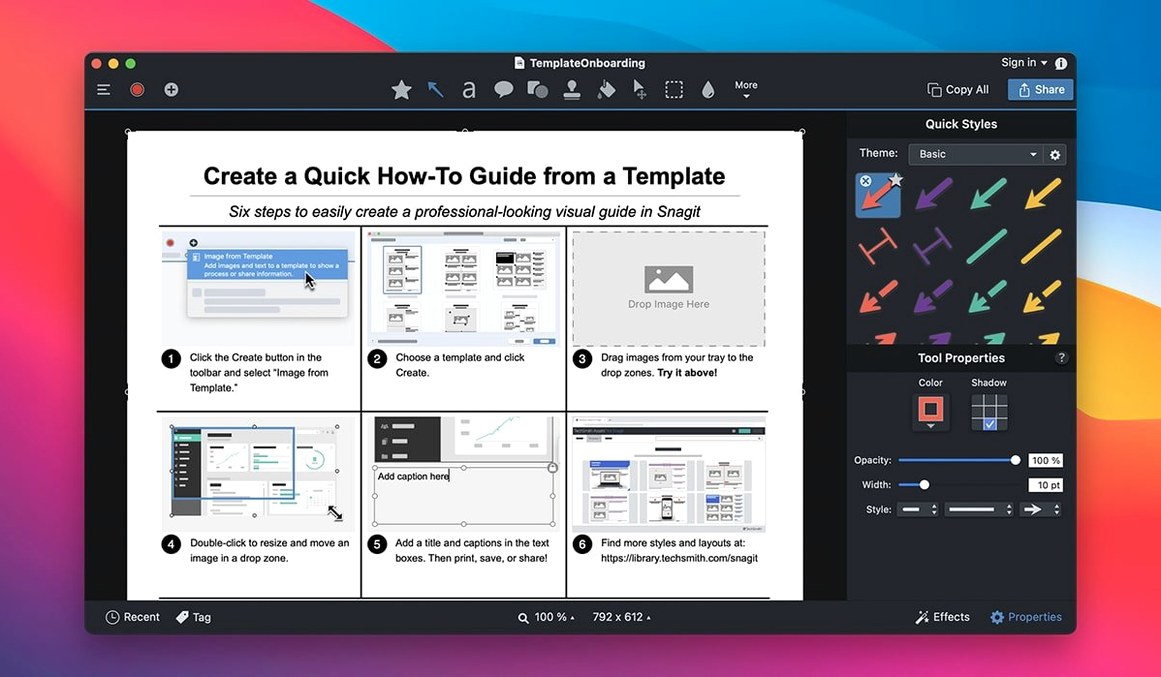
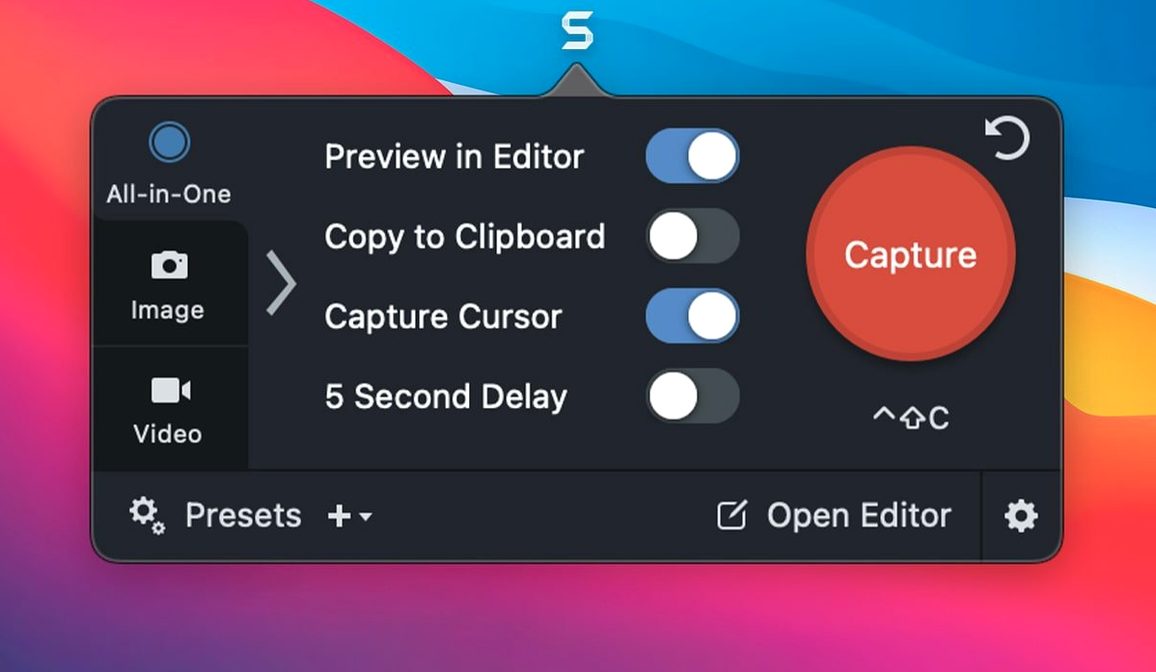
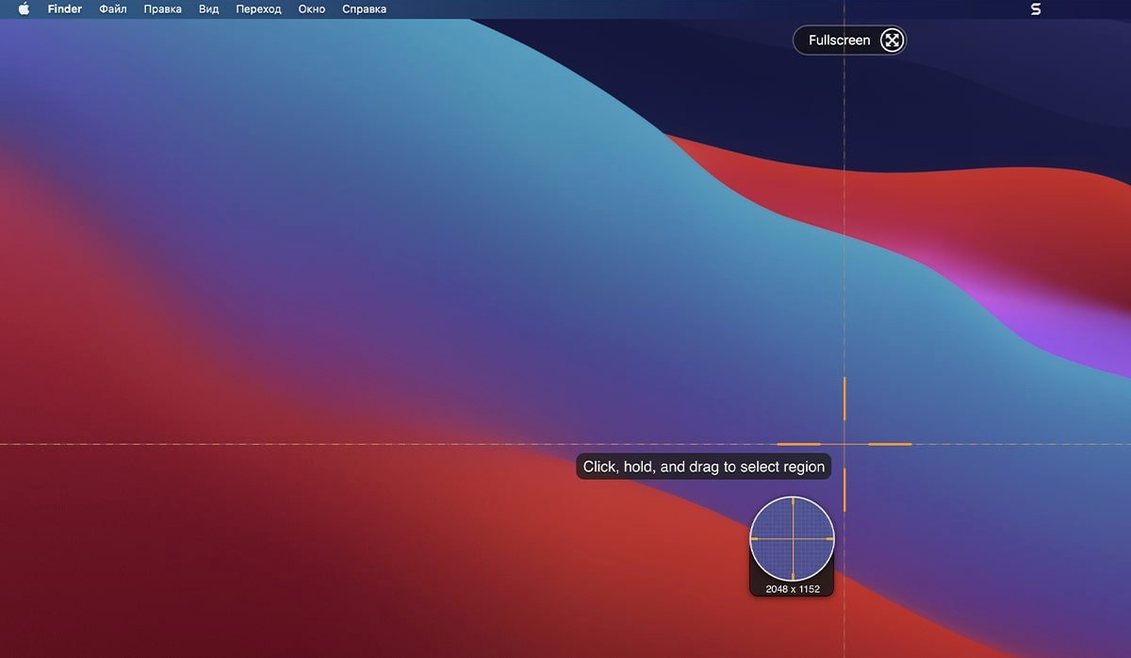
Snagit is a Mac screen capture and recording app built around a simple loop: grab, tidy, send. Here's one realistic pass through it.
- Pick a capture type. Choose from the entire screen, a selected area, a window, or a scrolling window. The scrolling option is handy for long web pages.
- Grab the shot. Snagit opens the capture in its editor straight away. No hunting for files.
- Tidy the image. Crop, add rounded corners, or drop in a page-curl effect. You can also swap the background if the original looks busy.
- Tag it. Assign tags to saved images so the Snagit Library stays searchable later.
- Send it off. Email the capture directly, or publish to OneNote, MindManager, or Microsoft Office Project from the share options.
For web research, text capture pulls words from pages so you don't have to retype them. Screen recording sits alongside the image tools when a short clip explains more than a still. The whole flow leans on the editor as the middle step, which keeps rough grabs from reaching anyone before you've had a chance to clean them up.
Invisible capture for 5K Retina screens
After a week of daily use, Snagit settles into a rhythm that's quick to forget you're even running. The capture engine leans on hardware acceleration where it can, so grabbing a 5K Retina screen or a long scrolling webpage rarely triggers a beachball. On an M-series Mac, the editor opens captures in under a second; on Intel machines it's a blink slower, though still smooth enough to keep a conversation going while you annotate.
Memory use sits around 200–300 MB with a few captures open — modest for a tool that holds full-resolution images in an editable state. The library's search holds up well too. Filtering by creation date or assigned tags gives results without a pause, even when you've accumulated a few thousand grabs. Background recording leaves the system responsive, with no fan spin on Apple Silicon and only a mild lift on older Intel laptops.
The one resource quirk worth knowing: video recording bites harder. A ten-minute screen recording at 30 fps can push memory past 600 MB and warm the chassis noticeably. For quick how-to clips it's a non-issue; for longer sessions you'll want to close other heavy apps first.
Documentation workbench vs. quick annotation
Next to CleanShot X, Snagit feels more like a documentation workbench. CleanShot nails the quick-annotation workflow — hide desktop icons, snap, draw an arrow, copy a link — but stops short of the library tagging and Office-publishing hooks Snagit carries. If your day swings between Slack replies and Notion pages, CleanShot's speed wins. If you're building a searchable image library or firing captures into OneNote and MindManager, Snagit pulls ahead.
Against Shottr, the gap is even clearer. Shottr is a featherweight pixel-measuring, text-extracting marvel that loads from the menu bar and barely touches RAM. It's the tool you reach for when a designer asks for spacing values or a developer needs a quick color pick. Snagit costs more screen real estate and a bit more patience at launch, but it answers the question "where did I put that screenshot from last Tuesday?" in a way Shottr never attempts.
Monosnap sits somewhere between them, with a capable editor and cloud storage built in. Snagit's edge is the sheer number of output paths: email, FTP, Office Project, MindManager. Monosnap covers the cloud-sharing angle well, but if your team lives in Microsoft's ecosystem, Snagit's integration list reads like a feature list rather than a shortcoming.
First days, well spent
A few moves early on will save you from swimming in unsorted grabs by the end of the week.
- Set three capture presets. One for full-screen grabs (Control-Shift-1), one for a 1280×800 selection for help articles, and one for the scrolling window tool. Assign keyboard shortcuts to each. Your fingers will thank you by Tuesday.
- Tag from the start. The library auto-organizes by date, but tags make the difference between "I'll find it eventually" and "there it is." Apply a project or client tag immediately after each capture — the editor has a tag field right in the sidebar.
- Edit before you share. Snagit drops every capture into the editor automatically. Use it. A quick crop, a dimmed background behind a callout, or rounded corners on a UI screenshot turn a rough grab into something that looks considered, not careless.
- Test text capture on a dense page. Open a documentation site, trigger text capture, and drag over a block of text. Check how it handles line breaks and formatting — you'll quickly learn which pages copy cleanly and which need a touch-up pass.
- Try a collage early. Grab three related screenshots, select them in the library, and hit the collage button. It's a fast way to build comparison graphics without opening a separate layout tool.
Version 2026.4.0 rolls out with a fresh batch of under-the-hood fixes and refinements from the developer.
- macOS 15 or later
- Apple Silicon or Intel 64-bit Mac
Questions I get
Yes. Alongside full-screen, area, and window captures, Snagit supports scrolling window capture for long pages, and it can record the screen on macOS.
 ScreenFlow
 Screen Studio
 Presentify
 Movavi Screen Recorder
 CleanShot X
 Camtasia
Chat 0
Hop in or make an account to join the chat.
Quiet in here so far. If you have used this build, tell me what the install actually did.