
Download Screen Studio for macOS
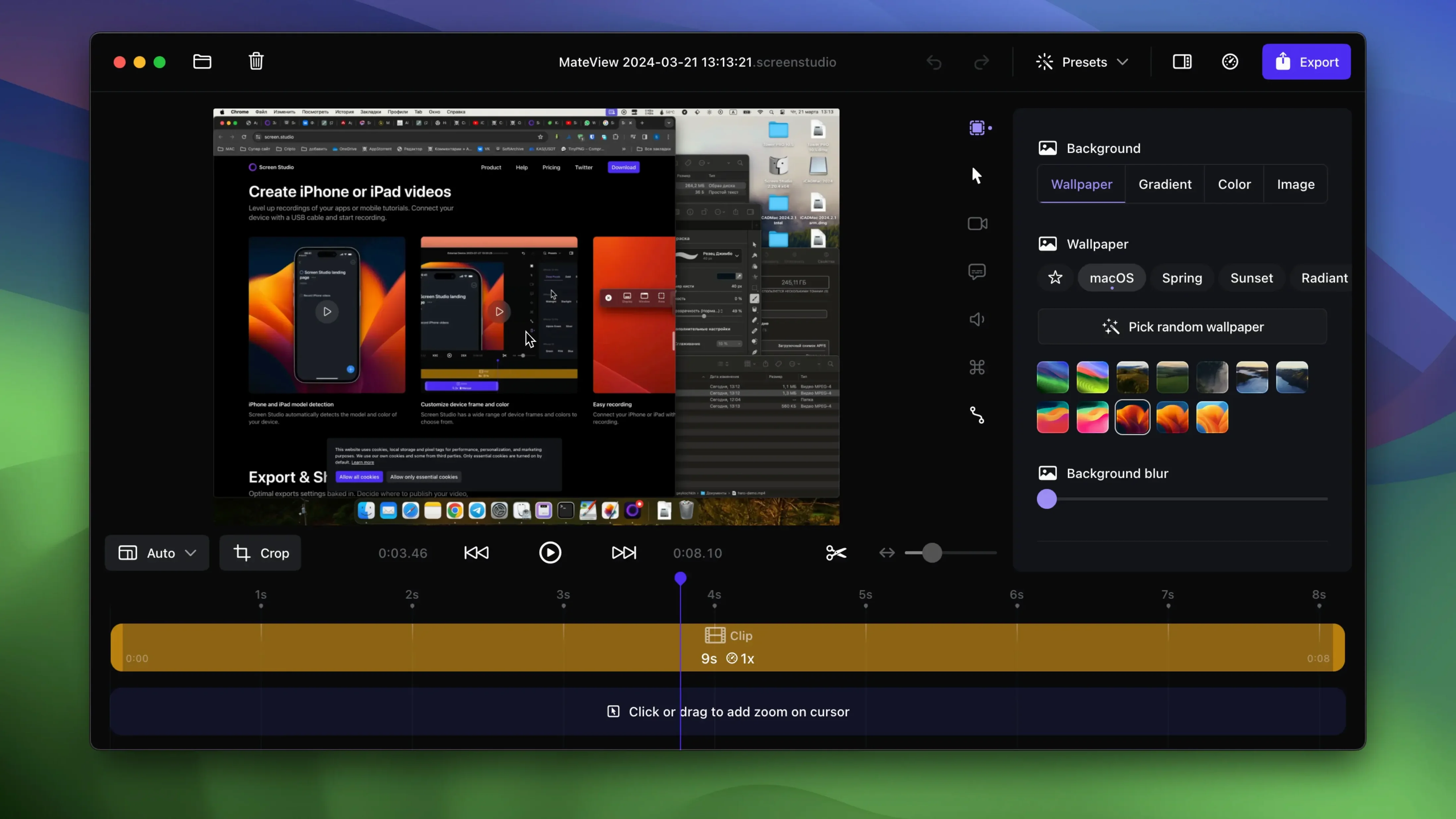
Most screen recordings need cleanup. You trim dead air, add a zoom to highlight a click, or tweak the cursor so it’s actually visible. Screen Studio handles that work right from the recording — automatic zooms, cursor smoothing, and motion that follows your actions without you keyframing a thing.
Cursor and shortcut clarity for app demos
- Recording app demos where the cursor and clicks need to read clearly
- Capturing keyboard shortcuts and displaying them on screen automatically
- Pulling system audio from all apps, or just the one you pick
- Connecting an iPhone or iPad via USB and recording its screen directly
- Exporting quick GIFs without hopping to another tool
- Sharing a link to a video straight after export
Adjust background and padding after recording
- You can adjust background, spacing, shadow, and padding after recording
- Manual zoom selection is available during editing, not just the auto zoom
- Exports go up to 4K at 60 frames per second
- Works with webcam, microphone, and system audio together
Taming auto-zoom when mouse moves fast
A few things trip people up in the first week. The auto-zoom can feel aggressive if you move the mouse quickly between clicks — it tries to follow everything and lands on a zoom level that doesn’t suit the shot. Drag the zoom change lower on the timeline and shorten its duration. That one move fixes most jumpy recordings.
System audio capture sometimes grabs nothing on the first try, especially if you switch from “all apps” to a single app mid-session. Quit Screen Studio, reopen it, and pick your audio source before you hit record. That clears the routing.
Connected iPhone recordings occasionally show a black screen with audio only. Unplug the cable, unlock the phone, plug it back in, and wait for the device name to appear in the source dropdown. It won’t handshake if the phone is locked or if another app is using the video feed.
Export a 30-second clip three ways
Start with a 30-second clip of anything — a Finder window, a website, a settings pane. Export it three ways: horizontal 4K, vertical 1080p, and a GIF. That run gives you a feel for how the scaling and padding behave, and you’ll spot which export preset matches your usual output before you record anything important.
Turn on keyboard shortcut display in preferences. It’s off by default, and it’s the feature most new users don’t find until someone points it out. If you make tutorial videos, this alone saves you from adding text overlays in another editor.
Set up a folder for Screen Studio exports. The app doesn’t enforce one, and recordings pile up on the desktop fast. A dedicated folder with subfolders per project keeps things tidy from day one.
Hide desktop icons before you hit record
The biggest one: recording at full screen with desktop icons visible, then trying to crop them out later. Hide desktop icons before recording — there’s a toggle in the app for it. Cropping after the fact cuts into your background padding and makes the framing look cramped.
Another is ignoring the cursor size after recording. The default size works for Retina displays, but on an external 1080p monitor the cursor looks tiny in the export. Bump it up two or three points in the editor and check the preview before exporting.
People also leave the selfie overlay at full size and then wonder why their face blocks the UI they’re demonstrating. Shrink it to a small circle in the corner with a subtle shadow. The app can do that in two clicks — it’s in the overlay settings, not hidden anywhere.
For those searching for a screen studio license key free option or a screen studio download that skips the usual steps, the package you get here includes everything. No need to hunt for a screen studio cracked build or a separate screen studio crack — the installer is ready to go, and activation is handled. If you previously used a screen studio crack for mac and want to ensure smooth exports, a clean install from this version keeps everything running beautifully.
No dropped frames at 4K 60 fps on M1
Screen Studio runs natively on Apple Silicon and Intel. On an M1 or M2 Mac it stays responsive during recording — no dropped frames at 4K 60 fps with system audio and webcam active. The recording engine keeps the file in a compressed format from the start, so you’re not chewing through disk space at raw ProRes rates.
Memory use sits around 400–600 MB during editing, which is low for a video tool handling 4K timelines. Export times are quick: a two-minute 4K clip with zooms and a webcam overlay takes roughly 40–50 seconds to export on an M1 Pro. The local transcript generation adds a few seconds but doesn’t block you from working on other things.
One stability note: if you leave a recording session open for hours without saving, the app can beachball when you finally hit stop. Save clips as you go. For longer sessions — 30 minutes or more — break them into chunks. It’s not a crash-prone app, but long continuous recordings push the undo stack and memory harder than short takes.
- macOS 13 or later
- Apple Silicon and Intel Macs
Questions I get
Yes, you can plug in an iPhone or iPad by USB and record its screen directly from the Mac app.
It can capture keyboard shortcuts as you press them and display the key combinations in the video.
 ScreenFlow
 Presentify
 TechSmith Snagit
 Movavi Screen Recorder
 CleanShot X
 Camtasia
Chat 0
Hop in or make an account to join the chat.
Quiet in here so far. If you have used this build, tell me what the install actually did.