
 PDF Reader Pro
 PDFelement Pro
 OmniReader Pro
 OmniPlan Pro
 Nitro PDF Pro
 QuickBooks Mac Plus
 Scrivener
 Microsoft Word

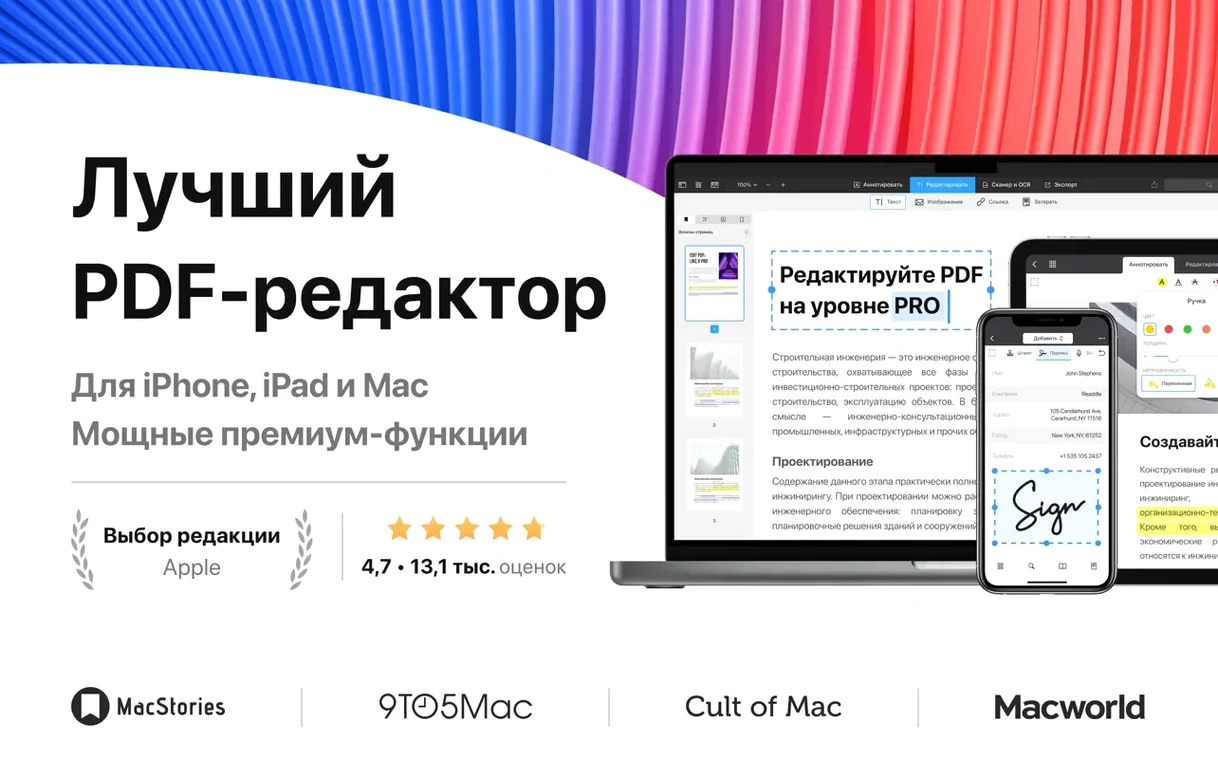
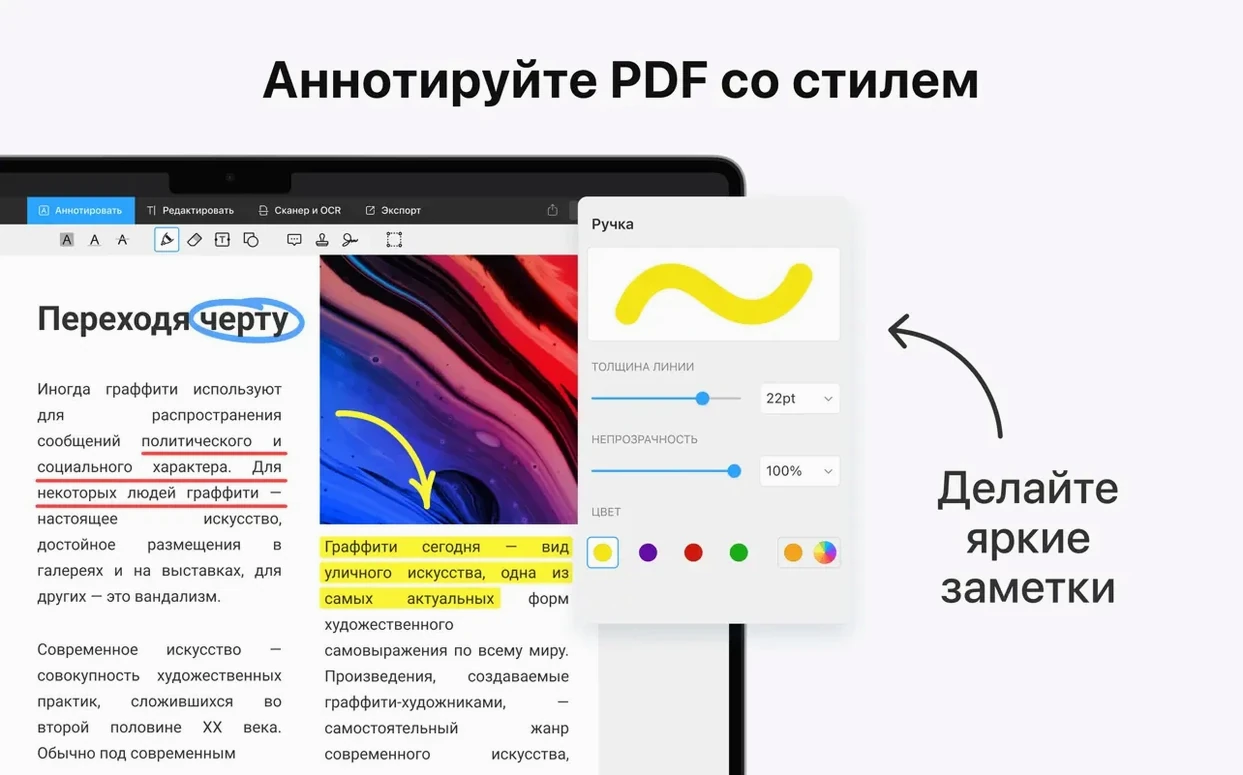
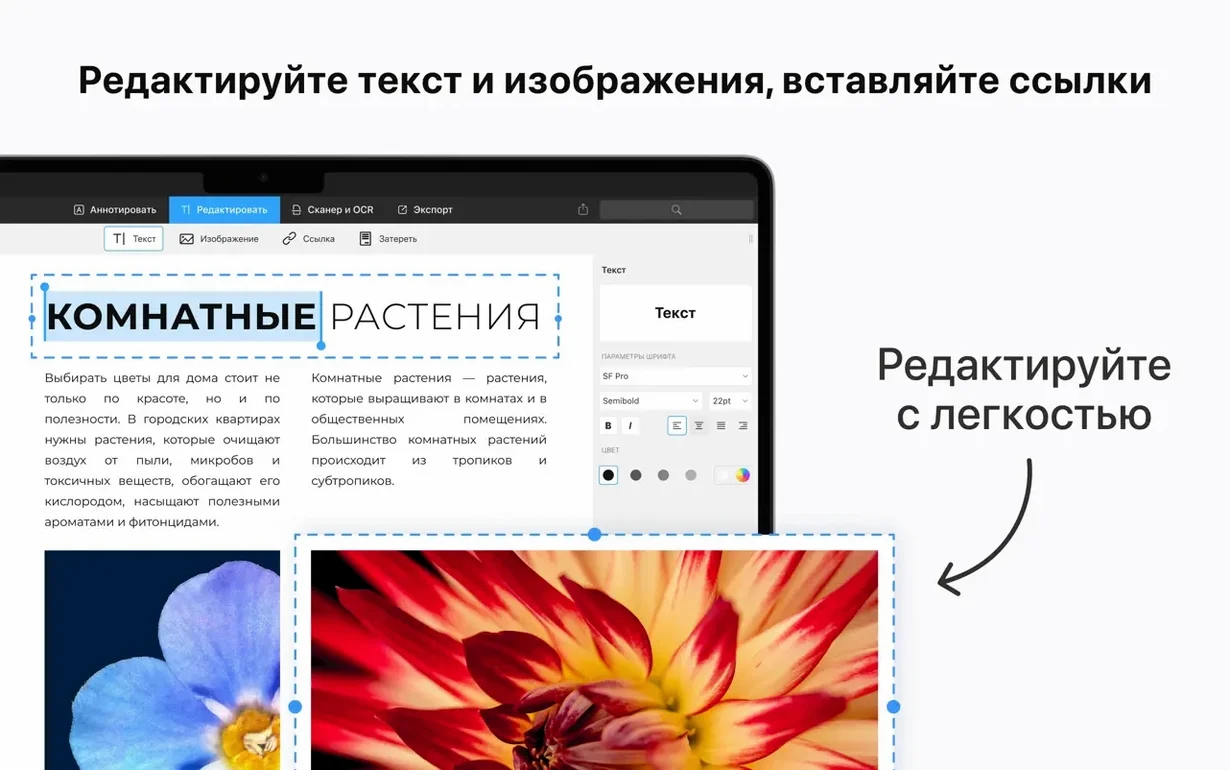
The current version keeps the tools sharp without changing the feel. Text editing, image replacement, and form logic all work the way an experienced user expects — precise and without fuss. Handoff support means picking up a contract on an iPad feels immediate, not like a workaround.
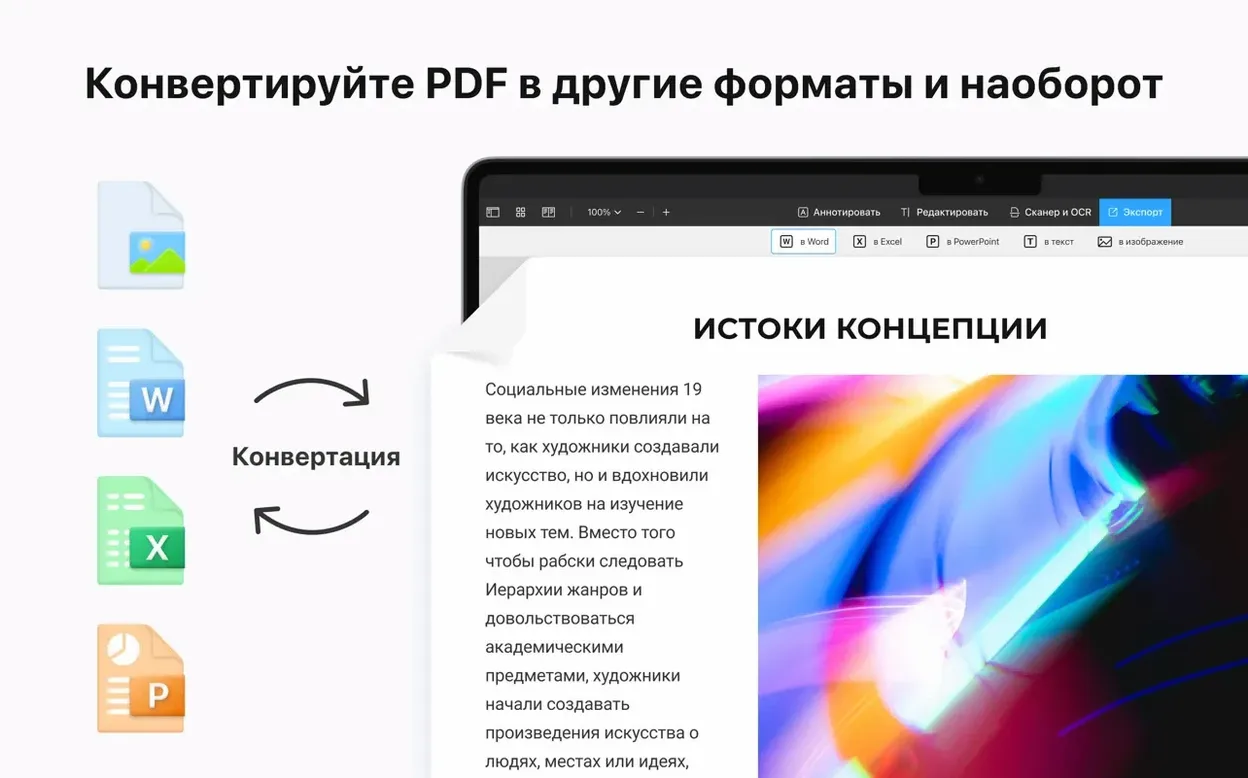
Editing images inside a PDF is often where editors stumble. Here, you can resize, rotate, or swap out a graphic directly on the page. Adding links and setting passwords takes a few clicks, not a trip through a preferences maze. For documents that arrive as Word, Pages, or Docs files, the conversion to PDF keeps the layout intact. Signing is straightforward: draw or save your signature once and just stamp it into forms from then on.
It supports Handoff across iPhone and iPad, so moving a marked-up document back to the Mac is immediate. The app runs on Apple Silicon and Intel, asking for macOS 12 or later. If you regularly fill forms, edit body text, or need a quick password layer on a file before sharing, the toolset covers those without extra fluff.
Imagine someone who spends Tuesday mornings digging through academic papers and grant applications. They download a batch of PDFs from a journal site, open the first one in PDF Expert, and start highlighting passages in different colours — yellow for methodology notes, blue for citations worth following. The highlighter snaps to the text baseline instead of wobbling, so the page stays readable. By mid-morning they need to fill a university form that arrived as a flat PDF. They click into the first field, type their department name, and tab through the rest without the text jumping or the alignment breaking. Before lunch, they merge three signed forms and a cover letter into a single file and set a password on it. The whole morning happens in one app, no printing or scanning involved.
Spend ten minutes setting up your signature. Draw it once with the trackpad or scan it from paper, and the app stores a clean vector version you can drop onto any page later. Next, run a quick form through the auto-detect logic — open a PDF with fillable fields and watch how the cursor lands. Tabbing between fields is the fastest way to spot any alignment quirks before you send the document out. On day two, try converting a multi-page Pages document to PDF and compare the line breaks to a print preview. The conversion usually preserves tables and footnotes without shifting them. By day three, it helps to pin the annotation toolbar into a layout that matches your most common task, whether that's highlighting research or redlining contracts.
A few things don't announce themselves. You can add a clickable table of contents to a scanned document by dragging headings into the sidebar — useful when a client sends a fifty-page report without bookmarks. The link tool isn't just for URLs; you can draw a rectangle over any area and link it to another page in the same file, which turns a floor plan or a product catalogue into something navigable. When you swap an image, holding Shift while resizing keeps the aspect ratio locked, so a logo replacement doesn't stretch. The search field also scans annotations, not just body text, meaning you can find every instance of "revised" scribbled in a margin across a long document. Signatures you save sync over Handoff, so a signature added on an iPhone appears on the Mac before you've even opened the lid.
Not completely, but it covers the tasks Preview handles and then goes further. Preview can fill forms and add signatures, but it can't edit the body text of a PDF or replace an embedded image. PDF Expert covers those gaps while keeping the markup tools quick. For reading and light highlighting, Preview is still fine; for everything else, the extra tools save a round trip to a different app.
Yes, as long as you have the password. The app respects file encryption and doesn't strip restrictions without the owner's credentials. You can also set your own passwords on documents before emailing them, which adds a simple barrier without third-party tools.
Most of the time it does. Bullet points, tables, and embedded images usually carry over intact. Complex layouts with tightly wrapped text boxes can occasionally shift a line, but the same thing happens in print previews. For standard reports and letters, the output is clean enough to send without tweaking.
When you open the app on an iPad or iPhone nearby, the Dock or task switcher shows a small PDF Expert icon. Click it, and the exact page you were viewing on the other device opens. It works between Mac and iPhone too, as long as both devices share an Apple ID and Bluetooth is on. No manual saving or cloud folder needed for the handoff itself, though iCloud Drive helps if you want the file available everywhere regardless of Handoff state.
The app doesn't alter your original file until you save changes explicitly. You can annotate and edit freely, but if you close without saving, the original PDF stays untouched. That makes it safe to experiment on a client's document without worrying about accidental overwrites.
Yes, you can edit existing body text and resize, rotate, or replace images directly on the page.
Open the file in PDF Expert and use the convert option; the layout transfers cleanly into a PDF.








Chat 0
Hop in or make an account to join the chat.
Quiet in here so far. If you have used this build, tell me what the install actually did.