
 OmniPlan Pro
 Nitro PDF Pro
 PDF Expert
 PDF Reader Pro
 PDFelement Pro
 QuickBooks Mac Plus
 Microsoft Word
 Microsoft PowerPoint


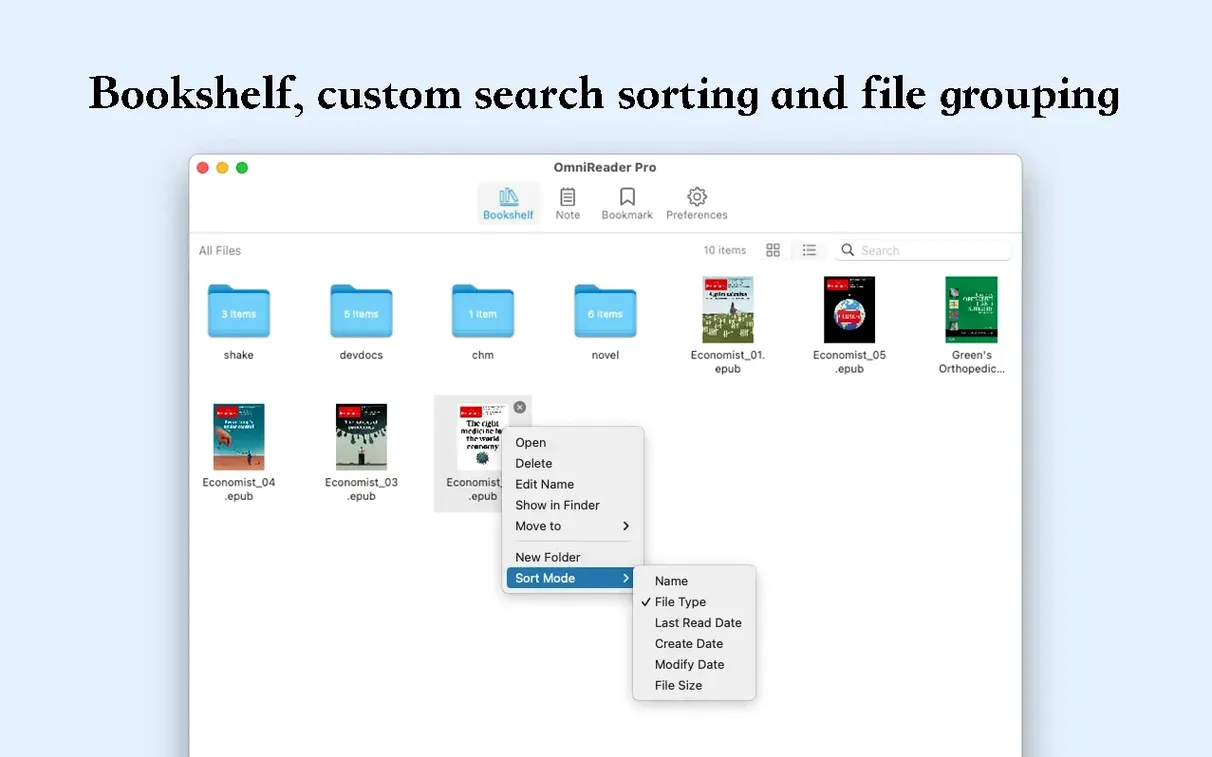
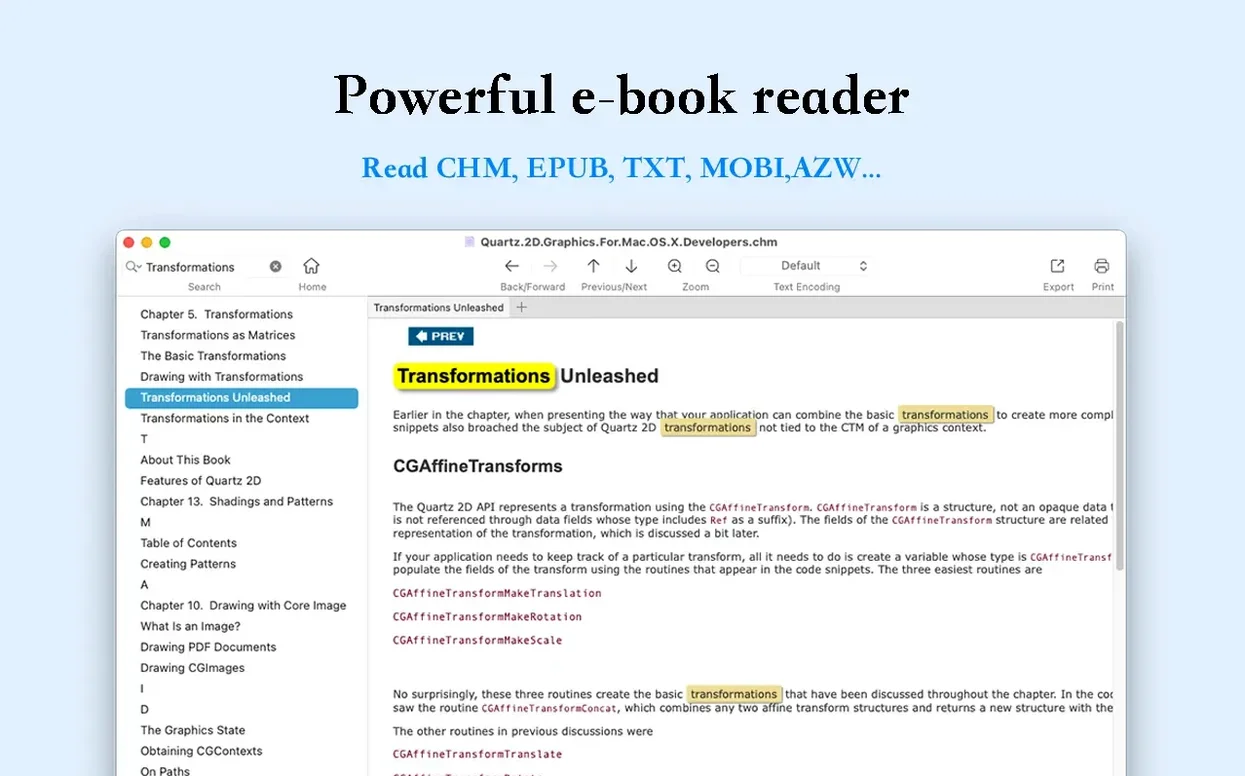
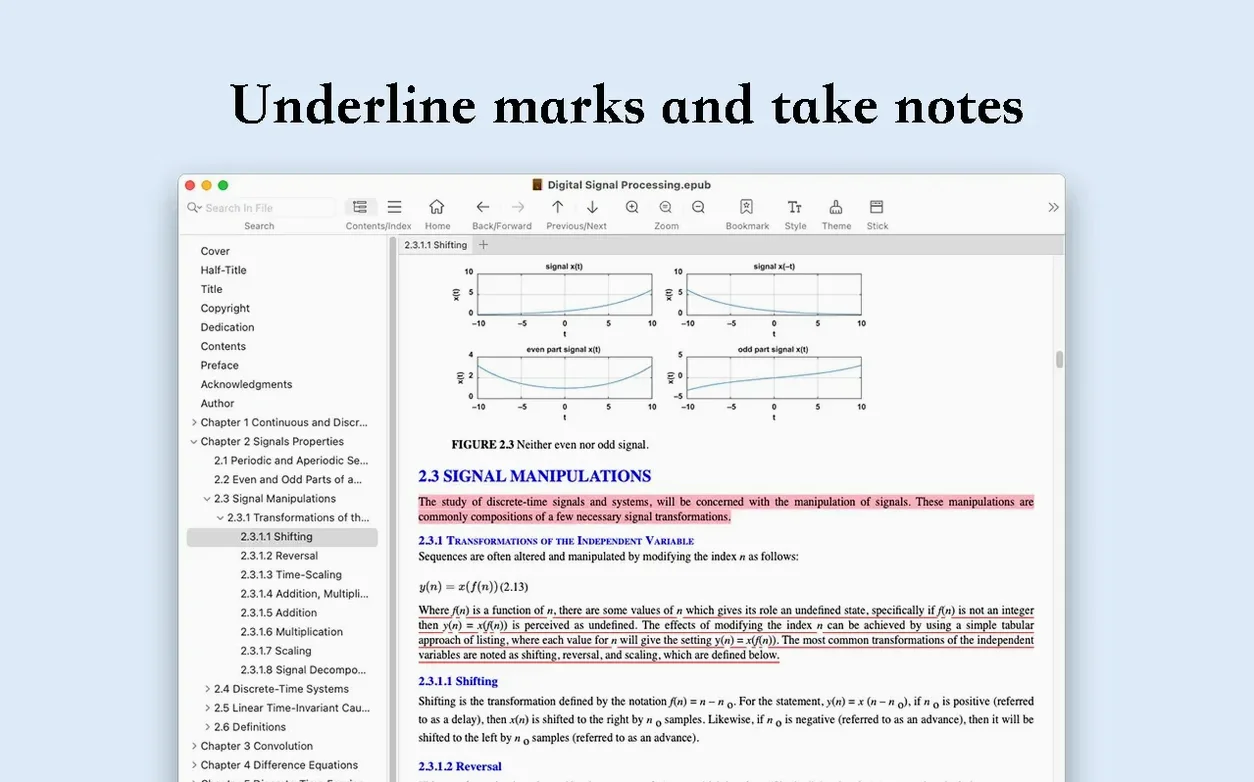
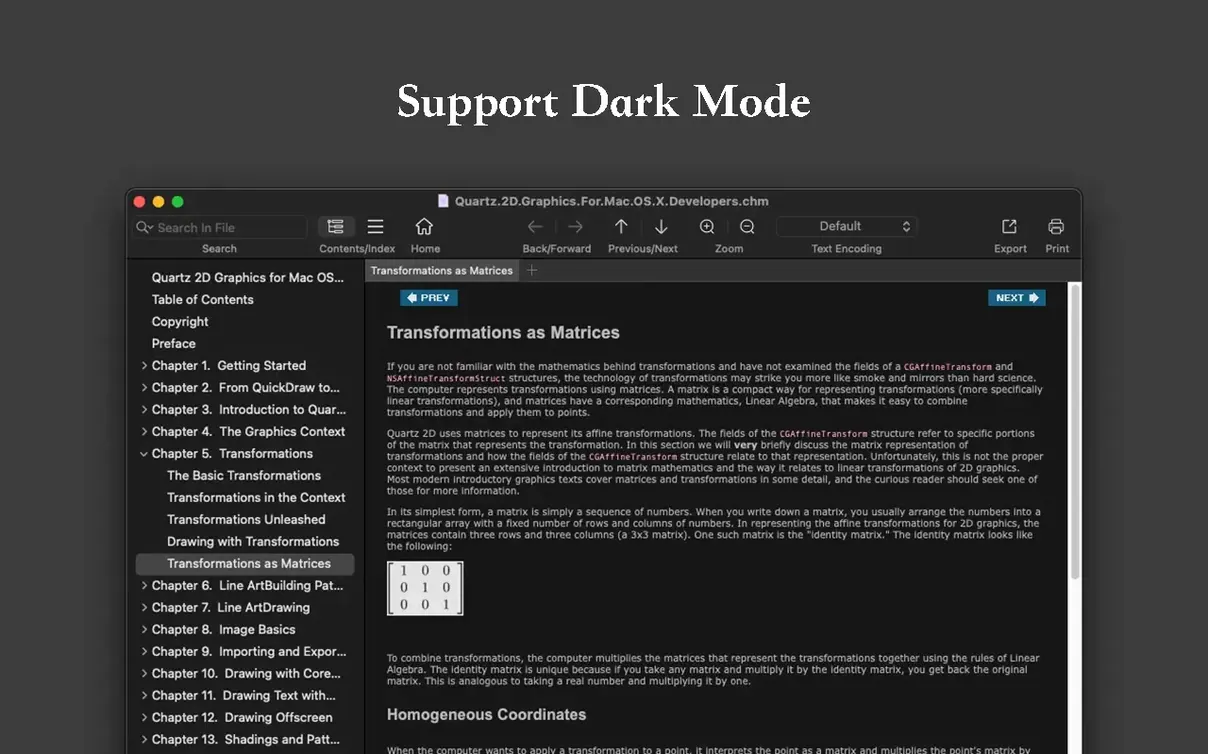
Most ebook readers feel like they were designed by someone who's never actually sat down to read. Cluttered toolbars, spotty format support, and search that can't find a sentence you read ten minutes ago. OmniReader Pro strips that back. It opens your books and documents in a clean, adjustable layout and stays out of your way.
| What it does | File types |
|---|---|
| Read, search, flip through history | EPUB, CHM, Kindle |
| Export finished work | EPUB, PDF |
You get a sidebar you can collapse, smooth page turning, and zoom that behaves. Images auto-resize so you're not squinting or scrolling sideways. The search works two ways — page by page or across the whole book — and it highlights every match so nothing hides. A reading history remembers where you've been, which sounds minor until you've flipped back three chapters chasing a detail. If you've got a pile of old Kindle files or CHM documentation and just want to open them on a Mac without fuss, this fits.
Open OmniReader Pro and you're usually back on the last page you read, no splash screen or file-picker dance. The sidebar sits collapsed by default on a smaller MacBook screen, which feels right — you didn't launch a reader to stare at library chrome. I tend to drag in an EPUB or a CHM reference doc straight from Finder.
Here's a typical session with a technical EPUB. First thing I do is hit the full-text search, type a class name or a config key, and watch the results panel populate. OmniReader highlights every match in pale yellow, and you can click through them one by one — each click jumps you directly to that spot in the text. No scrolling guesswork. If I've followed a chain of searches and page turns and need to retrace my steps, the forward/back history arrows up top act like a browser's, so three chapters of wandering collapse to a few clicks.
When the sidebar is open, it shows a clean chapter tree. Page turning is either a trackpad swipe or a single key press. Zoom only affects the content pane — the interface doesn't balloon along with it, so buttons stay where you left them. If I'm pulling images from a manual, I'll use the image extraction feature: one command dumps every image into a folder, auto-resized, no dialogue boxes asking about compression or format. It's quick enough that I don't mentally schedule it as a task; it's just a thing that happens while I'm reading.
On a reference-heavy day, I'll have an EPUB open on the left half of the screen and a notes app on the right. OmniReader handles the half-width layout without collapsing the text into a narrow column — it reflows naturally. If the source file has encoding quirks and Chinese characters show as garbage, the encoding-handling menu fixes it in one selection. That's the kind of friction removal you notice when you've lost an afternoon to Mojibake in another reader.
People with mixed-format libraries notice OmniReader Pro fastest. If your reading pile includes old CHM programming books, Kindle files from before you switched ecosystems, and current EPUBs, you stop juggling three apps. The CHM support in particular is rarer than it should be on modern macOS, and it renders them without breaking the table of contents.
Non-fiction readers who search heavily — students, developers, researchers — lean on the dual search modes and the history stack more than casual fiction readers would. The ability to search within a page and across the whole book from the same toolbar cuts down the cognitive step of deciding where to search. You just search, and the matches appear.
Mac users on older hardware also benefit. The 10.13 minimum and native support for both Apple Silicon and Intel mean it runs on machines that newer Electron-based readers have long abandoned. The app stays responsive during full-text searches on large files, which isn't a given at this end of the weight scale.
Version 3.4.4 tightened the export path. EPUB-to-PDF conversion keeps more of the original formatting than earlier builds did — chapter headings land where you expect them, and inline images don't shift to orphaned pages. The image extraction feature got quieter, with fewer prompts and faster batch output.
The encoding-handling menu expanded. If you work with dual-language documents or files sourced from different regions, the app now remembers your encoding choice per file rather than resetting on each open. Small thing, but it means a Chinese-simplified CHM and an English EPUB can sit side by side without constant menu visits.
Page-print fidelity improved as well. Earlier versions sometimes clipped margins on dense layouts; the current build respects the original page geometry more faithfully, which matters when you're printing a chapter for markup.
Yes, it supports both page search and full-text search across the entire book, with highlighted results so you can spot matches quickly.









Chat 0
Hop in or make an account to join the chat.
Quiet in here so far. If you have used this build, tell me what the install actually did.