
Download CleanShot X for macOS
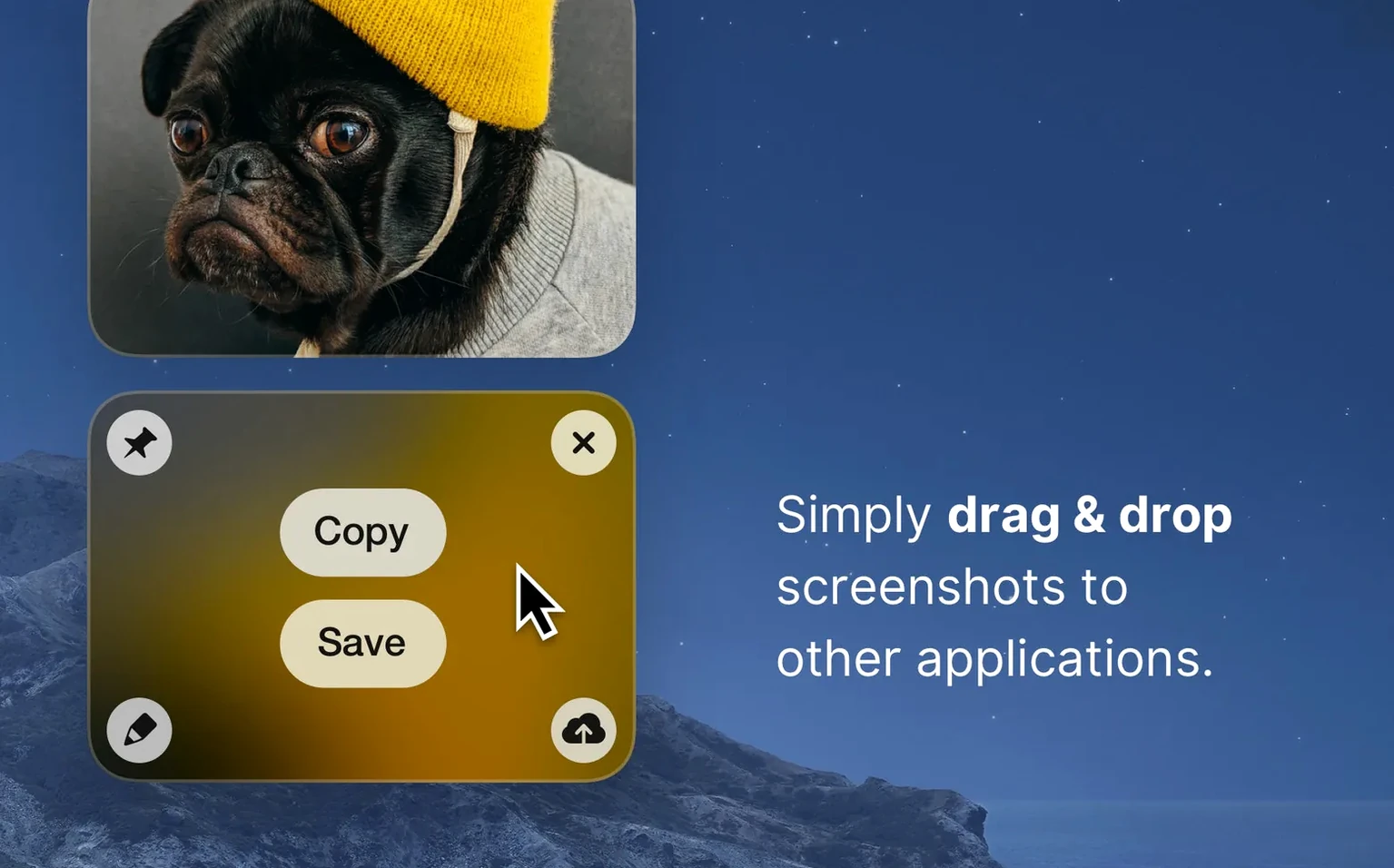
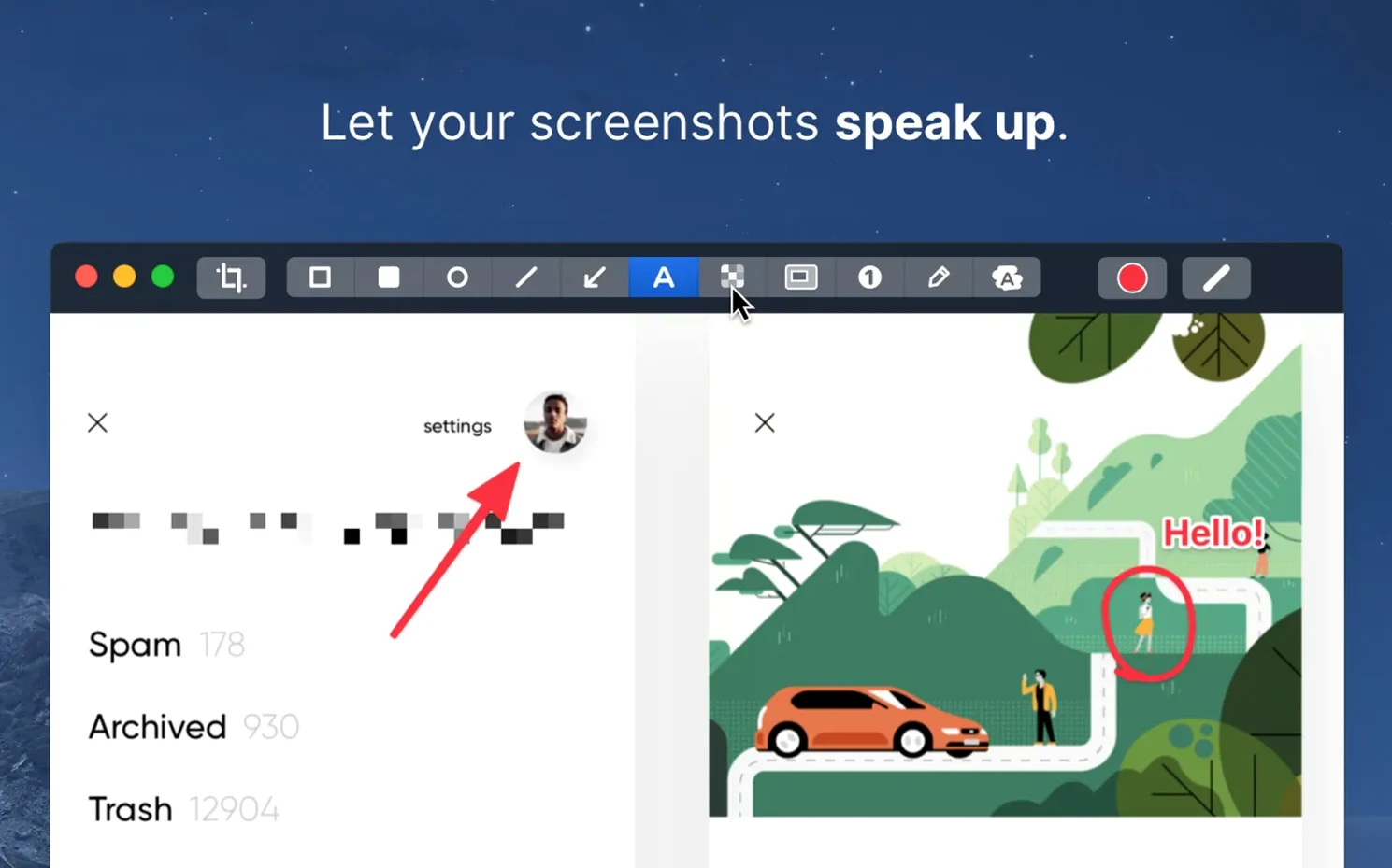
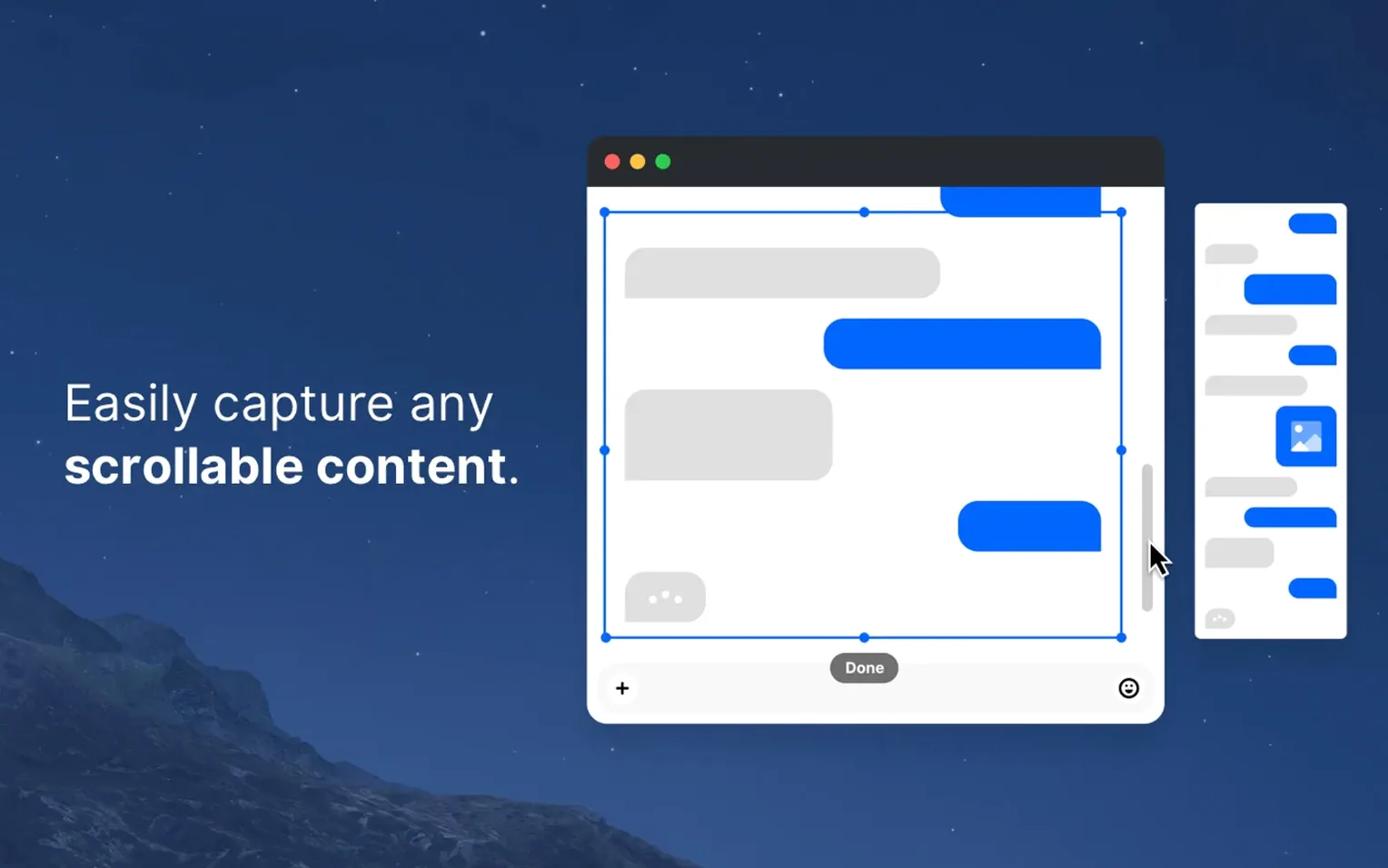
If you've ever held down Shift-Command-4 and wished for just a little more say over the result, CleanShot X is that wish granted. It's the tool you reach for when the built-in macOS grabber feels too blunt—especially once you discover features like hiding desktop clutter before the shutter fires or pinning a reference image so it floats above every other window while you work.
Hide icons and silence notifications for clean captures
| What you control | Why it matters |
|---|---|
| Desktop icon hiding | Clean captures without manually tidying folders first |
| Notification suppression | Recordings stay uninterrupted by banners or alerts |
| Floating pin | Keep a screenshot visible as an always-on-top reference |
| Timed capture | Set a delay so you can position menus or tooltips |
| Built-in annotation | Highlight, hide, or comment without opening another app |
Version 5.0 landed in September 2026 with a major refresh, folding screenshot tools and video editing into a single Mac-native workflow. The editor handles the obvious—arrows, text, blur—but it's the smaller thinking that sticks: a timer before capture, the option to mute notifications during a recording, and that floating pin that saves you from juggling windows. It's a collection of quiet quality-of-life moves that add up to a noticeably smoother day.
Menu bar launch feels immediate, even on Intel Macs
Launching CleanShot X from the menu bar feels immediate—no splash screen, no warm-up delay. The capture overlay appears in a blink, even on older Intel Macs running macOS 11. Memory use tends to sit around 120–180 MB during normal screenshot work, which is modest for a tool that also handles video encoding.
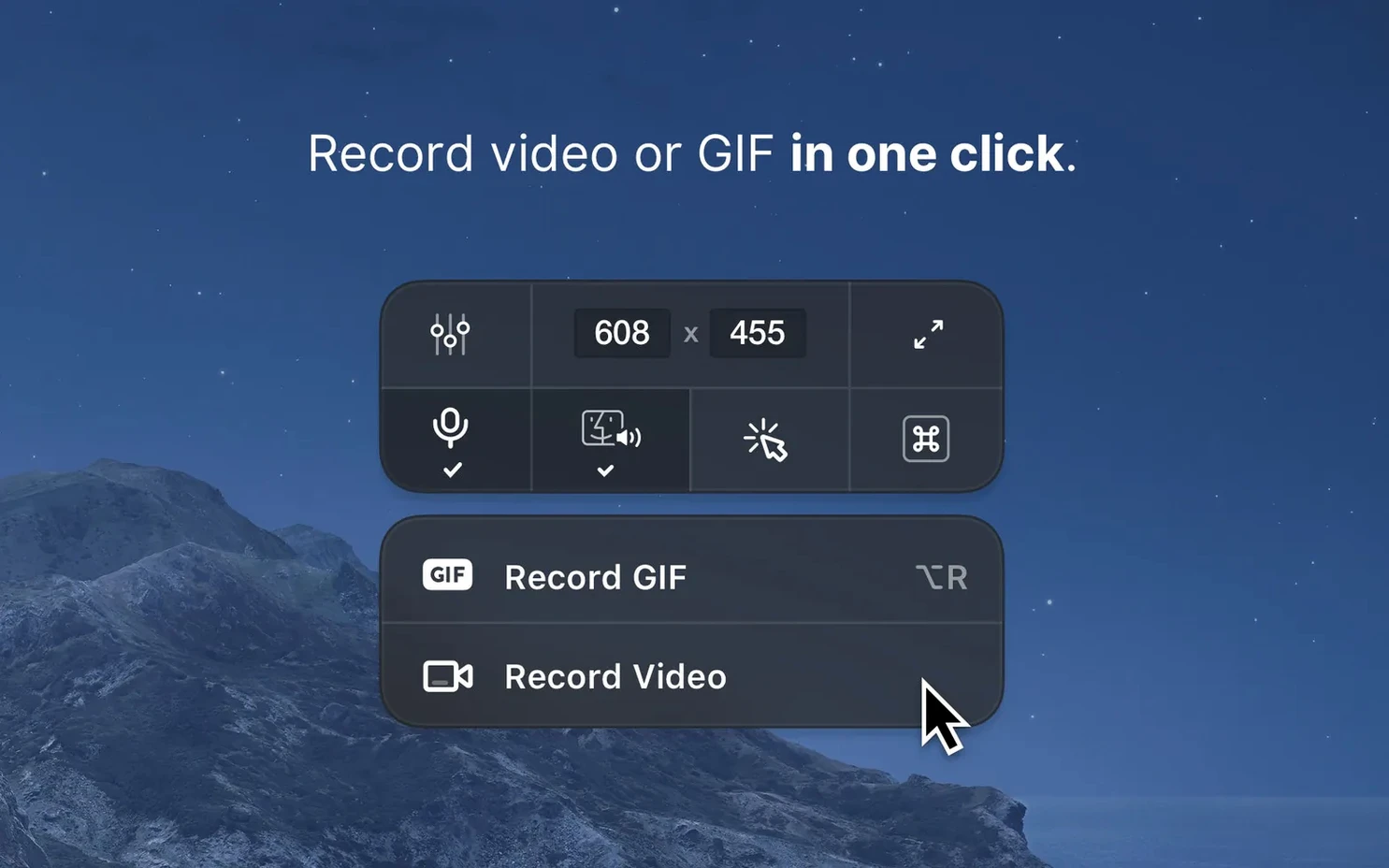
Recording sessions are where resource use climbs, naturally. A 4K screen recording at 30 fps pushes CPU usage into the 15–25% range on Apple Silicon, with the fans staying quiet throughout. The app leans on hardware encoding where it can, so exports finish quickly and the machine stays responsive for other tasks. I've had it running alongside Figma and a dozen browser tabs without a stutter.
Stability has been uneventful in the best way. Over weeks of daily use—grabbing scrolling windows, recording short GIFs, annotating on the fly—there hasn't been a single crash. The pinned screenshot feature, which could easily become a memory leak in less careful hands, holds steady even when left floating for hours.
Version 5.0 merged screen capture and recording into one panel
The jump to version 5.0 in September 2026 wasn't a quiet polish. It merged what used to feel like two separate utilities—screen capture and screen recording—into one coherent panel. Before, switching between a still grab and a video recording meant a mental mode switch. Now the overlay presents both options side by side, and the tool remembers your last choice.
Everyday workflows got tighter. The editor no longer feels bolted on; it opens instantly after a capture, with tools arranged in a horizontal strip that stays out of your way. Scrolling captures, once a bit hit-or-miss in older releases, now handle dynamic content like web pages with lazy-loaded images more reliably. The timer control moved from a submenu to the main capture bar—a small relocation that saves three clicks every time you need to catch a tooltip.
Version 5.0.1 followed with minor bug fixes and improvements. Nothing flashy, but the kind of tidy-up that keeps the app feeling solid day after day.
Right-click the menu bar icon to bypass the overlay
- Right-click the menu bar icon for a quick capture menu. It bypasses the overlay entirely when you know exactly what you want—full screen, previous area, or open the editor on your last shot.
- Hold Option while drawing a region to resize from the centre instead of the corner. Tiny detail, but it makes precision selections feel less fiddly.
- Drag a screenshot from the floating preview straight into Slack, Figma, or a Finder folder. No save-then-attach loop needed—the file is already in memory.
- Scroll capture with a click instead of the old drag-to-select method. Just choose the window, click the scroll icon, and let it run. Stops automatically when it hits the bottom.
- Use the Cmd+S shortcut inside the editor to overwrite the original file after annotating. Saves you from hunting through a save dialog when you're making quick redactions.
- Pin multiple screenshots side by side. Great for comparing two mockups or keeping a style guide visible while coding.
For anyone who grabbed the cleanshot x download to replace the default macOS tools, these shortcuts turn a capable app into a fast one. The cleanshot x mac download experience is really about how little friction sits between seeing something on screen and having a polished capture ready to share.
- Minor bug fixes and improvements rolled into the 5.0.1 update.
- macOS 11 or newer
- Apple Silicon and Intel Macs
Questions I get
Yes, it can automatically hide desktop icons when you capture, so you get a clean shot without dragging files into a folder first.
 Camtasia
 Movavi Screen Recorder
 Presentify
 Screen Studio
 ScreenFlow
 TechSmith Snagit
Chat 0
Hop in or make an account to join the chat.
Quiet in here so far. If you have used this build, tell me what the install actually did.