
Download Movavi Screen Recorder for macOS
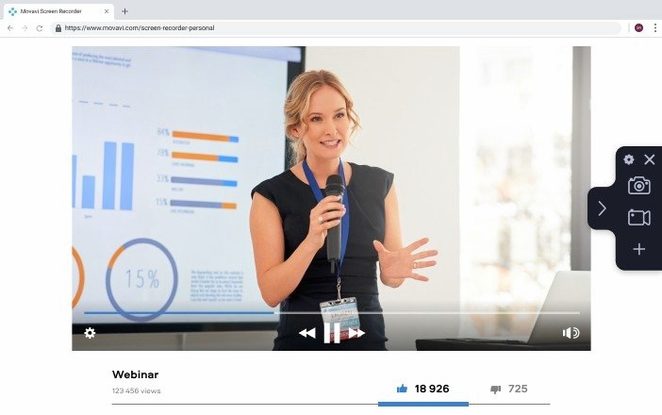
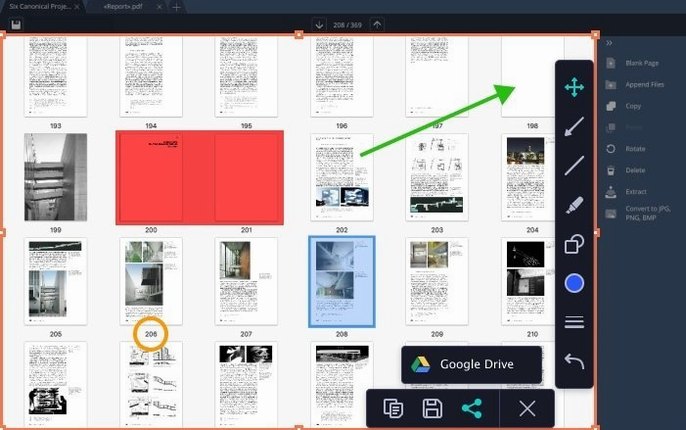
For trainers who need on-screen keystrokes, or developers capturing multi-source demos. This is the Mac recorder with the secondary controls pros ask for.
Record up to the frame you need
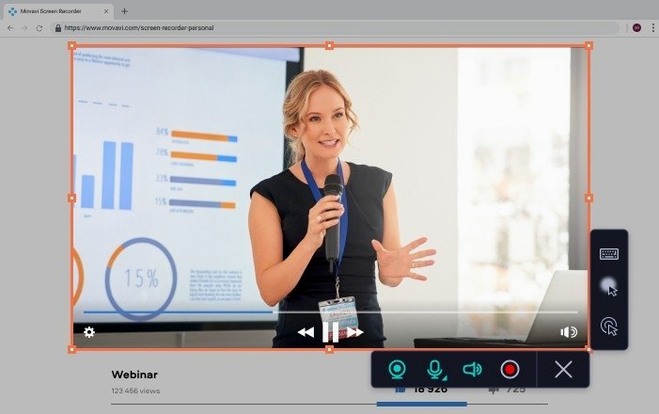
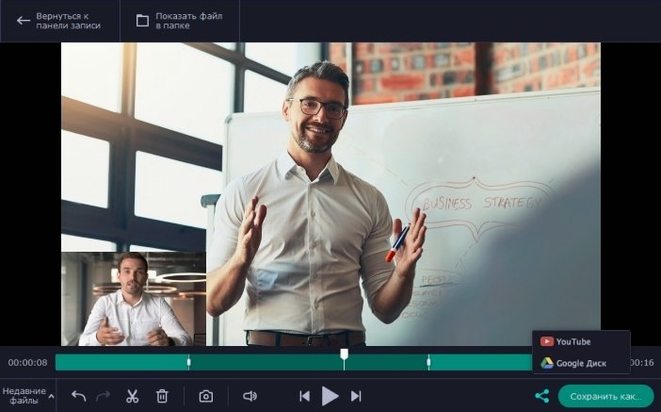
Set a capture duration and let the recording stop itself. Combine desktop and application activity with a webcam overlay and cursor click effects.
Show every key and click
Display keyboard presses on screen so viewers follow every shortcut. Customise all hotkeys so the tool fits your muscle memory, not the other way around.
Edit a snap before you save it
Screenshots open a quick editor for annotations and crops. Finished recordings can upload directly to Google Drive or YouTube.
Switch output to MP4 before a long capture
Out of the box the app picks sensible defaults, but a few quick tweaks make a day of screen capture feel lighter. Open preferences and head straight to the Output tab. Switch the default format from MKV to MP4 if you plan to drop clips straight into editing software or Slack — wider playback support saves a conversion step later.
Next stop, Hotkeys. The defaults work, yet assigning a single key to pause and resume (I map F6) keeps your hands off the menu bar when you are mid-flow. While you are there, bind a screenshot shortcut away from the macOS default combo so the two never clash.
Under Webcam, lower the overlay resolution to 480p unless you genuinely need a crisp talking-head picture. It trims the file size noticeably and the smaller preview window stays out of the way of your main demo area. Finally, tick Show mouse clicks and Show keystrokes in the overlay settings — they are off by default but invaluable for tutorial makers.
1440p capture at 30 fps with system audio feels light
On an Intel Mac the app launches in under four seconds and the recording toolbar hovers without lag, even with a browser, Figma and Slack already open. Pushing a 1440p desktop capture at 30 fps while pulling in system audio and a webcam feed kept my fan quiet across a 40‑minute session. Activity Monitor reported the process hovering around 18–22% CPU, which leaves room for the tools you are actually demonstrating.
Stability holds up well in practice. The scheduler fired three test recordings overnight without a missed frame, and the auto‑stop timer is precise to the second — handy when you need a clean five‑minute export for a review clip. I have yet to see a crash when flipping between the screenshot editor and the main capture window, which some heavier editors trip over.
Resource footprint during idle recording standby is about 120 MB of RAM, so keeping it pinned in the menu bar costs almost nothing. The one trade‑off worth knowing: rendering the final file takes a few seconds longer on older Intel machines compared to grabbing straight to a lightweight codec, because the app composites the webcam and click effects into a single pass. It is not a delay that breaks your rhythm, just enough to notice if you are hammering the stop button between rapid takes.
Audio sync blips disappear in maintenance fixes
Version 23.1.1 stayed a maintenance round — the changelog points to minor improvements and bug fixes, no new knobs or workflows. In practice the fixes are the kind you feel as absence: fewer dropped audio sync blips on long recordings, and the scheduler no longer forgets a date if you switch time zones. The cursor click ripple effect also renders more consistently on dark backgrounds than it did a couple of builds ago, which cleans up the look of code‑editor demos.
What the quiet updates mean day‑to‑day is that you spend less time re‑recording. A timeline export to YouTube now holds its bitrate better through the uploader, and the screenshot editor remembers your last‑used arrow colour between sessions, a small thing that cuts two clicks every time you annotate a series of bug reports. For Mac users who also keep an eye on utility tools like an old 8 track cassette recorder setup for digitising audio, the system‑sound capture path in Movavi stays clean enough that you can grab playback from a digitised tape without extra routing software.
Good to know: you can capture multiple video streams in a single session.
- Squashed a handful of small bugs and smoothed out the rough edges.
- macOS 10.13 or newer
- Intel processor
 Presentify
 Screen Studio
 ScreenFlow
 TechSmith Snagit
 CleanShot X
 Camtasia
Chat 0
Hop in or make an account to join the chat.
Quiet in here so far. If you have used this build, tell me what the install actually did.