
 SiteSucker Pro
 Musify
 iTubeGo
 iDownerGo
 YT Saver
 YTD Video Downloader PRO
 HarborDrop
 Folx Pro


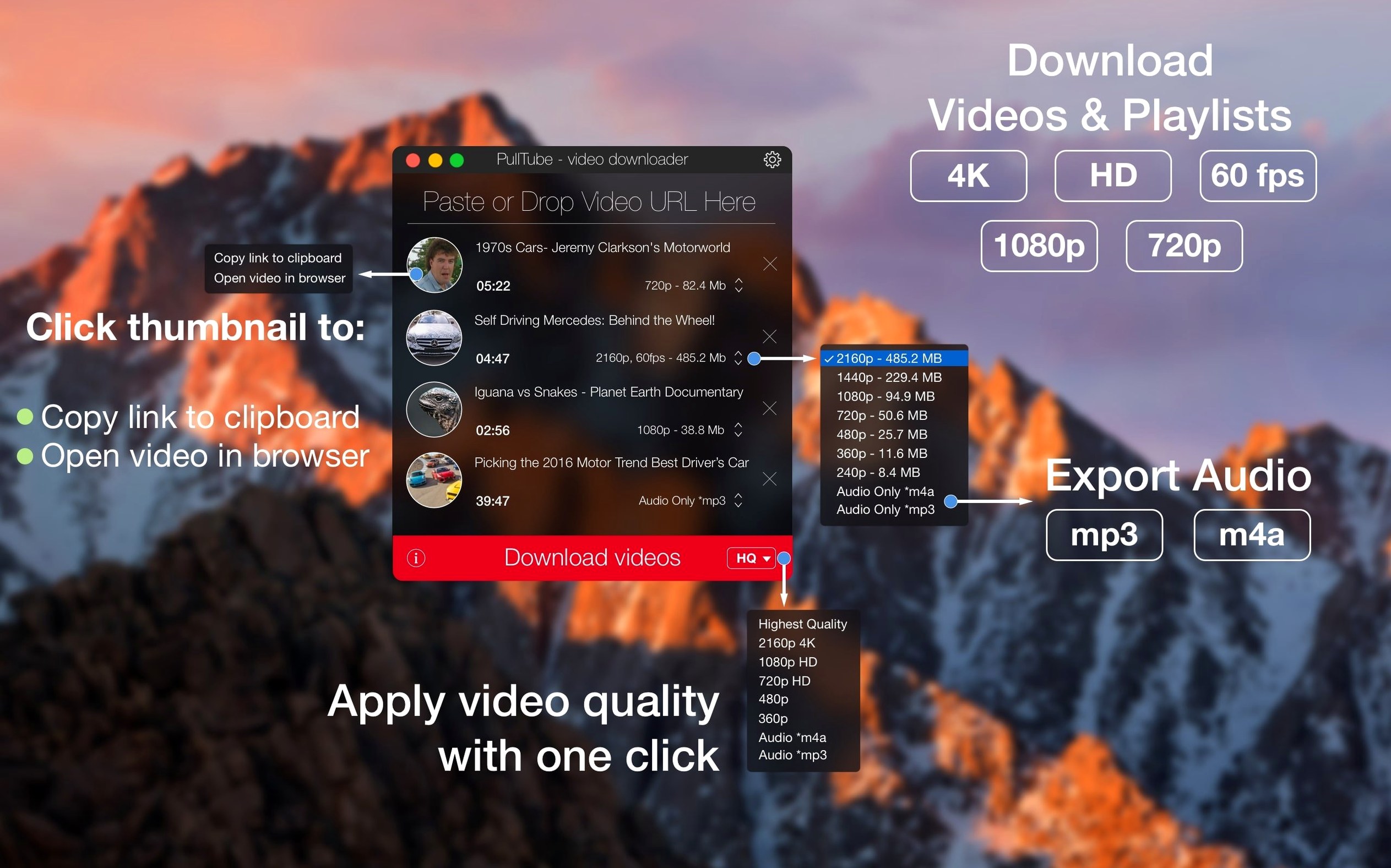
PullTube runs on any Mac with macOS 11 (Big Sur) or newer, on both Apple silicon and Intel processors.
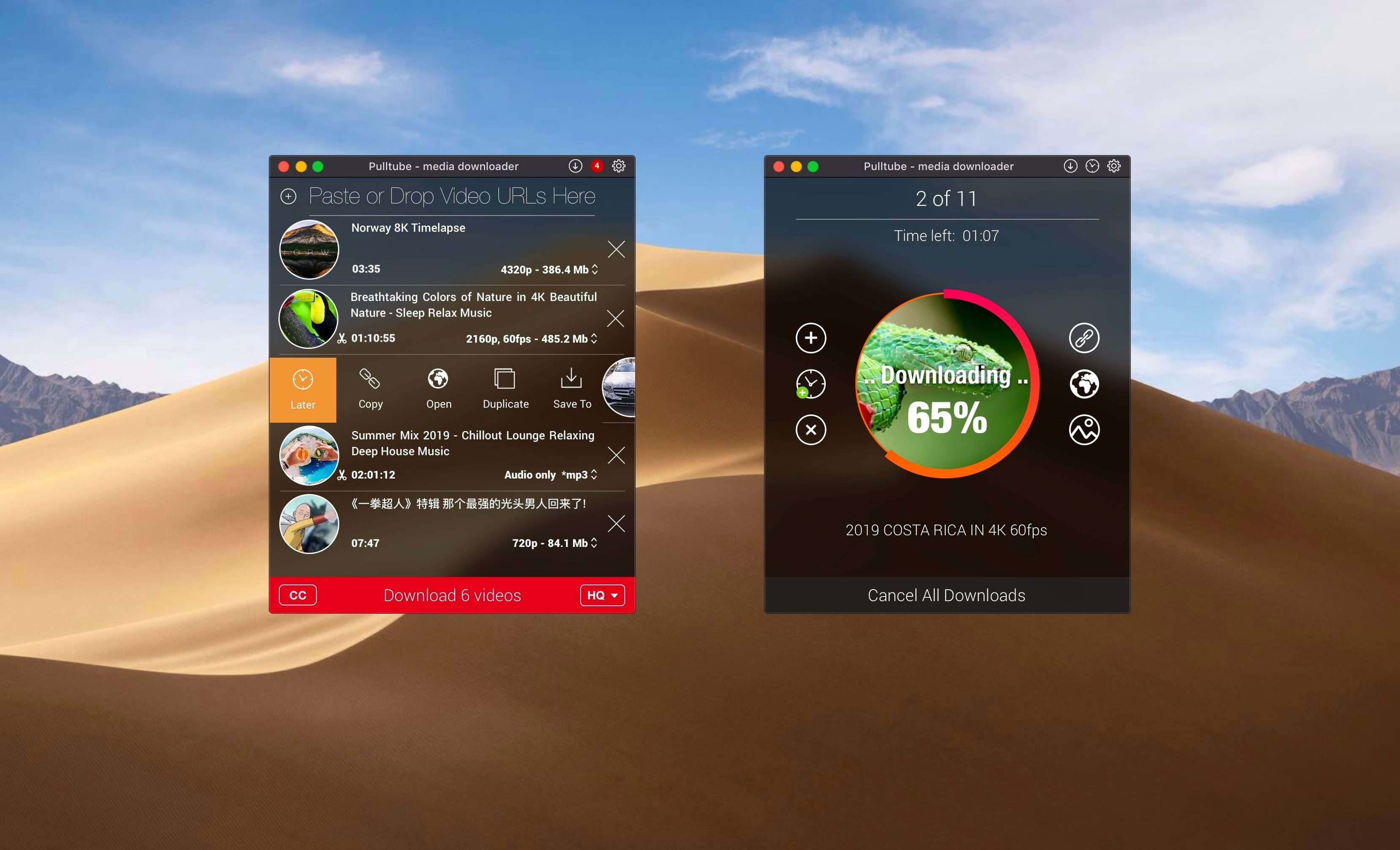
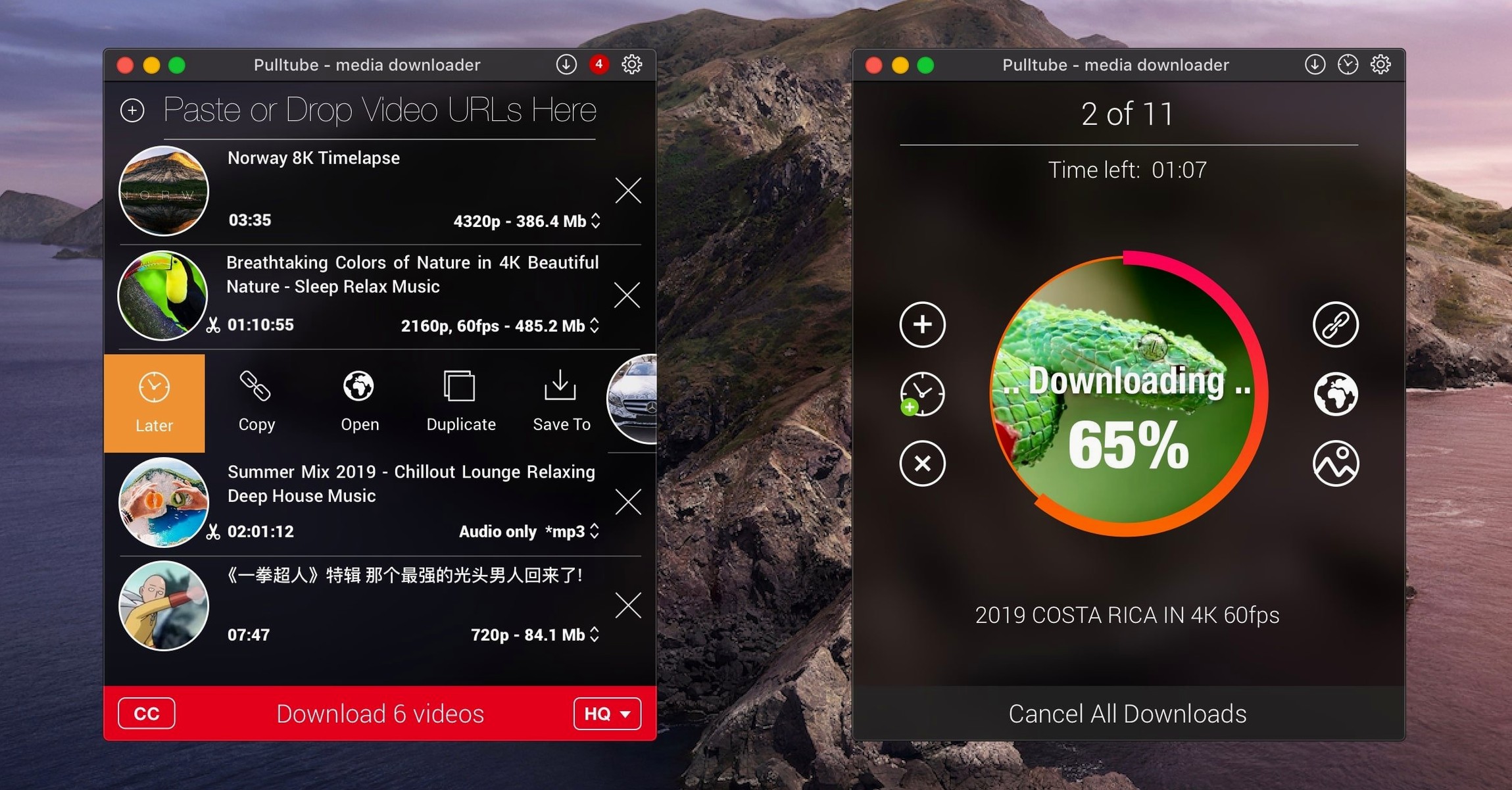
Version 1.8.6.40 tightened up playlist detection. Paste a link with a dozen videos and PullTube now parses the full list noticeably faster — you’re not sitting there waiting for thumbnails to trickle in one by one. The download queue also handles interruptions more gracefully. If your Wi‑Fi drops mid‑playlist, the app picks up where it left off instead of leaving you with a folder of half‑finished files.
For anyone using pulltube for mac on an M‑series machine, the latest build runs natively without Rosetta. The difference shows when you’re pulling 4K footage or converting a long playlist to M4A all at once — the fans stay quiet and the progress bar moves quicker than on the older Intel‑only path. Subtitles got a quiet fix too: the app now grabs the auto‑generated caption track more reliably from YouTube, which used to be hit or miss.
Some of the best bits in PullTube aren’t labelled with buttons. Drag a link from Safari’s address bar and drop it straight onto the app window — no copy‑paste needed. The same works with a highlighted URL in a text file or a message thread. If you’ve turned on Append quality to filename, the app tacks on something like _4K or _HD automatically, which makes a real difference when you archive the same talk in three resolutions.
Another unadvertised trick: while a download is running, you can toggle the Audio only switch on any queued item and it flips mid‑queue without cancelling the rest. That’s handy when you realise track six of a playlist works better as an MP3 than a full video. And if you often batch‑download overnight, tick Quit when finished in the menu — PullTube will close itself after the queue clears, so your Mac isn’t sitting awake until morning.
Launch times are near‑instant on Apple silicon and still snappy on older Intel Macs. Memory use stays modest — around 180‑220 MB with a handful of active downloads — which means it won’t elbow out your browser or design tools. The app leans on yt‑dlp under the hood, so extraction speed depends partly on that engine, but PullTube adds almost no overhead of its own. I’ve thrown 30‑item playlists at it and the CPU barely nudged past 8% during the conversion pass.
Stability holds up well in daily use. The only time you might see a beachball is if a site’s server throttles the connection, and even then PullTube queues the next item rather than locking the whole window. The interface stays responsive while downloads chug along in the background — you can scrub the thumbnail previews, reorder items, or add new links without stutter.
The most common hiccup is pasting a link that PullTube doesn’t recognise right away. With some lesser‑known sites, pasting the URL into the address bar and hitting Enter twice shakes the app into parsing it. If that fails, close PullTube, reopen it, and paste again — the fresh session often clears whatever tripped up the link detector.
Another quirk: the pulltube window occasionally hides behind other apps when a download completes. If you’ve queued a big list, keep the app visible or use ⌘Tab to check progress rather than relying on the dock badge, which can lag by a second or two. On very long playlists — think 50+ items — the queue can pause on a single stubborn video. Skipping that item and retrying it solo usually works. If it doesn’t, switching from Highest to a fixed HD quality often nudges the extractor past whatever server‑side rate limit is blocking the pull.
The latest PullTube release tidies up playback handling and keeps your download queue running smoothly.
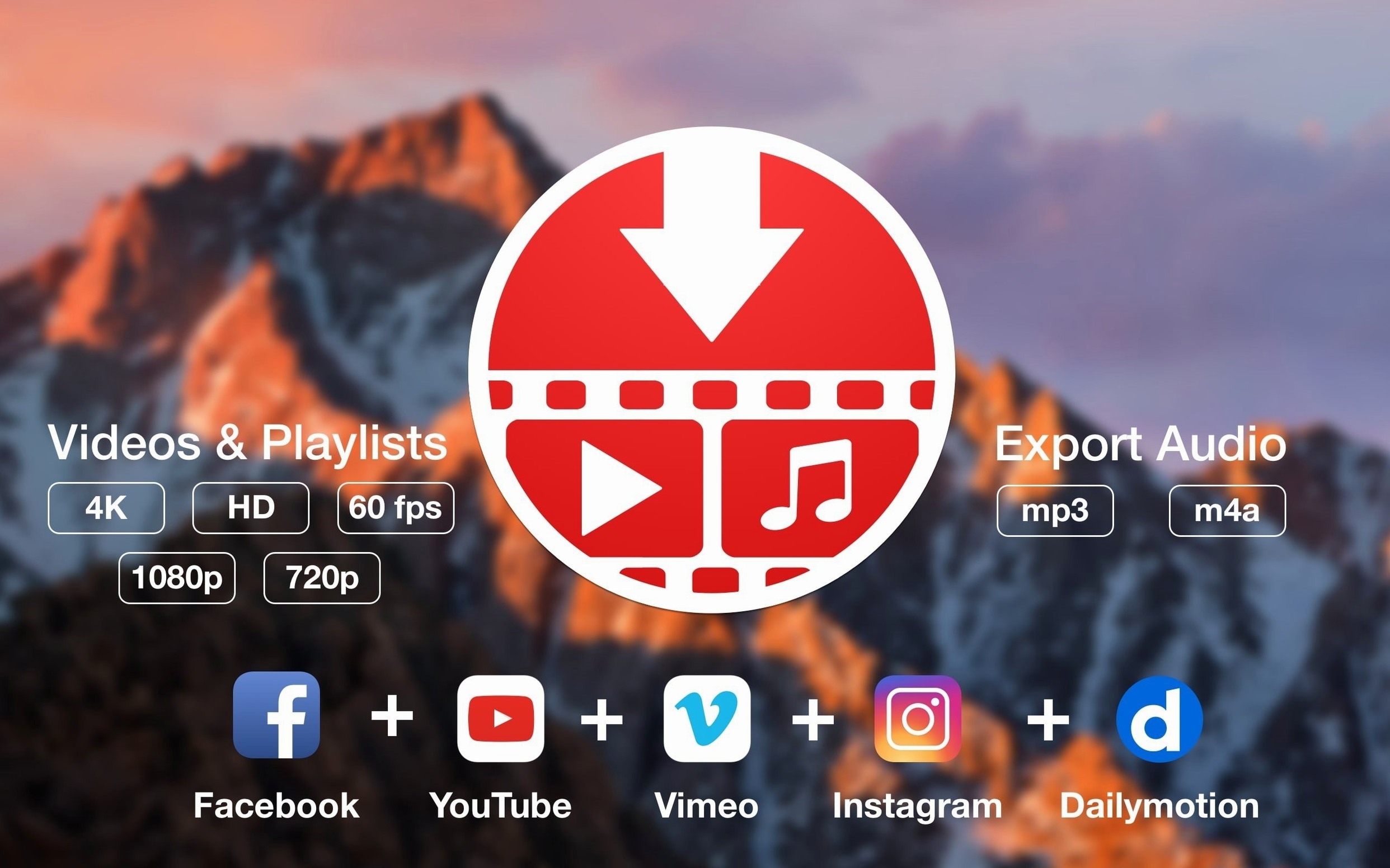
Yes, it can extract and save only the audio track, with MP3 and M4A as the output formats.
The developer states it supports video, audio, playlist, and subtitle downloads from more than 1,000 websites, including YouTube and Vimeo.





Chat 0
Hop in or make an account to join the chat.
Quiet in here so far. If you have used this build, tell me what the install actually did.