
 4K Video Downloader
 AmpliTube
 Downie
 Folx Pro
 HarborDrop
 iDownerGo
 iTubeGo
 Musify


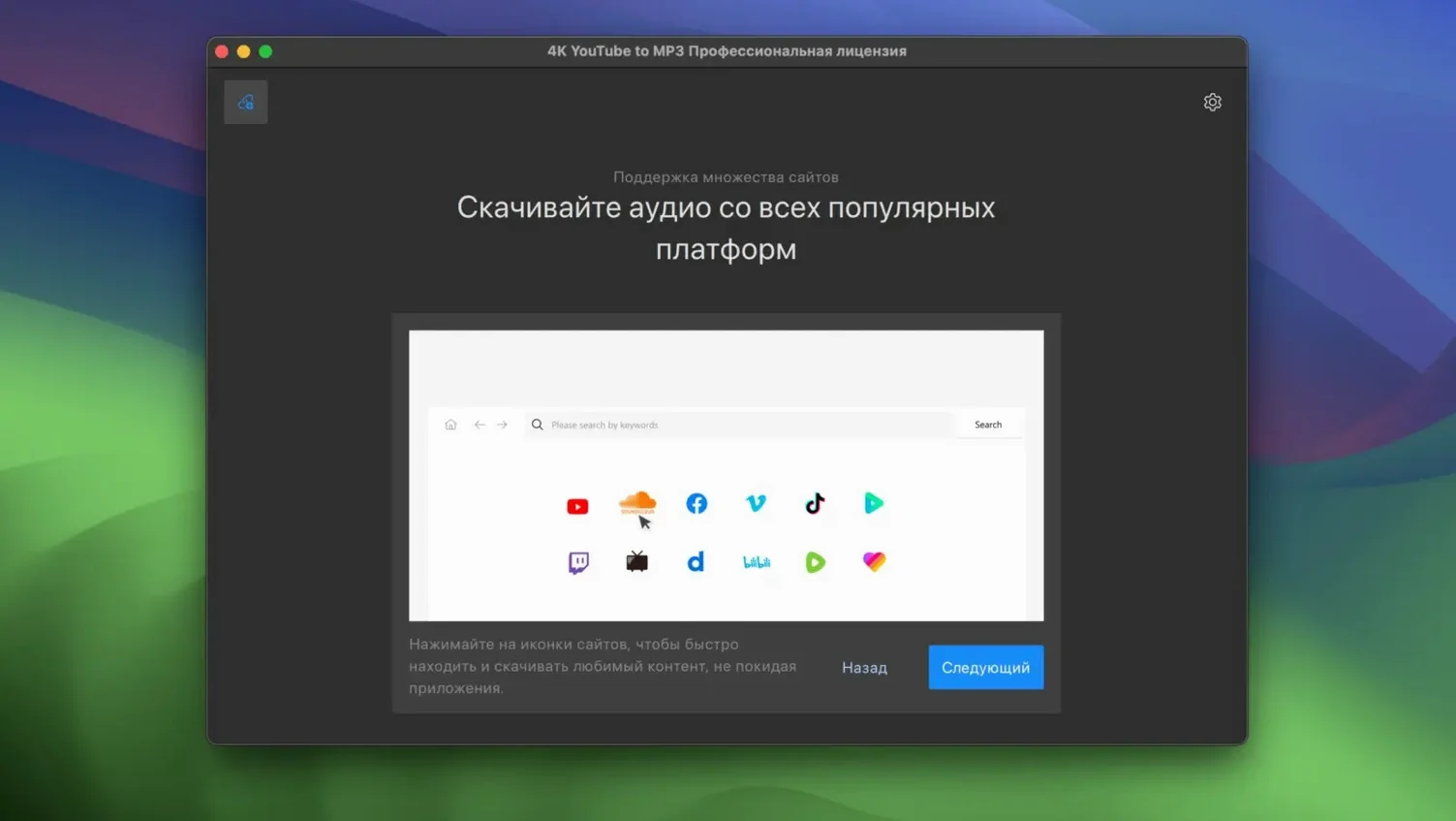
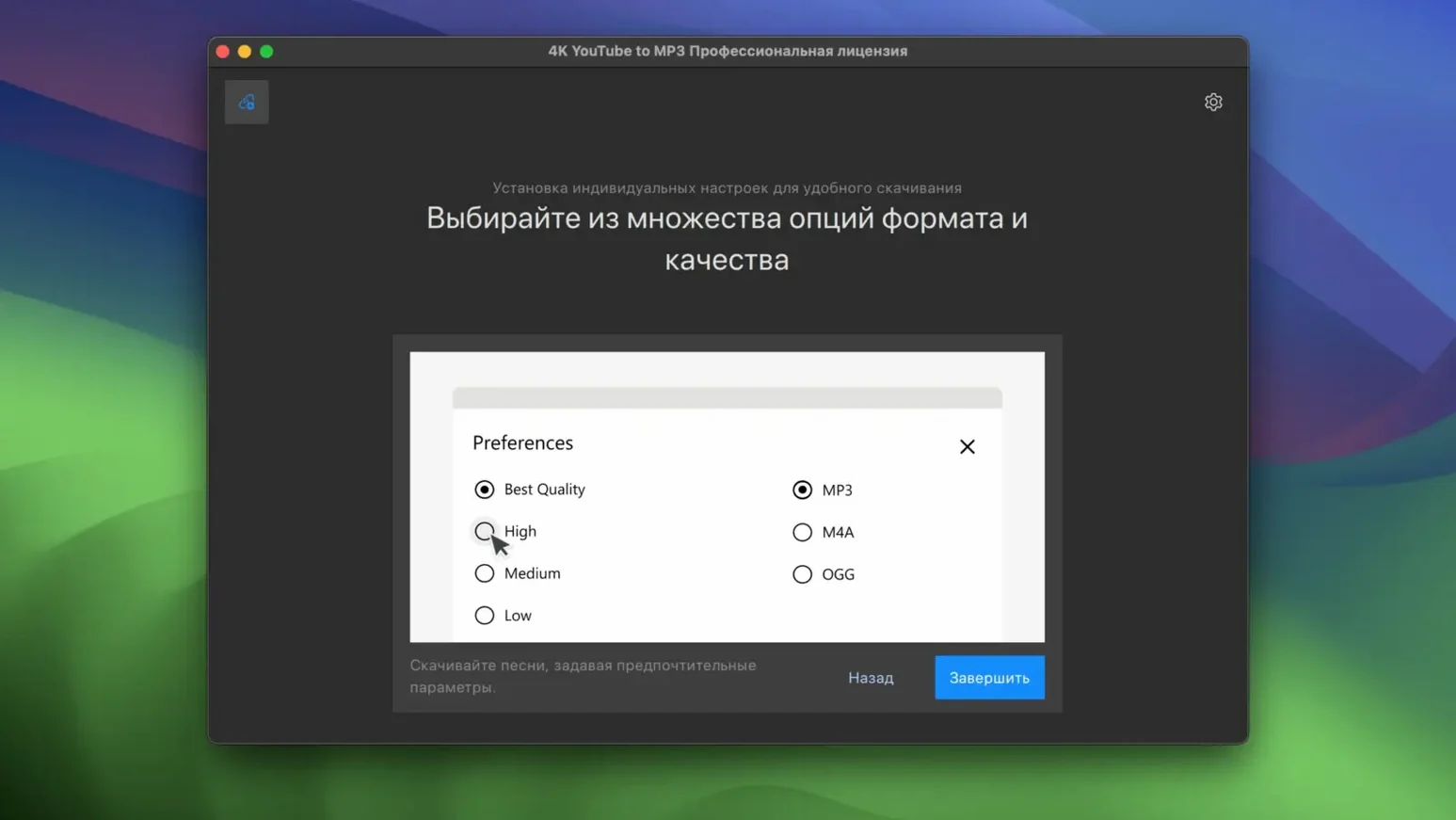
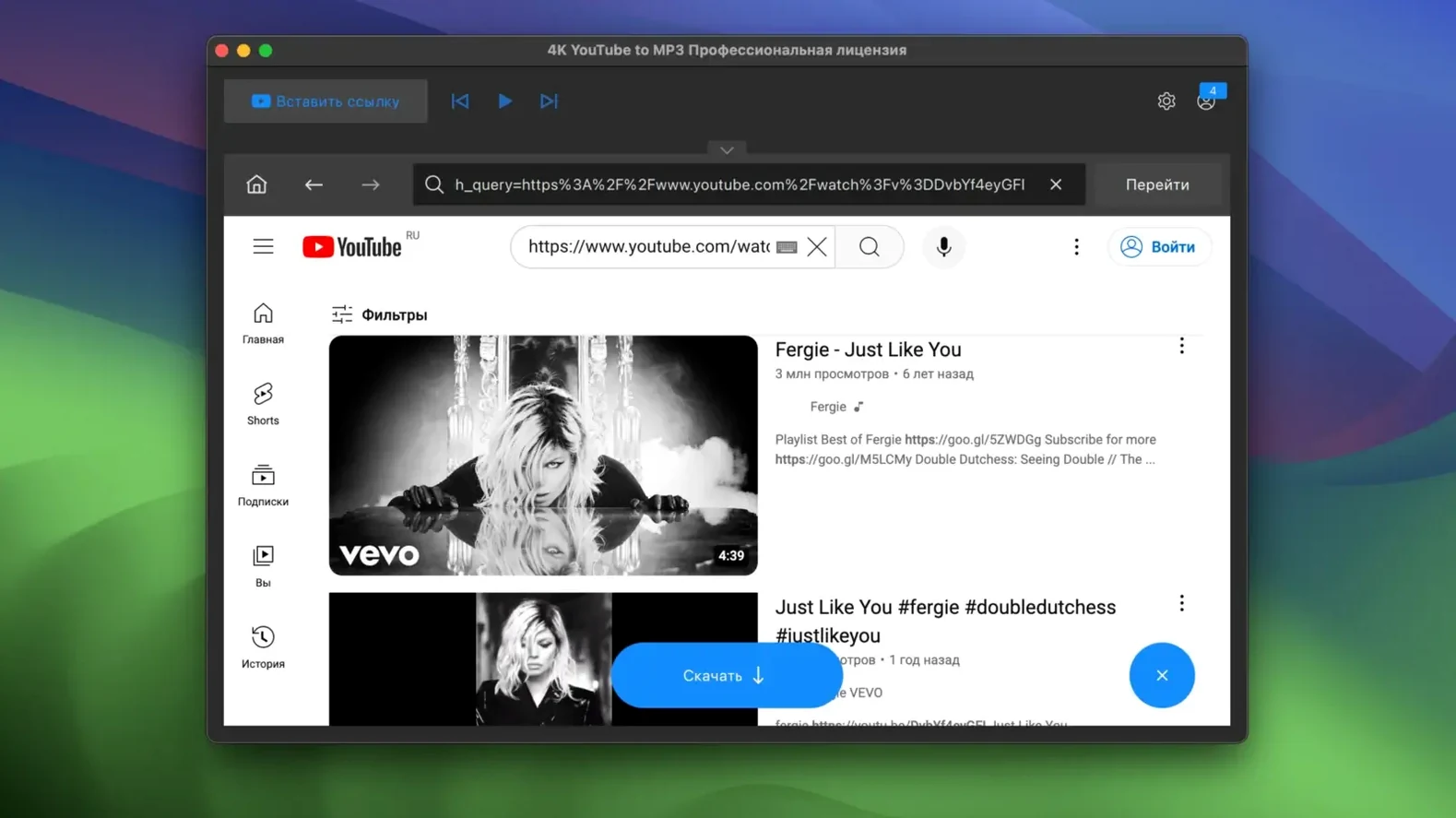
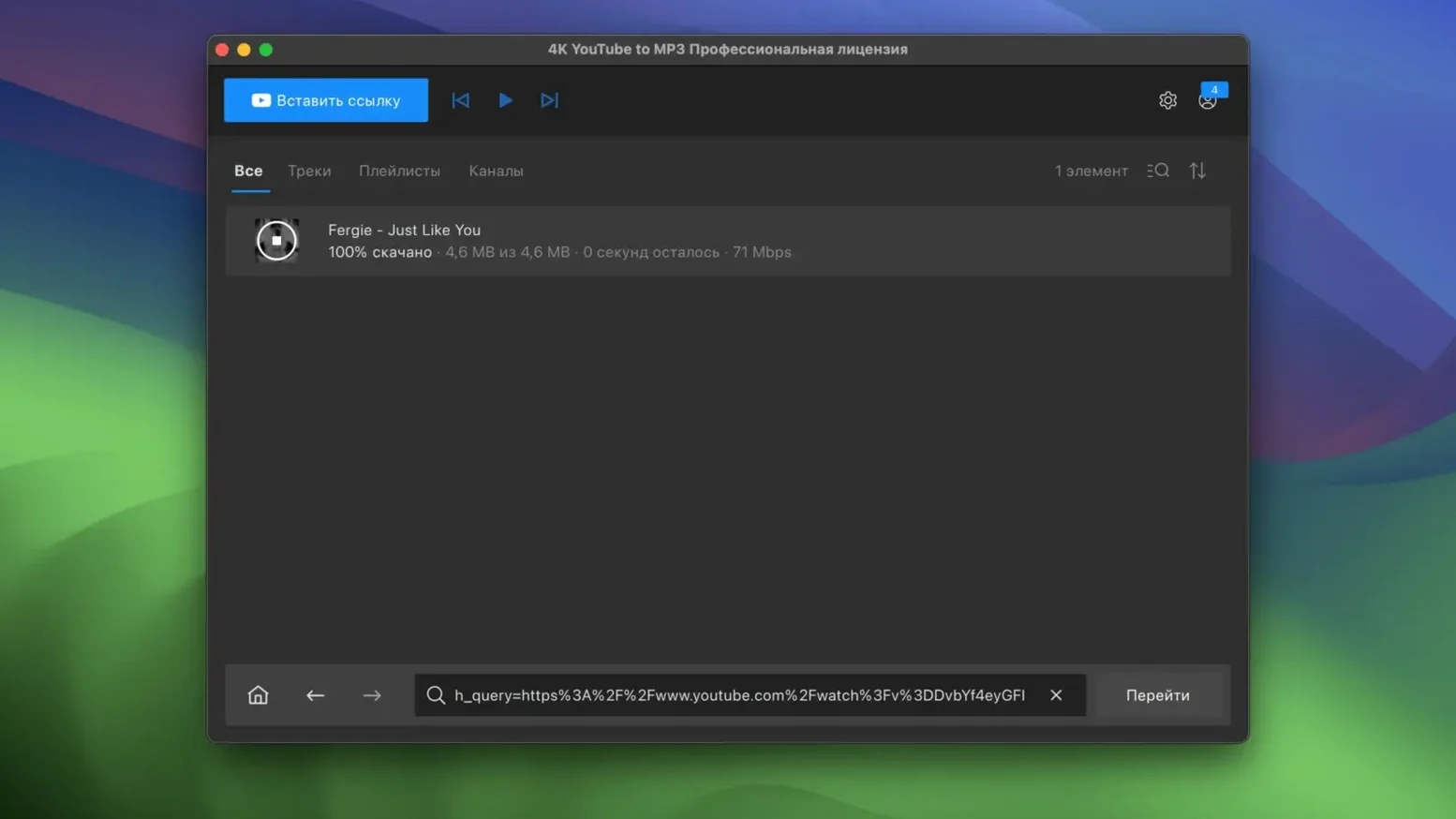
4K YouTube to MP3 is a simple desktop tool that pulls the audio track from a video link and saves it to your Mac. Paste a URL, pick a format, and you have a clean audio file in seconds.
Start with something obvious—grab a single track from YouTube or VEVO. The app parses the link and lets you download directly as MP3, M4A or OGG. Quality options appear after it reads the source, so you can pick the balance that suits your ears and storage.
Next, throw a public playlist at it. The app queues every entry and works through them without babysitting. It is just as comfortable with a SoundCloud set or a Facebook video clip. The interface stays out of your way: paste, confirm, let it run.
The default save location is your Music folder, but a dedicated directory keeps things tidier. Open preferences straight after launching and point it somewhere you remember—a folder named Audio grabs on the desktop, for instance. While you are there, uncheck the option that opens Finder after each conversion if you batch-download often. The pop-ups get old fast.
The app remembers your last-used format, but it does not lock in a bitrate until you pick one. For spoken-word content, drop to 128 kbps MP3 and save space. For music you will play through decent speakers, set M4A at 256 kbps—the encoder Apple ships with macOS handles that natively, so the files play everywhere without a second thought.
Drag a link from Safari instead of copying it. Highlight the URL in the address bar, pull it straight onto the app window, and the parsing kicks off automatically. One less Cmd+C / Cmd+V cycle per track adds up when you are pulling a dozen songs.
Check the Smart Mode toggle in the menu bar. With Smart Mode on, every link you paste uses the same format and quality you last picked—no confirmation dialogs, no extra clicks. Turn it off again when you switch sources, otherwise a low-bitrate talk radio preset will apply to your next album download without asking.
The app names files from the video title, which means stray emoji and odd capitalisation come along for the ride. Before a big session, glance at the queue list—you can double-click any entry and rename it right there. A thirty-second tidy-up now beats renaming forty files in Finder later.
Think of it as the audio extraction stage, not a media library. Pull tracks with it, then let Music or a third-party player handle organisation. If you use a tag editor like Metadatics, point it at the output folder and clean up artist fields and album art after a download run. The app itself does not embed cover images, so a separate tag pass makes imported tracks look complete.
Set up an Automator folder action on the output directory. When new MP3 or M4A files land, Automator can add them to a Music playlist automatically. It is a five-minute setup that removes the “drag files into the library” step entirely.
Spotlight indexes the output folder like any other. Name your files well—artist and track title—and you can pull them up with a quick Cmd+Space search without ever opening the app again. For longer sessions, the 4k video to mp3 downloader workflow pairs naturally with a clipboard manager: copy five links in a row, then paste them one by one while the queue processes in the background.
Some users treat the app as a 4k youtube music downloader for building offline sets. Grab a playlist, let it convert the lot overnight, and wake up to a folder ready for a long flight. If you later need the video file itself, the companion app from OpenMedia handles that half—this tool stays focused on audio, which keeps it light and predictable.
Good to know: this build targets Intel Macs on macOS 12 or newer. If you are on Apple Silicon, it still runs through Rosetta.






Chat 0
Hop in or make an account to join the chat.
Quiet in here so far. If you have used this build, tell me what the install actually did.