
Download Presentify for macOS
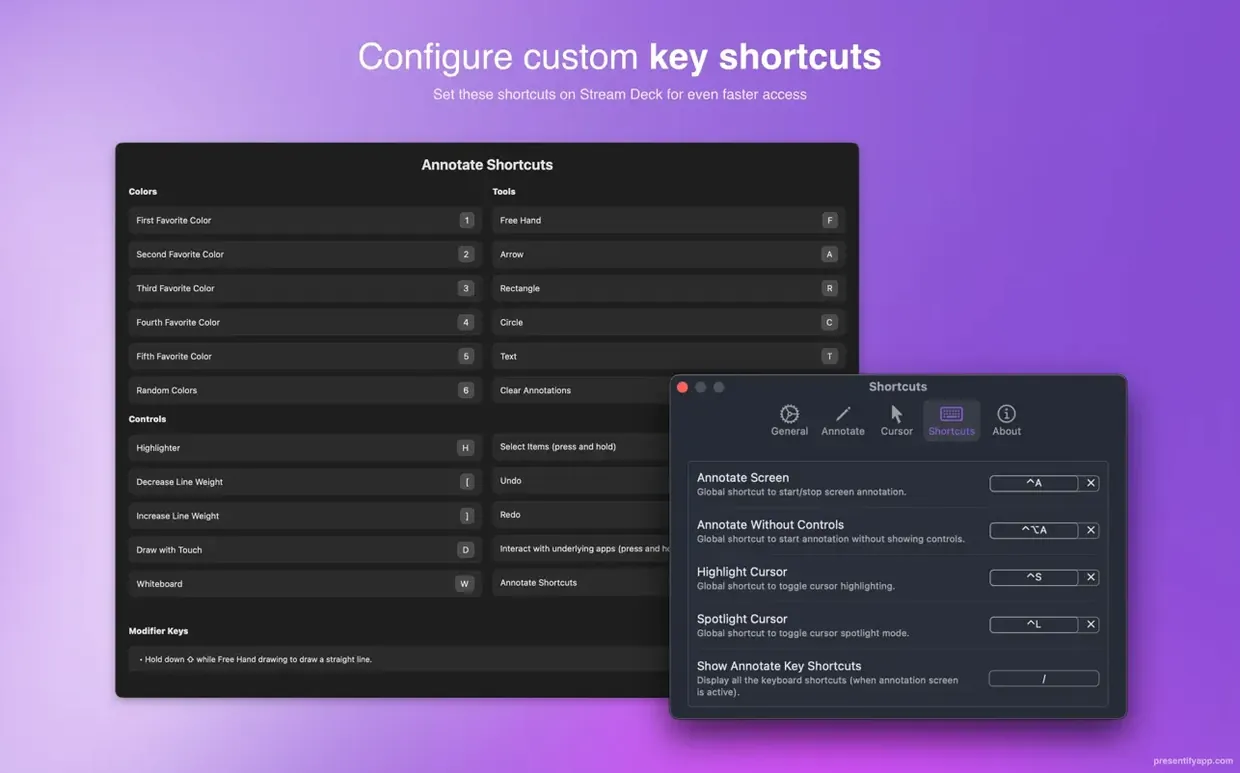
Presentify runs on any Mac with macOS 13 Ventura, with native support for both Apple Silicon and Intel machines.
Sketch over anything live
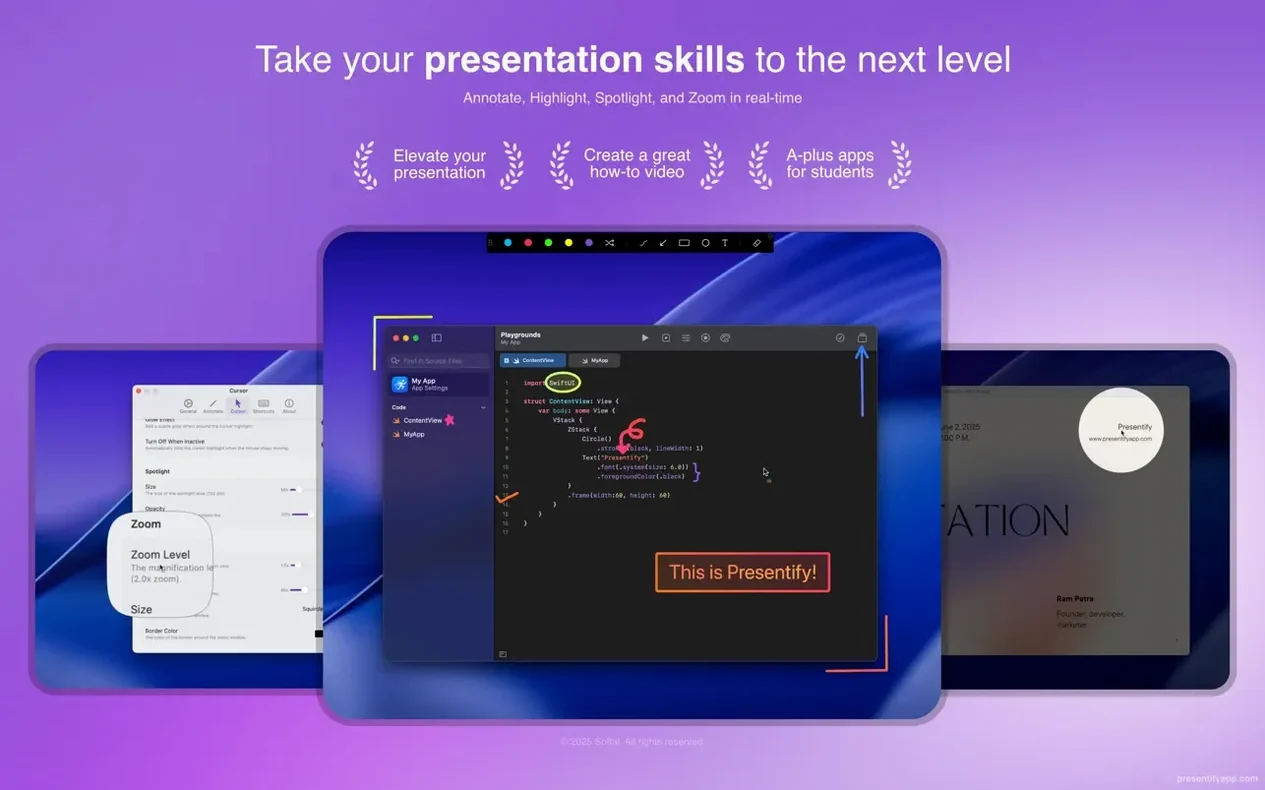
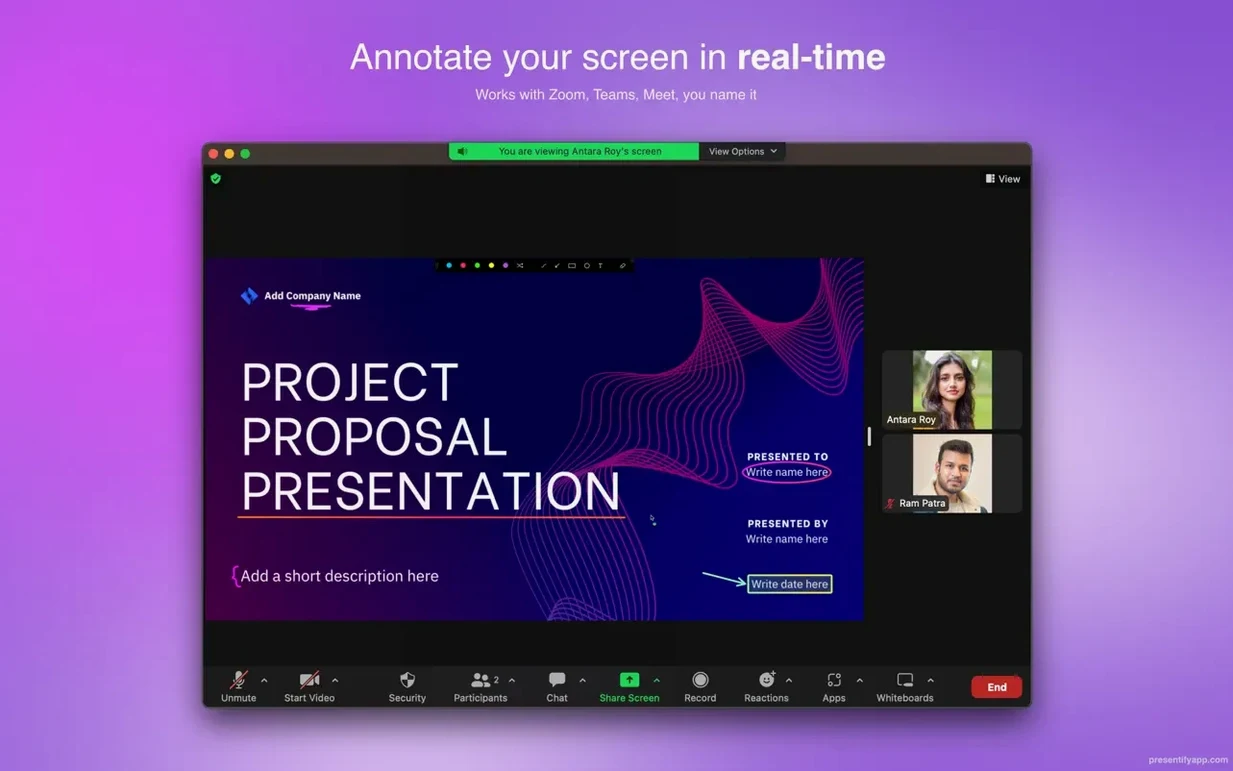
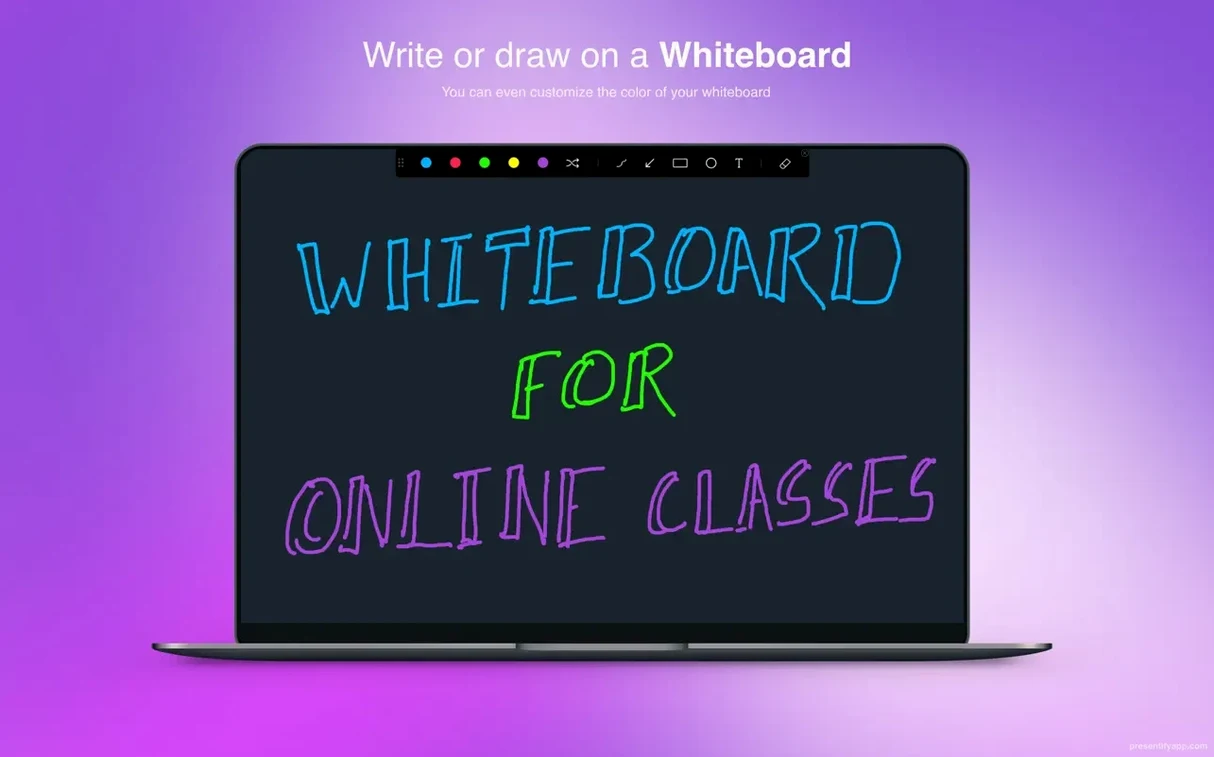
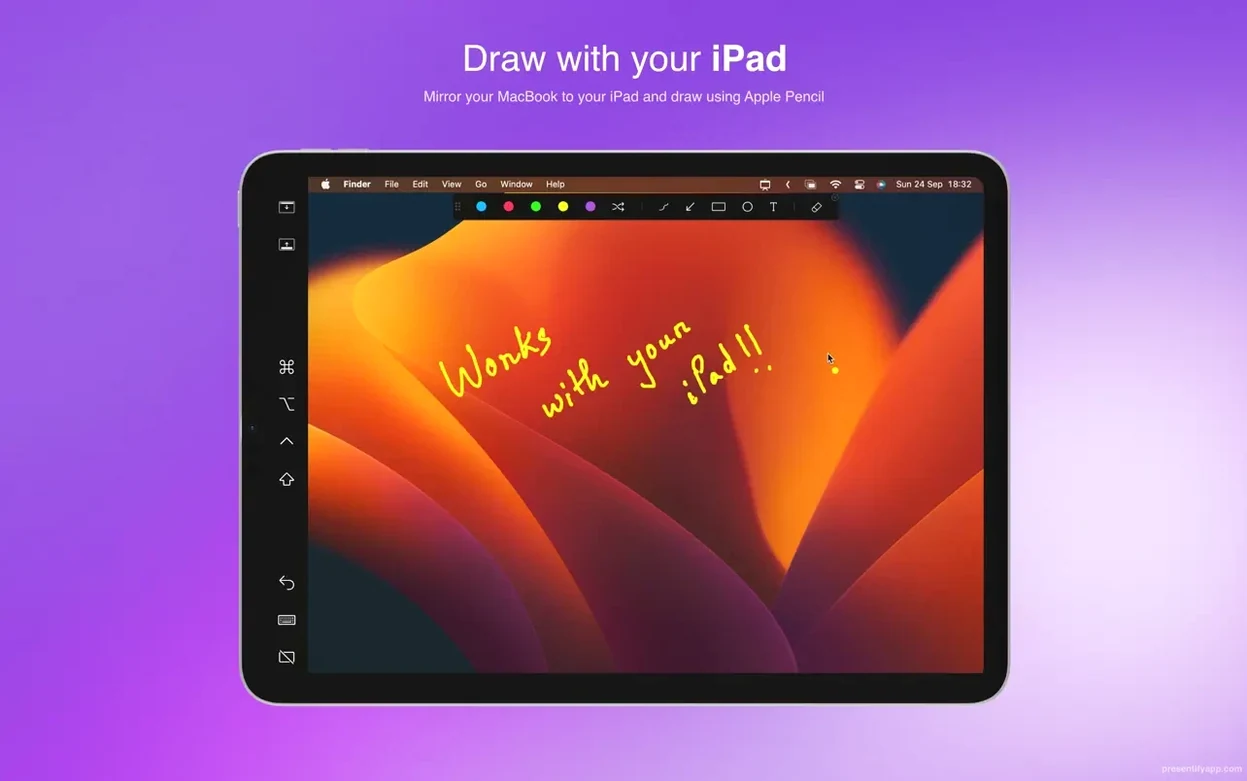
Draw, type, and highlight directly over images, video, code, or PDFs. The annotations sit on top, and you can set them to auto-erase after a few seconds so you never clutter the screen.
Guide attention with spotlights
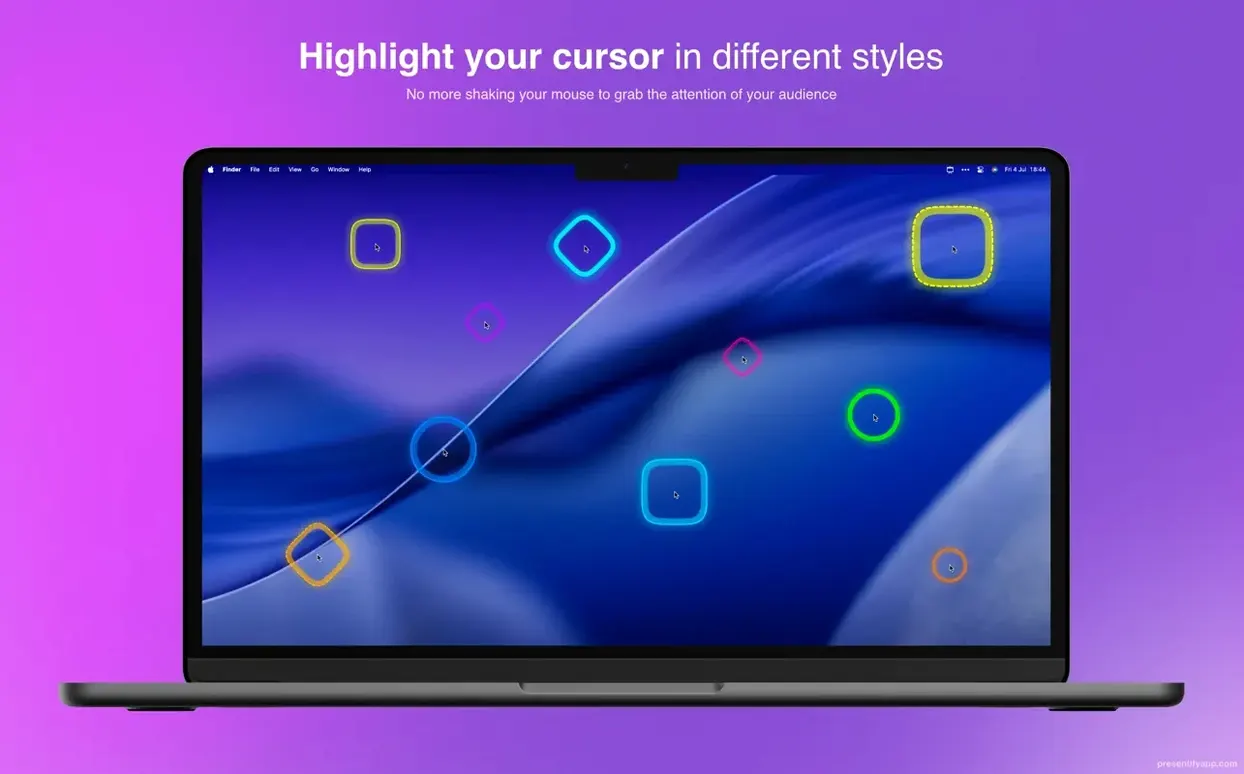
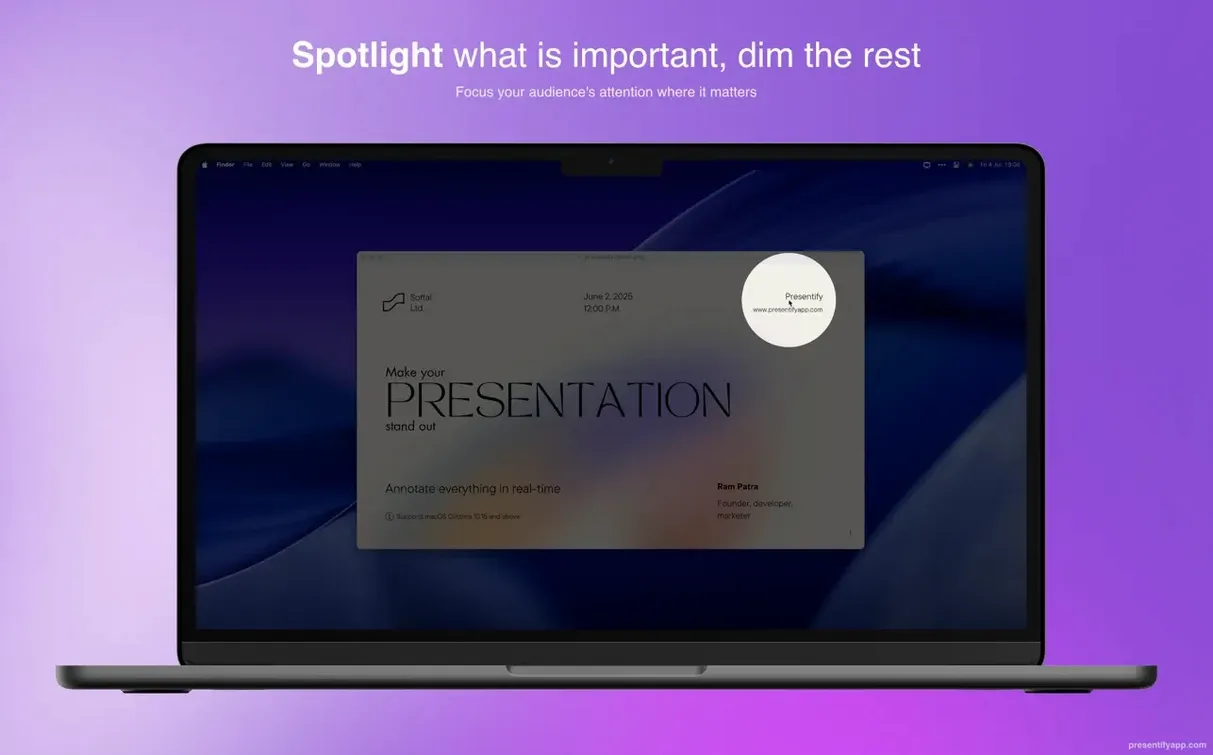
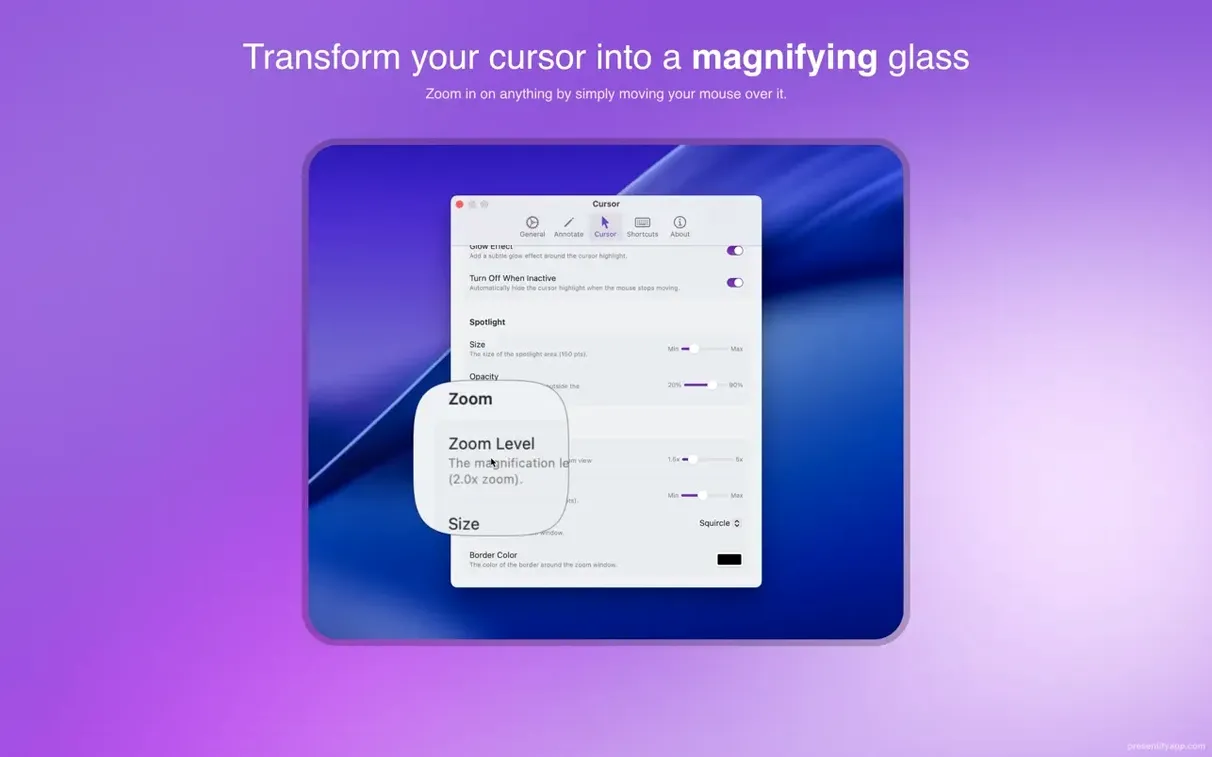
Dim the background and create a movable spotlight around your cursor. Pair it with the zoom tool and a smooth cursor highlight, and you can walk people through tiny UI details without losing anyone.
Switch to apps while marking up
In the default mode, hold the Fn key to interact with the app underneath your annotations. The drawing tools also recognise graphics tablets from XP-Pen and Wacom, with random gradient colours that keep long sessions from looking flat.
Step-by-step: annotating a code review
Here's a practical flow for a live code walkthrough over Zoom. It assumes Presentify is already running in your menu bar, the default hotkeys are set, and you have a graphics tablet connected.
- Open your code editor and the file you want to discuss. Switch to full-screen mode so the code fills the display.
- Activate the spotlight tool (default: Ctrl+Shift+S). Drag the spotlight over the function signature. The background dims and everyone's eyes land exactly where you want them.
- Pick the rectangle tool (Ctrl+Shift+R) and draw a box around a suspicious block of logic. The auto-erase timer cleans the box after five seconds so you can move on without manually clearing it.
- Switch to the pen tool (Ctrl+Shift+P) to sketch a quick arrow pointing to a variable name. Use the random gradient stroke — it makes repeated marks on the same screen feel distinct, which helps when you're annotating several lines in a row.
- Type a short note (Ctrl+Shift+T) like "refactor this" right on top of the editor. The text sits above the code while you talk, then fades out automatically.
- Hold Fn and scroll the file to the next section. Your annotations stay frozen until you release the key, so you can reposition without accidentally drawing over new code.
- Use the zoom tool (Ctrl+Shift+Z) on a small regex pattern. With the cursor highlight turned on, the magnified view tracks your pointer and makes the pattern readable even on a 13-inch laptop screen.
By the time you wrap up, the screen is clean. No eraser button, no leftover scribbles — the auto-erase and the Fn interaction shortcut did the tidying for you.
Who clicks with Presentify fastest
Three groups tend to feel at home with the app within the first hour.
- Online instructors who teach software skills live. They annotate student-submitted screenshots, walk through Photoshop layers, or highlight spreadsheet formulas during a Google Meet session. The text highlighter — which draws under the letters — keeps Excel cells and terminal output fully readable, which is critical when every character matters.
- Design reviewers and UX researchers presenting Figma prototypes or video recordings. The spotlight plus zoom combo lets them isolate a single button state or transition glitch without cropping the screen or switching to a slide deck. The Wacom support means they can jot margin notes with pen pressure, the same way they would on a paper printout.
- Developers running remote stand-ups or pair programming sessions. They share their IDE, mark up pull requests, and sketch data-flow arrows without leaving the code. The Fn-key interaction means they can edit a line mid-annotation — no toggling the drawing layer off and on.
If your work involves pointing at things on a shared screen and you spend more time explaining than clicking, Presentify fits your rhythm.
Rough edges with quick fixes
A few rough edges pop up, especially on first use. Most have quick fixes.
Annotations won't appear over full-screen video
Some video players grab the topmost window layer aggressively. If you are sharing a full-screen YouTube clip or a local file in VLC and the drawings seem invisible, switch the player to windowed mode, start annotating, then return to full-screen. Alternatively, enable Presentify's "Draw over full-screen apps" toggle in Preferences, but note that a handful of DRM-protected players will still block the overlay.
Fn key doesn't let you interact with the app underneath
This usually means another utility is intercepting the Fn key. Karabiner-Elements, BetterTouchTool, or even macOS's own Input Monitoring permissions can steal the press. Check System Settings > Privacy & Security > Input Monitoring and make sure Presentify is listed and ticked. If it is, try quitting the other input tools one by one to spot the conflict.
Wacom tablet draws laggy strokes
Lag often comes from Bluetooth interference, not the app. If the pen feels sluggish, plug the tablet directly via USB and close any nearby Bluetooth audio devices. Inside Presentify, set the drawing smoothing to a lower value — high smoothing adds a tiny delay that feels like lag on fast strokes.
Auto-erase wipes annotations too quickly
The default five-second timer works for quick highlights but feels rushed during detailed explanations. Open Preferences and bump the auto-erase duration to ten or fifteen seconds, or disable it entirely for sessions where you want full manual control. The toggle is a single checkbox, so you can flip it mid-presentation without digging through menus.
Good to know: if you grab a presentify free download from a third-party archive, double-check the version number — only 8.1.3 and newer include the Fn-key interaction fix for full-screen apps on macOS 14 Sonoma. Older copies of presentify for mac free builds may lack that patch, making the feature unreliable on current systems.
Good to know: the text highlighter renders underneath letters so the words stay readable, not painted over.
- macOS 13 Ventura or newer
- Apple Silicon or Intel Mac
Questions I get
Yes, Presentify works with graphics tablets from XP-Pen and Wacom, letting you draw and annotate with pressure sensitivity.
 Screen Studio
 ScreenFlow
 Movavi Screen Recorder
 TechSmith Snagit
 CleanShot X
 Camtasia
Chat 0
Hop in or make an account to join the chat.
Quiet in here so far. If you have used this build, tell me what the install actually did.