
Download Camtasia for macOS
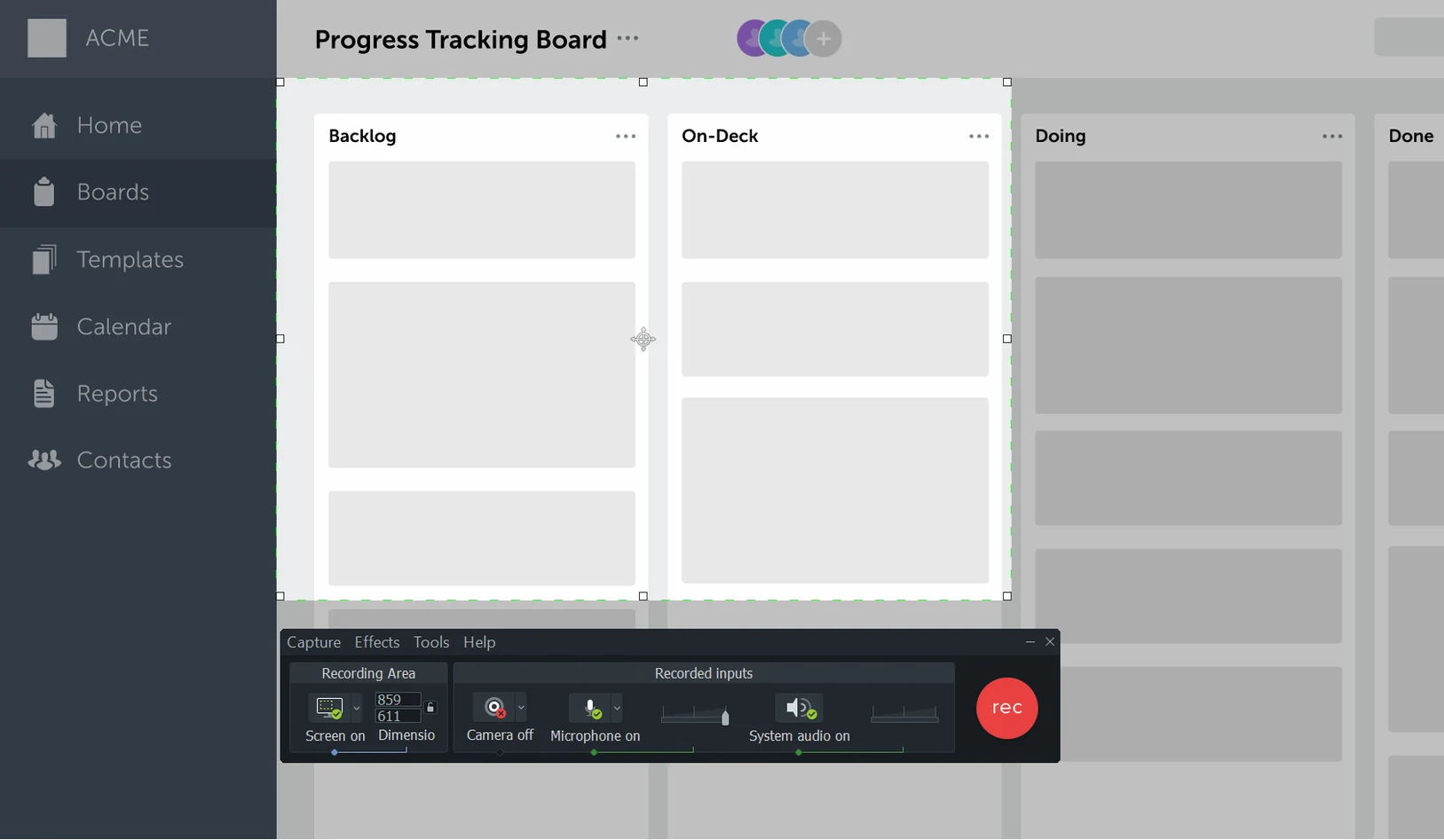
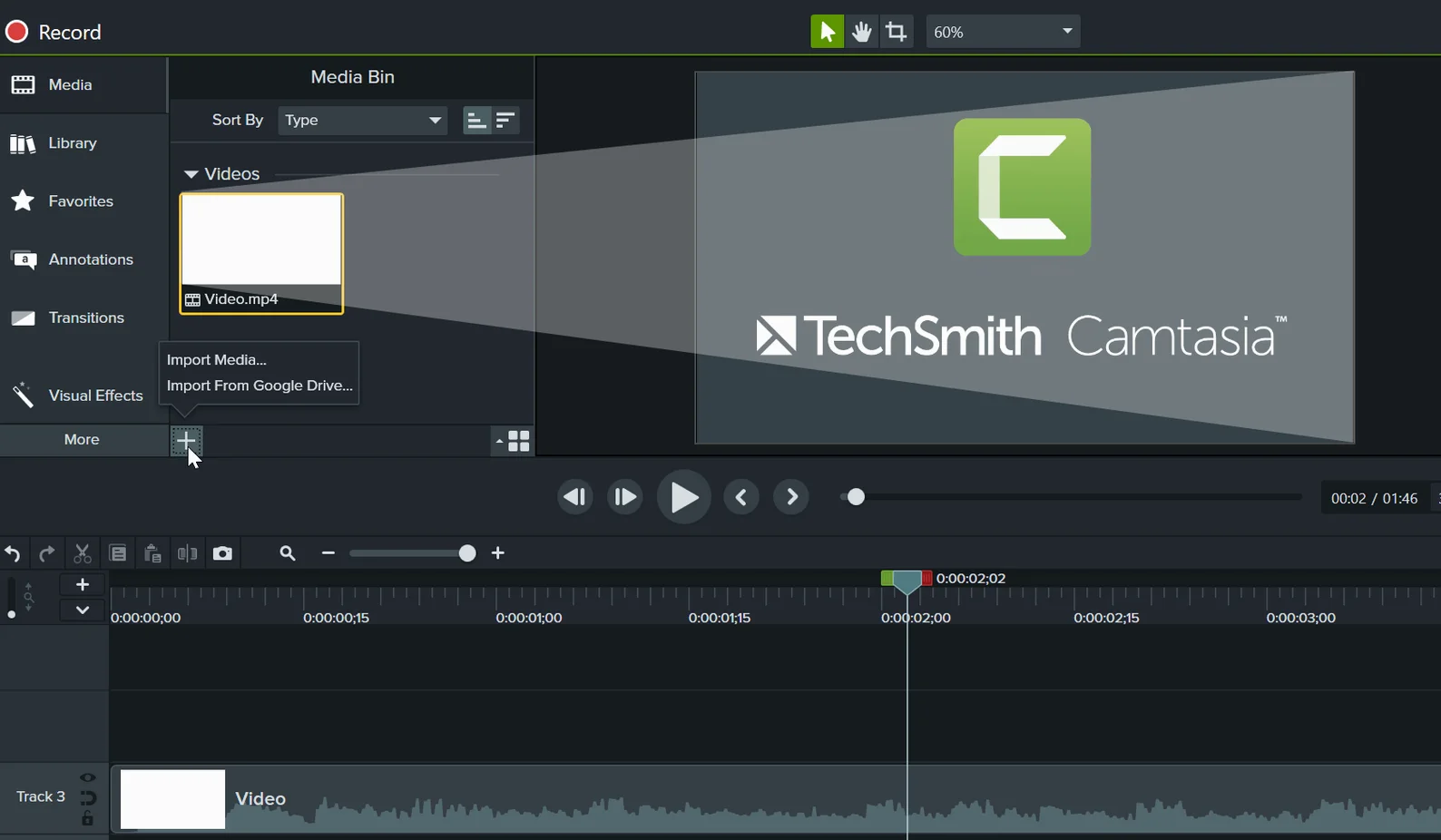
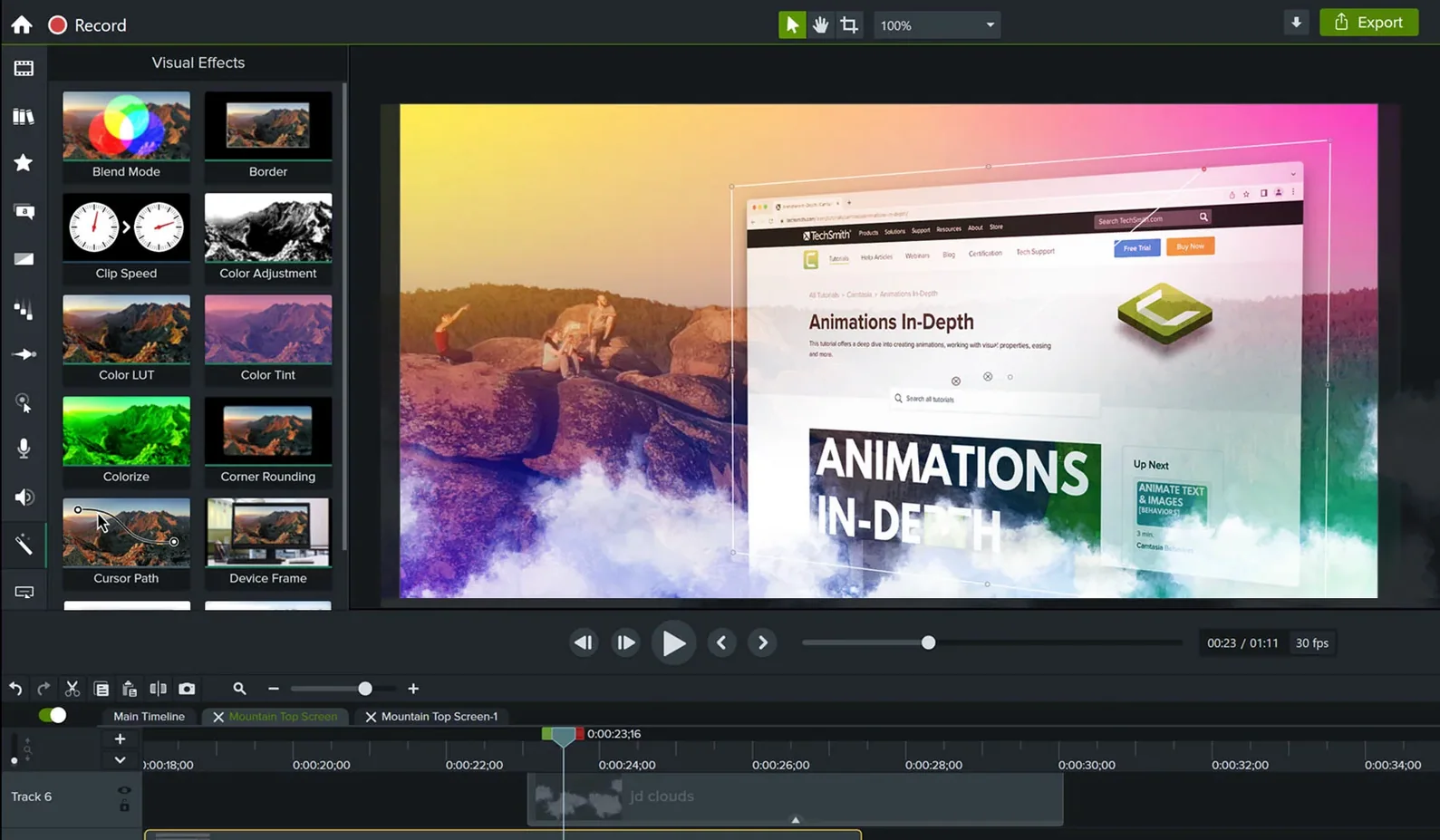
Camtasia is a screen recorder and video editor in one, built for turning on-screen activity into clear demonstrations, lessons and presentations.
Screen recording — Captures your whole screen, a window or a region, with system audio and voice-over.
Video editing — Trim, split and arrange clips on a timeline without leaving the app.
Templates — Ready-made intros, outros and lower thirds speed up the polish stage.
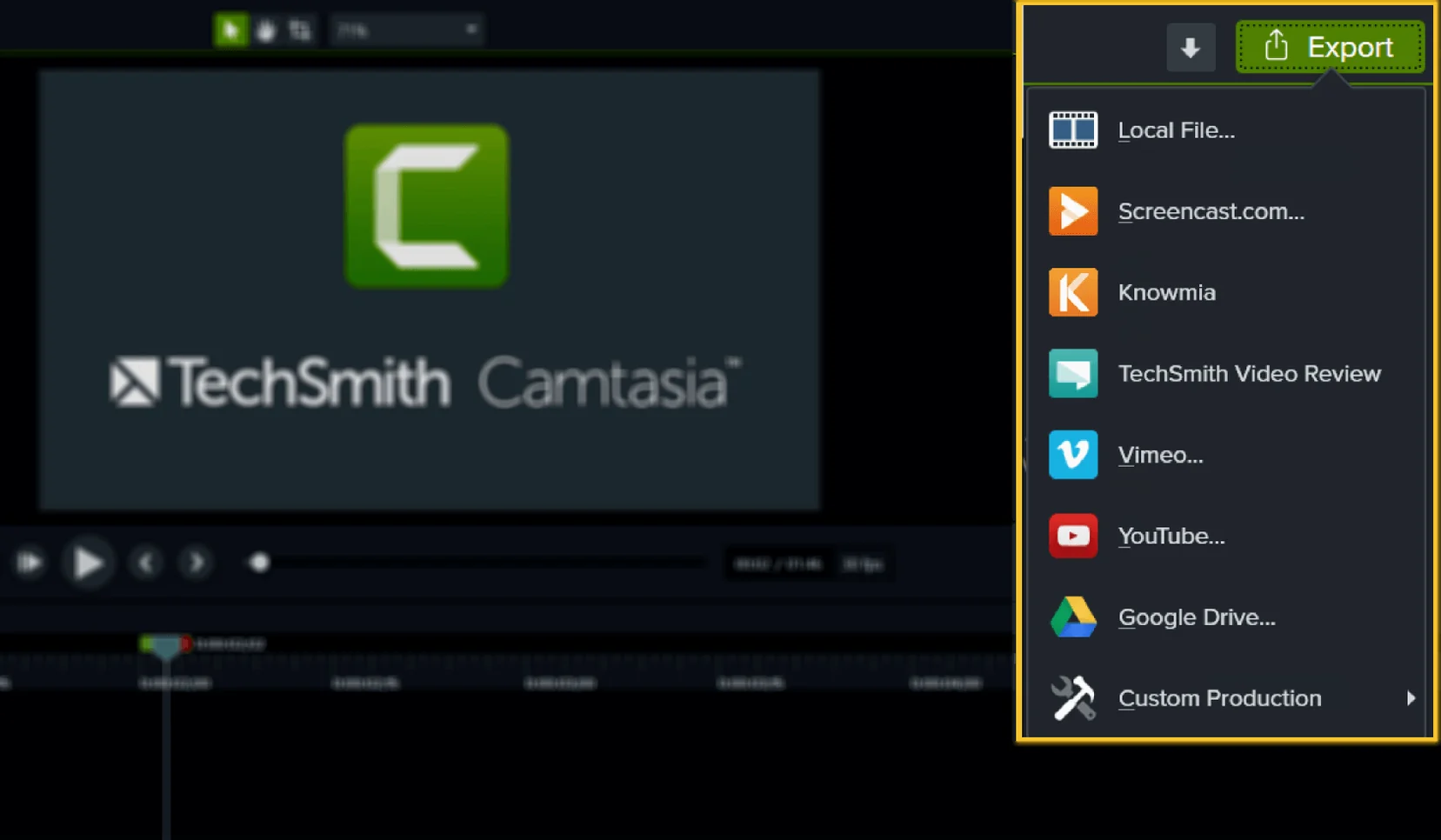
Sharing — Export a finished video or send it straight to a colleague.
Language support — The interface speaks English, German, Spanish, French, Portuguese, Simplified Chinese and Japanese.
Mac requirements — macOS 13 or later, runs natively on both Apple Silicon and Intel hardware.
What’s changed in 2026.2.3
The latest build tidies up reliability under the hood. A lingering crash that some editors hit during export or startup is now patched, which means fewer interruptions when you’re racing a deadline. A handful of smaller bug fixes smooth out timeline scrolling and audio waveform redraws — nothing flashy, just the kind of quiet polish that keeps a heavy editing session feeling predictable.
For everyday use, the practical win is stability. You can queue a long export at the end of the afternoon and walk away without wondering whether the app will still be running when you come back. If you’d grabbed an earlier 2026 release and noticed a hiccup on launch, this update resolves that too.
Recording a walkthrough with the floating toolbar
Picture a Tuesday morning. You’re prepping a quick walkthrough of a new feature in your team’s web app.
You open Camtasia and click New Recording. The recording toolbar floats above everything else. You pick a custom region — just the browser window — and tick the mic input. System audio is on by default. A three-second countdown gives you time to settle your cursor, then you click through the feature while talking through each step. A red border pulses around the capture area so you never lose track of what’s being recorded.
When you stop, the clip lands on the timeline automatically. The first thing you do is drag the playhead to a long pause around the forty-second mark and split the clip with a quick T key tap. The dead air gets deleted. Next, you pull the intro of a template onto track two — a clean title card with your company logo. You drag a lower-third nameplate onto track three and type the feature’s name.
You notice a section where the cursor path looks messy, so you right-click the clip and choose Cursor Effects, then smooth the movement and bump up the click highlight. One last pass: a fade-to-black at the end, pulled from the Transitions panel. The whole job — record to export — clocks in under twenty minutes.
Workflow: software tutorial with imported slides
Sometimes a feature demo needs context before the screen recording even begins. Here’s a workflow that pairs PowerPoint slides with live capture.
- Import the deck. Drag a
.pptxfile straight onto the timeline. Camtasia places each slide as a separate image clip, in order. You trim the slide durations to match the pace of your narration later. - Record the demonstration. With the slides sitting on track two as a visual backbone, you record the screen portion on track one. The recording toolbar lets you pause and resume mid-take, so you can line up the live demo with the slide that introduces it.
- Stitch the narrative. Back on the timeline, you slide the screen-recording clip so it starts right as slide three appears. A ripple delete on the slide track closes any gaps.
- Add callouts. From the Annotations panel, you drag arrows and rectangular highlights onto moments where the viewer’s eye should land. Each annotation sits on its own track above the video, so you can trim its visibility to exactly two seconds.
- Record voice-over. You mute the original mic track (the live commentary was a rough guide) and click Voice Narration. You talk through the finished timeline, seeing slides and recording in sync. The new audio drops onto a dedicated track.
- Export for review. You choose Share > Local File, pick the MP4 preset, and tick Produce with Smart Player so the viewer gets a clickable table of contents. The file renders and is ready to upload.
This approach keeps slides crisp because they never pass through the screen recorder’s compression — they stay as direct imports. The timeline stays tidy too: slides on one track, screen capture on another, annotations above both.
Pre-installation questions answered
Runs natively on M-series chips
Yes. The app runs natively on both Apple Silicon and Intel hardware. There’s no Rosetta translation layer for M-series chips, so timeline scrubbing and export remain snappy even on longer projects.
Can I edit footage I didn’t record in Camtasia?
Absolutely. You can import existing video files, phone recordings, or footage from a DSLR. Drag them to the media bin and they behave like any other clip on the timeline — trim, split, colour adjustments and all.
What export formats are available?
The standard option is MP4, which covers most upload destinations. You can also export audio-only files, animated GIFs from short timeline selections, or a project file to hand off to a colleague.
Will it handle long recordings without crashing?
With the 2026.2.3 update, the known crash on export and startup has been fixed. Stability during hour-long captures depends more on available disk space than the app itself — Camtasia writes to a temporary cache as it records, so a roomy drive helps.
Is the interface available in my language?
The UI ships in English, German, Spanish, French, Portuguese, Simplified Chinese and Japanese. You switch the display language from the Preferences menu without reinstalling.
Good to know: If you’re stepping up from an older screen recorder and already have a library of raw clips, Camtasia imports them directly. You can start editing without re-recording anything.
Camtasia 2026.2.4 delivers a fresh batch of stability tweaks and subtle refinements across the editing workspace.
- macOS 13 or later
- Apple Silicon or Intel 64-bit
Questions I get
Yes, the current version runs natively on Apple Silicon and Intel Macs, as long as you're on macOS 13 or later.
The typical output covers software demonstrations, product tutorials, online lessons and recorded presentations.
 CleanShot X
 Movavi Screen Recorder
 Presentify
 Screen Studio
 ScreenFlow
 TechSmith Snagit
Chat 0
Hop in or make an account to join the chat.
Quiet in here so far. If you have used this build, tell me what the install actually did.