
 OmniReader Pro
 Nitro PDF Pro
 PDF Expert
 PDF Reader Pro
 PDFelement Pro
 QuickBooks Mac Plus
 Microsoft Word
 Microsoft PowerPoint

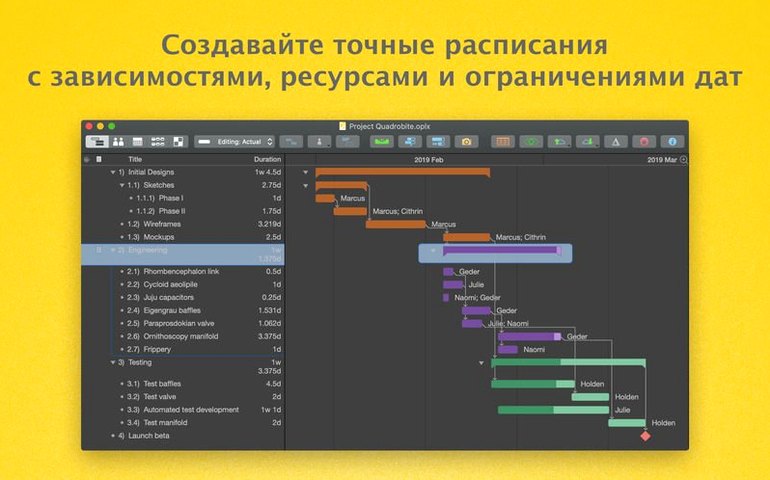
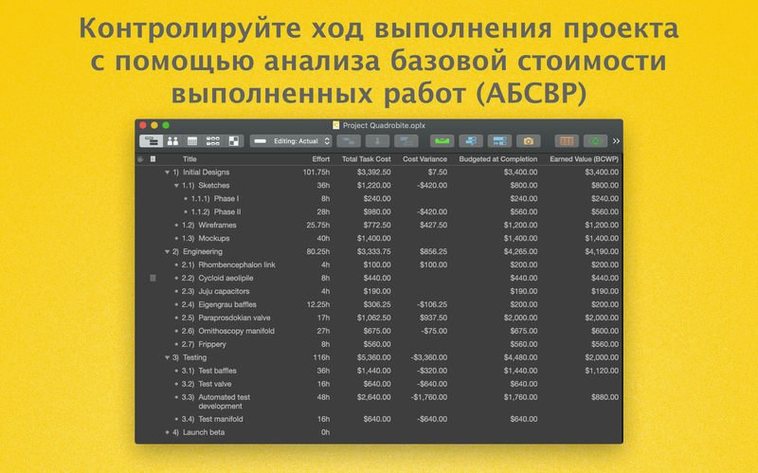
Project leads and resource managers reach for OmniPlan Pro when a simple to-do list won’t cut it. It turns rough timelines into clear Gantt charts, splitting work into tasks while keeping an eye on budgets and team availability.
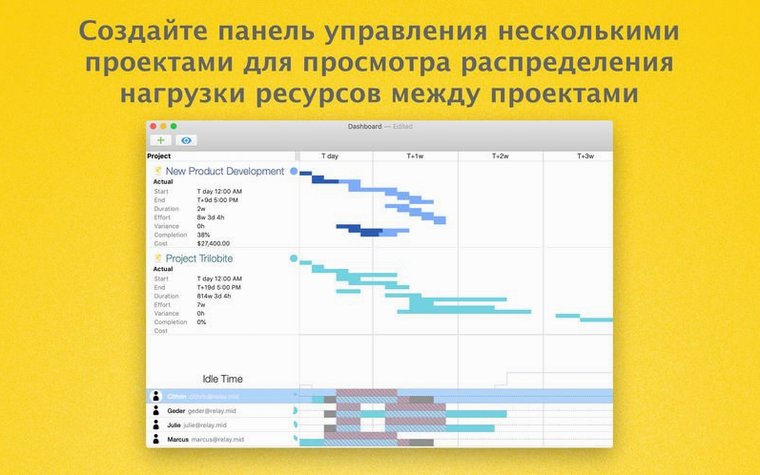
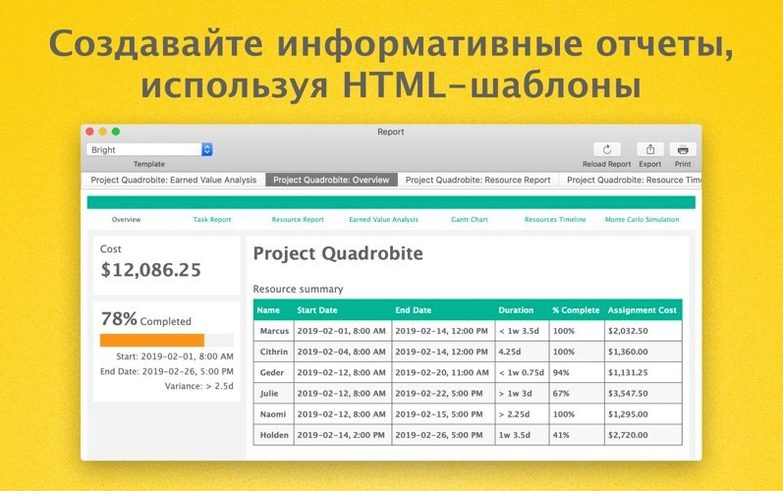
Standard OmniPlan handles task scheduling and progress tracking. The Pro edition layers on multi-project dashboards so you can glance across several timelines at once. HTML reports let you share status updates outside the app, while publishing and subscribing through Omni Sync Server or WebDAV keeps distributed teams in step. You can also push data out to OmniOutliner and OmniGraffle when a plan needs to become a structured list or a visual map.
Even a well-built plan can throw a curveball. These are the sticking points that crop up most often—and what to do about them.
You assign three tasks to the same designer on the same day and the Gantt chart stays silent. Head into View > Resource Allocation and switch on the timeline that highlights overloads in red. The Pro tier’s automatic levelling can then spread the load—check Project > Level Resources and set a levelling window that matches your sprint length.
An MPP file lands from a client and the dates shift or custom columns vanish. Before you rework everything, open the Import dashboard and tick Preserve task structure. If milestones still flatten into regular tasks, check that the original file uses a baseline—OmniPlan Pro reads that as an anchor and maps dates more reliably.
When the simulation spits out a completion range spanning six months, the culprit is almost always a single task with a huge effort estimate and no constraints. Pin that task with a Must Start On or Finish No Later Than constraint before re-running. You’ll get a spread that actually informs a decision.
Two people edit the same task while working offline; the next sync brings a pile of Change Tracking alerts. Accept or reject them in batches from the sidebar rather than tackling each one individually. Better still, agree on a rule—whoever owns the resource updates its tasks—before the next sync cycle begins.
Version 4.11.0 brought two practical improvements that cut down friction during an ordinary workday. The first is broader macOS compatibility, so OmniPlan Pro runs smoothly on recent system updates without font glitches or toolbar oddities that older builds sometimes showed.
The second fix is easy to overlook until you hit the problem: editing a task that has dozens of resources assigned used to lag noticeably. Now the inspector responds without that half-second pause, which matters when you are adjusting a meeting-heavy task across a large department.
Earlier 4.x releases already introduced the multi-project dashboard and Monte Carlo simulation, but 4.11.0 ties them to a more responsive interface on modern Macs. No new buttons to learn—just less waiting.
Fresh out of the disk image, a handful of tweaks make the app fit the way you actually work.
Yes, the Pro version includes a multi-project dashboard that lets you monitor timelines, resources, and progress across several projects in one view.











Chat 0
Hop in or make an account to join the chat.
Quiet in here so far. If you have used this build, tell me what the install actually did.