
 PDF Expert
 PDFelement Pro
 OmniReader Pro
 OmniPlan Pro
 QuickBooks Mac Plus
 Nitro PDF Pro
 Scrivener
 Microsoft Word

Version 6 brings a clean update to the engine that handles exports and text recognition.
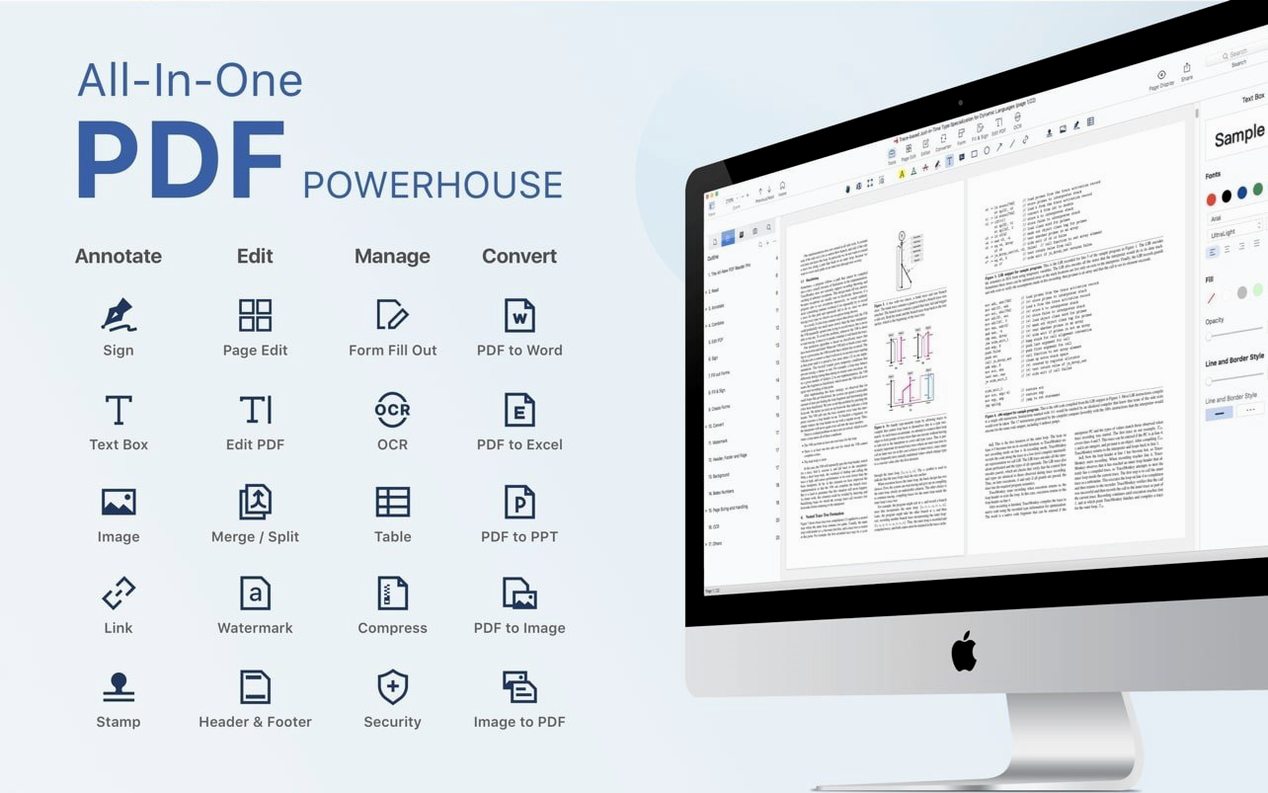
PDF Reader Pro — an editor and viewer that slots in beside your existing office tools.
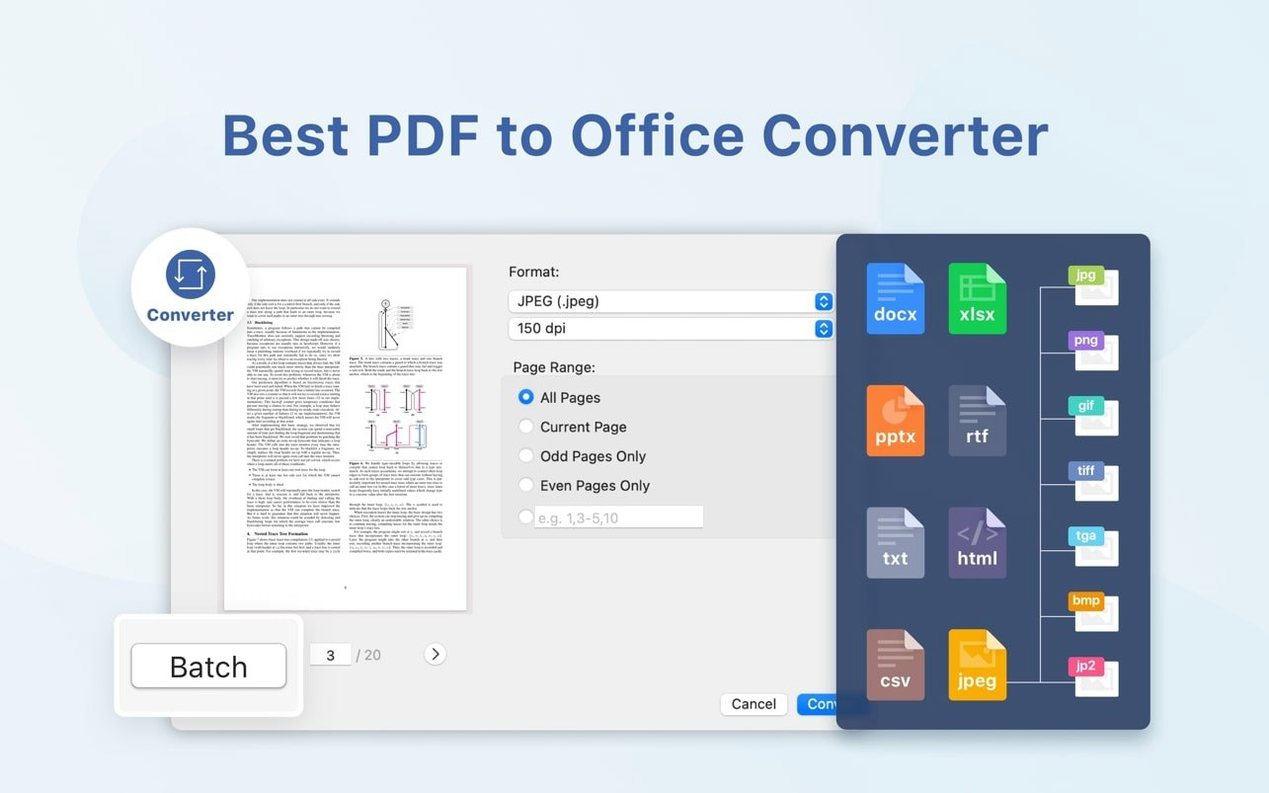
.pptx reader — export any PDF straight into PowerPoint, keeping slides editable when you need to repurpose a deck.
Conversion — push content out to Word, Excel, RTF, HTML, plain text, images or CSV. The export panel gives you all of them in one place.
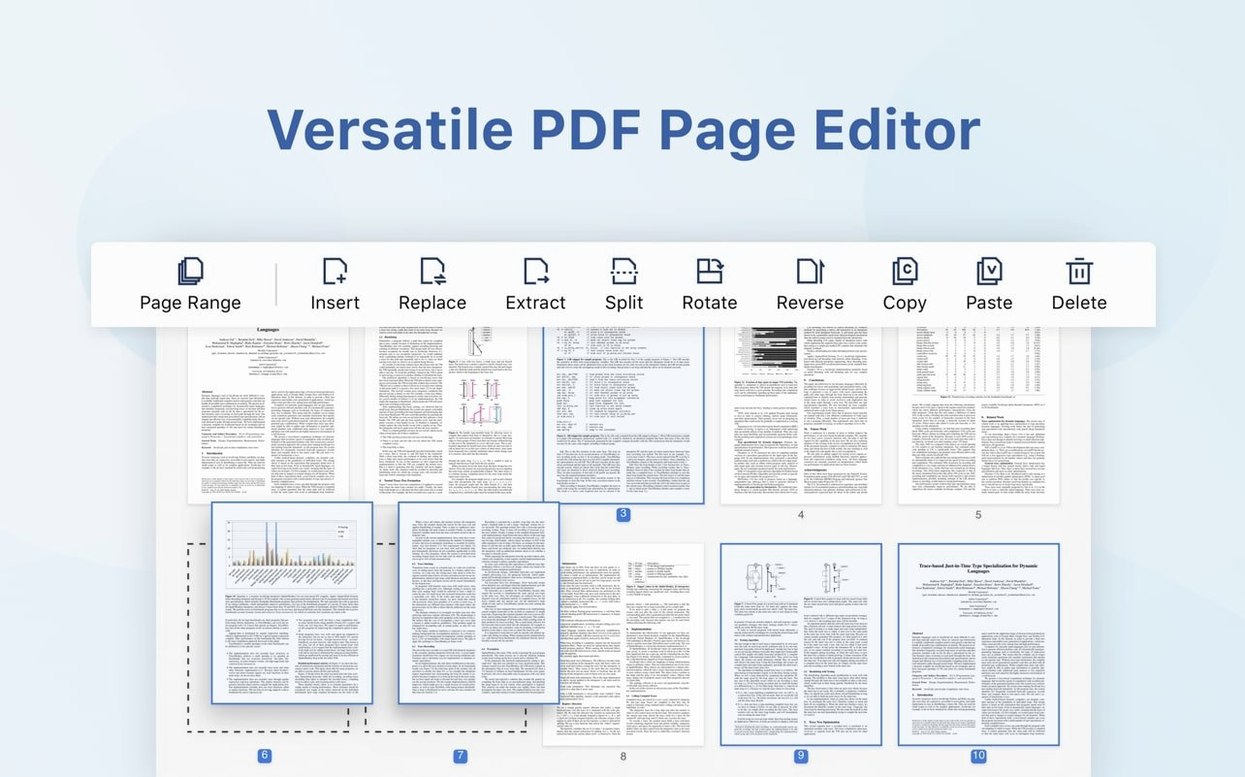
Split — carve a long PDF into separate files by page range. Quick way to hand someone just the chapter they asked for.
Bookmarks — drop markers into long documents so you can jump back to a section without scrolling.
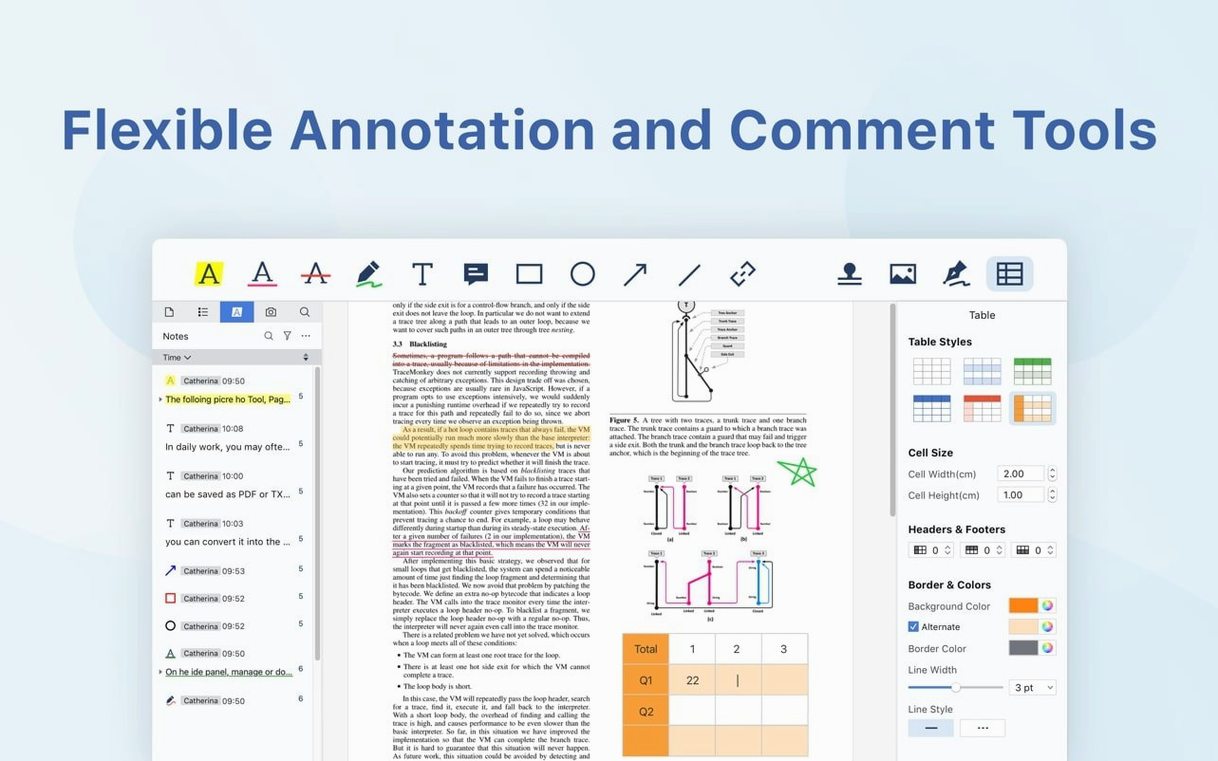
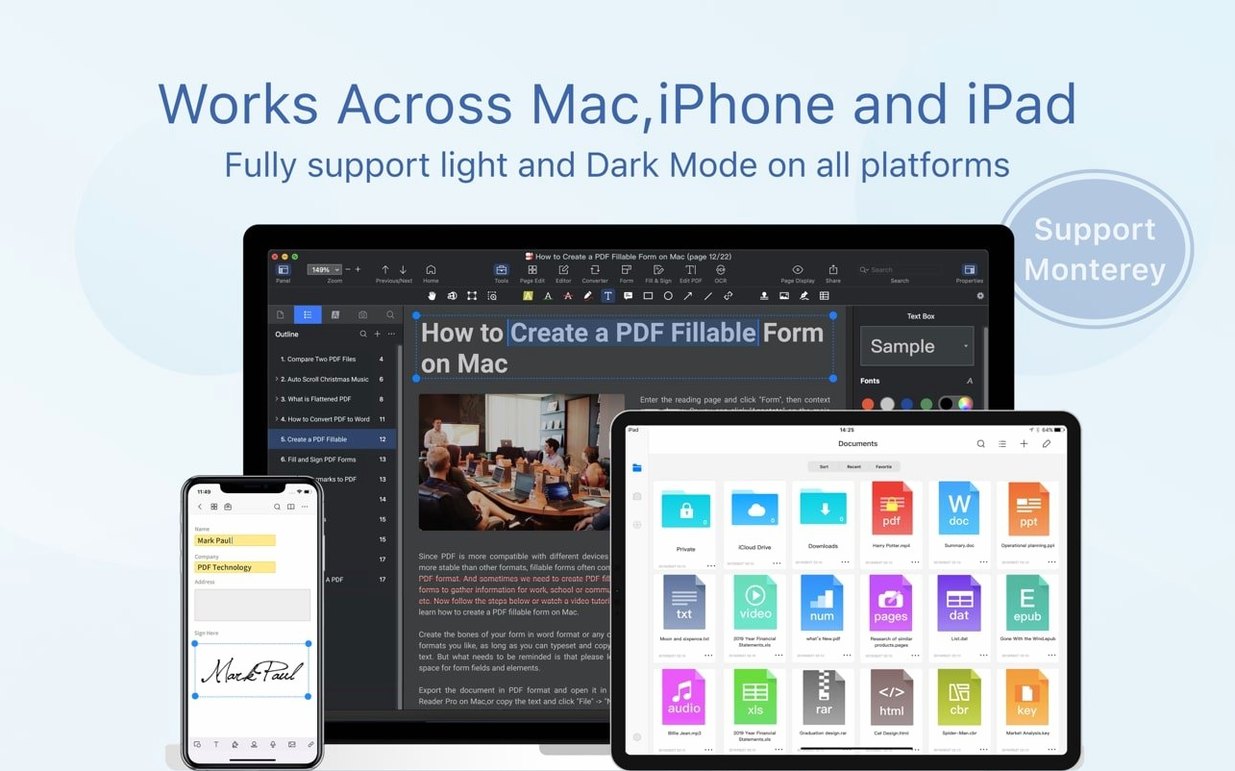
Annotations — highlight, underline, strike through and add notes. The toolbar stays out of the way until you select text.
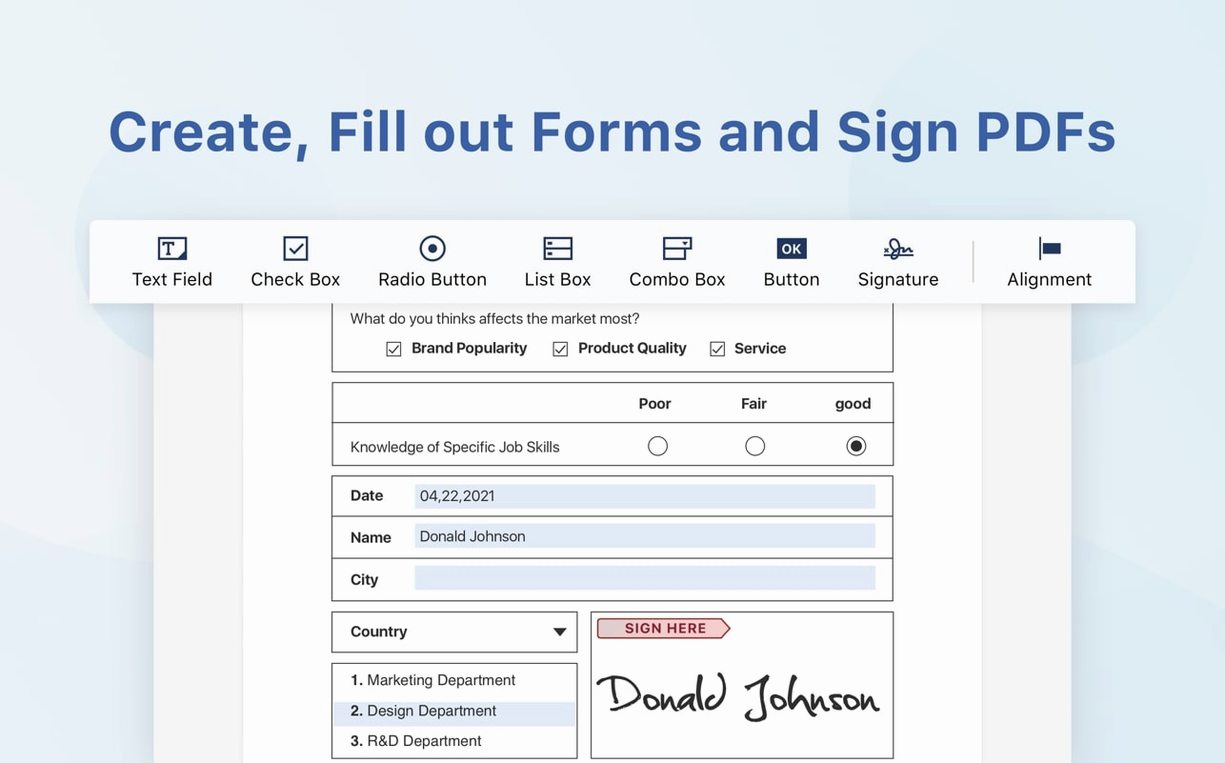
Sign & fill — scrawl a signature with the trackpad or drop a saved one onto a form, then fill the fields and send it off.
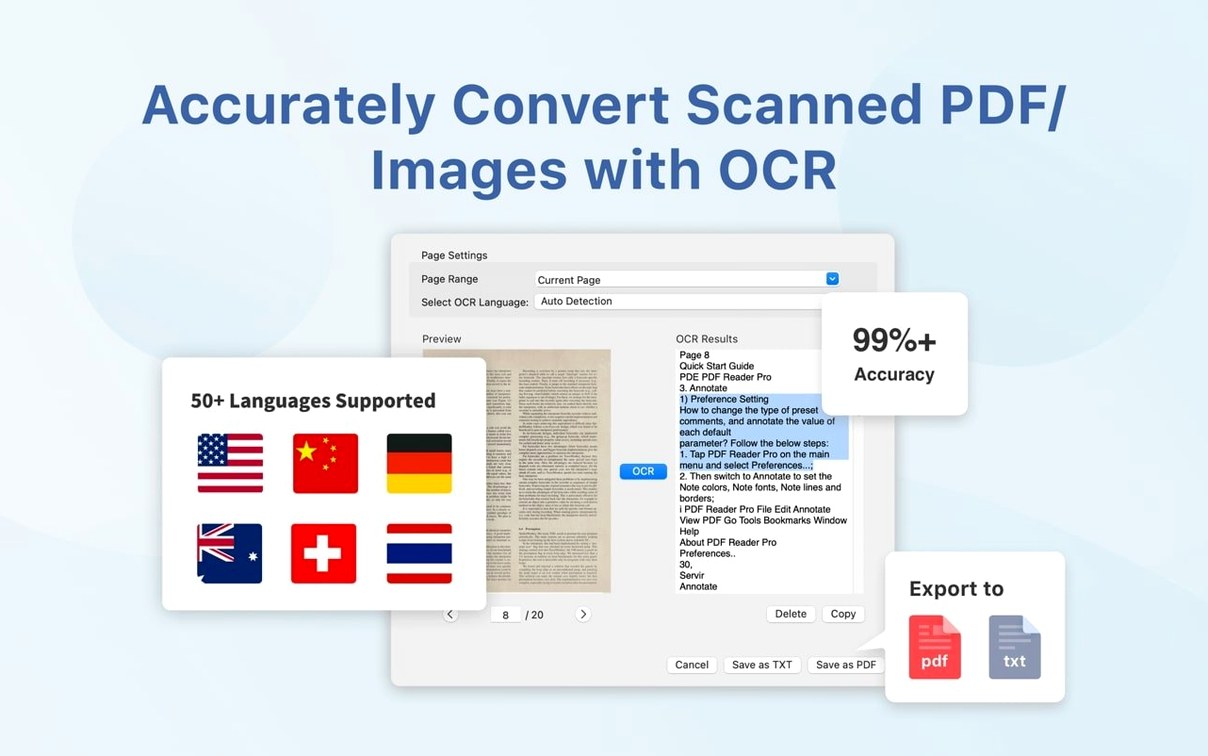
OCR — the text recognition layer turns scanned pages into searchable, selectable text. Handy when someone emails you a photo of a document.
Cloud sync — hook up Dropbox and open files directly without downloading them first to a local folder.
Students juggling lecture slides and scanned textbook chapters lean on the OCR engine daily. A photo of a whiteboard becomes searchable notes in seconds, and the annotation set means they can highlight passages without printing a thing.
Office teams who pass contracts and invoices around appreciate the form-filling tools. Drop a signature onto a purchase order, fill the date fields, and send it back — no printer, no scanner, no chasing someone for a physical copy.
Designers and presenters who repurpose decks will keep the .pptx export close. Extract slides from a client's PDF brief, pull them into PowerPoint, and the text stays editable rather than locked inside a flat image. The Word and RTF exports cover the same ground for written reports.
Anyone who reads long-form documents on a MacBook screen will find the bookmark panel and text-to-speech surprisingly practical. Set a bookmark at the start of each section in a technical manual, then have the app read the rest aloud while you take notes elsewhere.
Scanned pages with low contrast sometimes trip up the OCR layer. If the recognition output looks garbled, bump the scan resolution to at least 300 dpi before you feed it in, or toggle the language setting in the OCR panel — leaving it on auto can mix up similar scripts.
Form fields that were built in older PDF generators occasionally refuse to highlight. The workaround is to use the freehand annotation tool to type over the dead field, then flatten the annotation before sharing the file. It looks identical on the other end.
Large exports to .pptx can slow down on Intel Macs with 8 GB of RAM. Splitting the source PDF into smaller chunks before conversion keeps the process snappy, and you can reassemble the slides later in PowerPoint.
Say a client sends you a 22-page service agreement. You need to mark it up, sign it, and return a clean copy within the hour.
The whole loop — open, mark, sign, split, share — stays inside one app without bouncing between a reader, an editor and a separate signing tool.
It works as a .pptx reader by exporting a PDF's content into an editable PowerPoint presentation — you don't open the .pptx itself, but you get a clean slide deck from any PDF.
Yes, the app supports both ARM and x86 64-bit Macs, so it runs natively on M-series chips as well as older Intel machines.
You can switch between Russian, English, German, Spanish, Italian, Traditional and Simplified Chinese, Dutch, Polish, French and Japanese.










Chat 0
Hop in or make an account to join the chat.
Quiet in here so far. If you have used this build, tell me what the install actually did.