
 Cubase
 Cycling '74 Max
 CrossOver
 DaisyDisk
 Darkroom
 Dash
Dash CorelDRAW
 CorelCAD


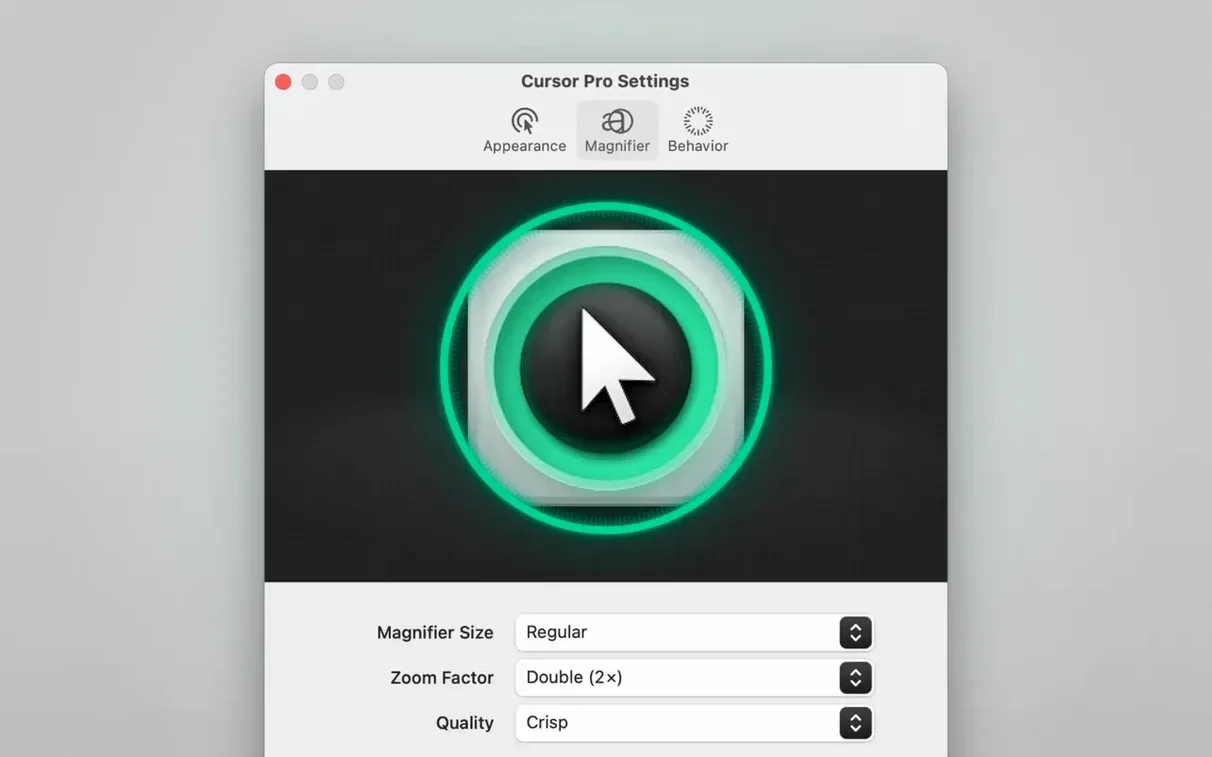
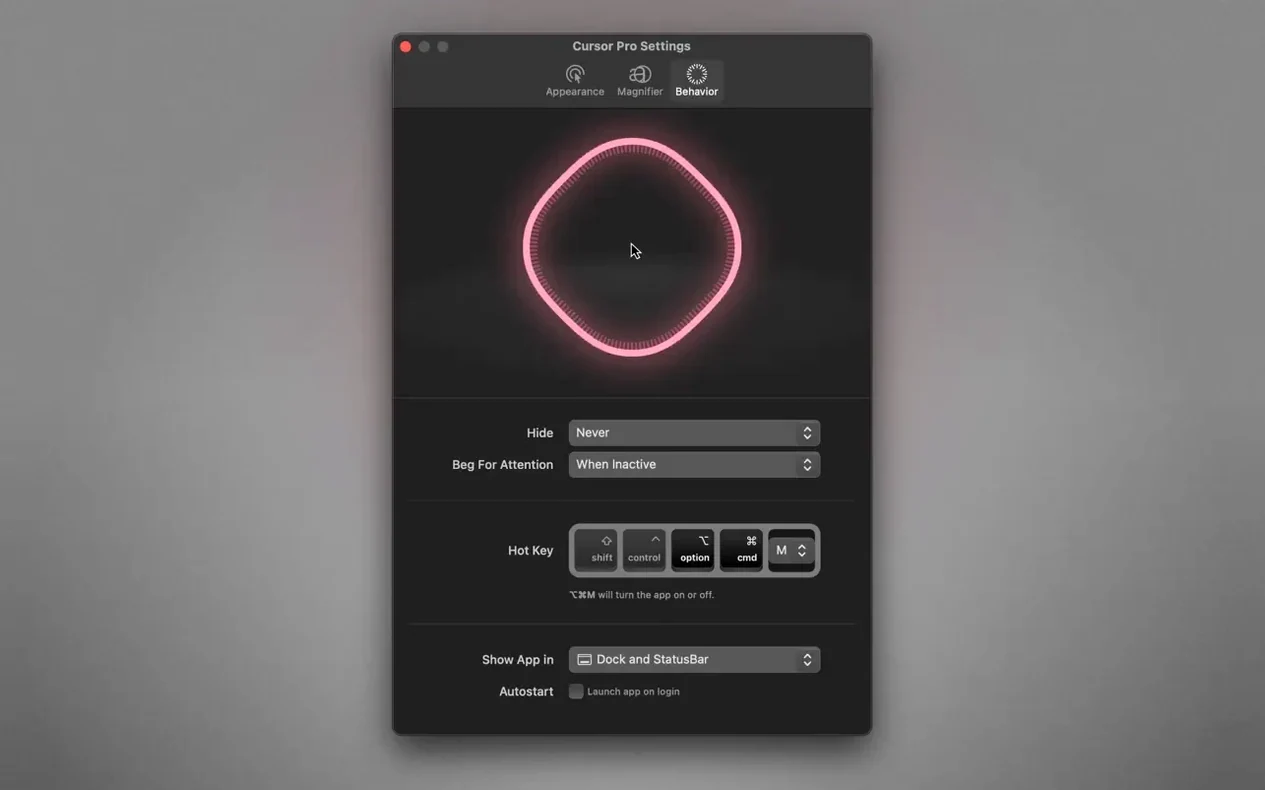
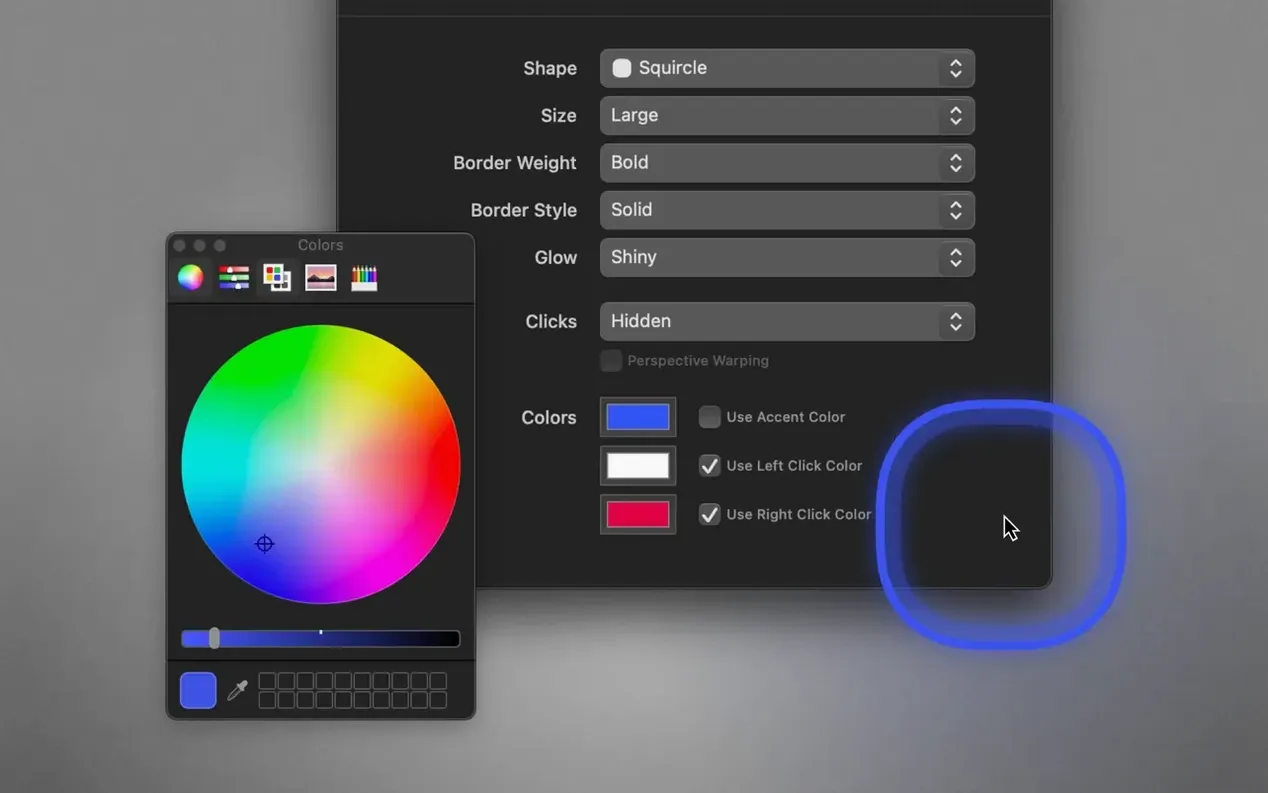
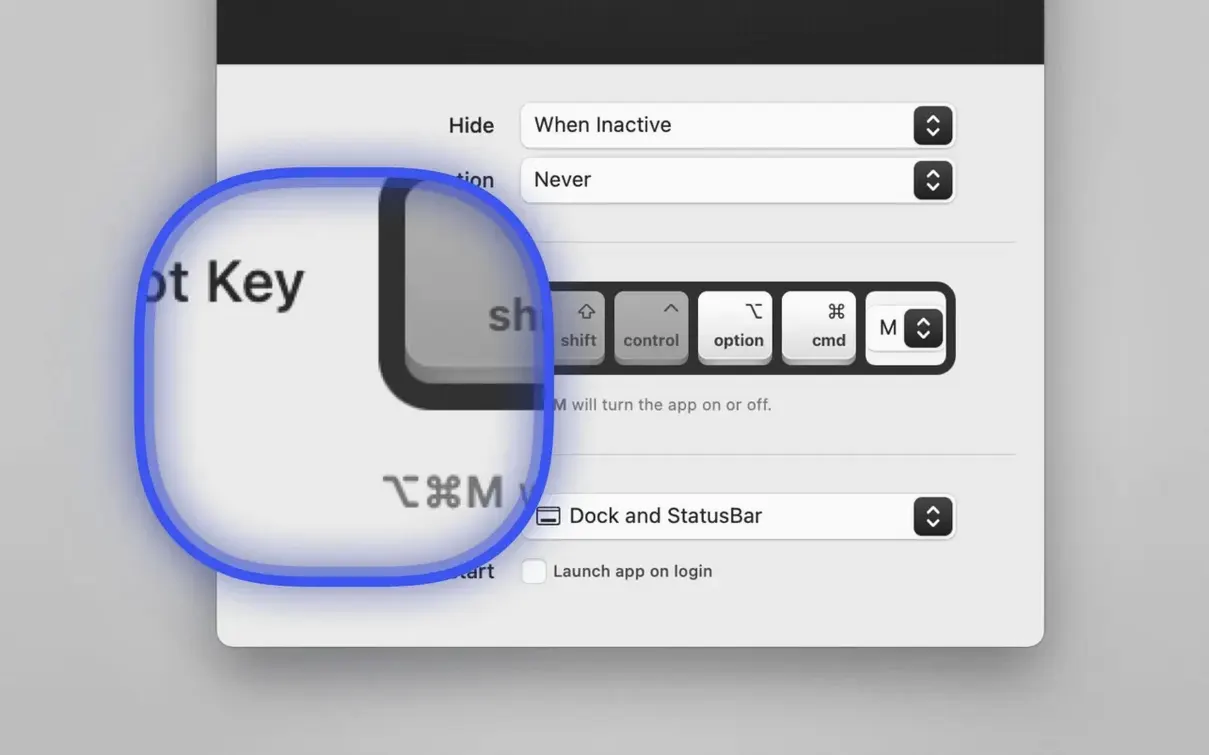
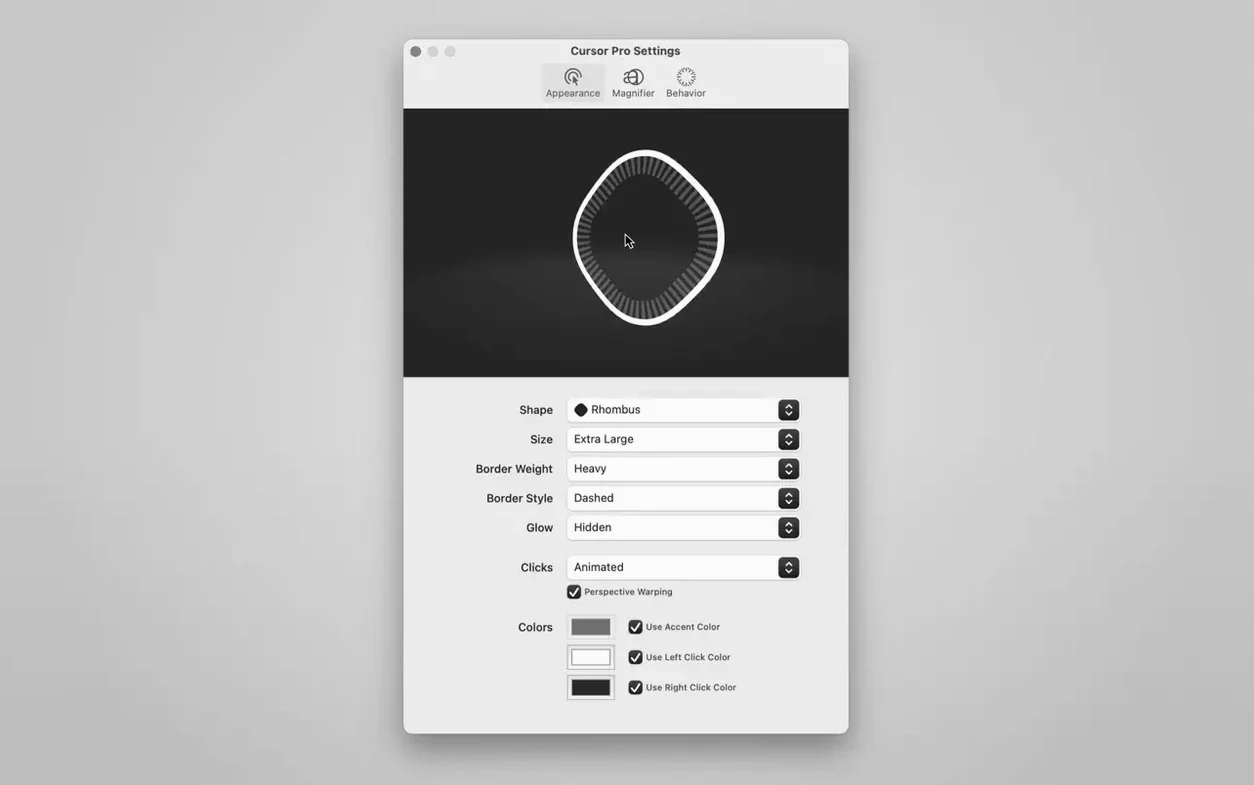
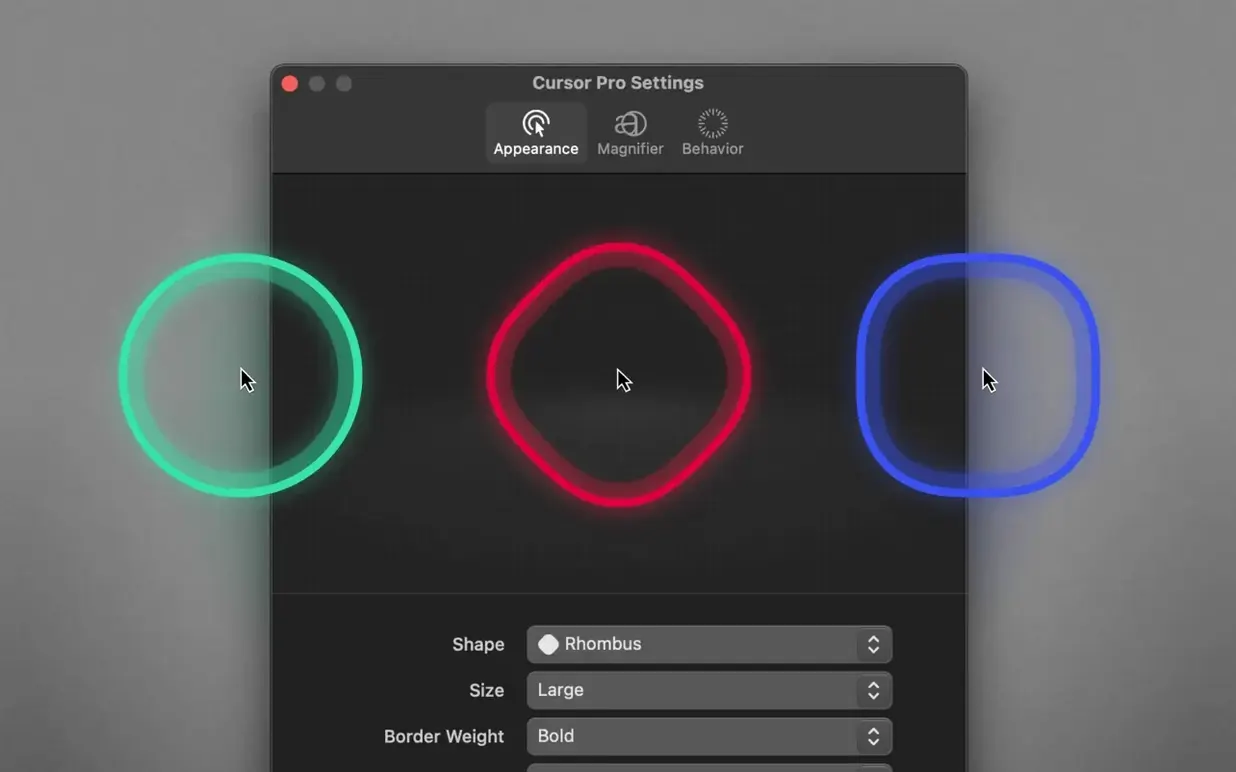
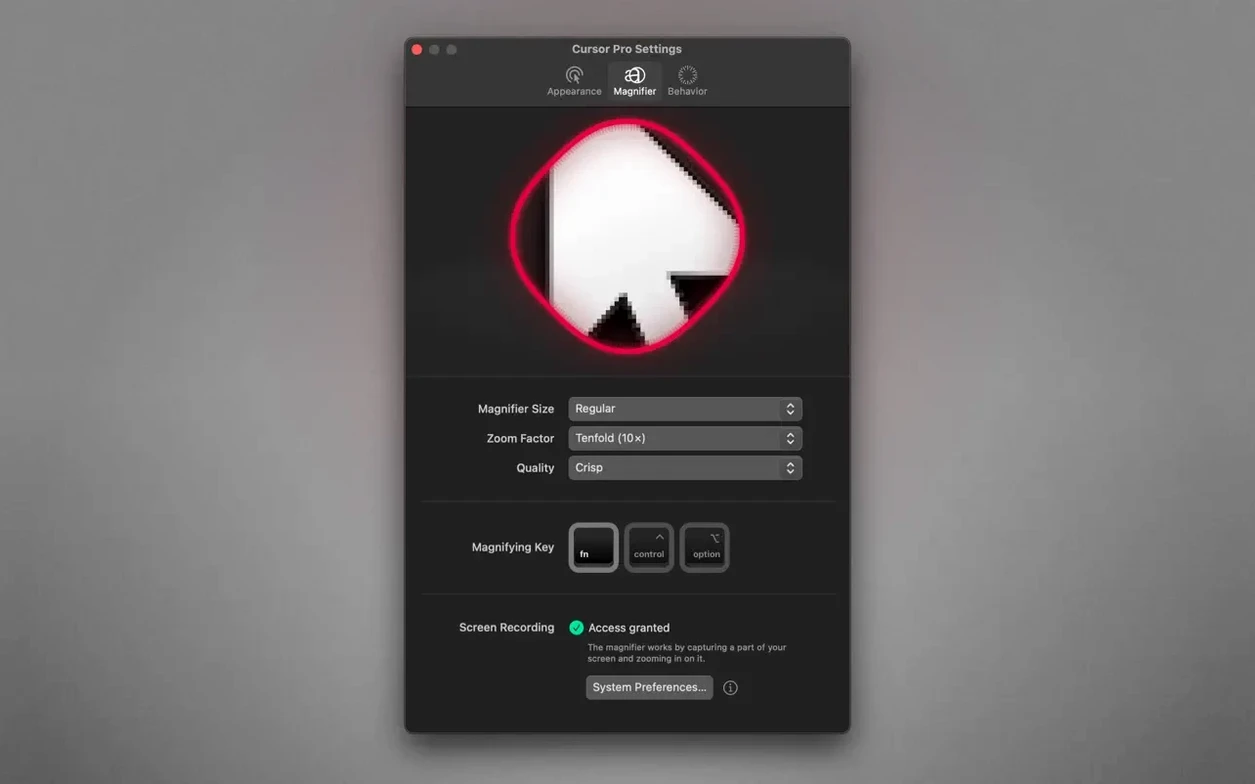
The Pulse effect gives your pointer a rhythmic glow, so it’s impossible to lose track of it on a busy display.
Cursor Pro is built for screen presentations and sharing sessions where a tiny arrow gets lost. The highlight shape adapts to the pointer, and the magnifier pulls details forward without switching apps. It runs on Apple Silicon and Intel Macs with macOS 11 or later, and speaks eight interface languages including English, German, and Japanese.
Beginners often leave the magnifier on between presentations and then wonder why screen elements feel jumpy. The loupe follows your pointer, so any quick flick of the wrist can turn a calm desktop into a dizzying zoom session. Get into the habit of assigning the same global hotkey to both the highlight and magnifier — one tap toggles everything off before you return to email.
Another early mistake is choosing a highlight colour that blends with your most-used apps. A soft grey ring might look elegant in the menu bar, but it vanishes against a Figma canvas or a dark code editor. Pick something loud — a vivid orange or a magenta with a generous glow — and test it against the backgrounds you actually share. You can always switch to a subtler shade for polished client calls.
People also underestimate the auto-hide setting. Turning it off keeps the highlight visible even when you’re not sharing a screen, which can get annoying fast. Set auto-hide to activate after a few seconds of inactivity so the ring disappears when you pause, then pops back as soon as you nudge the mouse.
A UX designer is walking a client through a prototype over Zoom. The client keeps saying “where did you click?” every time the cursor darts to a new screen region. She opens Cursor Pro, picks a diamond highlight shape in a bright cyan, and dials up the glow. Now every tap lands inside a glowing lozenge that reads clearly even on the client’s compressed video feed.
Midway through the session, she needs to zoom into a tiny spacing issue between two form fields. She triggers the magnifier with a hotkey, sets the zoom factor to 2.5×, and drags the loupe over the problem area. The client sees the pixel gap without anyone needing to squint or ask for a screenshot. When the designer returns to her Figma file, one keystroke hides everything — no lingering overlays, no accidental cursor torrent of visual noise.
Does it work with any screen-sharing app?
Yes, as long as you share your entire screen rather than a single window. Cursor Pro draws its highlight on the screen layer itself, so apps like Zoom, Teams, and Discord pick it up naturally. Window-only sharing hides the effect because the overlay sits outside the captured area.
Will the magnifier slow down my Mac?
The magnifier is lightweight and updates smoothly on both Apple Silicon and Intel Macs running macOS 11 or later. It doesn’t record or process video — it simply enlarges a portion of the screen in real time. On older Intel machines, you might notice a slight frame-rate dip if you combine the magnifier with a heavy screen-recording app, but for typical presentations it stays snappy.
Can I hide the app completely when I’m not using it?
Absolutely. Set it to live in the menu bar only and enable auto-hide. The highlight and magnifier stay invisible until you hit your global hotkey. If you prefer zero menu bar clutter, you can run it from the Dock and quit it when the day’s presentations are done.
Yes — the auto-hide behaviour removes the glow after a moment of inactivity, so it stays out of your way during normal work.
The global hotkey toggles the highlight; you then configure the magnifier separately and it appears alongside the cursor.
It can. There’s an option to launch at login, which is handy if you present or screen-share every day.














Chat 0
Hop in or make an account to join the chat.
Quiet in here so far. If you have used this build, tell me what the install actually did.