
 Complete Anatomy
 Adobe Acrobat Pro
 ABBYY FineReader PDF
 EndNote
 Final Draft
 GoodNotes
 GraphPad Prism
 iA Writer


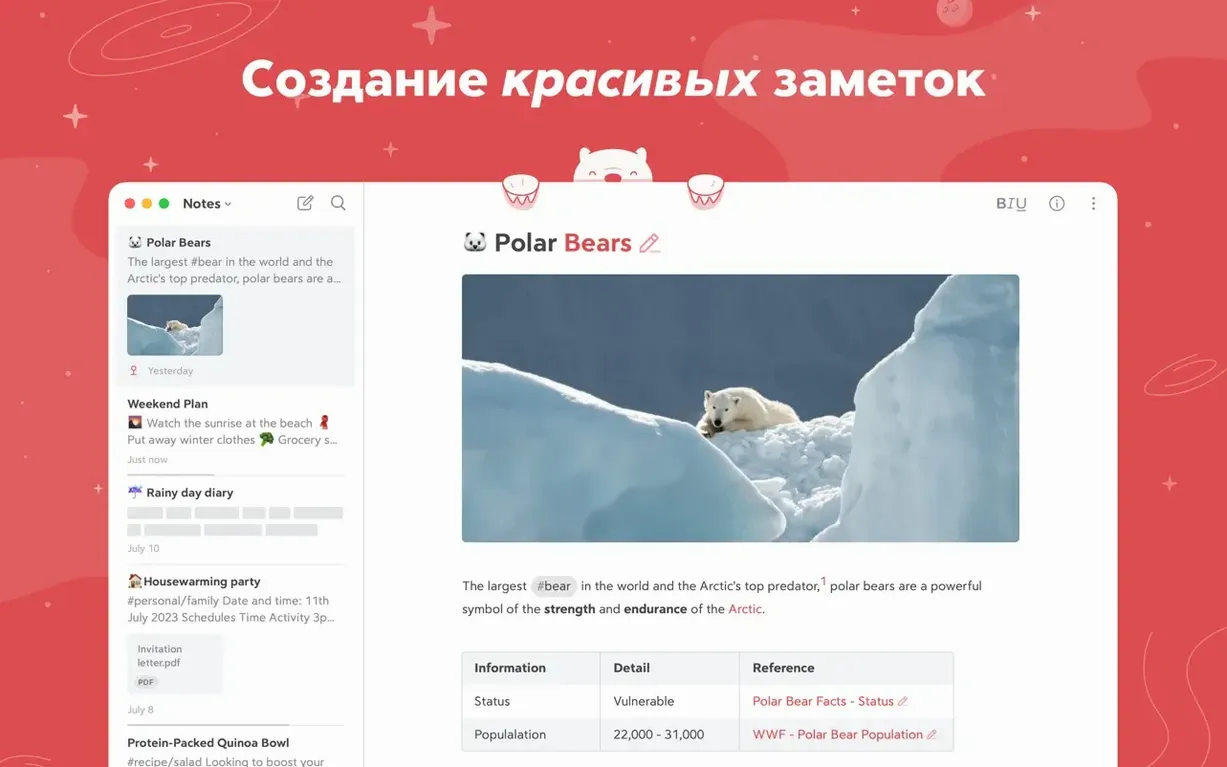
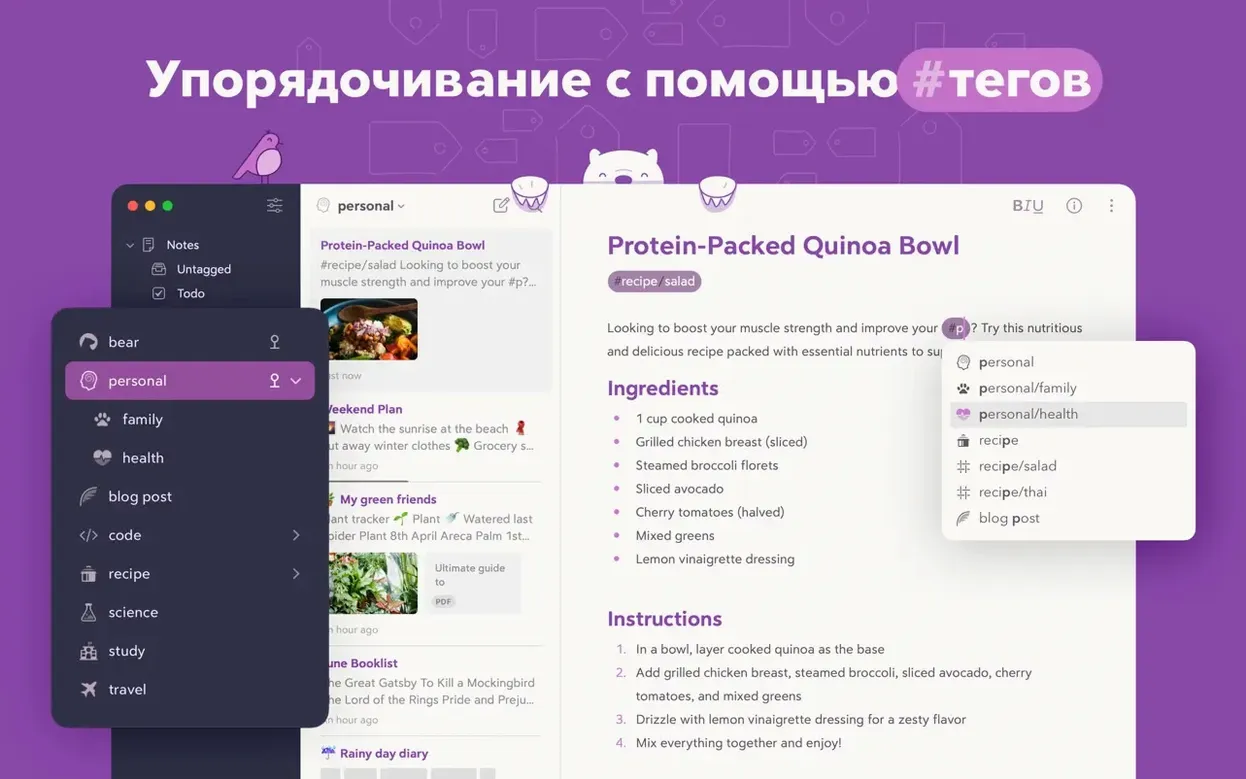

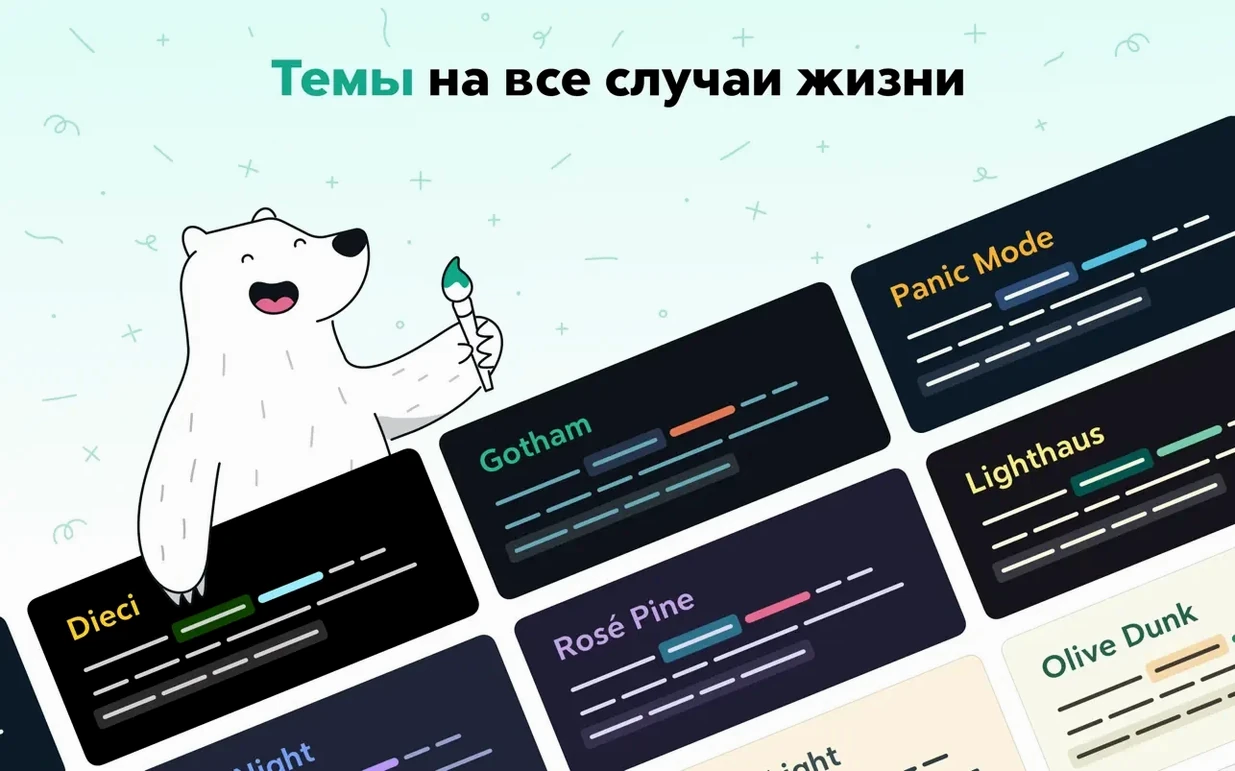

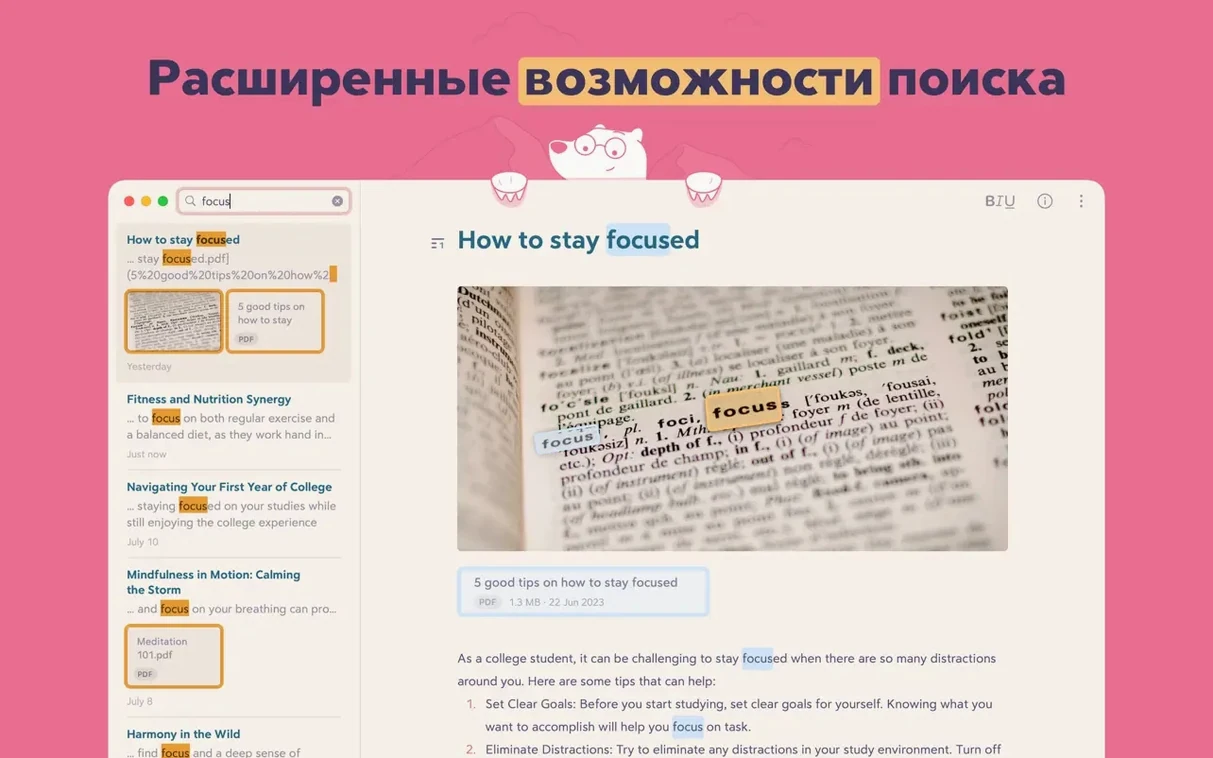
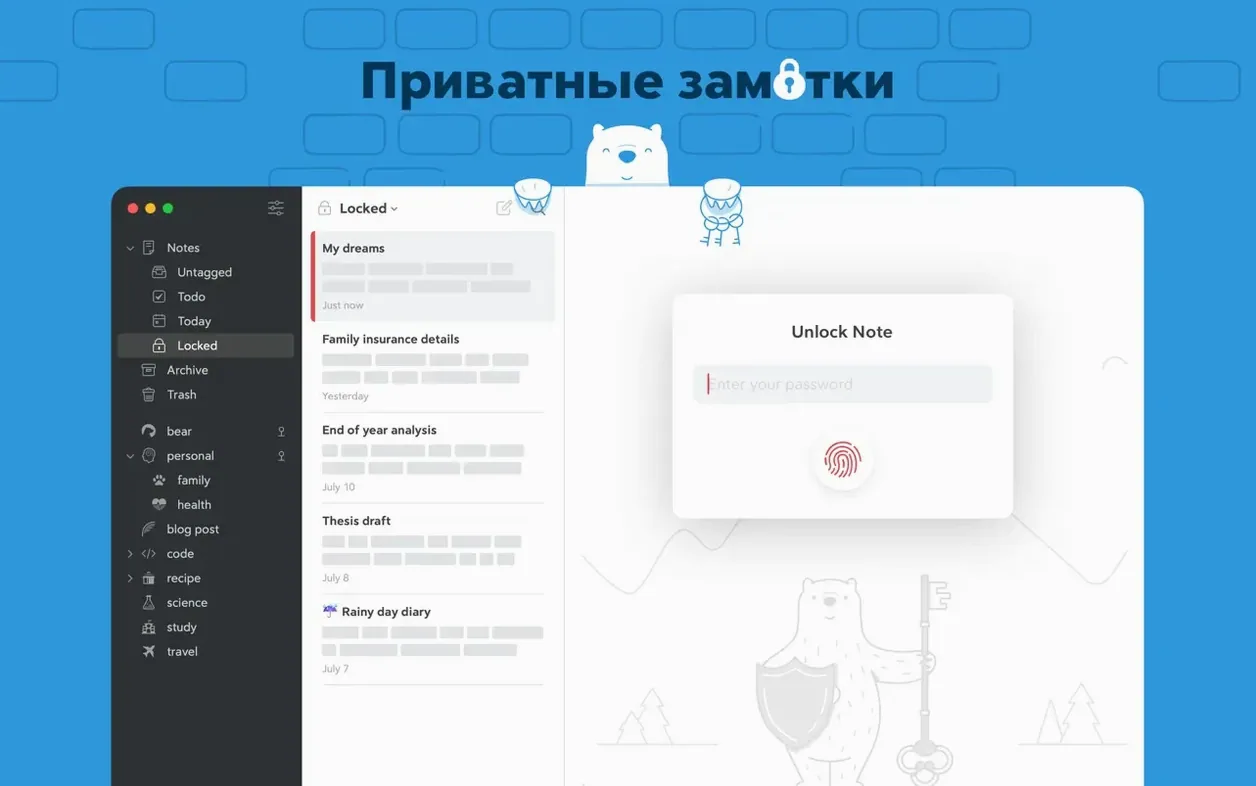
Bear is for people who take quick notes, plan their morning, journal, and occasionally write longer pieces — all in the same place. It uses Markdown so formatting stays clean and text-focused, without toolbars getting in the way.
Pick any two note apps and the differences show up in what they leave out. Bear keeps formatting visible but optional — type in Markdown, read in plain text. Apple Notes puts style controls in a toolbar and stores everything in a flat list. Bear’s nested tags feel closer to folders without locking you into one path. Craft goes the other direction: block-based pages and visual layout tools that suit presentation-heavy work. If you just want to write, Bear’s simpler.
UpNote and Joplin both handle Markdown well. Joplin adds end-to-end encryption and open-source flexibility, but the interface feels busier. UpNote mimics Bear’s clean sidebar and adds rich-text toggles, yet its search doesn’t dig into image text the way Bear does. For anyone who tags heavily — multi-word tags, nested tags, pinned tags — Bear still leads in keeping the sidebar tidy while letting complexity grow underneath.
Bear doesn’t sit in a silo. A few connections make it part of the Mac workflow rather than another island of data.
Together these mean you can start a note in Bear, find it through Spotlight, link it to a project page, and clip research from the browser — all without leaving your usual rhythm.
A little setup early makes the app feel like home. Start here.
After a few days of tagging and linking, you’ll notice the sidebar stops being a list and starts being a map. That’s when Bear clicks.
Good to know: Bear’s privacy model means your notes, tags, and search index stay on your device. The developer can’t read them. Syncing, if you add it later, encrypts data in transit and at rest on iCloud.
Yes, you can start writing straight away with no registration or login required.
Bear notes are indexed by Spotlight, so you can find them from the macOS search bar.
You can add images, PDFs, and web clips, and Bear can search text inside those attachments.




Chat 0
Hop in or make an account to join the chat.
Quiet in here so far. If you have used this build, tell me what the install actually did.