
 Paste
 Parallels Desktop
 Paragon NTFS
 Permute
 Photo Mechanic
 Pacifist
 Photomator
 PhotoScape X Pro


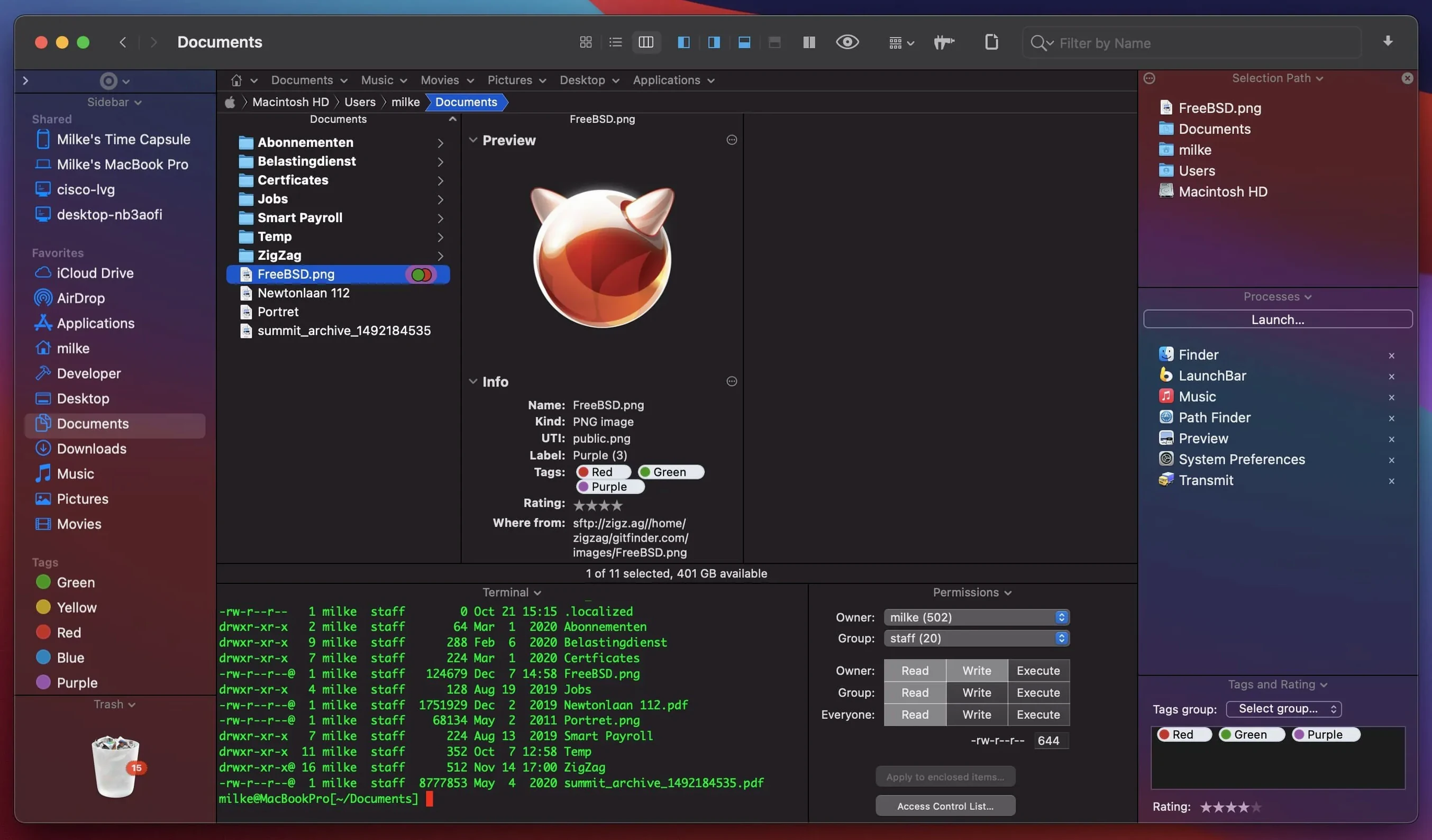
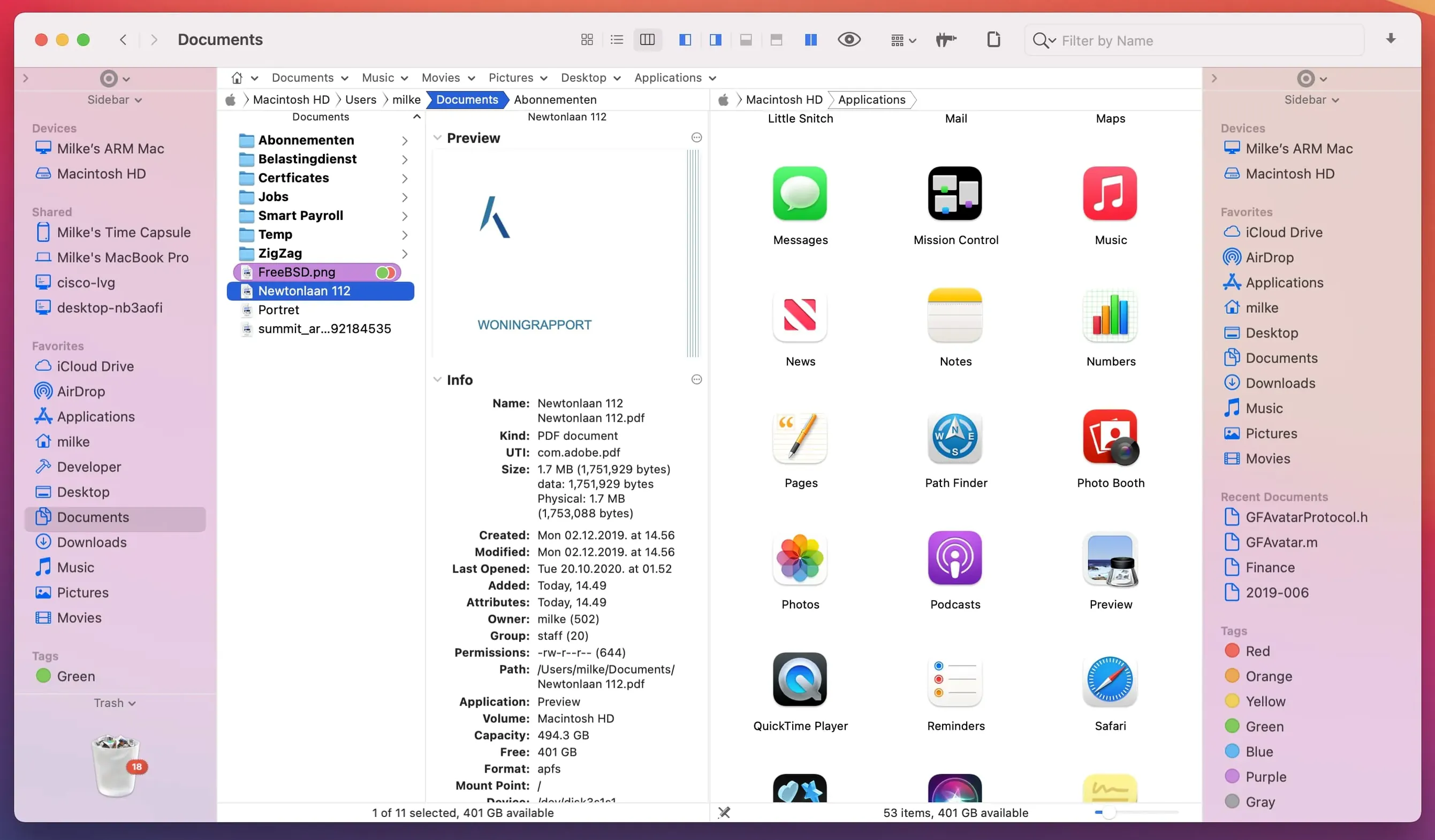
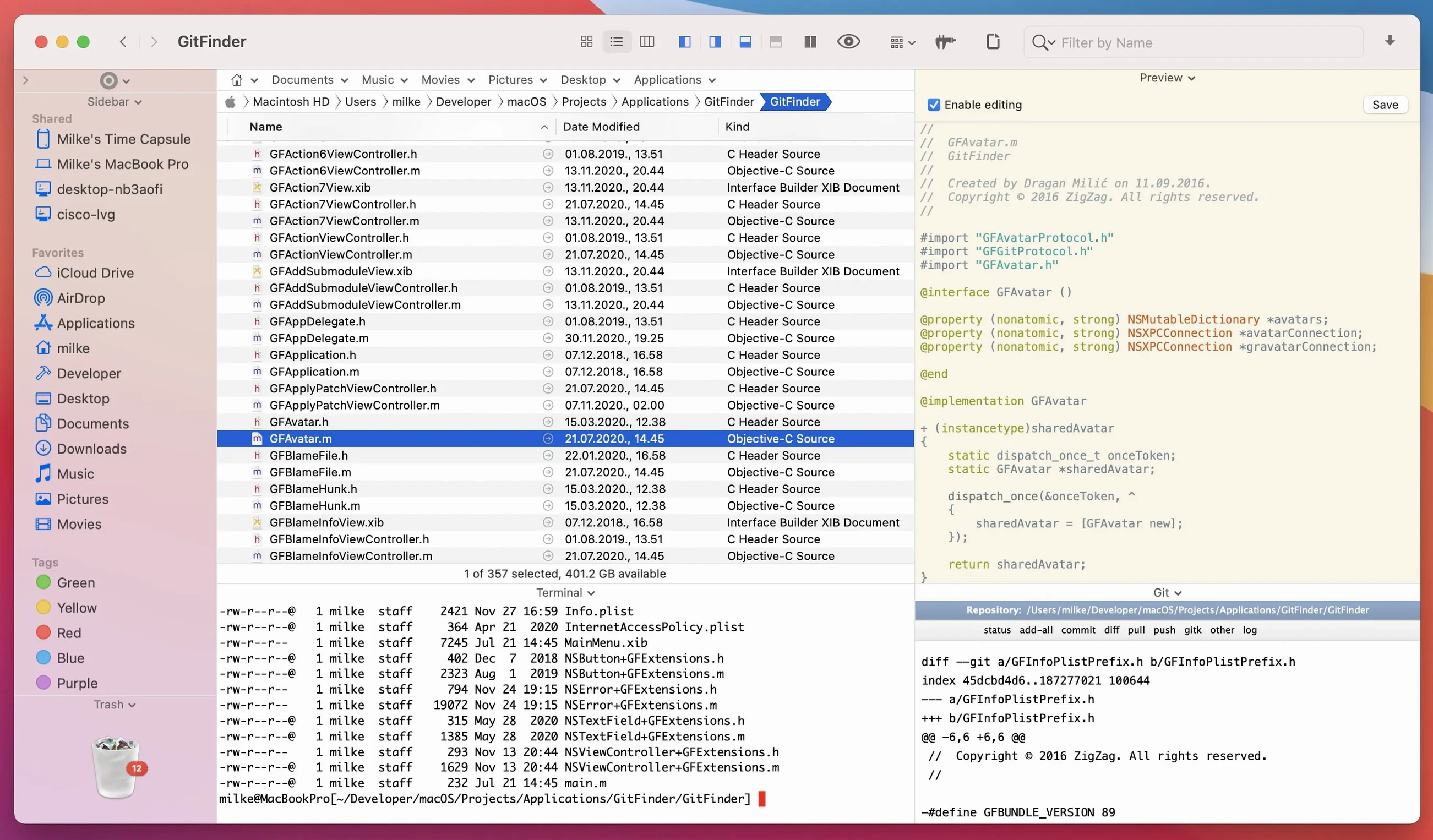
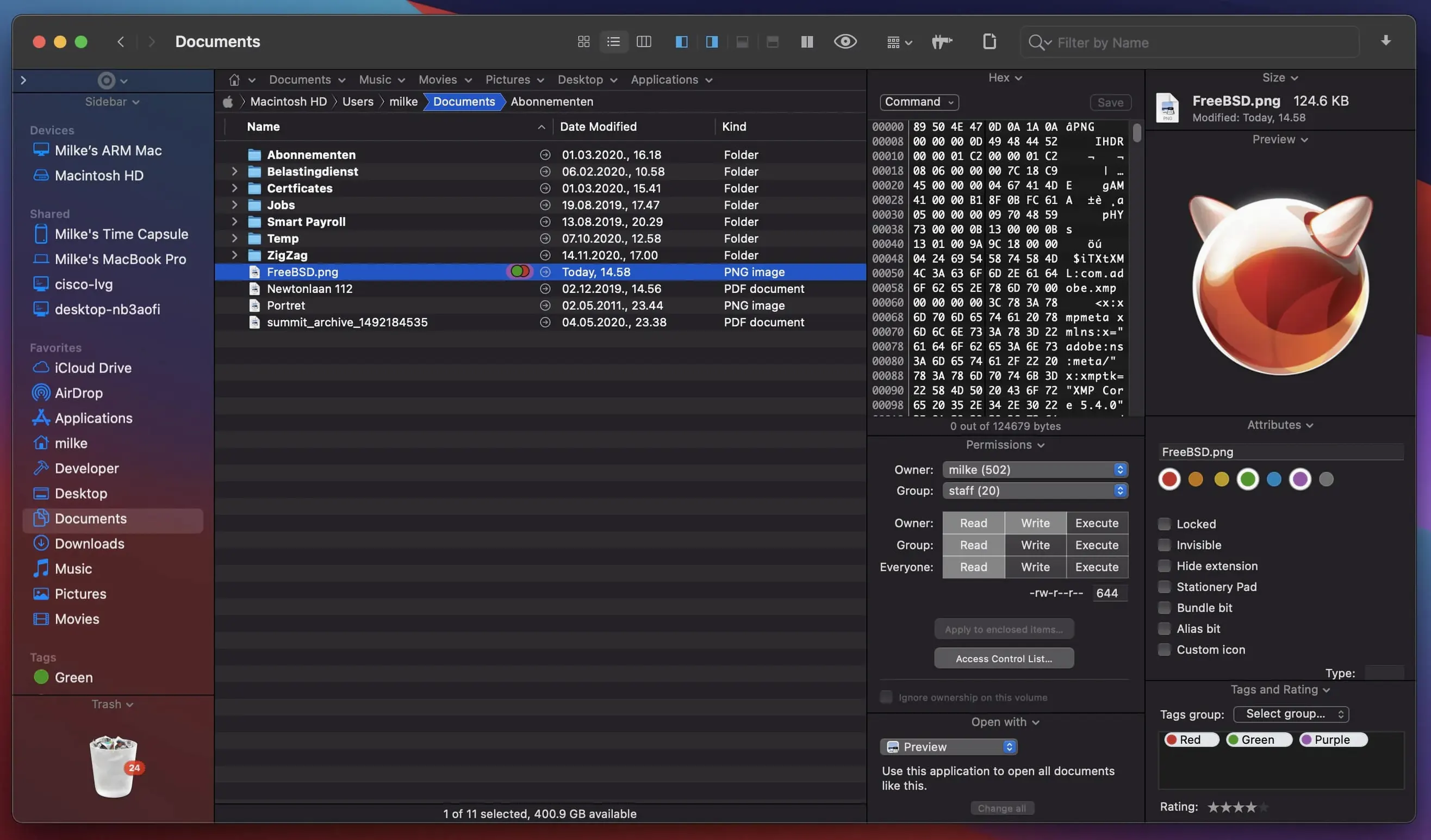
Path Finder is a macOS file manager that puts tabs, dual-pane browsing, and a stack of file tools into one window.
It works as a stand-in for the standard Finder, so it slots next to the apps you already use rather than pushing them aside. Keyboard-only browsing is there if you want it, and system hotkeys can be remapped to match your muscle memory. Installing and uninstalling applications is handled inside Path Finder too, which keeps those tasks in one place.
Path Finder clicks fastest for a few specific crowds. Web developers and sysadmins live in the dual-pane view — local files on the left, remote server on the right via the built-in FTP client. No switching windows, no losing context. The tabbed layout means a dozen project folders stay open without cluttering the Dock.
Photographers and video editors lean on the preview pane hard. QuickLook gets you so far; Path Finder lets you scrub through a clip or check a raw photo without launching a separate app. Batch renaming saves repetitive hours after a shoot, and the archive tools handle zipped client deliveries in a couple of clicks.
Anyone who wrangles large drives — archived projects, sprawling media libraries — notices the difference in search speed and keyboard navigation. Flicking through folders with arrow keys while a preview column updates in real time feels tighter than the stock Finder. If you have ever typed path finder mac into a search bar out of sheer frustration with column view limits, this fills that gap.
Imagine a freelance brand designer wrapping up a packaging project. The client folder has raw photos, Illustrator mockups, font files, and three rounds of PDF proofs scattered across subfolders. In Path Finder, she opens a dual-pane view — source assets on the left, a delivery folder on the right. She tabs between the photo folder and the vector folder without losing sight of either structure.
She highlights a batch of outdated proofs, taps the batch rename tool, and appends "v1_archive" to all twelve files in one go. A quick right-click compresses the approved fonts folder into a zip, ready for email. The built-in image editor lets her crop a last-minute screenshot without bouncing out to Photoshop. Everything stays in one window, and the whole handoff takes under ten minutes.
Here is how a video editor builds a fresh project structure using Path Finder, start to finish.
Cmd+Shift+N to make a root folder named after the project. Inside it, create subfolders — footage, audio, graphics, exports — using the same shortcut in quick succession.Cmd+U). The left pane stays on the new project folder. In the right pane, browse to the SD card where raw footage lives..mov and .mp4. Select the filtered results, then drag them across to the footage folder in the left pane. The progress bar sits inside the window, not floating off to the side.That is five steps, one app, zero trips to the Dock. For anyone who has searched path finder 2197 or path finder 11 looking for a version that sticks, the current release keeps that same no-fuss workflow on modern hardware.
Interface languages run from English and German to Japanese and Traditional Chinese, with Russian, Korean, and a dozen more in between.
Version 26.1.10 is here with the developer's latest fixes and improvements — release notes are over on Cocoatech's site.











Chat 0
Hop in or make an account to join the chat.
Quiet in here so far. If you have used this build, tell me what the install actually did.