
 Paste
Paste Paragon NTFS
 Path Finder
 Pacifist
 Permute
 Photo Mechanic
 Optimage
 One Switch

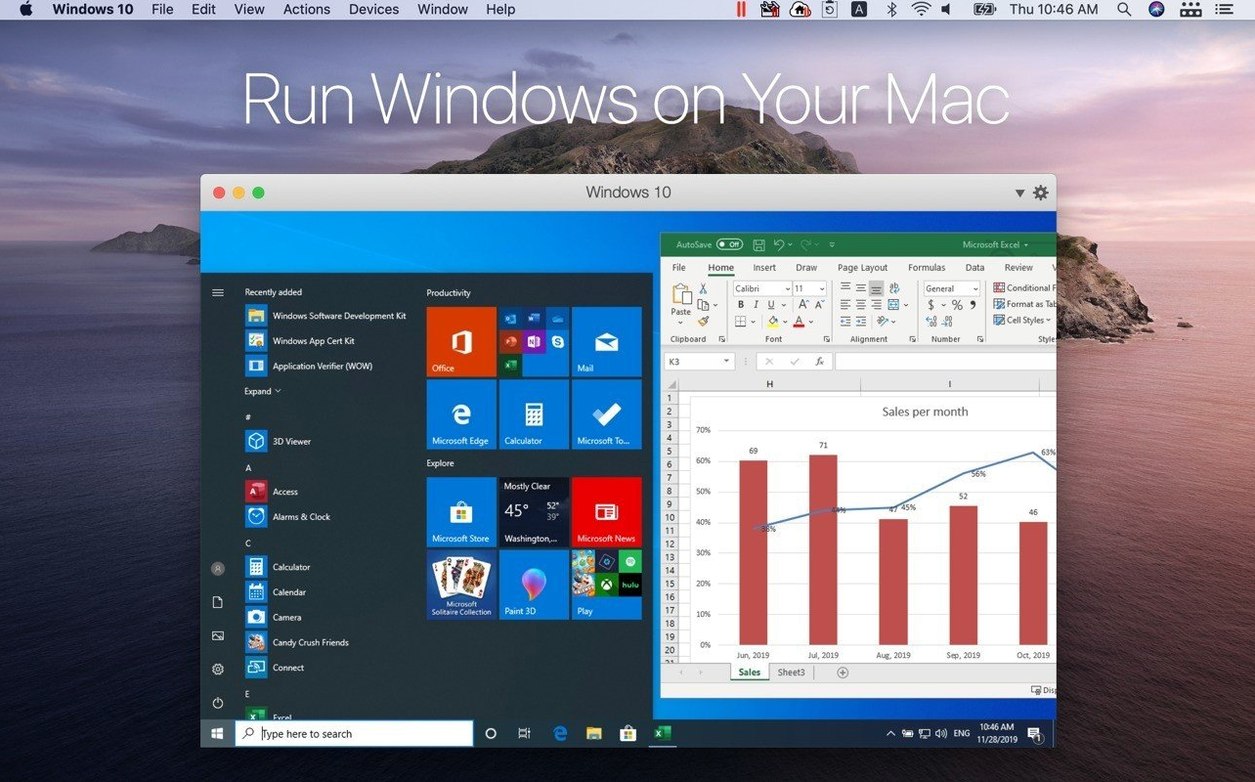
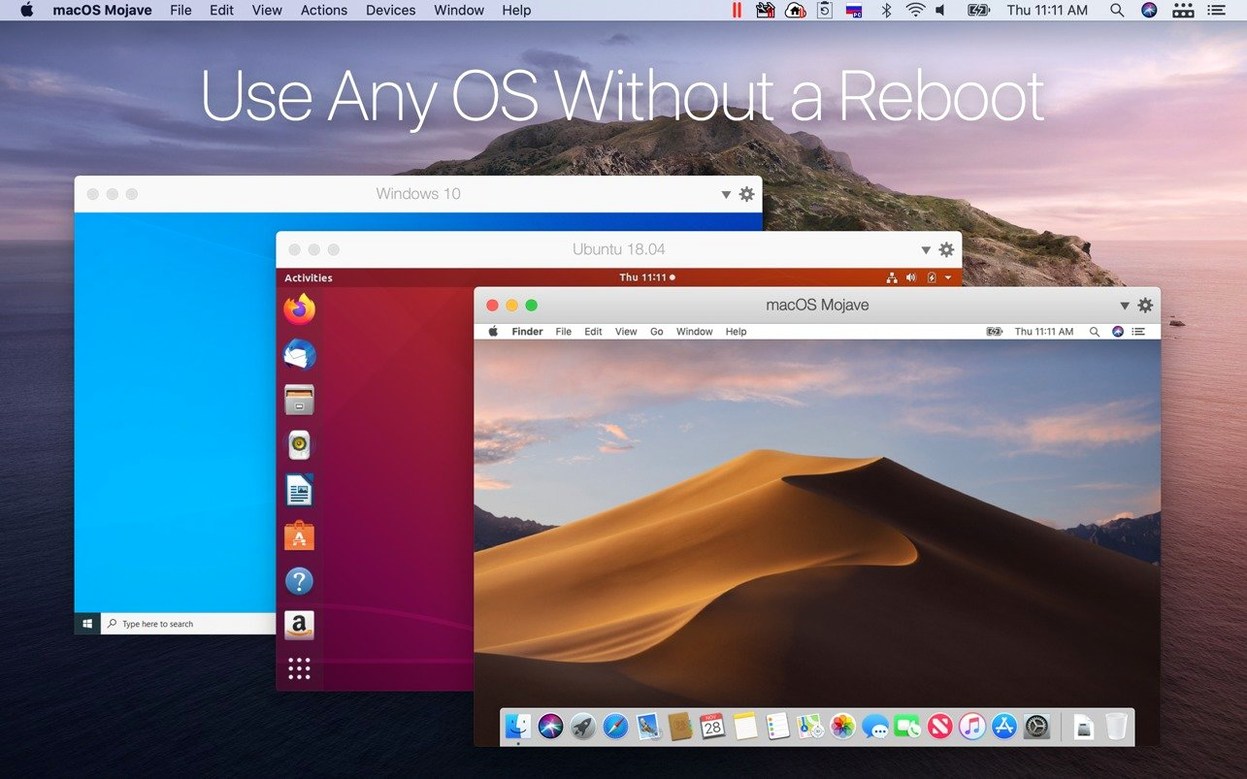
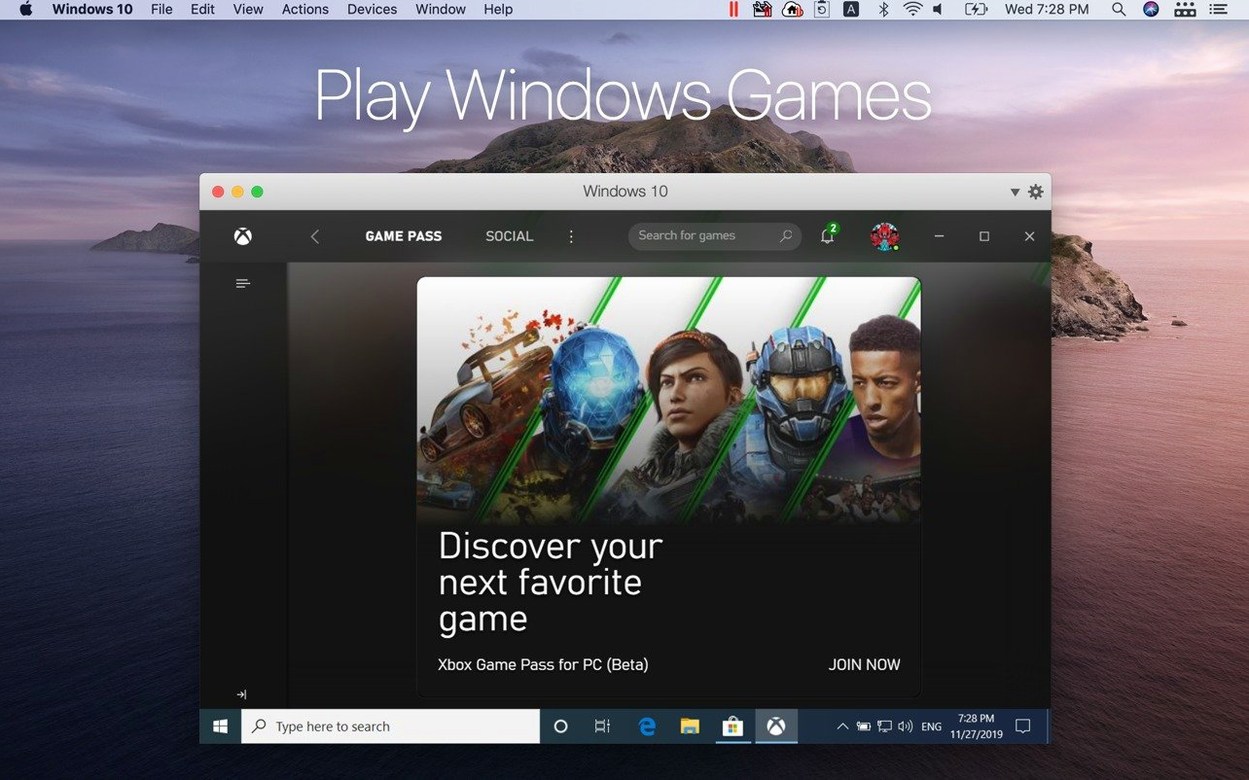
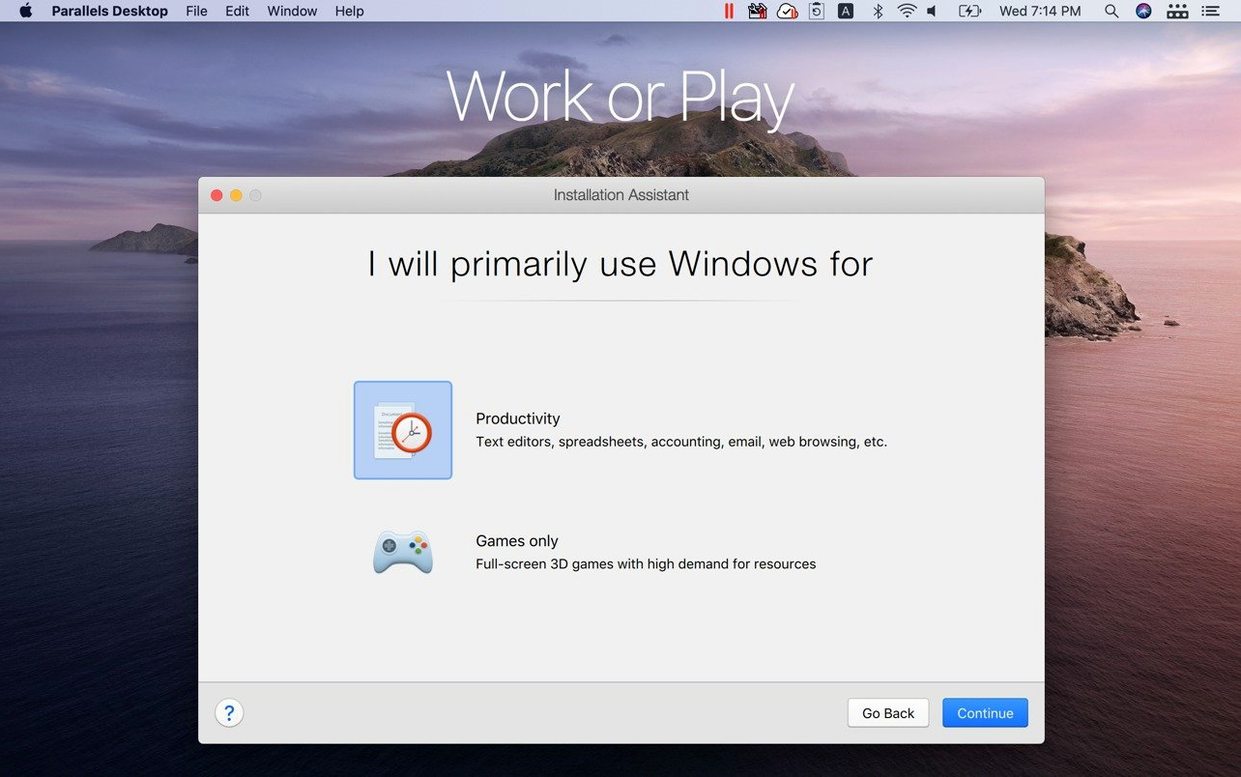
27.0.2 is the build number that landed with ARM SystemReady SR 3.1 certification, a stamp that signals tight hardware integration on Apple Silicon. That single detail reshapes what a virtual machine can feel like day to day.
I keep a Sketch file open on the Mac side and a Windows build of Figma in the VM. Dragging an SVG from Finder straight onto the Windows desktop feels no different from dropping it into a local folder. The clipboard tracks rich content too — a hex code copied on macOS pastes into the Windows colour picker without a hiccup. No restarts, no Alt-Tab lag, just two systems sharing the same screen. Full-screen mode hides the Mac entirely when I need to focus on Windows, then Coherence mode tucks the Windows interface away so the apps float like native Mac windows. File sharing stays on, so the project folder is visible from both sides.
Coherence mode is the quiet enabler here. I launch a Windows-only accounting tool and its window sits in the Dock, resizes with macOS gestures, and responds to Mission Control. The underlying OS fades into the background. The latest update also added out-of-the-box support for fresh Linux distros like Ubuntu 26.04 LTS and Fedora 44, but the Windows workflow remains the core draw. When I am done, a simple drag sends the exported PDF back to the Mac desktop. The whole exchange takes seconds, not steps.
About two days in, the clipboard stops sharing between macOS and Windows. It is almost always the Parallels Tools driver having a quiet moment. Open the VM’s Actions menu, pick Reinstall Parallels Tools, and restart Windows. That usually revives it.
Another frequent hitch: the VM grabs the Mac’s microphone or camera and does not let go. Check Hardware settings for the VM and untick the device you want to free up. If the camera stays stubborn, a quick sign-out and sign-in on the Windows side shakes the lock loose.
Disk space warning inside Windows, when your Mac has plenty free. This trips up people who accepted the default disk size during setup. The VM’s disk can be expanded. Shut down the VM, head to Hardware > Hard Disk, and drag the slider. Windows will see the extra space after you extend the partition inside its own Disk Management tool. Easy to miss, easy to fix.
Assign at least half your Mac’s physical RAM to the VM if you plan to run Adobe apps or Visual Studio. Leaving Windows with 4 GB while your Mac holds 16 GB guarantees stuttering. The slider lives under Hardware > CPU & Memory.
Set up a shared profile folder early. Drop a shortcut to it on both desktops. That tiny move stops the “which side has the latest version?” guessing game before it starts. I keep client assets in ~/Shared/Projects and both OSes treat it as ground truth.
Turn off Windows animations on day one. Transparency effects, menu fades, taskbar animations — they add nothing and eat GPU cycles that could go to your actual work. Search Performance in Windows Settings and pick Adjust for best performance. The VM will feel noticeably snappier.
If you rely on a VPN on the Mac side, test how the VM handles networking early. By default, the VM shares the Mac’s connection, which means the VPN tunnel applies to Windows traffic too. That is usually what you want, but some corporate VPNs block forwarded connections. Switching the VM to Bridged networking mode lets Windows grab its own IP from the router, bypassing the Mac’s VPN entirely.
Version 27 dropped Intel Mac support. If you are running Apple Silicon, this matters because the codebase now targets ARM exclusively. The removal of Boot Camp support in the same release means you cannot piggyback on an existing Boot Camp partition anymore. That is a clean break, not an oversight.
The 27.0.2 update added support for Ubuntu 26.04 LTS x86_64 emulation. On an ARM Mac, you can now spin up an x86_64 Linux VM without a second thought. That quietly opens the door to older toolchains and legacy server setups that refuse ARM builds. Fedora 44 and Kali Linux 2026.2 joined the supported list at the same time, so penetration testers and developers get a smoother setup path.
The ARM SystemReady SR 3.1 certification means the VM’s firmware and OS interface align with ARM’s hardware standards. In practice, fewer driver surprises and cleaner power management, especially with Linux guests. Fans spin down faster when the VM idles, and sleep-wake cycles feel less fragile than they did a year ago.
Stability and security fixes in 27.0.2 also tightened graphics handling. Window resizing inside Windows feels more fluid, and I have not seen the brief screen flicker that occasionally hit Coherence mode in earlier 27 builds. Small polish, but it accumulates when you switch between Mac and Windows apps fifty times a day.
The biggest one: treating the VM like a disposable sandbox and never backing it up. A Windows crash, a bad driver update, a corrupted snapshot — any of these can nuke a work setup. Use Parallels’ snapshot feature before major changes. It takes five seconds and saves hours of reinstalling.
Another classic: assigning all CPU cores to the VM. Your Mac still needs cores to breathe. If your chip has eight performance cores, give Windows four and keep four for macOS. Starving the host side makes both systems sluggish, and you will blame the VM when the Mac itself is gasping.
Beginners often ignore the default disk format. The VM disk grows dynamically, but it never shrinks on its own. Delete a 20 GB file inside Windows and the Mac still sees the full space as occupied. Use the Free Up Disk Space tool inside the VM’s configuration to reclaim that slack occasionally. Otherwise your Mac’s drive will look fuller than it really is.
Coherence mode confuses people who expect Windows file dialogs to browse Mac folders natively. They cannot. The shared folder appears as a network drive inside Windows, usually under \\Mac\Home. Bookmark it in File Explorer on day one and the confusion evaporates.
Finally, skipping Parallels Tools installation because “Windows runs fine without it.” It does not. You lose shared clipboard, drag-and-drop, coherent mouse movement, and proper graphics acceleration. The VM will feel like a second-hand PC from 2015. Install the tools before you do anything else.
Yes, you can copy and paste both text and images between Mac and Windows applications running in Parallels Desktop.
Coherence mode hides the Windows desktop interface so Windows apps appear directly on your Mac desktop alongside native Mac apps.
No, support for Boot Camp was removed in Parallels Desktop 27, shifting focus entirely to virtualisation on Apple Silicon.














Chat 0
Hop in or make an account to join the chat.
Quiet in here so far. If you have used this build, tell me what the install actually did.