
 Boom 3D
 BricsCAD
 BuhoCleaner
 Camo Studio
 Bloom
Bloom Canary Mail
 Bitwig Studio
 Canopy

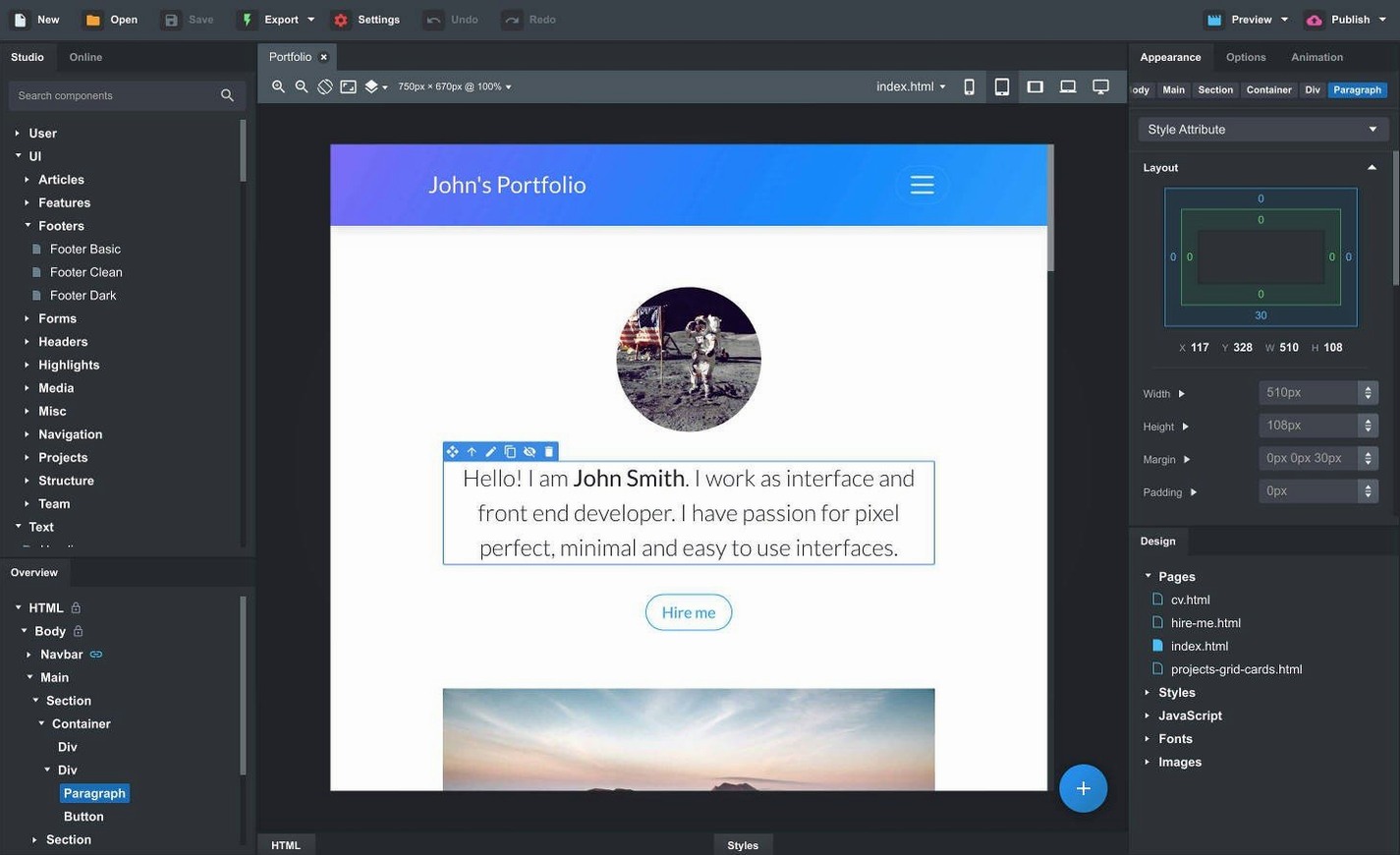
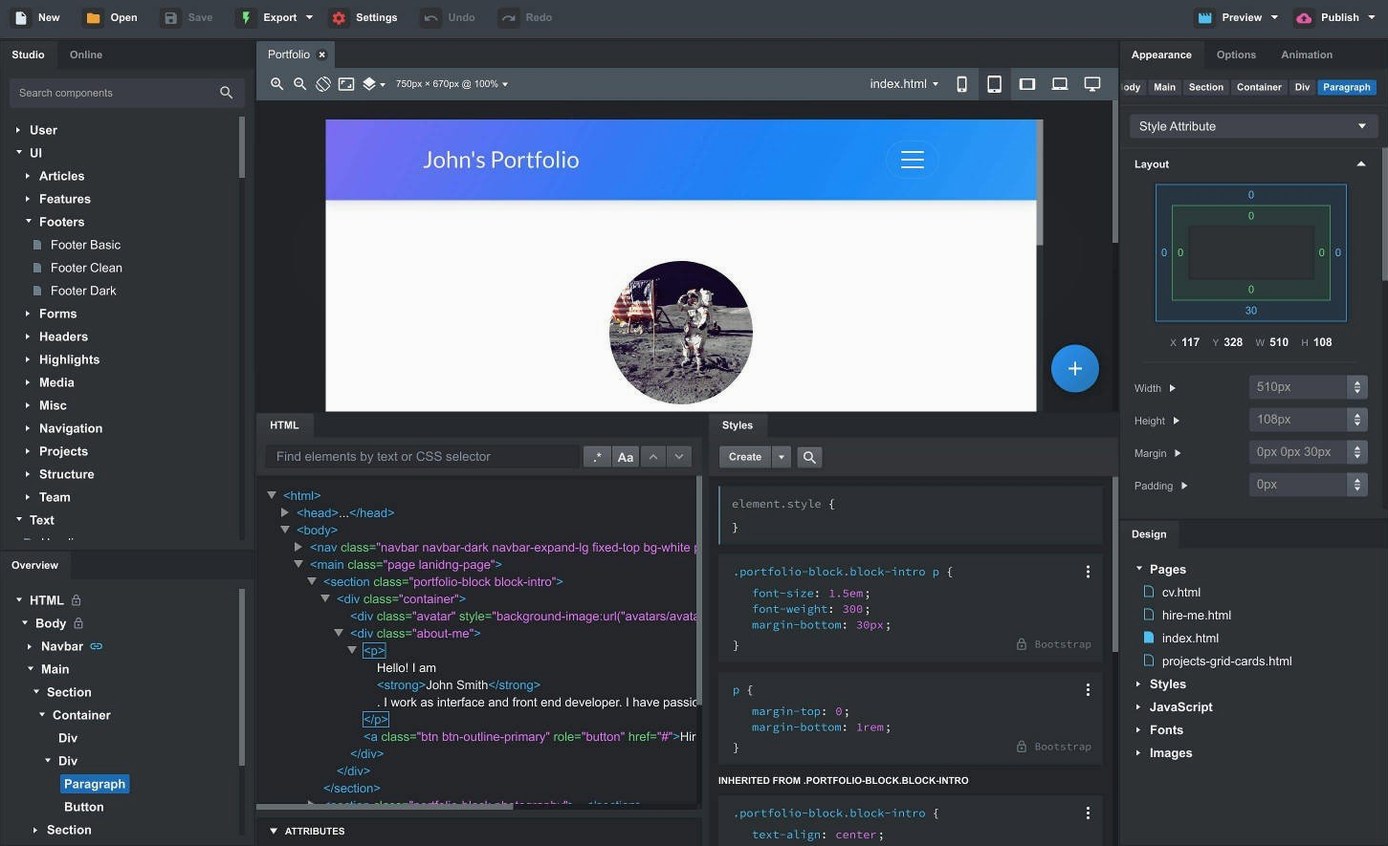
You've just opened the app on your Mac and the blank canvas feels a touch too blank.
Drag and drop — grab a Navbar, Header or Gallery from the Components panel and drop it onto the page. Everything snaps into the grid.
Live preview — hit the preview icon to see your work across simulated phones, tablets and desktop browsers at the same time. Changes appear as you type.
SCSS editing — open the Styles panel and write variables right into the built-in SCSS editor. It compiles on save, no external tools needed.
Import a site — drag a folder of HTML, CSS and images straight onto the window. The app pulls it apart and rebuilds it with clean, semantic markup ready to edit.
On an M1 MacBook Air with 8 GB of RAM, the app opens in about three seconds. The canvas stays fluid even with twenty-odd components on the page — scrolling, zooming and dragging all feel immediate. I've left it running alongside Figma, Safari with a dozen tabs and Spotify without hearing the fans.
Exporting a six-page site takes roughly four seconds. The generated HTML is tidy: no inline styles, no leftover comment blocks, just Bootstrap classes applied where you'd expect them. Memory use hovers around 400–500 MB for a medium project, which is reasonable for an Electron-based tool.
Auto-save has saved me twice. The app snapshots your work locally, so a crash — rare, but I've seen one on macOS 14 when switching between three open projects — leaves you right where you were. Stability in 6.7.3 feels solid; the only quirk I've noticed is a slight pause when opening the Icon Dialog on first click, likely while it indexes the icon sets.
New users often reach for absolute positioning. Bootstrap Studio gives you a Position control in the Options panel, and the temptation to drag something freeform is strong. Resist it. The grid and flex utilities will keep your layout intact across screen sizes; absolute positioning will fight you on mobile every time.
Another common mistake: editing the exported HTML outside the app, then re-importing the folder and losing your SCSS variables. If you plan to tweak code post-export, keep a copy of your .bsdesign file untouched — that's your source of truth, not the output folder.
Finally, people overlook linked components. If your footer or nav appears on five pages, right-click it in the Overview panel and choose Link. One edit updates everywhere. Without linking, you'll be copying and pasting changes page by page and wondering why the build took all afternoon.
Say you want a clean personal landing page — photo, short bio, project cards and a contact form. Here's how it flows inside Bootstrap Studio.
Start with a blank project set to Bootstrap 5.3. From the Components panel, drag a Navbar to the top of the canvas. Double-click the brand text and type your name. Strip out the extra nav links, leaving just one for contact.
Drop a Hero section below the navbar. Replace the placeholder image with your own — just drag a photo from Finder onto the image slot. Edit the heading and subtitle. In the Options panel, set the hero's background to a soft grey via the colour picker.
Now drag in a Cards row. Keep three cards and swap in screenshots of your work. Each card gets a short description and a button linked to a project page. To build those pages, right-click in the Pages panel, add three new pages and link the buttons using the link picker in Options.
Add a Contact Form block at the bottom. Customise the fields in the Options panel: name, email and message are enough. Under the form's settings, set the action to your form endpoint.
Open the Styles panel and create a new SCSS file. Write a couple of variables — $primary: #2b2d42 and $font-family-sans-serif: 'Inter', sans-serif — and watch the whole page update in the preview. Hit Export, choose the portfolio folder on your desktop, and you've got a static site ready to deploy.
Good to know: you can switch between Bootstrap 3.4, 4.6 and 5.3 per project in the Design Settings.
Yes, you can open and edit HTML, CSS and SCSS files in the built-in code editors, and it exports semantically clean code when you're done.
It imports the HTML, CSS, JS and images, letting you work on the design visually or in code, then export it back out as clean Bootstrap pages.














Chat 0
Hop in or make an account to join the chat.
Quiet in here so far. If you have used this build, tell me what the install actually did.