
 BuhoCleaner
 Canary Mail
 BricsCAD
 Canopy
 CapCut
 Bootstrap Studio
 Capture One
 Boom 3D

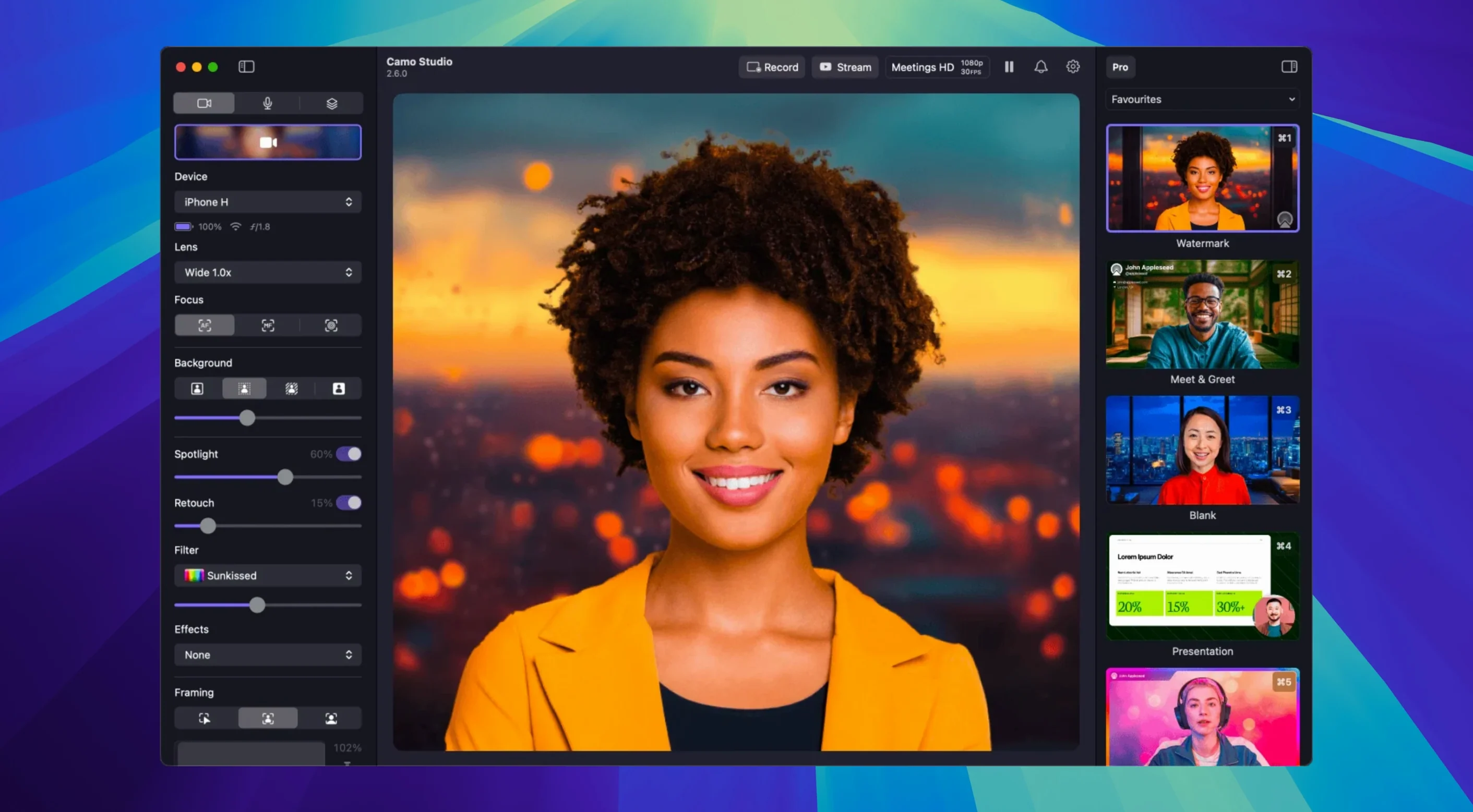
Version 2.9.0 landed with a handful of quiet, practical upgrades — chief among them audio noise reduction on macOS. If you've been putting up with fan hum or keyboard clatter, that one's for you. Dual-format streaming and AI agent control also made the cut.
Manual controls for focus, exposure, white balance and zoom mean you decide what looks right, not the auto settings.
Grab isolated recordings or push a clean feed at up to 60 FPS — whatever your setup needs.
The most common one is whether a phone connection feels laggy. It doesn’t. Processing happens on the phone itself, so your Mac stays cool and the video stays snappy — even at 4K or 60 FPS. A USB cable is the steadiest route, but Wi‑Fi mode works well if your router isn’t ancient.
People also ask about background blur without a green screen. Portrait mode handles that right in the app, and it holds up better than most built‑in webcam blurs because the phone’s depth data does the heavy lifting. No fabric backdrop required.
Another worry: “Will my old phone cope?” If it can shoot decent video, Camo can pull a clean feed from it. The app offloads the encoding to the phone’s own hardware, so an iPhone 8 or a mid‑range Android often still pushes a sharper image than a laptop’s built‑in camera.
A quieter concern is app switching. Camo sits in the menu bar and feeds whatever you point it at — Zoom, OBS, QuickTime, anything that sees a camera. You don’t need to reconfigure it when you hop between calls and recordings.
Imagine a Twitch streamer who runs a Just Chatting segment before switching to gameplay. They plug in an iPhone on a small tripod, fire up Camo Studio, and drag in a semi‑transparent overlay with their social handles. One scene layer has a web overlay pulling in recent follower names. When the room gets warm and a pedestal fan kicks on, the new audio noise reduction catches the low hum before it reaches OBS. Mid‑stream, they toggle a LUT that warms the colour temperature — no need to touch the phone or fiddle with lighting knobs. The whole chain, from lens to stream, runs off a three‑year‑old MacBook Air without a stutter.
Start wired. A USB connection gives you the most consistent frame rate and charges the phone while you work. Once you’re happy with the picture, then experiment with Wi‑Fi for a cleaner desk.
Lock your exposure and white balance early. Tap the padlock icons in the controls panel, point the phone at your face under normal room light, and let it settle. Auto‑adjustments mid‑call look distracting; a locked baseline looks professional.
Try one LUT on day one — something neutral, just to see how it lifts flat phone footage. The built‑in library is small but well‑chosen, and you can add your own .cube files later.
Set up a single scene with your name and a subtle logo. Even a basic overlay tells viewers and colleagues you’ve thought about the frame. Camo’s layers panel makes this a two‑minute job, not a design sprint.
Test the automatic framing before a live call. Stand up, lean sideways — the crop follows smoothly. It’s one of those features you forget about until you realise you’ve been sitting off‑centre for half a meeting.
Good to know: if you’re hunting around for a Camo Studio torrent or a Camo Studio Pro torrent, check that the build includes the macOS‑specific fixes from 2.9.0 — the noise reduction and isolated recordings are ready to go once you set them up.
The new noise reduction cleans up your mic signal so your voice cuts through, not the room.
It pairs your phone with your Mac so you can use the phone's camera as a high-quality webcam, with full manual control over focus, exposure, zoom and white balance.
Yes, it supports both Apple Silicon and Intel 64-bit Macs running macOS 12.3 or later.














Chat 0
Hop in or make an account to join the chat.
Quiet in here so far. If you have used this build, tell me what the install actually did.