
 OmniGraffle Pro
 ON1 Photo RAW
 One Switch
 Optimage
 NotchNook
 NotchBox
 Pacifist
 Nook X

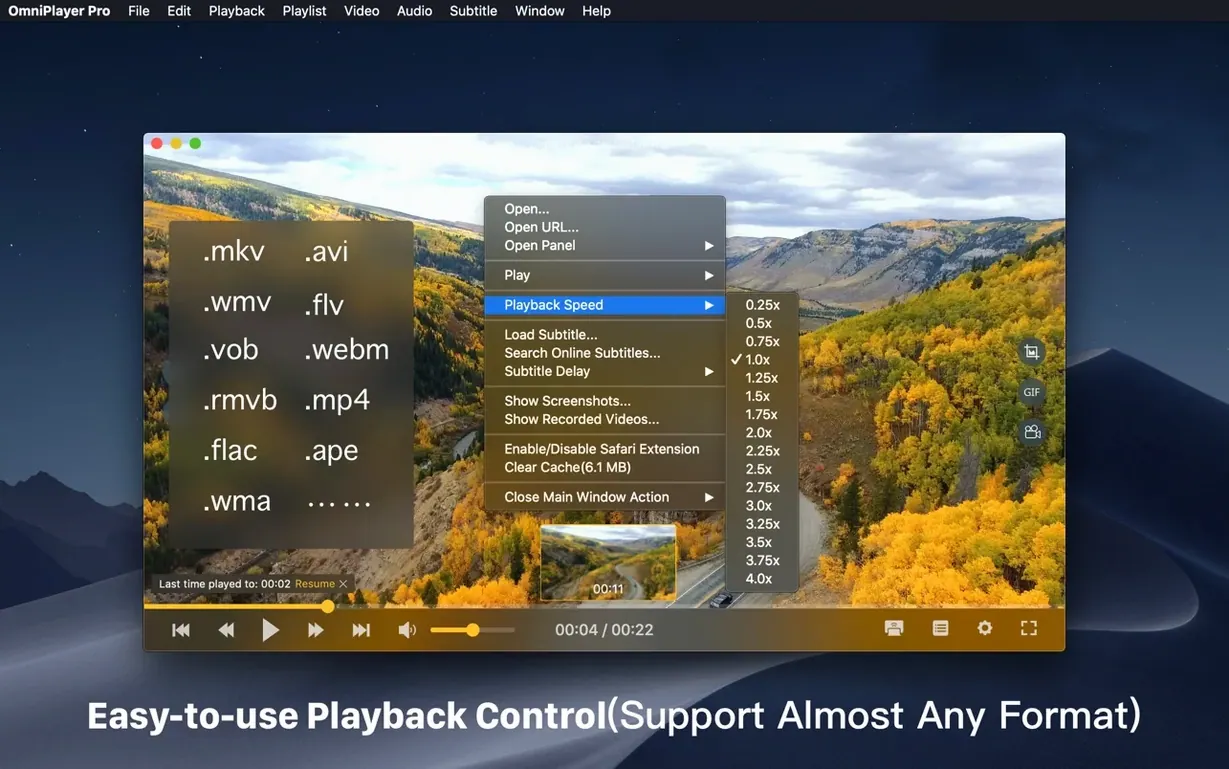
You grab a 30 GB MKV of a concert, drop a subtitle file next to it, and open it in OmniPlayer Pro. The progress bar shows little preview frames as you scrub, so jumping to the right song takes a second. You bump the saturation a notch, switch to the commentary audio track, and it all just plays.
Version 2.1.22 is a small point release, but one fix stands out for anyone who downloads large files. The app previously stumbled on a 30 GB MKV — think a full Blu-ray rip or a long tournament recording — and that bug is now squashed. In everyday terms, you drop in a chunky file and playback starts without the spinner hanging around.
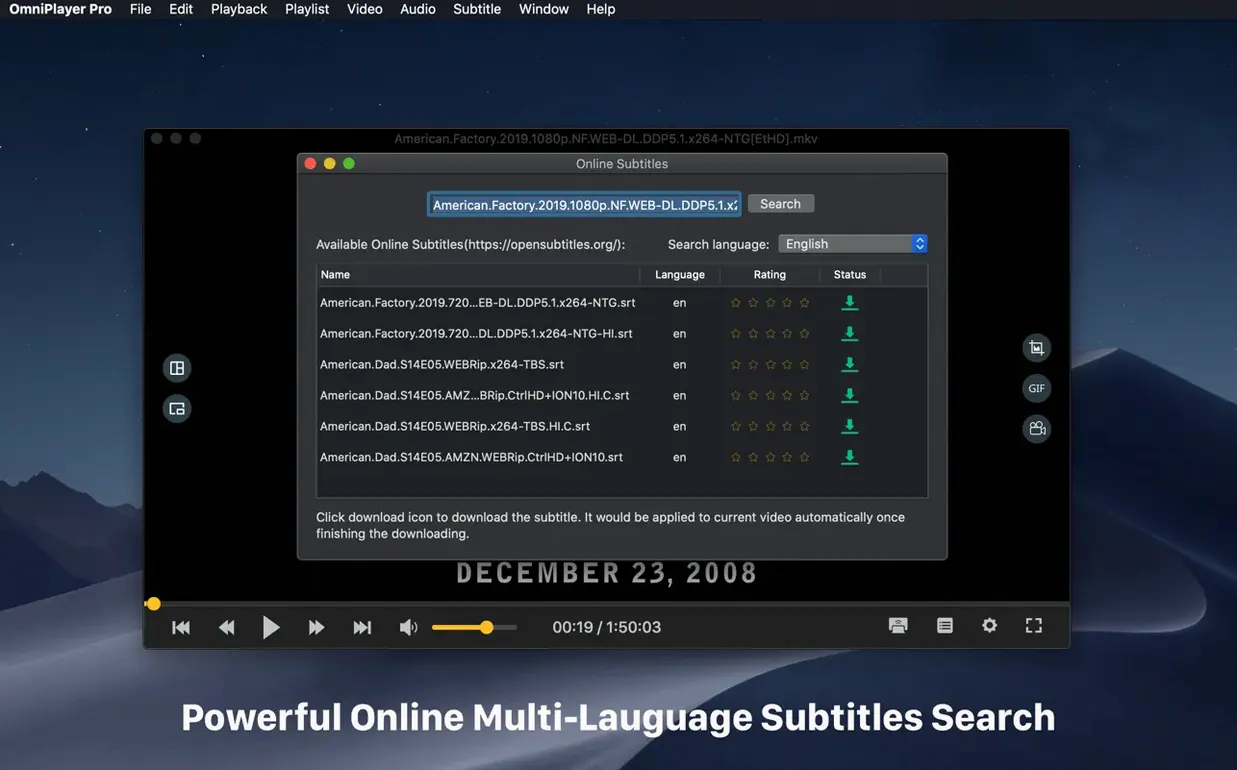
Earlier releases tightened up the playlist engine and smoothed out subtitle searching. The online lookup now leans on both the file title and its hash, so you get better matches for obscure foreign films. Nothing flashy in the patch notes, just the kind of tweaks that stop you reaching for another player mid-session.
The defaults are sensible, but a few switches make the player feel more yours. Open preferences and hit the General tab first.
Under Subtitles, set a preferred encoding if you watch content in languages like Chinese or Japanese. The real-time size and colour sliders work during playback anyway, but locking a default encoding stops garbled text on first load.
OmniPlayer Pro suits three camps of Mac users particularly well. If you see yourself in one, the tool likely earns its keep.
The offline collector with large files. You have a drive full of MKV torrents, concert rips, and archived lectures. The player opens them without transcoding, handles multiple audio tracks, and the progress-bar previews let you scrub through a two-hour file in seconds. No other lightweight player on an Intel Mac handles a 30 GB file as calmly after the latest fix.
The subtitle tweaker. You watch a lot of international content and you are fussy about readability. OmniPlayer lets you load an external SRT, pull subtitles from online databases by title, and adjust colour, size and encoding while the video runs. The real-time feedback beats opening a separate editor.
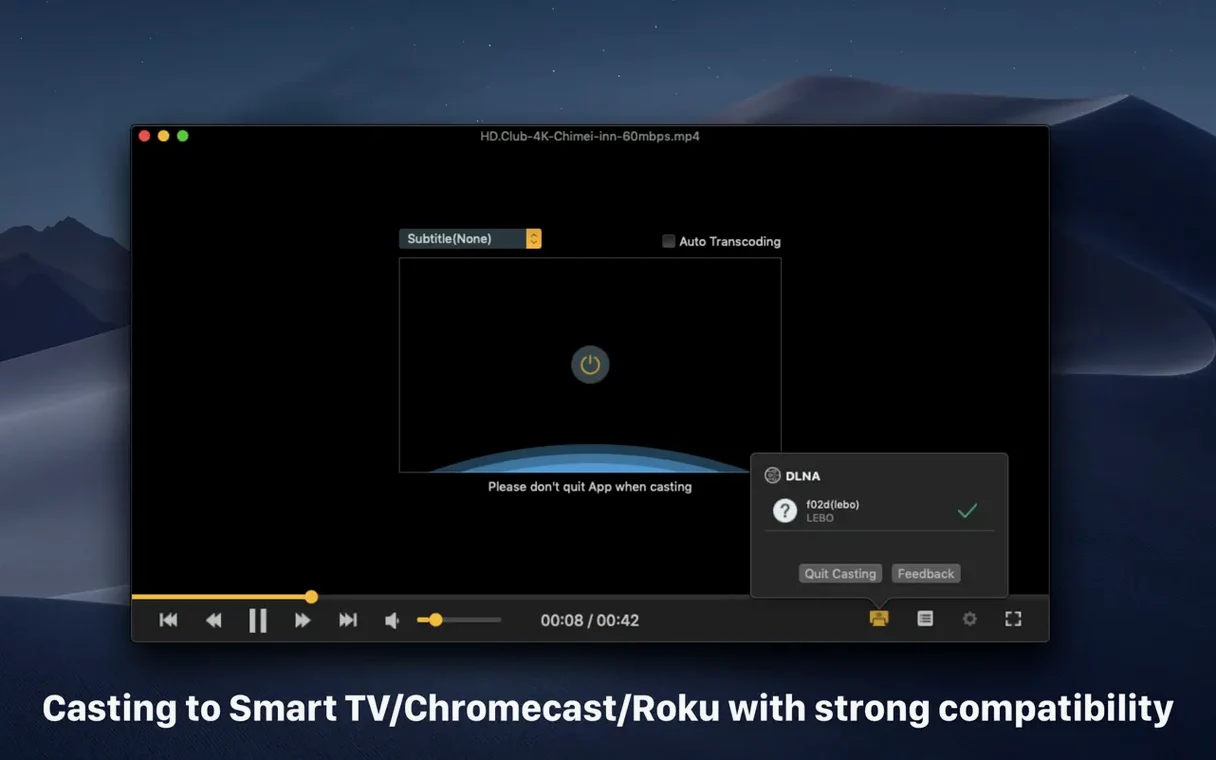
The casual caster. You want to throw a video onto the living room TV via Chromecast or DLNA without a complicated setup. Paste a URL or open a local file, click the cast icon, and it lands on the big screen. The Roku support is a bonus if that is your streaming stick of choice.
Good to know: the latest update specifically fixed a bug with loading 30 GB MKV files, so oversized rips are no longer an issue.
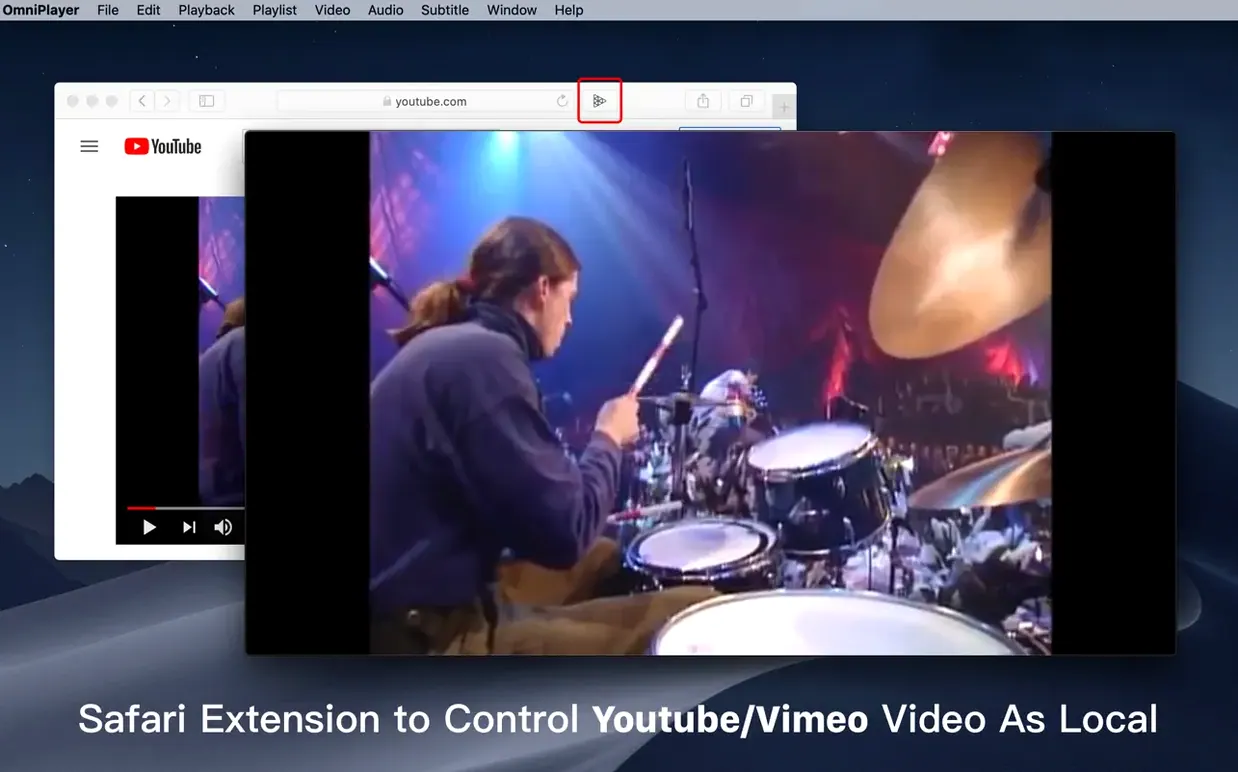
Yes. Paste the URL of a YouTube or Vimeo page and OmniPlayer Pro will play it directly.
You can load subtitle files from your Mac in real time and adjust their colour and size while the video plays.
The current version is listed as x86, so it runs on Intel Macs and can run on Apple Silicon via Rosetta 2.














Chat 0
Hop in or make an account to join the chat.
Quiet in here so far. If you have used this build, tell me what the install actually did.