
 NotchBox
 Nook X
 Noir
Noir OmniGraffle Pro
 OmniPlayer: MKV Video Player Pro
 Nik Collection
 ON1 Photo RAW
 One Switch


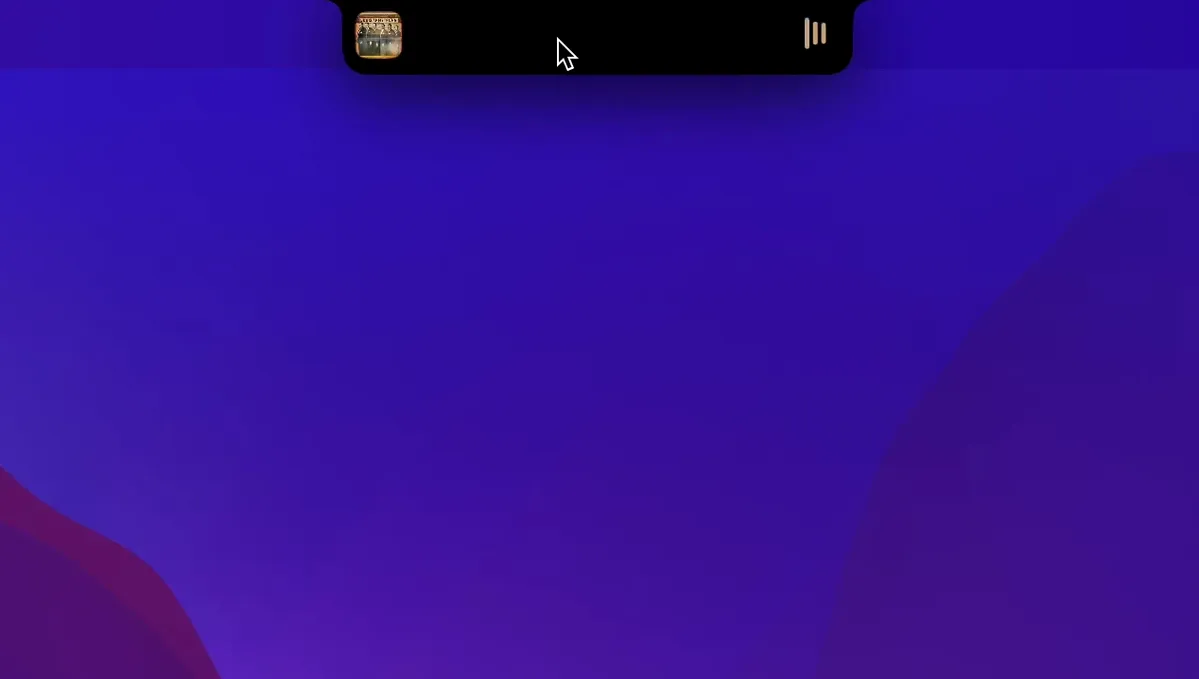
NotchNook is a little app that extends your MacBook notch into an interactive panel for widgets, media controls and quick-access tools.
| Detail | Info |
|---|---|
| Compatibility | Apple silicon & Intel |
| macOS | 14.6 or newer |
| Languages | 27, including English, German, Japanese, Hindi |
| Developer | lo.cafe |
Once installed, the notch becomes a small command centre. You get a calendar at a glance, playback controls for whatever is playing, and a file shelf to keep things handy. Live Activities appear right up there, and notifications roll through without stealing focus. It feels like the notch finally earns its place on the screen.
Does it mess with the menu bar? That is the big one. NotchNook sits alongside the menu bar, not on top of it. When you click the notch area, a panel slides down with its own space. The standard clock, battery icon and app menus stay exactly where they were. On smaller screens with lots of menu bar icons, the panel respects the clear zone and never overlaps readouts you actually need.
Will it feel sluggish on an older Intel machine? The app runs lean. It is native for both Apple silicon and Intel, and the animation rendering uses Metal where it can. On an Intel MacBook Pro from 2019 with integrated graphics, the slide-down animation stays smooth. Widget refreshes might pause a beat longer than on an M1, but nothing that gets in the way of tapping a playback control or checking the date.
Can you hide it when you want the notch to stay invisible? Yes. A quick toggle lives in the menu bar extras, right where you would expect. One click and the interactive area disappears until you turn it back on. Some people switch it off for full-screen cinema mode or when screen sharing during a call. It remembers your widget layout, so everything comes back as you left it.
Out of the box, the panel opens on a single click. For anyone who frequently brushes the notch while reaching for the camera, that gets old fast. Head into the preferences pane and swap the trigger to a two-finger click or a dedicated keyboard shortcut. The two-finger option feels natural on the glass trackpad and stops accidental opens during a busy workday.
By default, the calendar widget shows the current month with no event dots. If you already use the system Calendar app, grant NotchNook access in Privacy settings. A small dot appears under dates with something booked, and clicking a date expands a short list. It is quick to miss because the permission prompt is easy to dismiss during first launch. Worth a revisit.
Notifications mirror what macOS already shows, but the filtering is separate. The settings panel lets you pick which apps send alerts to the notch area. Trim it down to just Messages, Reminders and your task tool. The panel stays useful instead of becoming a second notification centre you ignore.
The 1.6.2 fix release tightened up a few things that early users noticed. Menubar icon spacing on right-side notches (like the ones on the 14-inch MacBook Pro) now aligns correctly, where before a stray pixel gap could appear between the notch and the first icon. The fix also addressed a rare redraw glitch when waking from sleep with an external monitor attached; the panel would sometimes appear on the wrong display for a second before snapping back. That snapping delay is gone now.
Language coverage expanded quietly. Alongside the expected English, German and Japanese, the app now speaks Afrikaans, Hungarian, Vietnamese, Catalan, Hindi and several others. The interface pulls the system language automatically, so most people never touch a language setting—it just works in the background.
For anyone searching for a notchnook download or checking if a notchnook mac setup runs smoothly, the current build reflects months of small tweaks rather than a flashy overhaul. The widget refresh rate got a modest bump on Apple silicon, and the file shelf now shows a subtle outline when an item is dragged over it, giving clearer feedback during drag-and-drop. None of this rewrites what the app does, but it adds up to a panel that feels more deliberate and less like a clever experiment.
Yes, it supports both Apple silicon and Intel Macs running macOS 14.6 or later.
It ties into Live Activities, shows a calendar view, and includes media controls plus a file shelf for quick access.














Chat 0
Hop in or make an account to join the chat.
Quiet in here so far. If you have used this build, tell me what the install actually did.