

Download iShot Pro-ScreenShot Recording for macOS
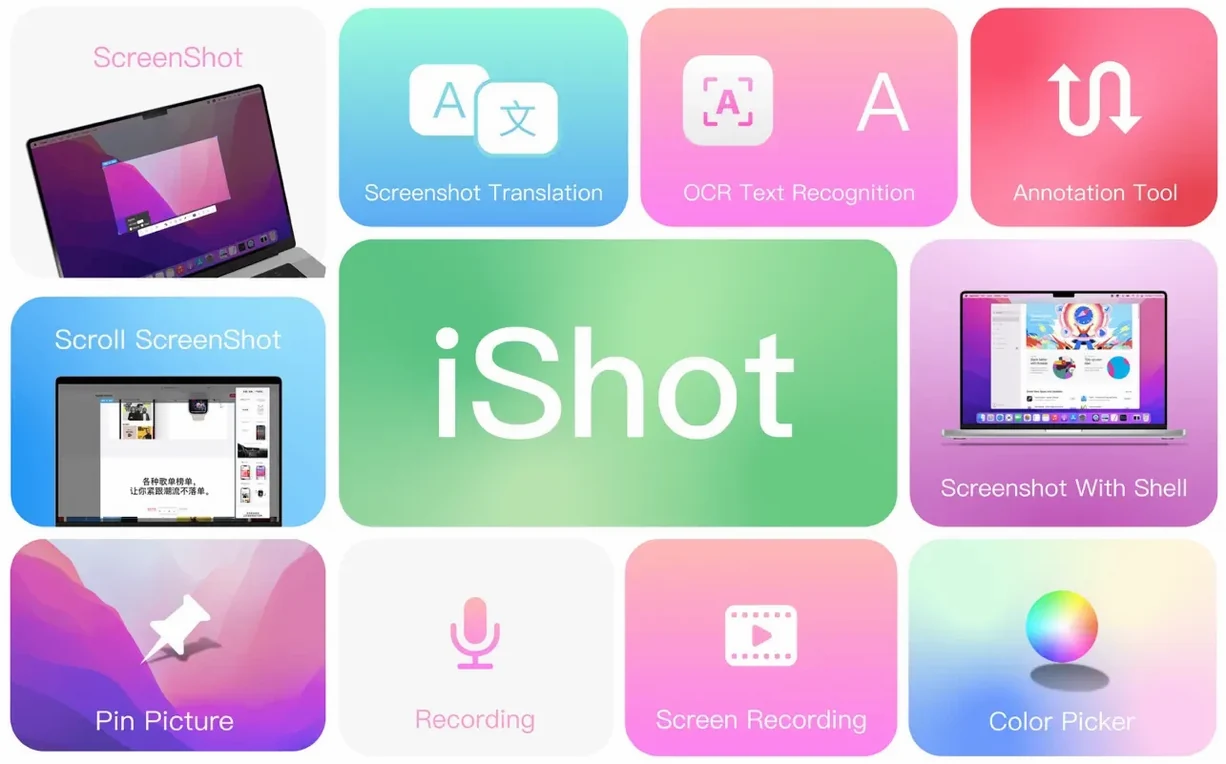
Runs on Apple Silicon and Intel 64-bit Macs with macOS 10.15 or later. The interface comes in English and Simplified Chinese.
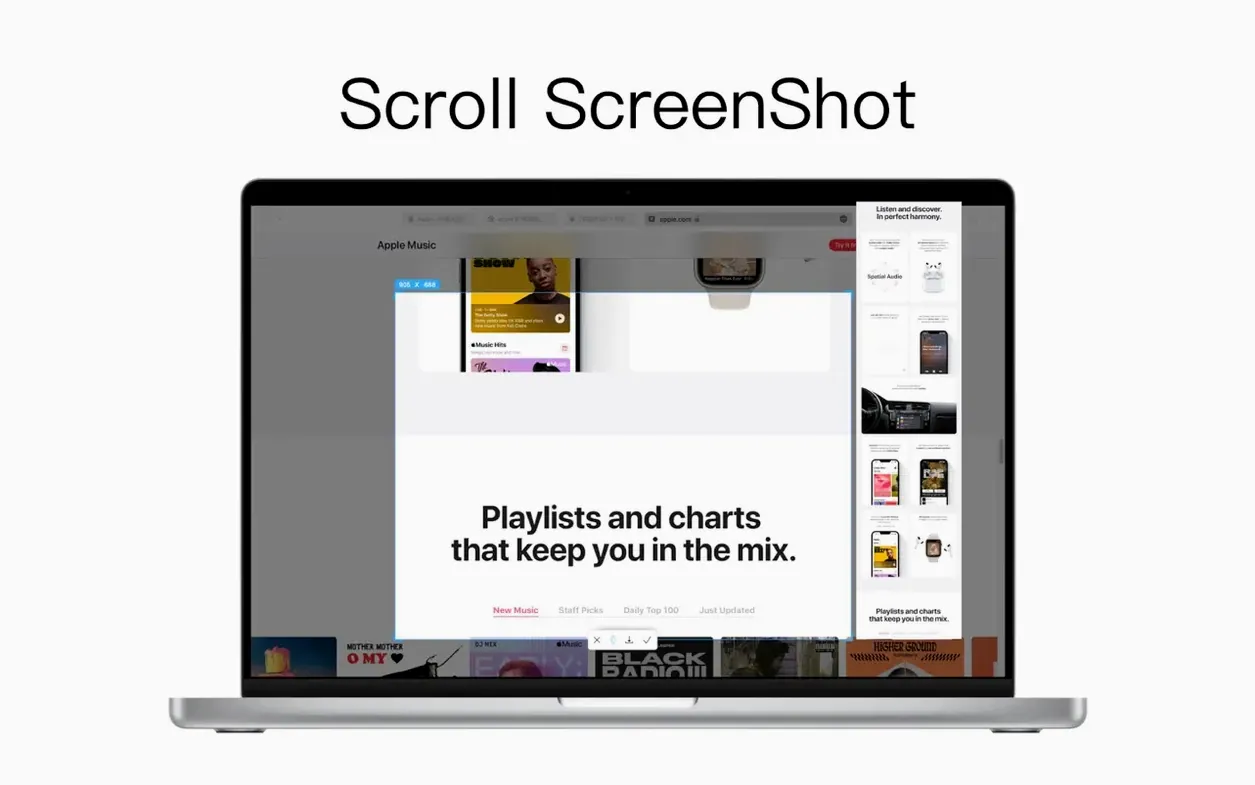
Capture a scrolling page
Take long scrolling screenshots of web pages or documents, not just the visible part. Save them as JPG, PNG or TIFF to the clipboard or a local folder.
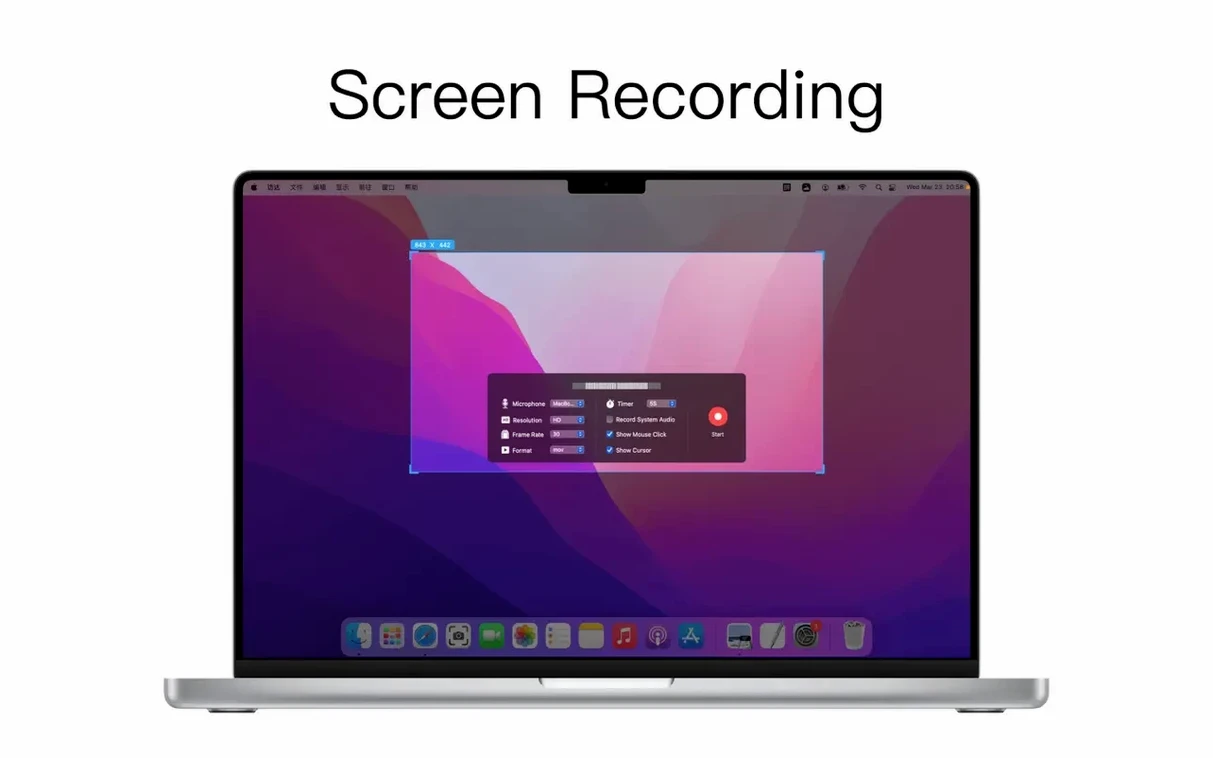
Record the screen with audio
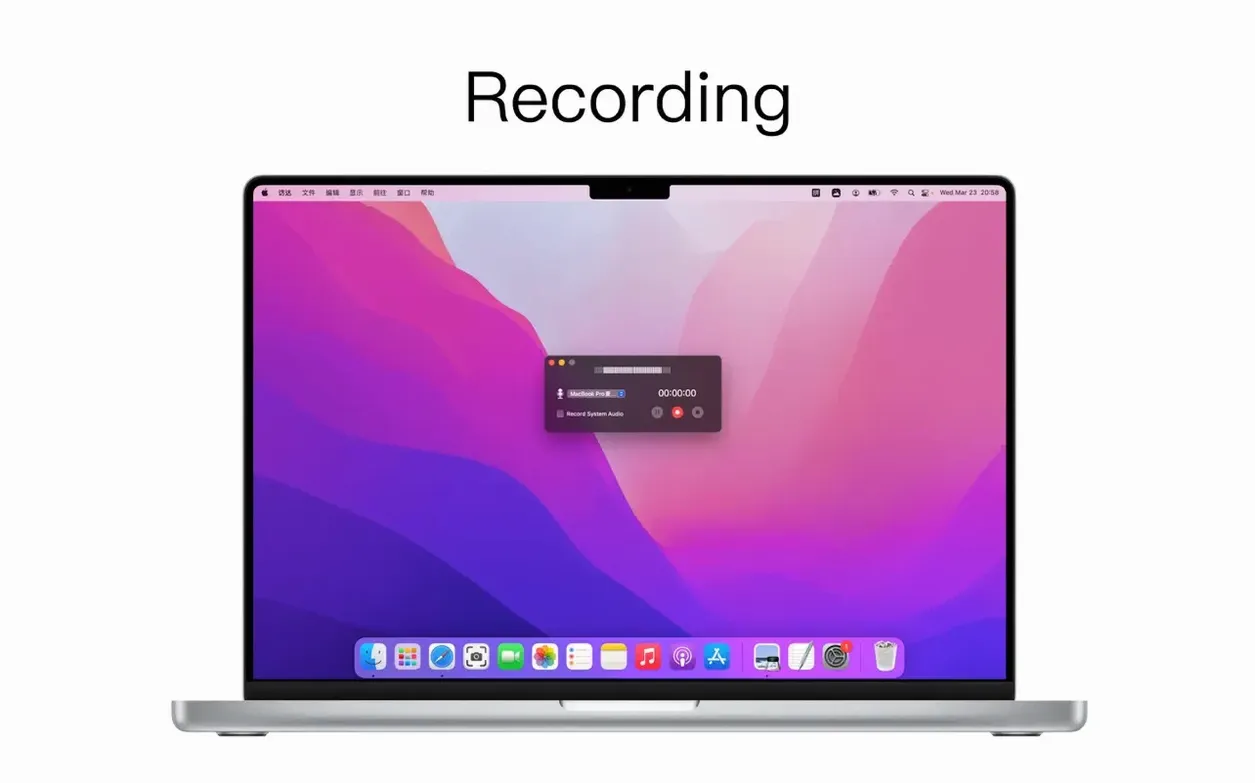
Record video in HD or SD quality and include internal system audio. You can also set a delayed full-screen capture when you need a moment to set things up.
Grab a colour or recognise text
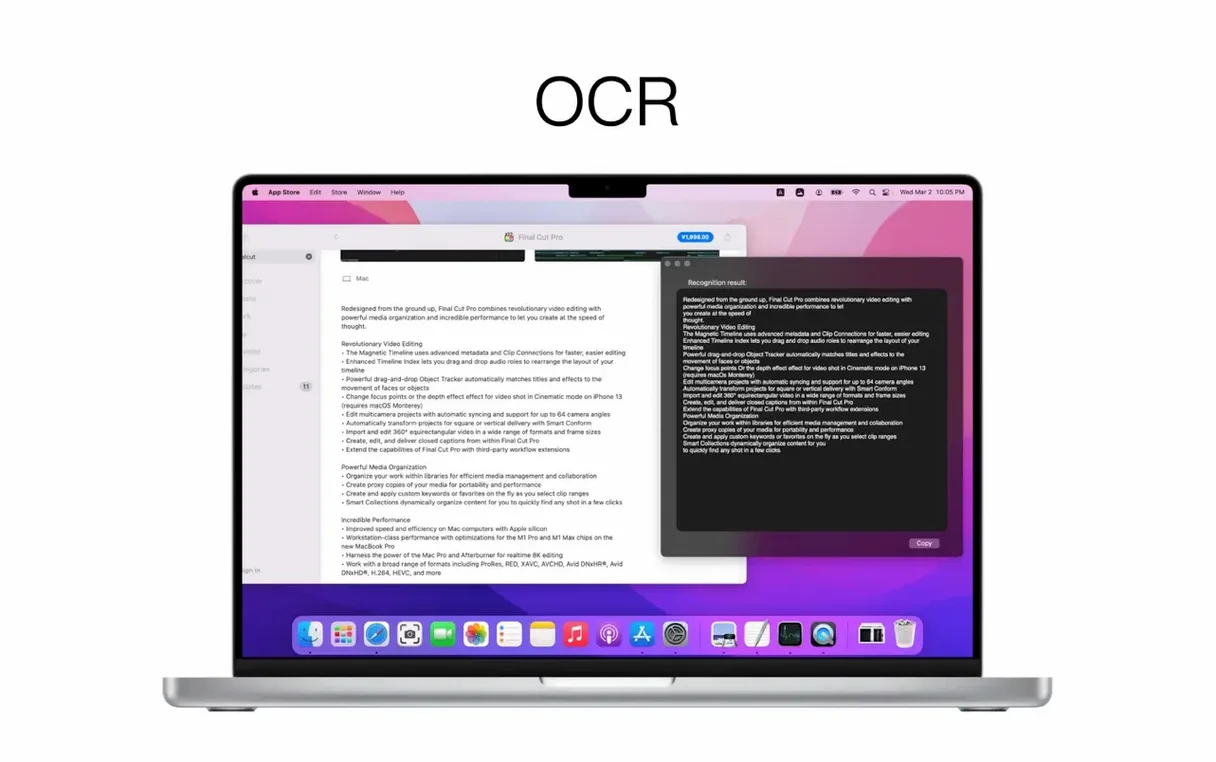
The colour picker shows the colour name under your cursor and copies RGB and HEX codes. Select any area to run OCR, and it even picks out QR codes.
Snappier window capture and a smarter colour readout
Version 2.6.9 tightened up a few rough edges without adding clutter. Window capture is snappier now — clicking a background window grabs it without shifting focus. The colour picker's name readout feels more accurate on darker tones, which helps when matching a brand palette on the fly.
Annotation got a small but useful bump: the serial number label tool keeps its counter between screenshots, so a series of step-by-step grabs stays neatly numbered. Scrolling capture handles taller pages with fewer stutters, and the OCR panel remembers your last language choice instead of resetting to automatic each time.
Tutorial builders and designers who need labels and quick re-capture
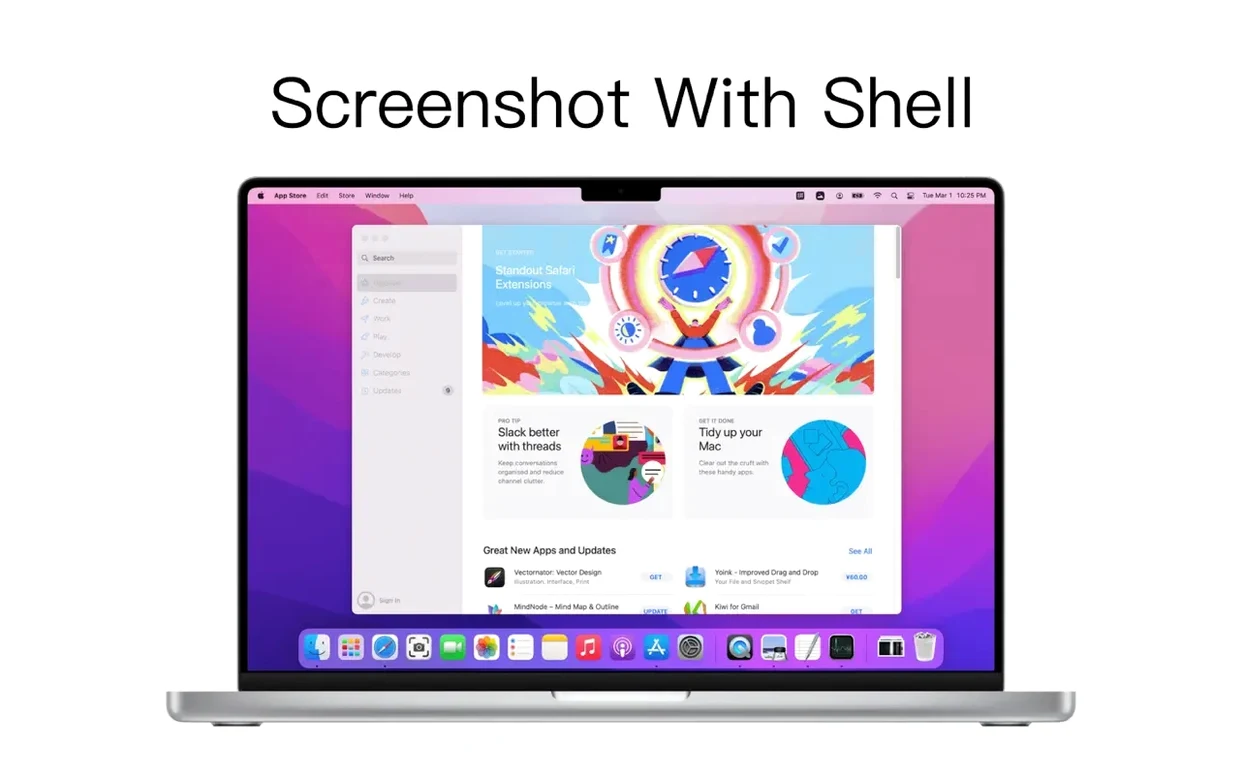
People who build tutorials or write documentation reach for it daily. The numbered labels, shell mockup and multi-window capture turn a messy desktop into clear instructions in seconds. Designers lean on the colour picker and quick area re-capture — great for grabbing iterations of a UI element without re-selecting the zone each time.
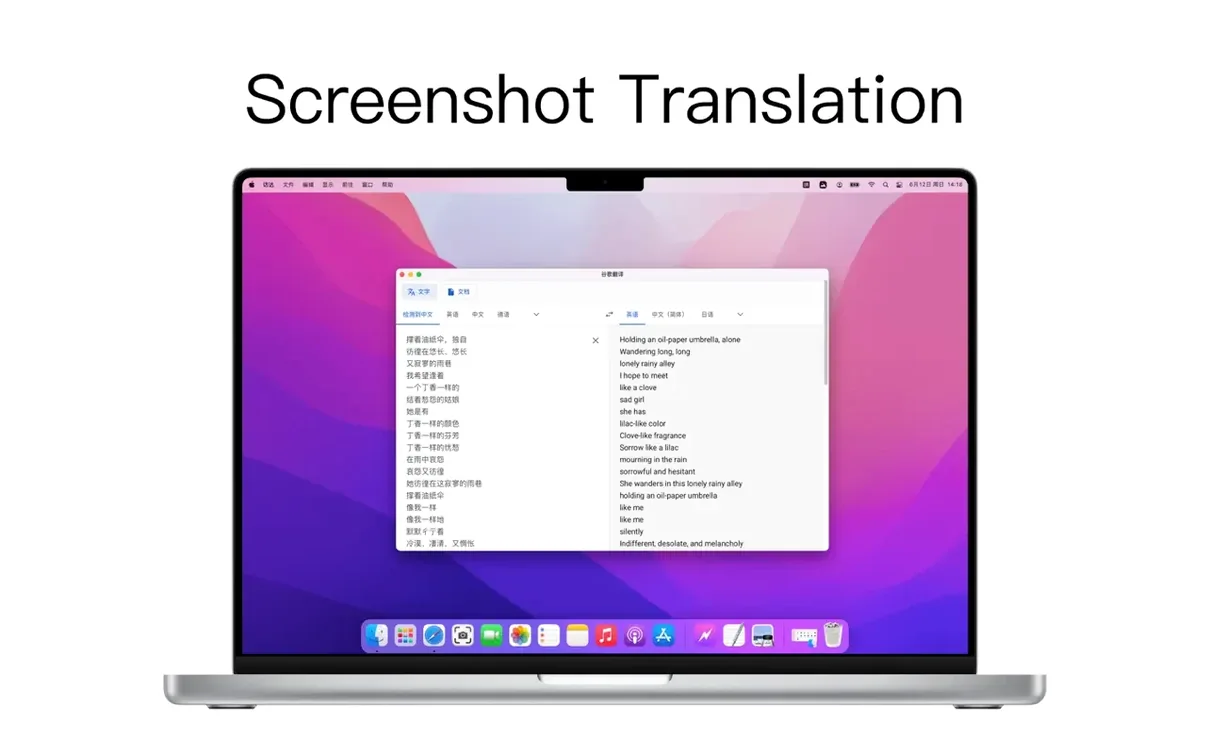
You'll also see it on the Mac of anyone who regularly pulls text from images. The OCR-plus-translate combo means a screenshot of a sign or menu in another language becomes readable without opening a separate app. And if you record walkthroughs with system audio, the built-in recorder spares you from wiring up a separate tool just for a quick clip.
From crosshair to annotated release note in seconds
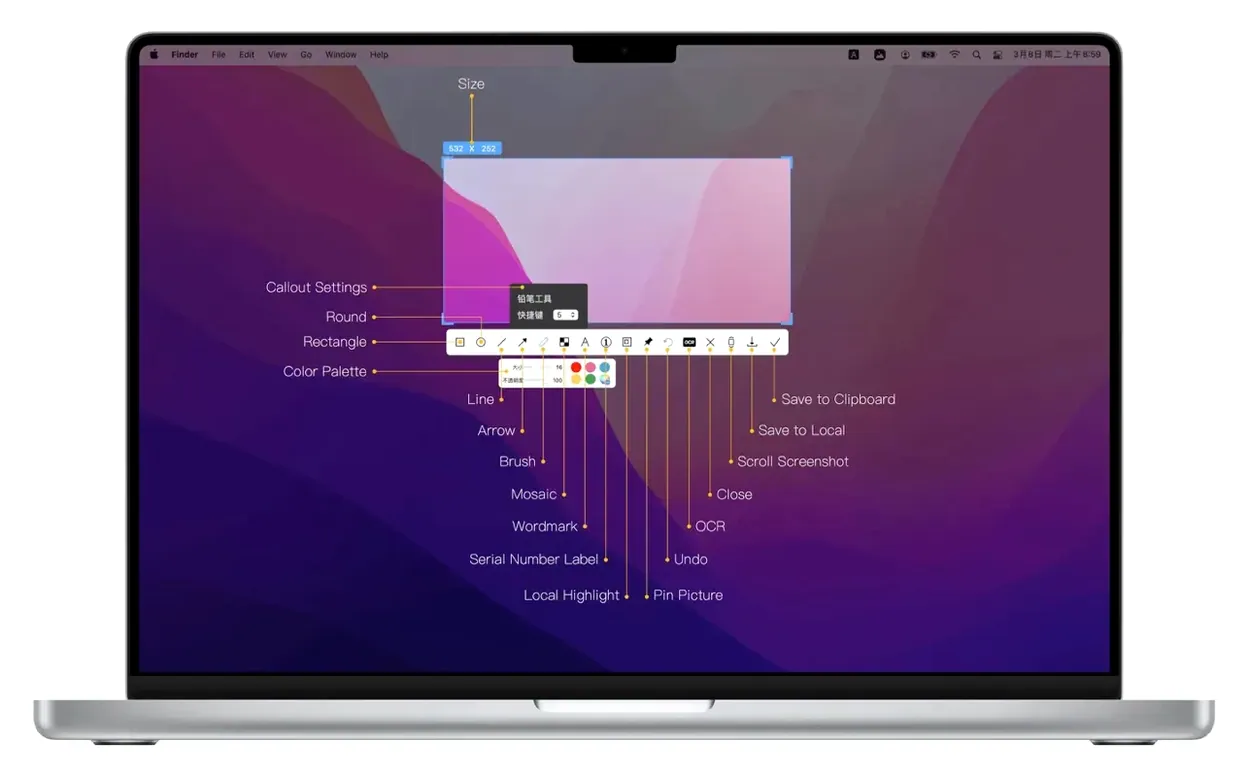
Imagine you're putting together release notes for an app update. You open the app and hit the shortcut for area capture. The crosshair appears instantly; you drag across the new settings panel and let go. A toolbar pops up with annotation tools — you add a rectangle around the toggle, then drop a number-one label beside it.
You copy the marked-up shot to the clipboard and paste it straight into your draft. Next you need the exact blue from a button. You switch to the colour picker, hover over the button, and note the HEX code it displays. A tap copies it.
Later, you record a quick six-second clip showing the new flow. You pick HD quality, enable system audio, and drag the recording frame over the window. The recording starts, you click through the steps, and stop. The clip saves as a local file, ready to drop into the release post.
- macOS 10.15 or later
- Apple Silicon and Intel 64‑bit
 Movavi Screen Recorder
 CleanShot X
 Camtasia
 Presentify
 Screen Studio
 ScreenFlow
 TechSmith Snagit
Chat 0
Hop in or make an account to join the chat.
Quiet in here so far. If you have used this build, tell me what the install actually did.