
 XMind Pro
 Wolfram Mathematica
 VueScan Pro
 Vellum
 Ulysses
 Typora
 Timemator
 Things



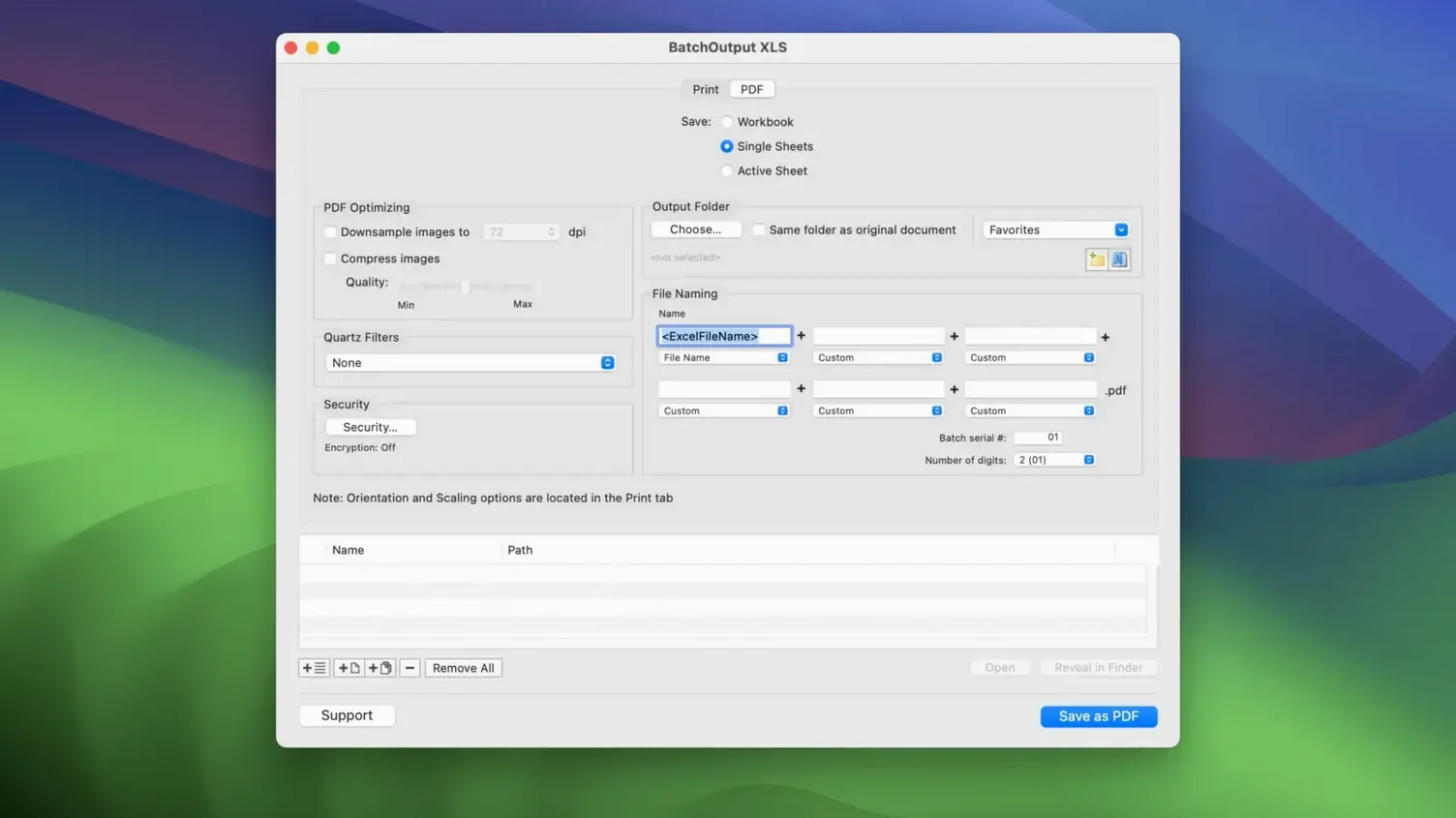
Designers and admin staff who manage large Excel libraries use BatchOutput XLS to skip the repetitive part. Instead of opening each workbook, setting print options and saving as PDF one by one, you drop a folder of files onto the app and walk away.
Send entire workbooks to the printer or convert them to PDF in one go. The app processes each file with the same settings, so every output matches.
Generate PDF filenames that include the date, user name or custom text. No more renaming exports manually.
Reduce PDF file size by compressing images. Set a password to open the file, or restrict copying and printing. Adjust colours with Quartz filters before saving.
A few details in BatchOutput XLS save extra clicks once you know them. You can drag and drop individual files or whole folders straight onto the app window — no need to dig through an 'Add files' menu each time. The file list accepts multiple selections, so you can remove or reorder a batch quickly.
The preview panel shows you which sheets are in each workbook before you run the job. That is handy when you are processing a mixed folder of single-sheet reports and multi-sheet budgets. You can also rename output files from the same panel rather than reopening the settings.
Right-click any file in the list to open its location in Finder. It sounds trivial, but when you are checking source files mid-batch, it beats switching windows manually.
After the first install, open Preferences and turn on 'Confirm before overwriting'. The default lets the app replace existing PDFs without warning, which is fine for fresh exports but risky if you re-run a folder that already has outputs.
Set your default PDF save location to a dedicated folder — something like BatchOutput Finishes — so exports never get lost among source files. The app remembers the path between sessions.
If you work with sheet-heavy workbooks, check the 'Split workbook into sheets' option early. It gives you one PDF per sheet instead of one big file, and you can name each sheet output with the sheet tab name plus your custom text.
BatchOutput XLS runs as a lightweight foreground app. It does not sit in the background or eat RAM when idle. During a batch job, you will see CPU usage climb while files are processed, but it releases resources as soon as the queue finishes.
Stability is solid for version 3.0.1. Crashes are rare with standard Excel files. Oddly formatted workbooks — the ones with complex macros or external links — may cause the app to skip that file and move to the next. The log at the end shows which files failed, so you can check them manually.
Most Excel-on-Mac users know the built-in 'Save as PDF' route. It works for one file at a time. BatchOutput XLS replaces that manual loop. For batch PDF conversion, you might also consider Able2Extract or LibreOffice in headless mode.
Able2Extract handles a wider range of Office formats but its batch mode is less straightforward — you set up each conversion type separately. BatchOutput XLS focuses purely on Excel, so its interface stays simple: drop files, pick settings, run. There is no format guessing.
LibreOffice can convert spreadsheets to PDF from the command line, which appeals to scripters. But setting page orientation, margins and compression flags through terminal arguments is finicky. BatchOutput XLS gives you those options in checkboxes and dropdowns. For a one-person office or a small team that does not want to write shell scripts, the GUI approach saves time.
Neither of those alternatives supports Quartz colour filters or per-file password policies natively. If your workflow needs encryption or colour adjustment on every output, BatchOutput XLS keeps those settings inside the same job.
Does it work with the latest Excel version on Mac?
The app talks to Excel through the file format, not through macros or plug-ins. As long as your copy of Excel can save standard .xlsx files, BatchOutput XLS can open them. Version 3.0.1 is tested on macOS 12 and later, and it handles files created in recent Excel releases without issues.
Can I process files on a network drive?
Yes. The app reads files from any mounted drive — local, external or network share. Just drag the folder or files into the window. Processing time may be slower over a network, especially with large workbooks, because the whole file is read before conversion.
What happens if a file is password-protected?
The app will skip it and log the failure. You need to remove the password from the workbook in Excel first, or use the 'Encrypt output PDF' option to set a new password on the results.
Does it modify the original Excel files?
No. BatchOutput XLS reads each workbook to print or export. It saves only the PDF output. The source .xlsx files are never altered.
Can I use it to convert files while Excel itself is open?
Yes. The app does not require Excel to be closed. However, if a workbook is currently being edited and has unsaved changes, the app reads the saved version on disk. Pending edits that have not been saved will not appear in the PDF.
The app logs each run to a text file in the output folder. If you ever need to check which files processed and which were skipped, the log gives you timestamps and error messages without guessing.












Chat 0
Hop in or make an account to join the chat.
Quiet in here so far. If you have used this build, tell me what the install actually did.