
 Apple Keynote
 AppZapper
 App Cleaner & Uninstaller
 Araxis Merge
 ArchiCAD
 ApolloOne
 Artlantis
 AnyTrans for iOS

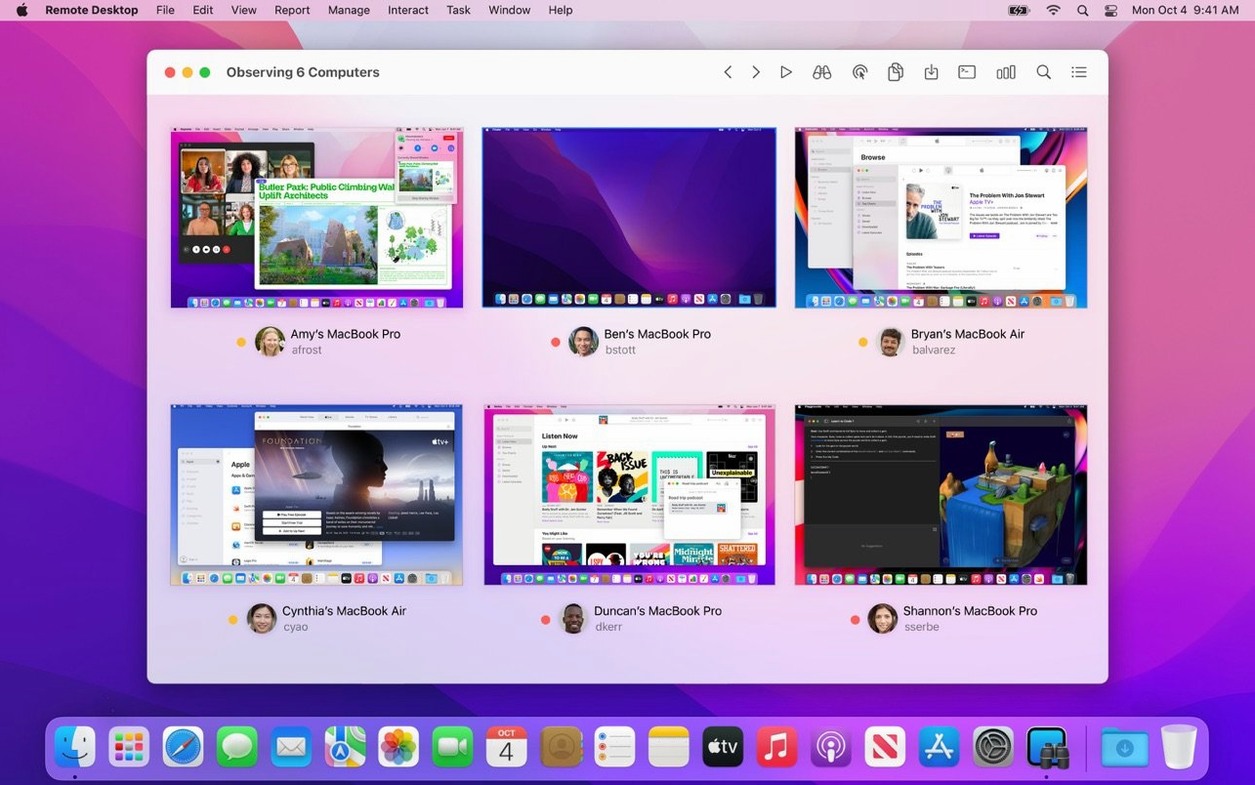
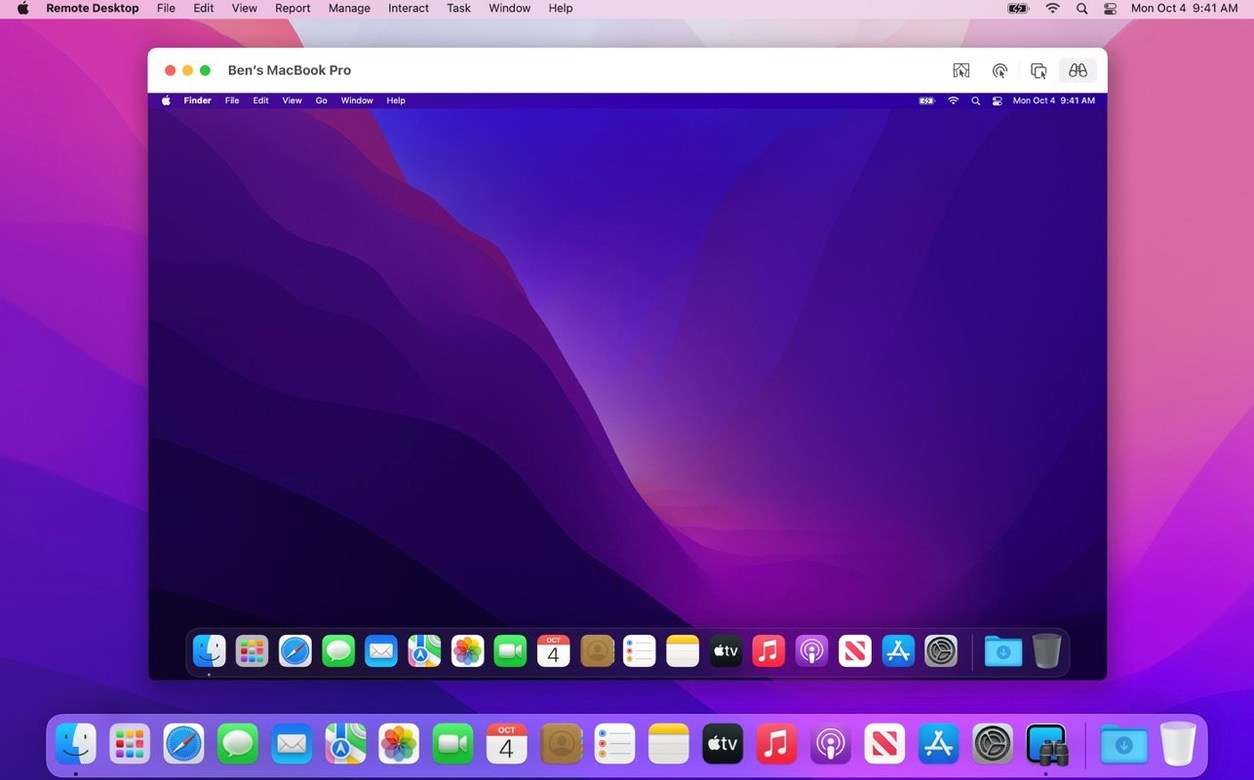
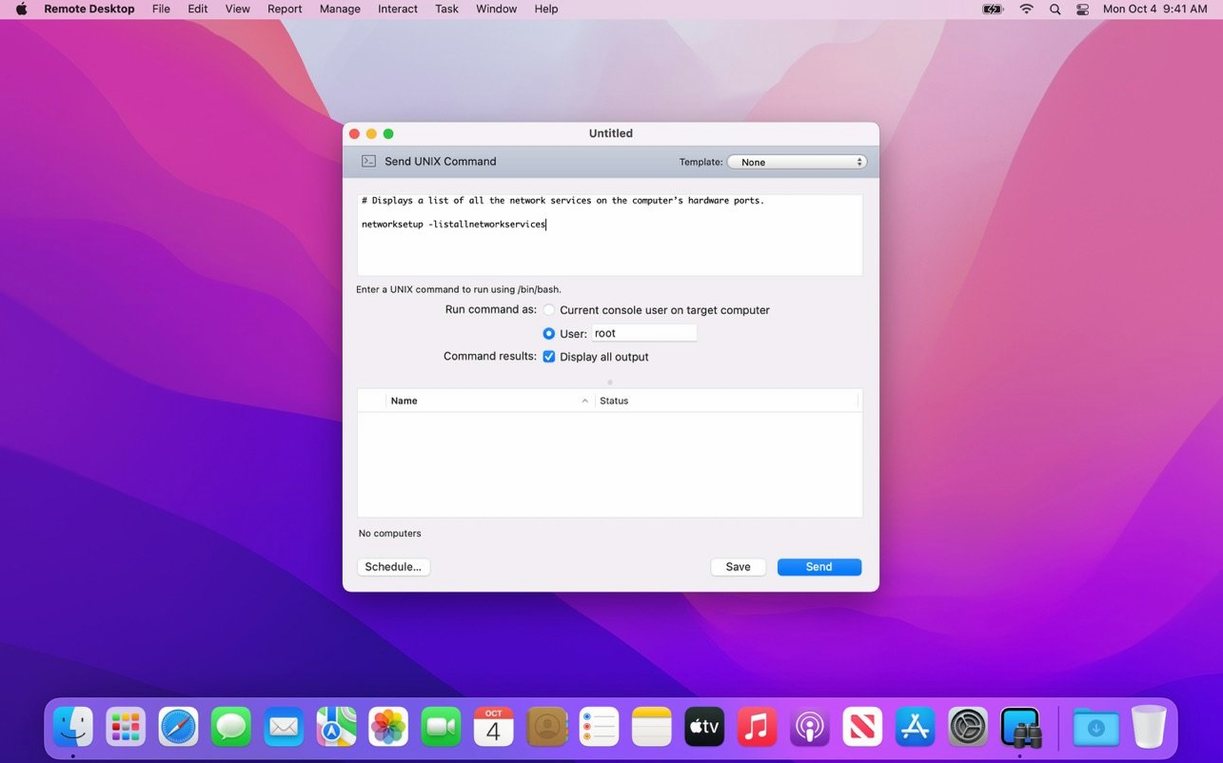
When a lab full of Macs needs the same software update or a colleague halfway across the building gets stuck, walking over isn't always practical. Apple Remote Desktop 3.10 puts every screen within reach from a single chair.
It handles the obvious tasks—viewing and controlling a remote Mac—but the real time-saver is what you can do in bulk. Copy and paste between computers, drag files straight onto a distant desktop, or push out an installer to thirty machines at once without touching a USB stick. Remote Spotlight search means you can find a stray file on any managed Mac without interrupting the person using it.
Curtain Mode blanks the client screen while you work, handy for private maintenance or late-night fixes. The app also reports user logins and application usage, so you know what's actually running across your fleet. While full control needs the Remote Desktop Client on each managed Mac, you can still connect to Windows, Linux, and UNIX systems through standard VNC.
Mona starts her Tuesday with a ticket: the design team's twenty iMacs need the same font pack installed before a client review at ten. She opens apple remote desktop 3.10 on her MacBook Pro. The main window already lists every managed computer in the studio, grouped by department.
She selects the Design Lab group, right-clicks, and chooses Copy Items. A clean panel slides open. She drags the font installer package from her desktop into the list, checks the destination path, and clicks Copy. A progress bar ticks upward as the package lands on all twenty machines. Two were asleep; they wake silently thanks to the built-in scheduling.
Next, a help desk call. An illustrator can't find a PSD from last week. Mona highlights his iMac in the computer list, hits the Remote Spotlight button in the toolbar, and types kind:photoshop modified:<7d. The file tree appears within seconds. She drags a copy straight back to her own desktop and emails it over. No screen sharing needed, nobody disturbed.
Before wrapping up, she runs a quick report on the Design Lab group. With three clicks she pulls hardware specs, available disk space, and app usage logs from the entire pod. One machine is low on storage. She flags it for the intern and locks the screen remotely so nobody fills it further before cleanup.
The whole session—twenty-machine deployment, a file rescue, and a health check—took under fifteen minutes. Mona closes the lid and heads for coffee.
Apple Remote Desktop vs TeamViewer
TeamViewer leans toward cross-platform help desk work with an emphasis on internet-based connections and quick session codes. ARD is built purely for Mac administrators managing fleets. Where TeamViewer requires accounts and external servers, ARD operates entirely within your local network. The reporting side—two hundred hardware characteristics, login logs, app usage—has no parallel in TeamViewer. For pushing packages to dozens of Macs at once, ARD is the purpose-built tool.
Apple Remote Desktop vs Screens
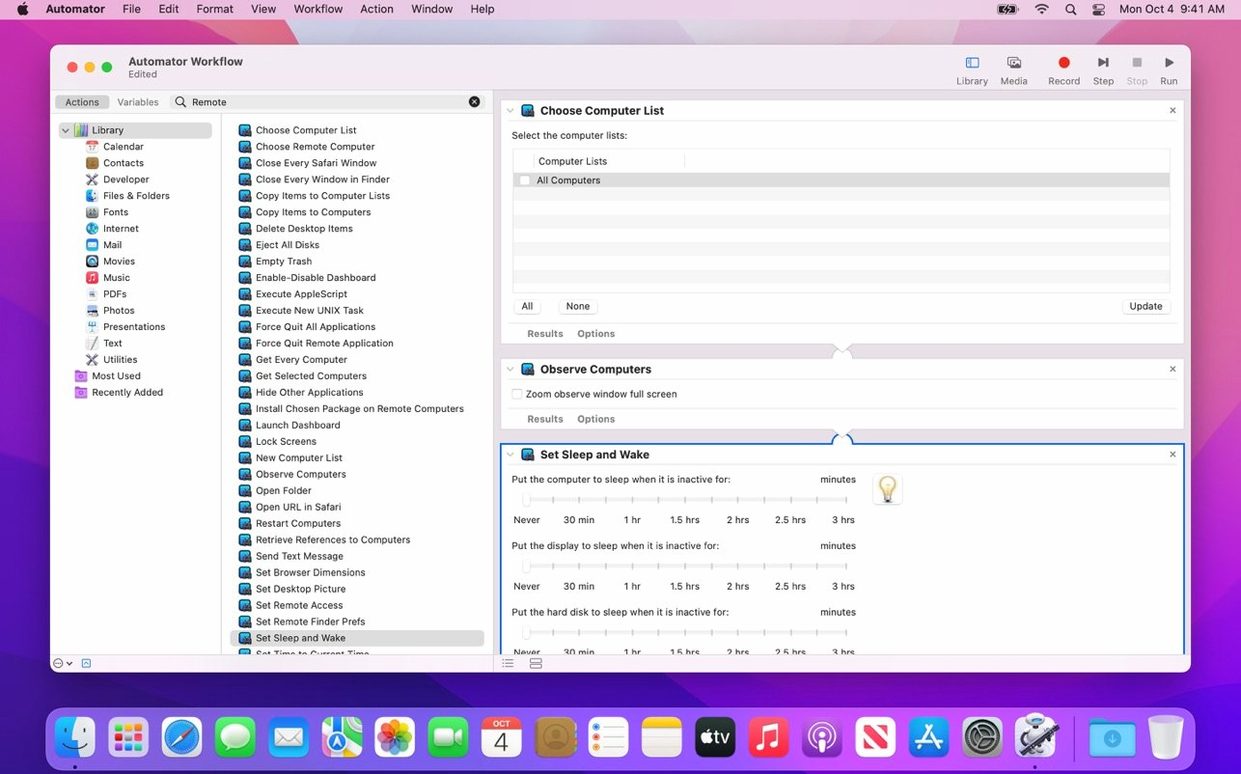
Screens is a polished VNC client for one-to-one connections. It feels light and friendly. ARD covers the same remote control basics but layers on mass management: multi-select computers, scheduled installs, remote Spotlight, and Automator actions. If you support three Macs, Screens is fine. If you support thirty, ARD's batch tools make the difference.
Apple Remote Desktop vs Jamf Pro
Jamf Pro is an MDM platform for zero-touch deployment and policy enforcement at scale. ARD is a direct remote administration tool, not a device management framework. They complement each other. ARD handles live troubleshooting, one-off script runs, and quick file drops. Jamf handles automated enrolment and compliance. In a medium-sized Mac lab without dedicated MDM, some teams use an apple remote desktop 3.10 download as their daily driver and postpone a full MDM migration until the fleet doubles.
Leo runs the media lab at a secondary college. Thirty-two iMacs, three periods a day, a rotating cast of student logins. His morning checklist used to involve walking the room with a USB drive and a clipboard. Now he arrives twenty minutes early, opens ARD, and selects the whole lab.
First task: deploy yesterday's DaVinci Resolve project templates to the /Shared/ folder on every machine. He drags the folder from his Mac into the Copy Items window and sets it running. The encrypted transfer keeps the files private as they move across the school network.
Second task: lock every screen to the login window. The previous period left half the machines logged into student accounts with unsaved work. Leo runs the Lock Screen command across the group. The room resets in a single click.
Third task: a quick application-usage report for the department head. He selects the Report menu, picks Application Usage, and specifies the last seven days. The data shows which Adobe apps students actually opened versus what the curriculum assumed. He exports a PDF and attaches it to an email before the first bell.
Leo keeps a folder of Automator workflows tied to ARD actions. One of them runs every Friday at six, clearing caches and emptying trash across the lab. He hasn't touched it in months; it just hums along. For a one-person IT team, that kind of quiet automation turns a frantic morning into a calm one.
Yes, it can connect to Windows, Linux, and UNIX systems using VNC, though features like Curtain Mode and software installation require a Mac with the Remote Desktop Client.
For full control—including screen sharing, file transfer, and software installs—the Remote Desktop Client must be installed on each managed Mac.














Chat 0
Hop in or make an account to join the chat.
Quiet in here so far. If you have used this build, tell me what the install actually did.