
 App Cleaner & Uninstaller
 Apple Remote Desktop
 ApolloOne
 AppZapper
 AnyTrans for iOS
 Araxis Merge
 ArchiCAD
 Antivirus Zap - Virus Scanner



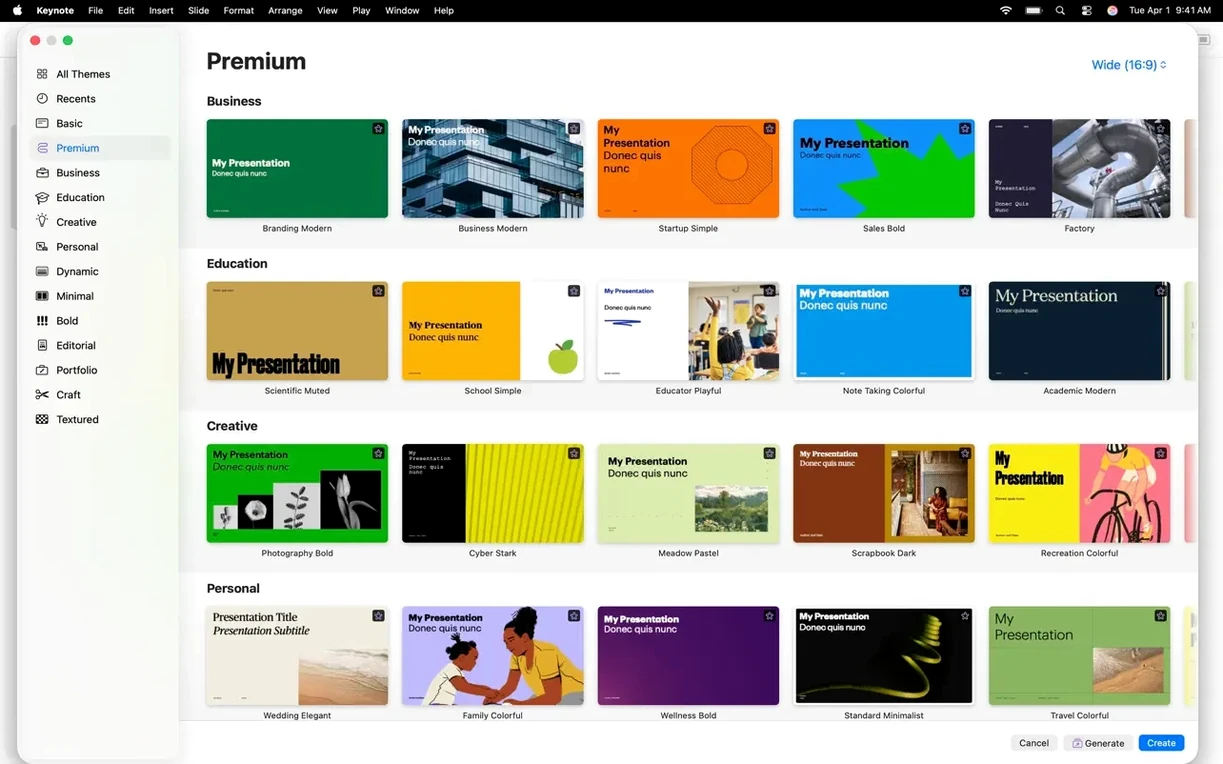
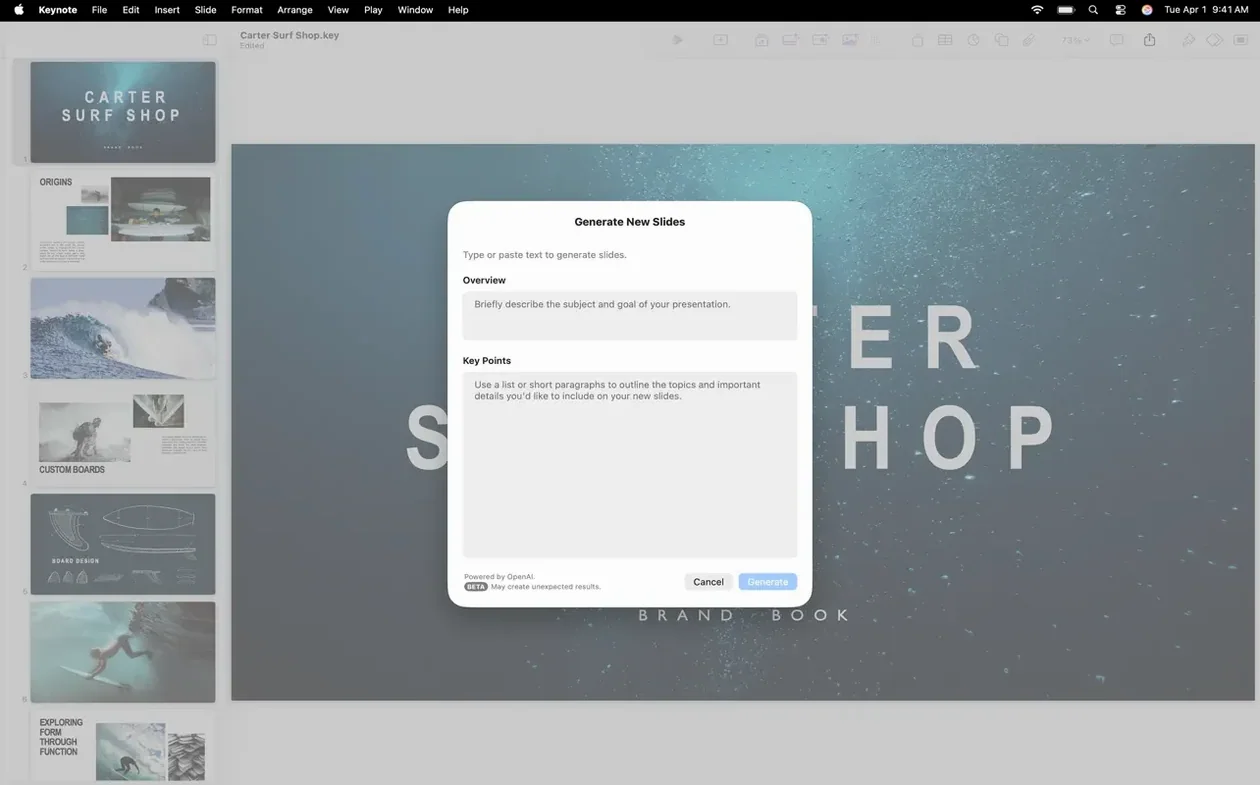
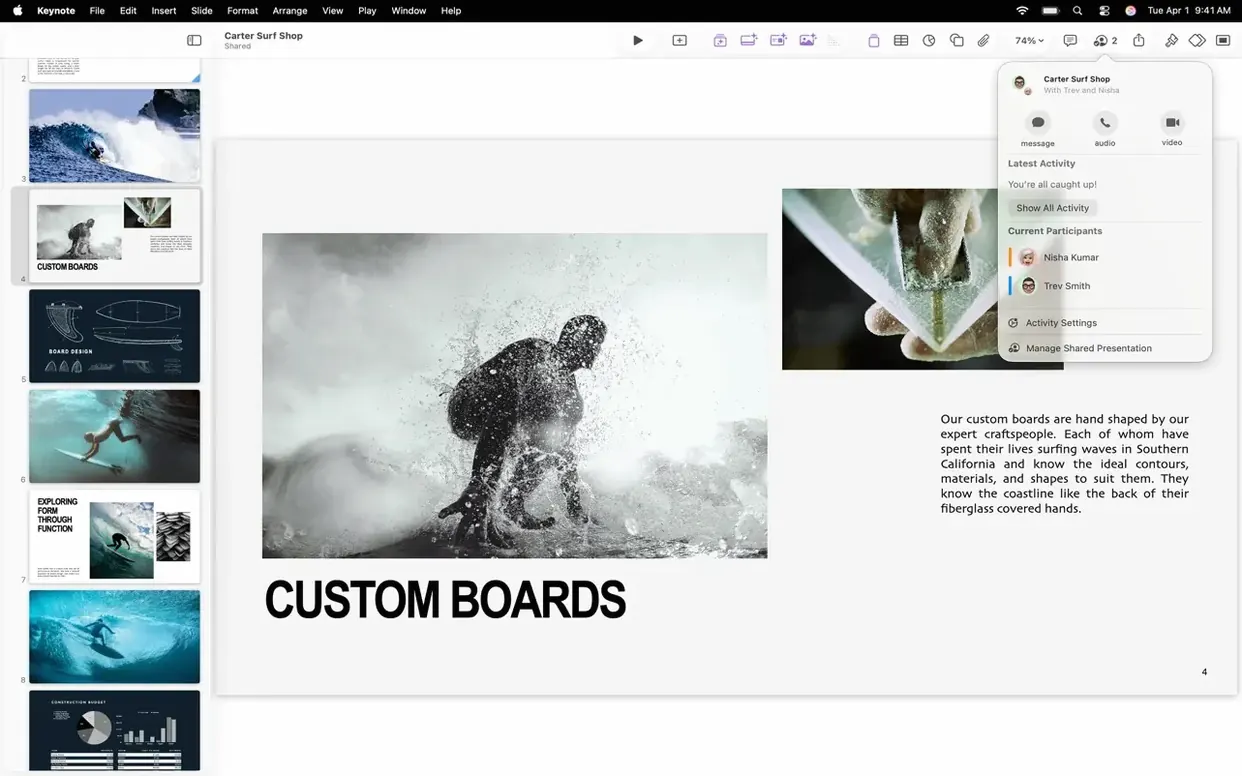
Designers, educators and anyone who needs slides that look considered tend to open Keynote first. It is the presentation half of Apple's iWork trio, sitting beside Pages and Numbers, and it prioritises clean graphic tools over busy ribbon menus.
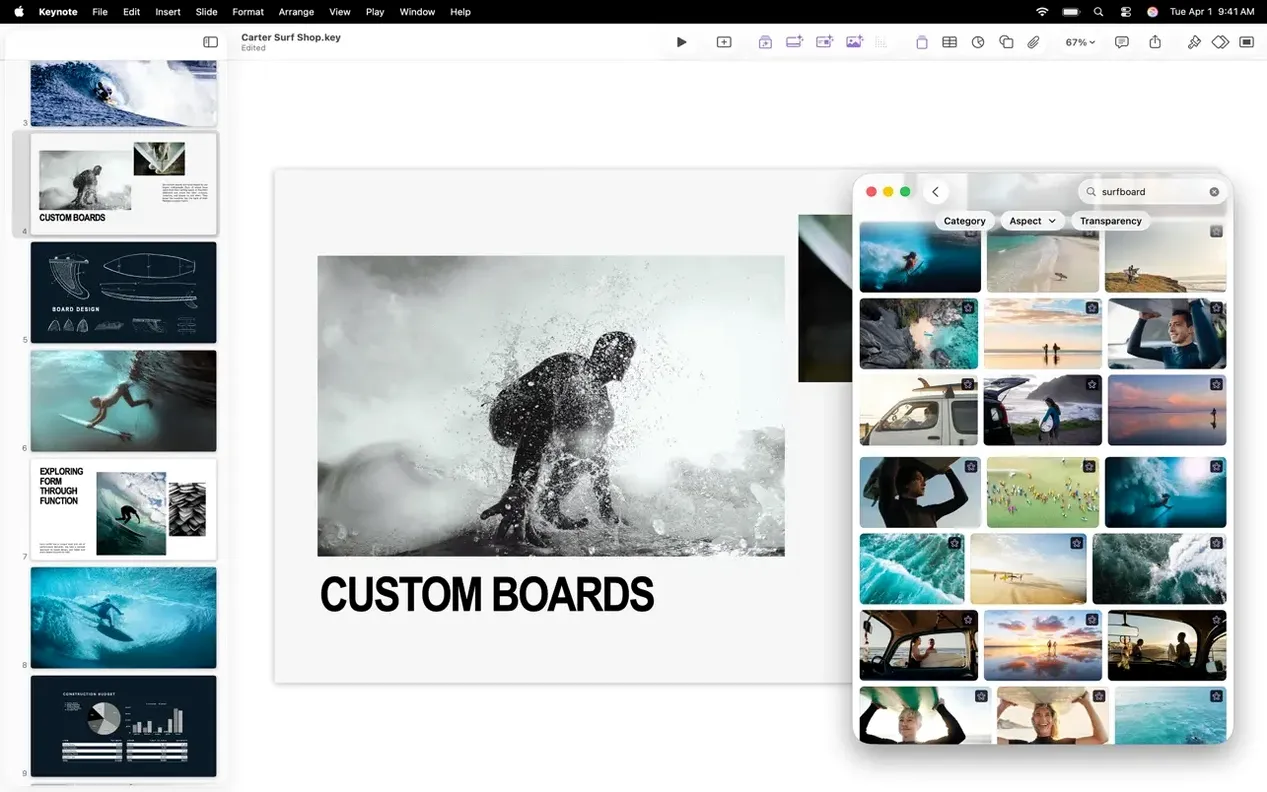
Version 15.3.1 adds three new transitions and builds — shift, radial wipe and character blur — that make slide sequences feel snappier without extra effort. The Content Hub now lets you swap placeholder images straight from a central library, which speeds up late-stage edits when a client sends a last-minute photo.
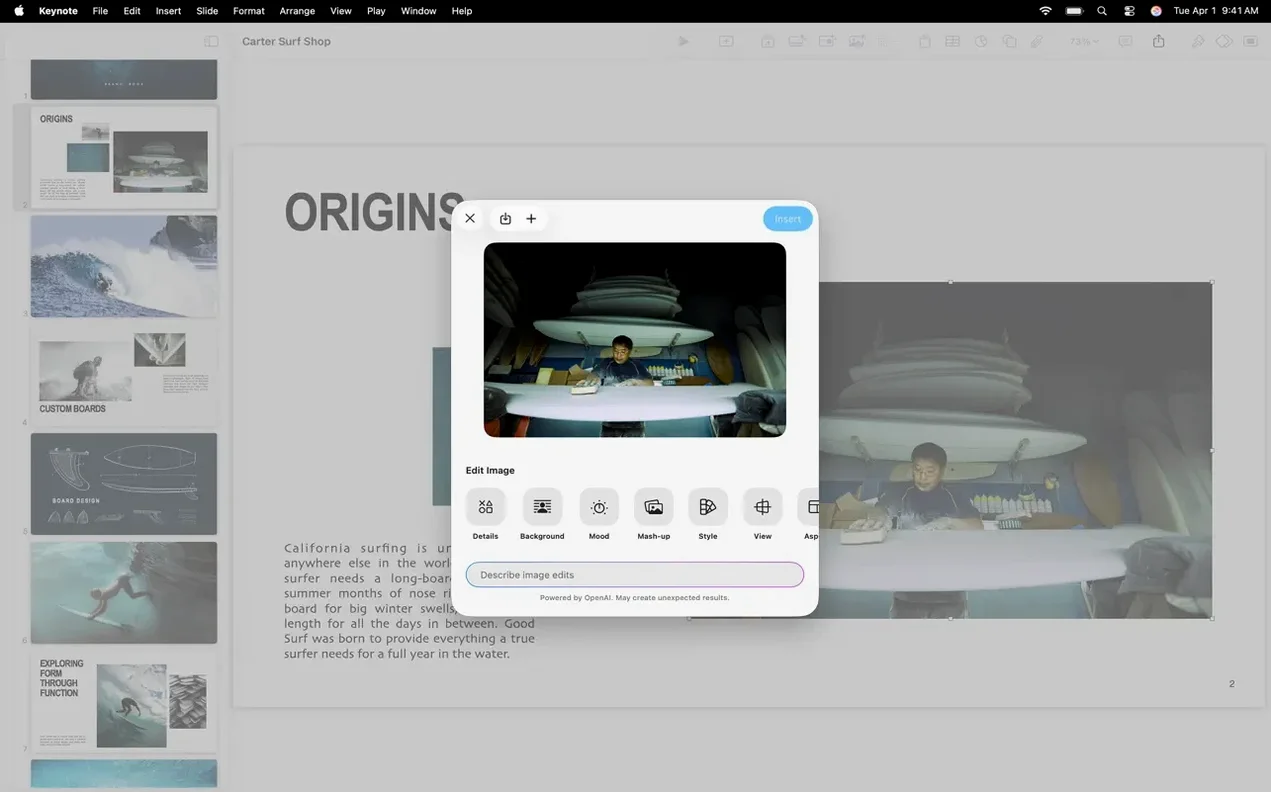
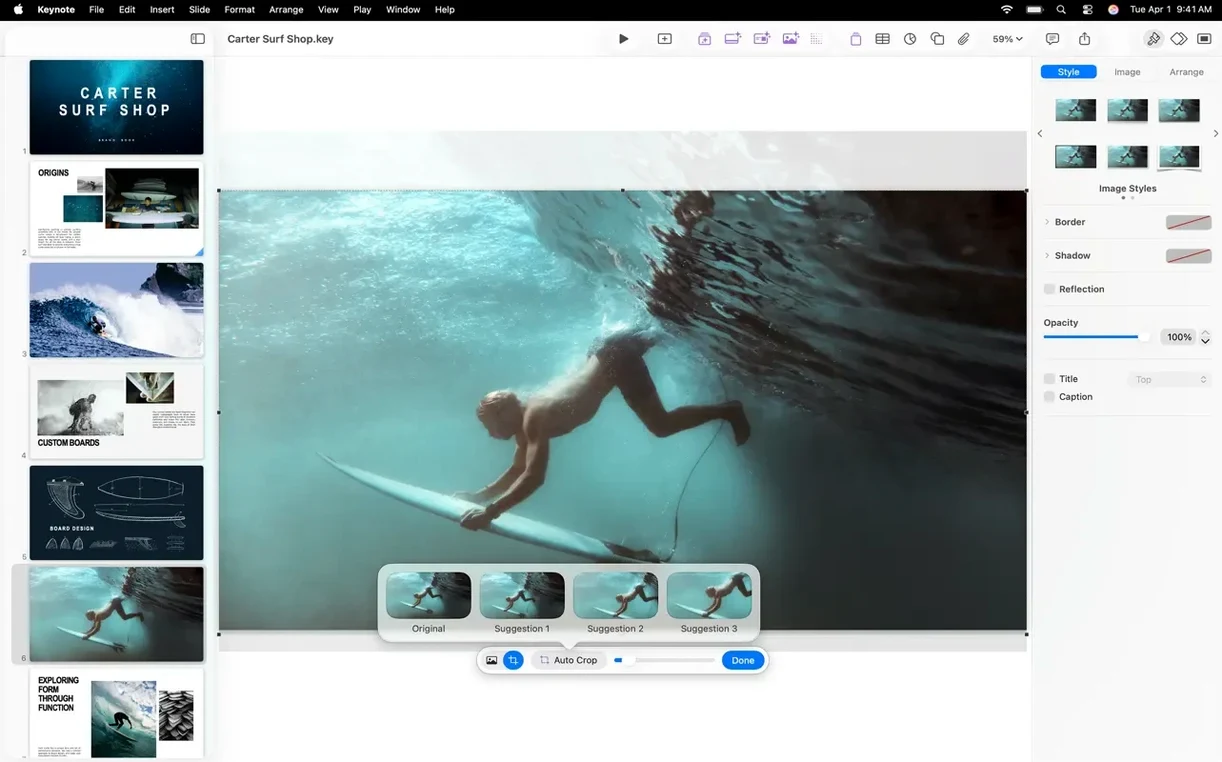
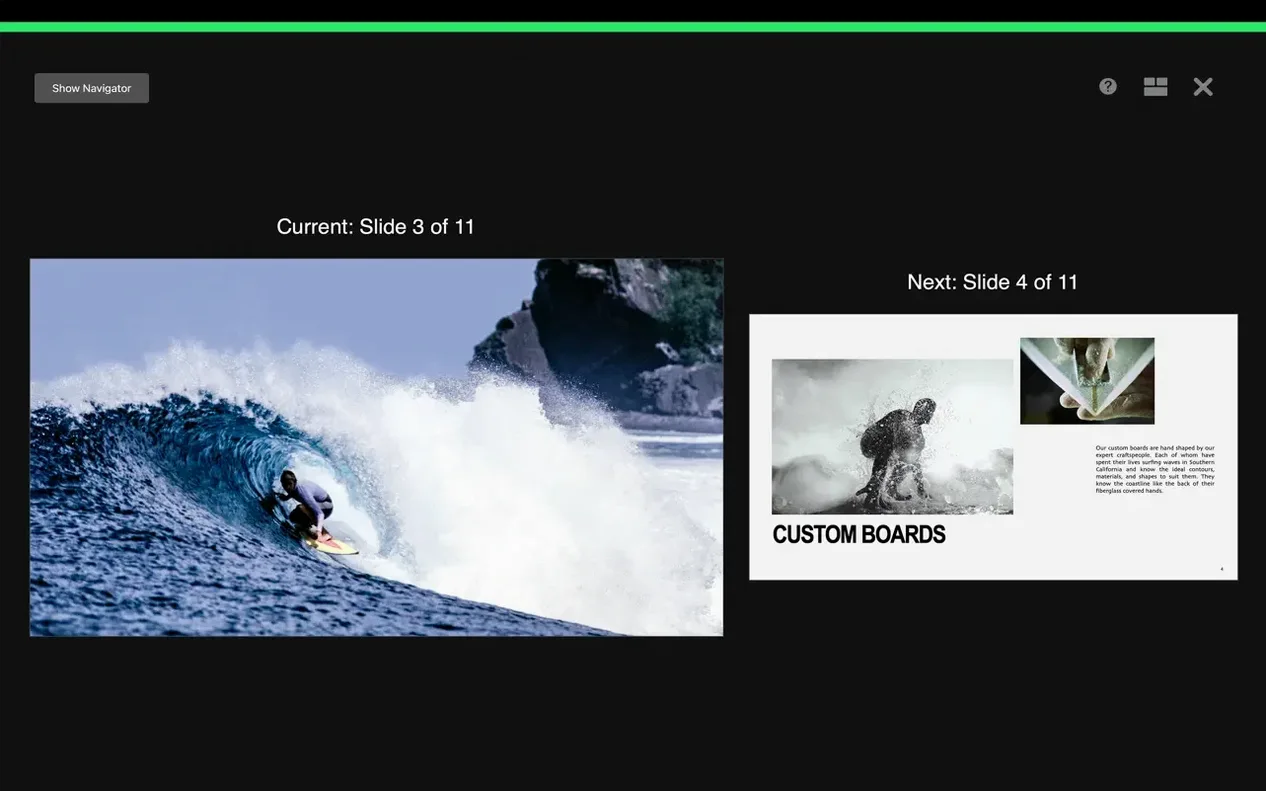
Masks and instant background removal sit right in the toolbar, so cutting out a speaker headshot or fitting a logo into a circle takes a couple of clicks. For rehearsals, the customisable presenter display keeps speaker notes, a timer and the next slide visible on your screen while the audience sees only the current build.
On iPad, annotating with an Apple Pencil or a finger during a live talk feels natural, and you can drop in audio recordings, video broadcasts or image galleries without switching apps. The whole package runs on macOS 15.6 and later, with both Intel and Apple Silicon Macs supported.
Microsoft PowerPoint leads on collaboration depth — threaded comments and enterprise co-authoring are smoother — but the Mac version still carries a heavier interface. Keynote trades some of those team-review niceties for direct graphic control. Moving a gradient stop or masking an image feels like one thought rather than three dialogue boxes.
Deckset takes the opposite approach: you write Markdown, it generates slides. That is brilliant for a talk built entirely from an outline, but you cannot tweak a chart's colour mid-flow or pull an object off-grid. Keynote sits in the middle — theme-driven enough to start fast, freeform enough to hand-adjust every element when a slide needs to feel bespoke.
If you regularly inherit .pptx files, Keynote imports them with surprisingly few layout breaks. Export back to PowerPoint, PDF or HTML works for sharing, though complex PowerPoint animations sometimes flatten out. For a presenter who designs their own decks, Keynote's combination of cinematic transitions and image-editing shortcuts gives it the edge.
Open Preferences (⌘,) and switch on Snap to grid under the Ruler tab. The default is off, and nothing undermines a polished theme faster than objects that look almost aligned.
Set the default author name under the General tab. Keynote uses it for change tracking when you collaborate via iCloud, and leaving it as a blank placeholder confuses anyone reviewing your shared file.
If you work with large image-heavy files most days, tick Optimise images for iOS off when saving. The compression saves space but softens crisp charts on a big screen. For any presentation headed to a projector, disable Auto-play movies on click unless you enjoy surprise audio during a live talk.
In the Slideshow tab, set presenter display to show current slide, next slide and notes. The default shows only the current slide, which wastes the rehearsal features Apple built in.
⌥⌘G), then apply one build to the group. Adjust the delivery order in the Build Order panel — it saves twenty minutes on a fifty-slide deck.Keynote stores a portable version inside every .key file: right-click and choose Show Package Contents, and you will find a preview.jpg and a preview-micro.jpg that Quick Look uses. Swapping those images manually updates the thumbnail Finder shows, handy when you maintain multiple revisions of the same talk.














Chat 0
Hop in or make an account to join the chat.
Quiet in here so far. If you have used this build, tell me what the install actually did.