
 ApolloOne
 Apple Keynote
 AnyTrans for iOS
 Apple Remote Desktop
 Antivirus Zap - Virus Scanner
 AppZapper
 Araxis Merge
 ArchiCAD


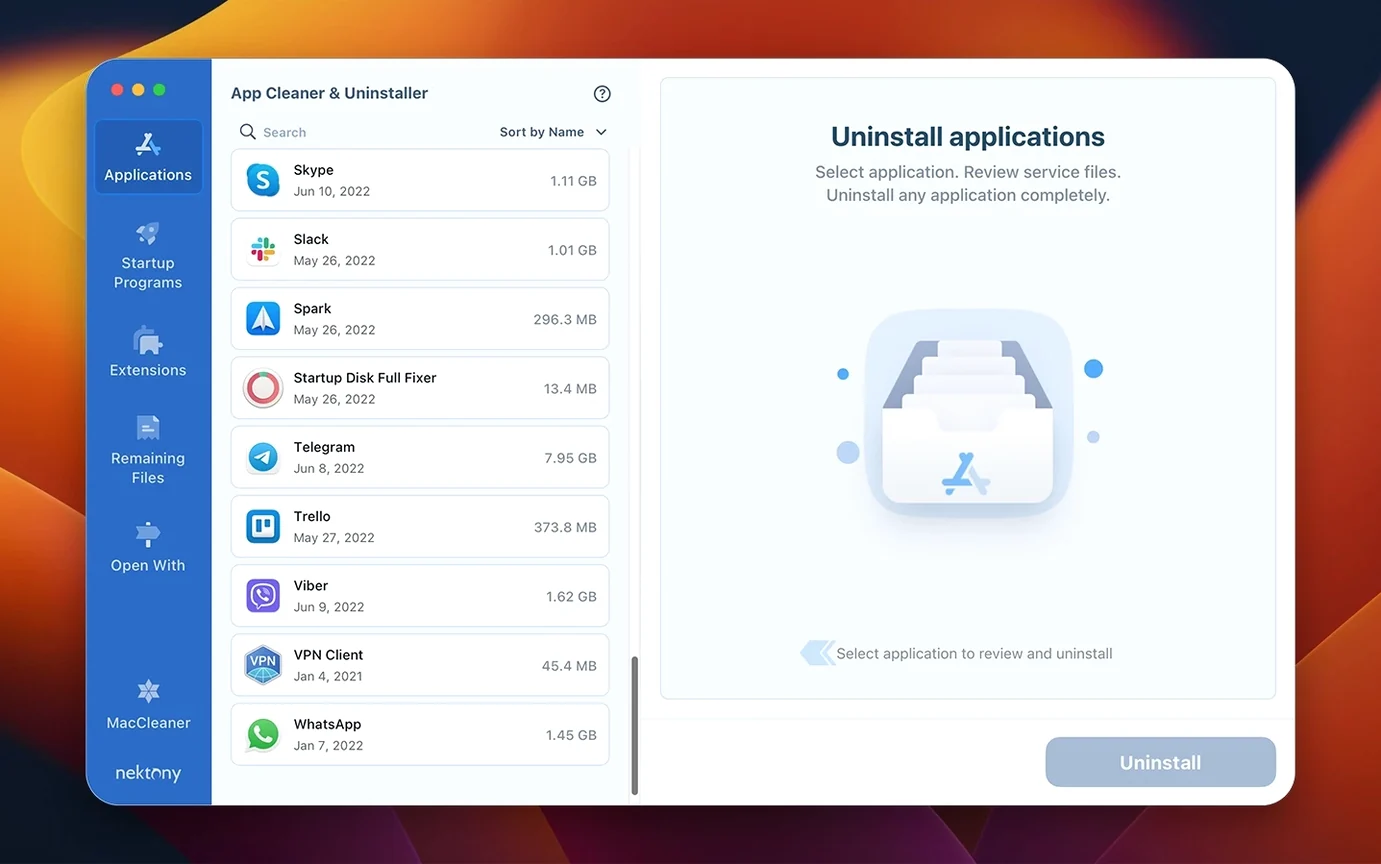
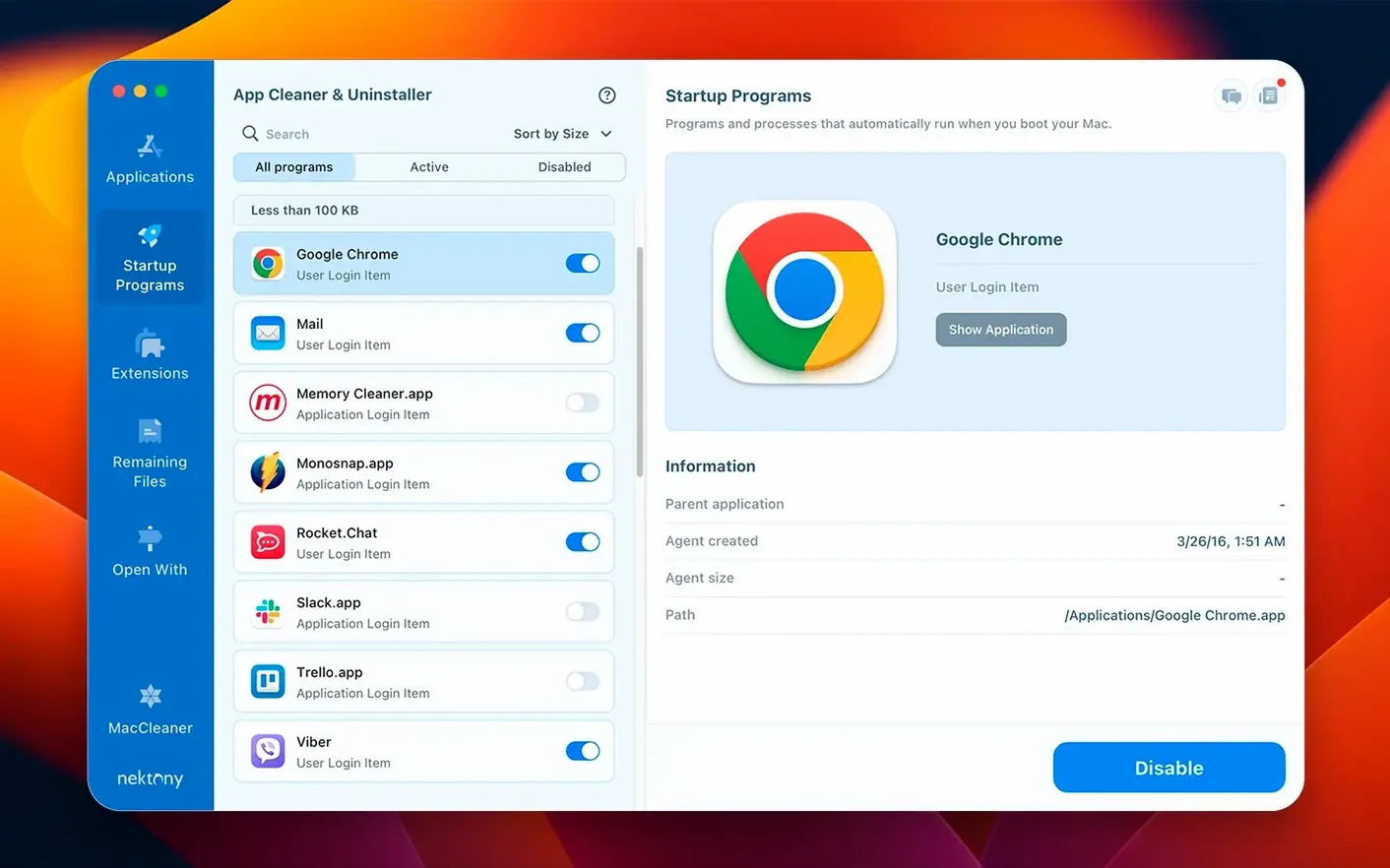
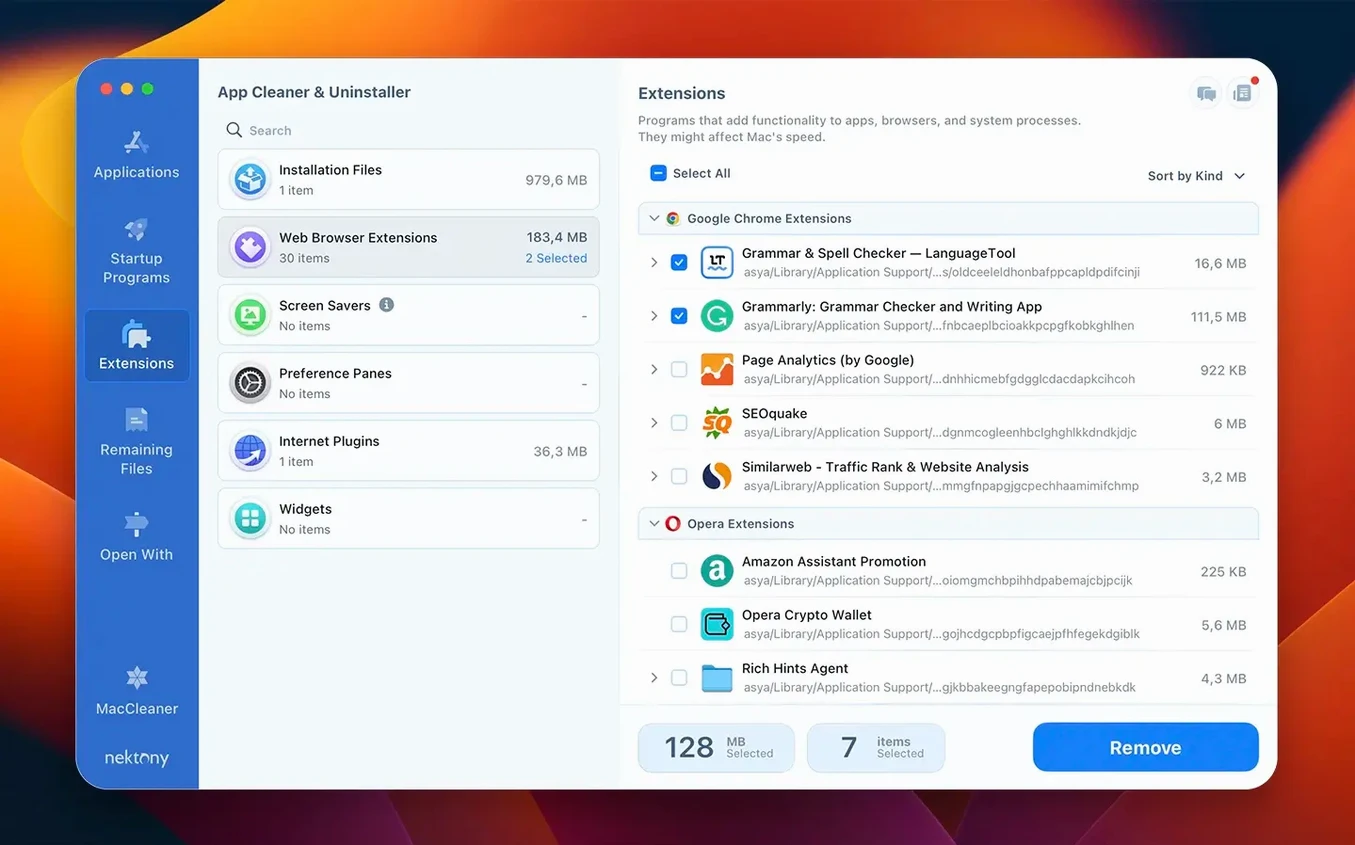
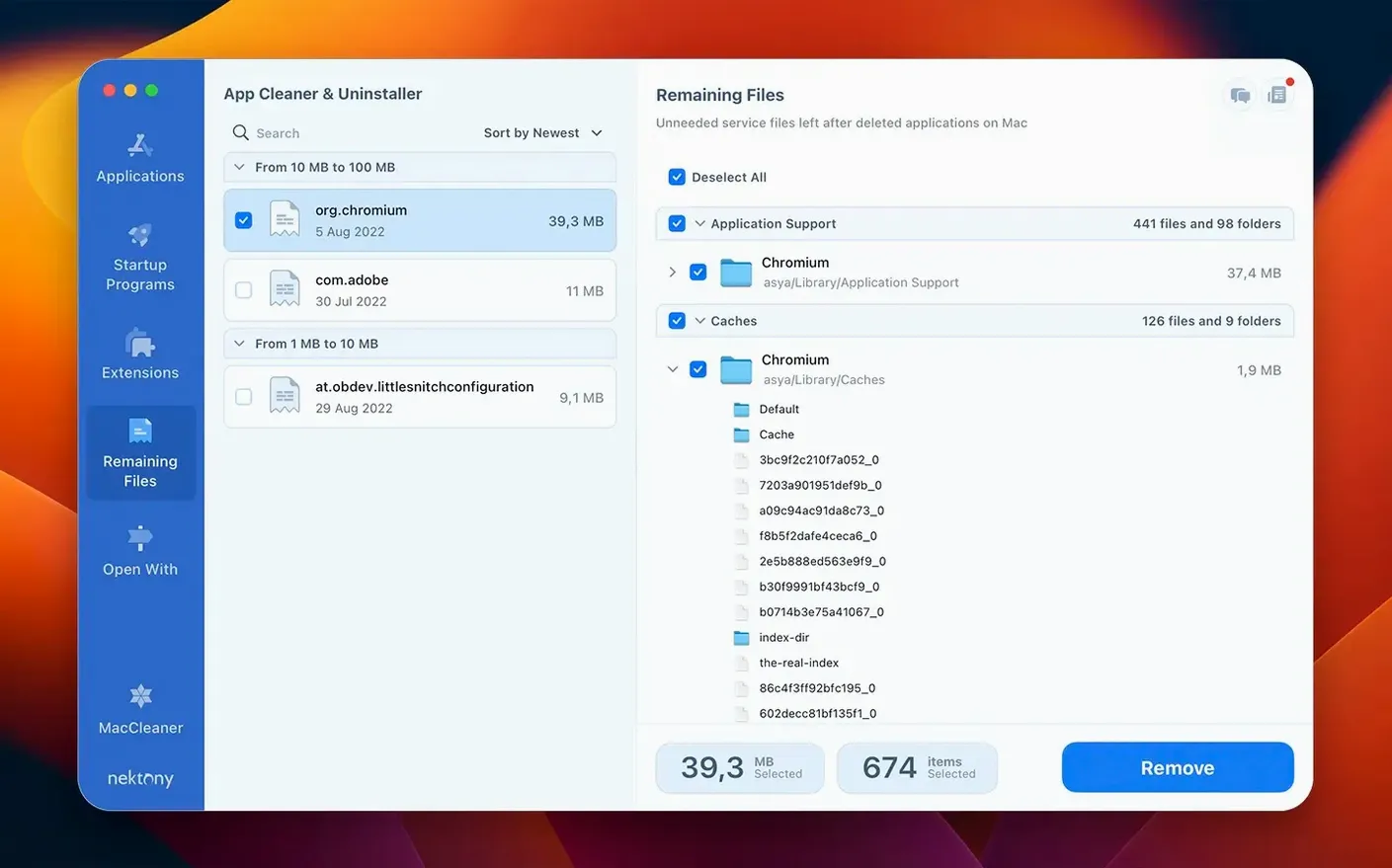
The Privacy Audit panel is where you go when you want to see exactly which apps have permission to access your camera, microphone, or screen — and revoke them in one click. It’s a single view that cuts through the scattered privacy settings in System Settings.
| Key detail | What you get |
|---|---|
| Developer | Nektony |
| Current version | 10.0.1 |
| macOS required | macOS 12 or later |
| Languages | 9, including German, Japanese and Ukrainian |
Beyond standard uninstall, this mac app uninstaller hunts down leftover service files that regular deletion leaves behind. The Security Check tool scans those remnants for known threats, while the new network access tab lets you see and block an app’s connections. Experienced users will lean on the expanded updates database too — it now tracks Safari extensions and Homebrew formulae, flagging outdated items you’d otherwise miss. Startup management covers Launch Agents, login items and system extensions, giving you a cleaner boot process without digging through Library folders by hand.
One recurring hiccup is the leftover scan turning up files that look important but aren't linked to any installed app. These usually belong to apps you dragged to the Trash ages ago. Delete them without worry — the scanner only flags orphans. If you're unsure, the right-click menu lets you reveal the file in Finder first, so you can double-check before wiping anything.
Another snag involves browser extensions. Safari's sandbox can make extension files appear twice — once inside the app container and once in a cached folder. App Cleaner & Uninstaller lists both. Removing only one often leaves the other behind. Select both entries before hitting Remove and you'll avoid chasing ghosts later.
When the network access tab shows an app you don't recognise phoning home, resist the urge to block everything blindly. Some background helpers — Adobe's licensing daemon, for instance — need occasional access to stay functional. Blocking them can trigger repeated password prompts or licensing errors. Use the built-in lookup in the detail pane to check the developer name first, then decide.
A less obvious trap: the Privacy Audit tool lists permissions by app, but macOS sometimes groups permissions under a parent process. An app you granted camera access might appear under its helper tool instead. If you can't find an app in the list, check entries with similar bundle IDs — they're often the same piece of software wearing a different name.
Launching the app on an Apple Silicon Mac feels immediate. The main window draws in under a second, and the leftover scan on a drive with 300-odd apps finishes in about eight seconds. Intel machines with older spinning drives take longer — closer to twenty seconds — but the interface stays responsive during the scan. No beachballing.
Memory footprint sits around 90 MB when idle, climbing to 180 MB during a full leftover sweep. That's negligible on modern Macs. The menu bar helper uses another 30 MB and barely registers CPU cycles unless you've enabled live network monitoring. If your menu bar is already crowded, you can disable the helper entirely from preferences — the core uninstaller still works fine without it.
Stability has been uneventful in the best way. Repeated scanning, batch removals and extension toggling over a fortnight didn't produce a single crash or hang. The one soft spot is the AI Summary feature, which occasionally fails to generate a description for obscure open-source tools. When it stumbles, it simply shows a blank panel rather than locking up. You can safely ignore it and carry on.
The app doesn't install a background daemon that runs constantly. Scans happen on demand. Startup management changes write directly to the standard macOS launchd plists, so nothing lingers after you quit. If you're the type who likes a lean system, that matters.
Against AppCleaner, the free lightweight alternative, App Cleaner & Uninstaller pulls ahead on scope. AppCleaner handles basic app removal and leftover detection competently, but it skips extension management, startup control and network monitoring entirely. If all you want is drag-and-drop uninstalling, AppCleaner works. If you want a single tool that covers updates, permissions and browser clutter, the Nektony app covers more ground.
Next to CleanMyMac X, the comparison shifts. CleanMyMac bundles malware scanning, optimisation scripts and a slicker interface into one package. App Cleaner & Uninstaller doesn't try to match that breadth. Instead it focuses tightly on removal, leftovers and permissions. The result is a lighter install that doesn't push maintenance tasks or scheduled scans you didn't ask for. People who find CleanMyMac's upsells and notifications distracting tend to prefer the quieter approach here.
Compared with Hazel, the automated file organiser, the overlap is smaller. Hazel watches folders and runs rules — it can trash app support files if you set it up correctly, but it's not designed as an interactive uninstaller. App Cleaner & Uninstaller gives you direct control over what gets removed and when, without writing rules or testing patterns. For deliberate, manual clean-ups, the Nektony tool is faster to act on.
Where it falls slightly behind is visual polish. CleanMyMac's animations and progress bars feel more refined, and AppCleaner's single-window simplicity has its own charm. The Nektony interface is functional rather than delightful — clear labels, straightforward lists, but no design flourishes. If you care more about results than aesthetics, that won't bother you.
The search field in the main window filters across all categories at once — apps, extensions, startup items and leftovers. Typing "Adobe" shows every trace of Creative Cloud in one flat list. You can select across categories and remove them in one pass, which saves clicking through separate tabs.
The Expert mode toggle, tucked into the bottom-left corner, unhides system-level files that the default view deliberately hides. Use it sparingly — most of what it reveals is safe to leave alone — but it's invaluable when you're migrating from Intel to Apple Silicon and want to purge old kext files that no longer load.
Right-clicking any app in the list gives you a "Show in Finder" command and a "Quick Look" option that previews the app bundle's contents without opening it. Helpful for verifying an app's identity before you remove it, especially when dealing with vaguely named helper tools.
The network access tab remembers your block rules between restarts, but it also logs connection attempts silently. Click the small info icon next to any blocked entry to see when and how often it tried to connect. That log has caught more than a few apps that continued phoning home even after I thought I'd disabled their analytics setting in the app's own preferences.
Good to know: the menu bar redesign in version 10.0 means you can toggle network blocks for individual apps without opening the full window. Two clicks from the menu bar and you've cut off a misbehaving updater without interrupting your work.














Chat 0
Hop in or make an account to join the chat.
Quiet in here so far. If you have used this build, tell me what the install actually did.