
 KeyCue
 KeyShot
 JustStream PRO
 Jump Desktop
 Klack
Klack Jettison
 Kontakt
 iZotope Ozone

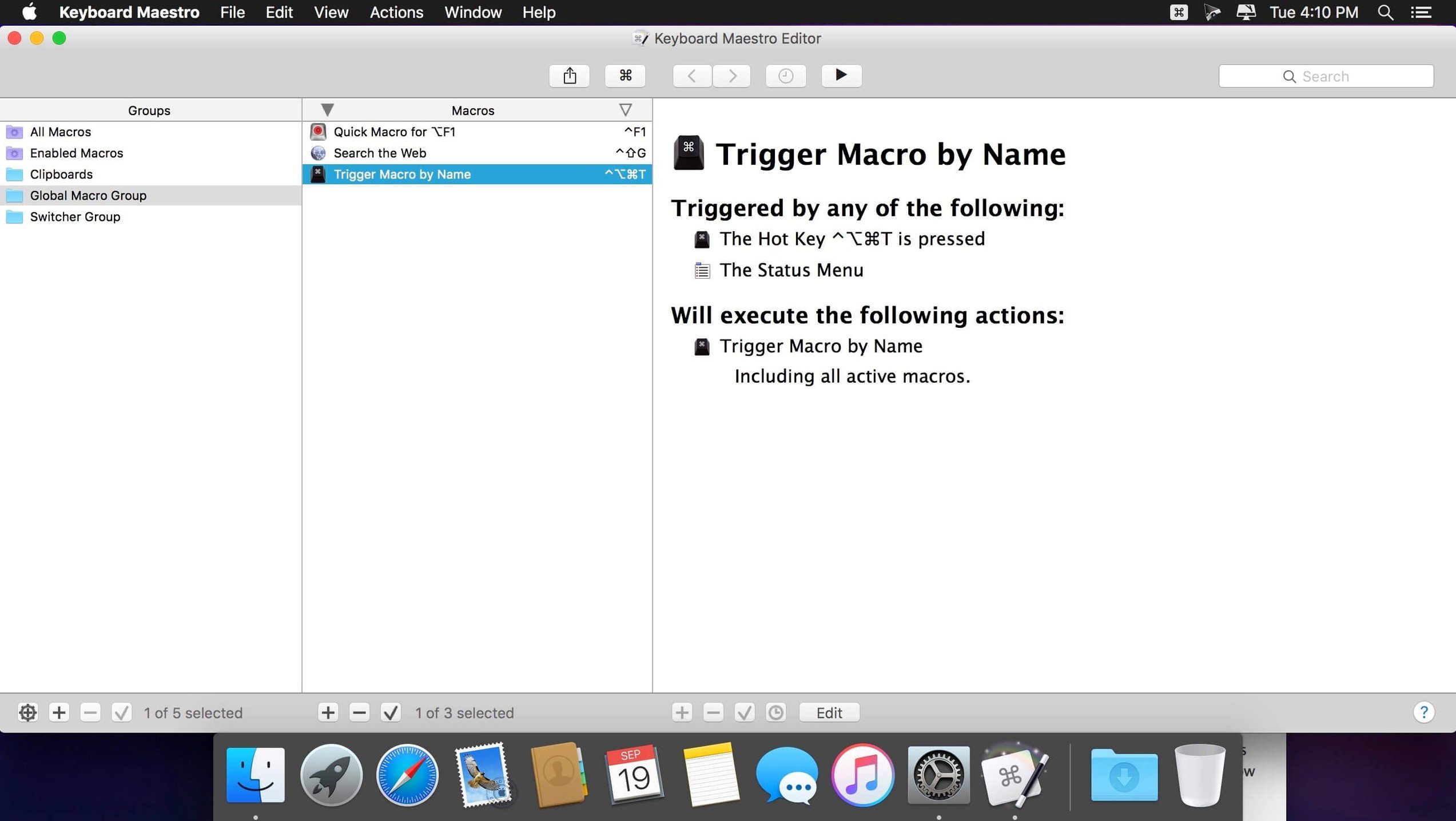
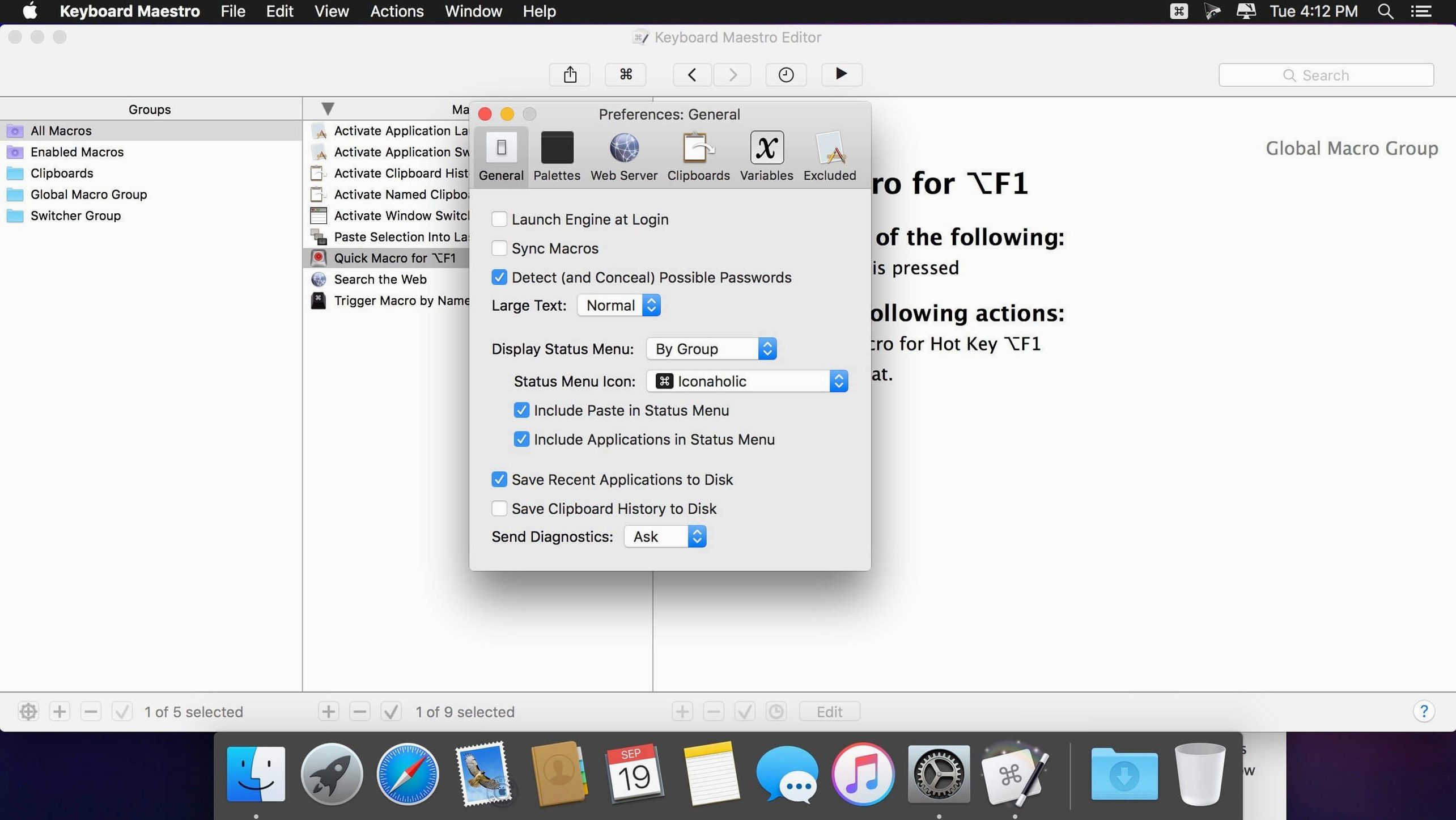
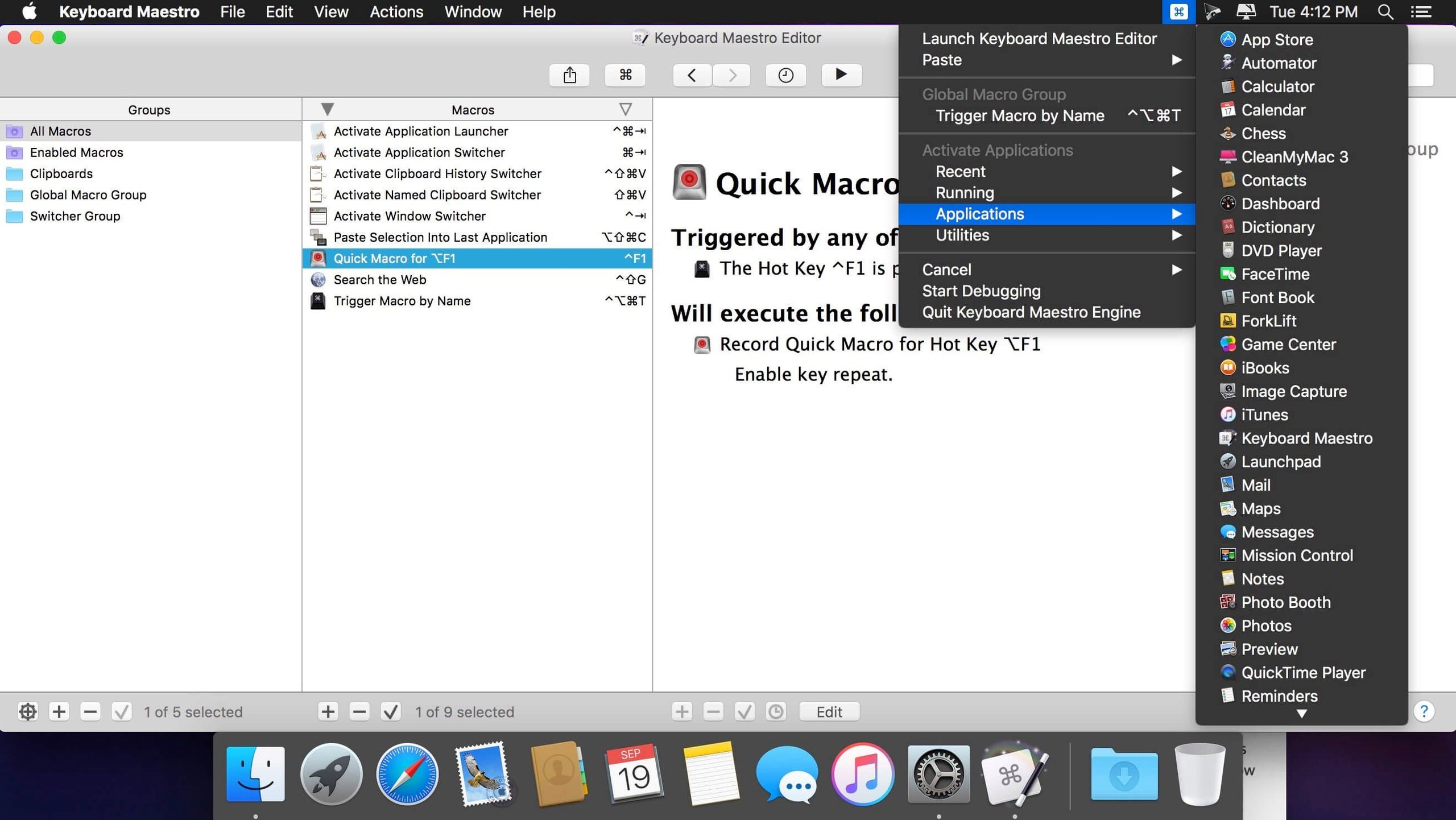
Keyboard Maestro is a macro utility that turns tedious multi-step chores into a single tap on your keyboard.
The macro editor stays out of your way until a sequence needs tweaking. Whether you’re expanding a shortcode into a full address or automating a multi-app hand-off, the steps are listed plainly, not buried in code. Version 11.0.4 polishes the debugger with new tooltips and keeps search highlights working reliably, so diagnosing a hiccup is quick.
Will it slow my Mac down? Keyboard Maestro is lean. Idle macros sit quiet until a trigger fires, and the engine itself uses barely a sliver of CPU. If you build a macro that runs fifty actions every three seconds, sure, you’ll notice. Sensible workflows don’t cause a wobble.
Do I need to know AppleScript or JavaScript? Not to get started. The action library covers most things you’d want—launching apps, resizing windows, pasting formatted text, scraping a URL. If you ever need more, Keyboard Maestro can execute a script inline, but it’s there as an optional gear, not the starting line.
Can I share macros with a colleague? Yes. Macros export as single files you can drop in a shared folder or send over Slack. The recipient imports with a double-click. If a macro relies on a specific app or folder path the other Mac doesn’t have, the editor flags the mismatch so you can adjust it.
Keyboard shortcuts aren’t firing. This crops up when another app grabs the same hotkey combination. Open Keyboard Maestro’s conflict checker—it’s under the Help menu—and it lists every clash across your system. Reassign the macro to a different chord or remove the duplicate from the other app. Also check that the macro group is active; groups can be set to work only in specific applications, and an inactive group silently swallows the trigger.
Clipboard history feels sticky. If the clipboard switcher lags or pastes the wrong entry, trim the history depth in Preferences. A thousand saved clips is great until it isn’t. Drop the count to 200 and restart the engine. While you’re there, exclude password managers and other secure apps from being recorded—you don’t want secrets sitting in plain text.
OCR on a screenshot won’t match. The new Apple Text Recognition support in version 11.0.4 needs a clear source image. If the condition keeps missing text, bump the source resolution: take the capture at 2× on a Retina display rather than a scaled-down JPEG pulled from a web page. Also confirm the language is set in the OCR action’s options; it defaults to English and will skip other scripts unless told otherwise.
Head to Preferences the first time you launch the app. A few quick changes make daily use smoother:
⌃⌘C. If that muscle memory belongs to something else, remap it to a chord you won’t fight.A copywriter sits down at her desk with coffee in hand. She taps ⌃⌥⌘M. Keyboard Maestro launches Mail, opens a pre-written “morning check-in” template, and pastes yesterday’s client round-up from the clipboard history. Another shortcut resizes Mail to the left half of the screen and pins Things alongside it on the right. She reads her to-dos, replies to two emails, then hits a third macro that collects the text of every invoice-related message, converts it to plain text, and drops the lot into a new BBEdit window with yesterday’s date in the title bar. What used to be eighteen minutes of clicking and dragging is done before the coffee cools. She hasn’t touched a script editor once.
That kind of flow isn’t complicated to build. It’s just a handful of actions stacked together—open app, find window, paste text, move to display edge—each one pulled from a list and dropped into place. The macro editor shows which step ran and which one failed, and with the 11.0.4 debugger tooltips, hovering over an action tells you exactly what it expects, so adjusting an errant step takes seconds rather than guesswork.














Chat 0
Hop in or make an account to join the chat.
Quiet in here so far. If you have used this build, tell me what the install actually did.