
 KeyCue
 Keyboard Maestro
 Klack
Klack JustStream PRO
 Kontakt
 Jump Desktop
 Jettison
 iZotope Ozone


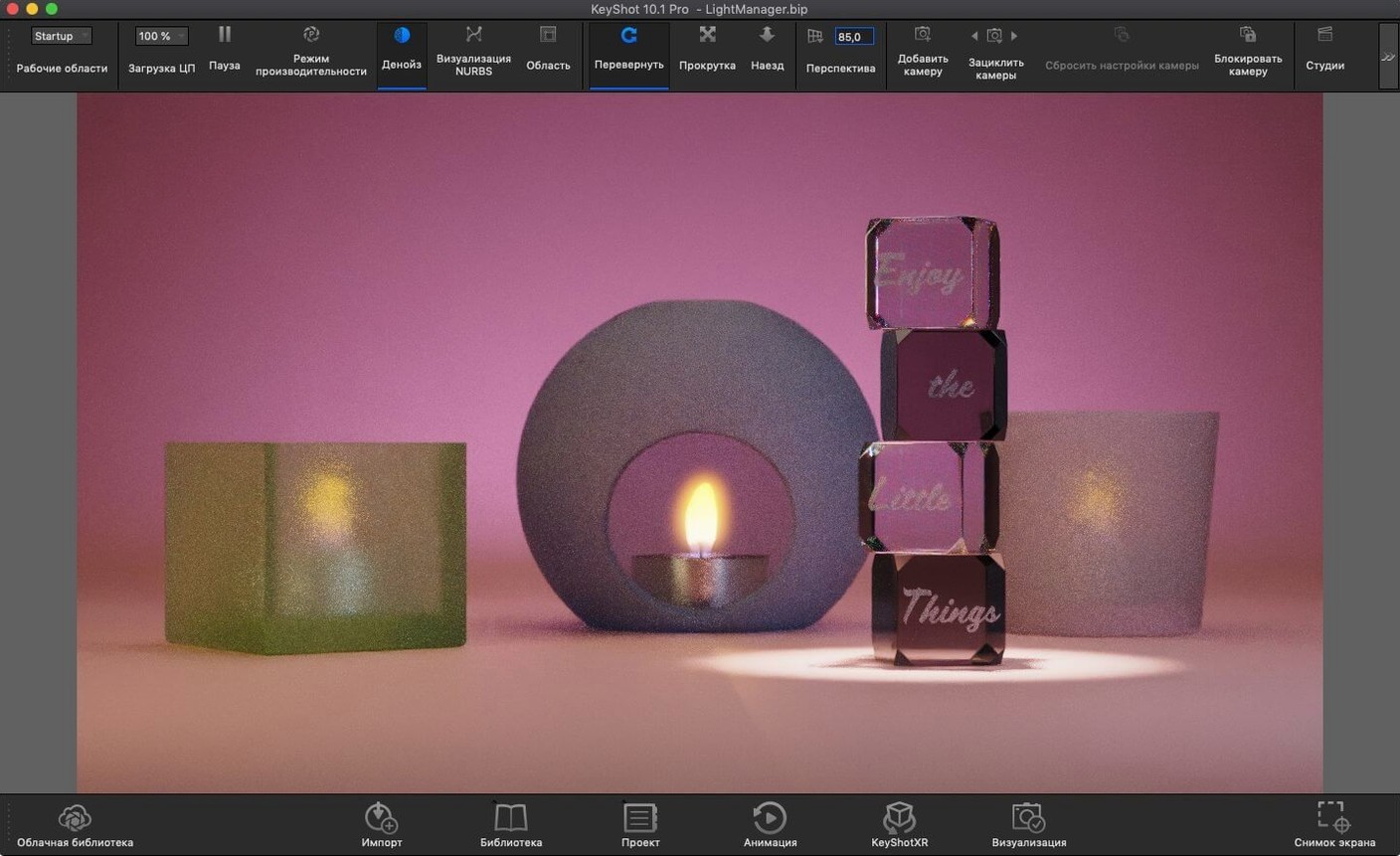
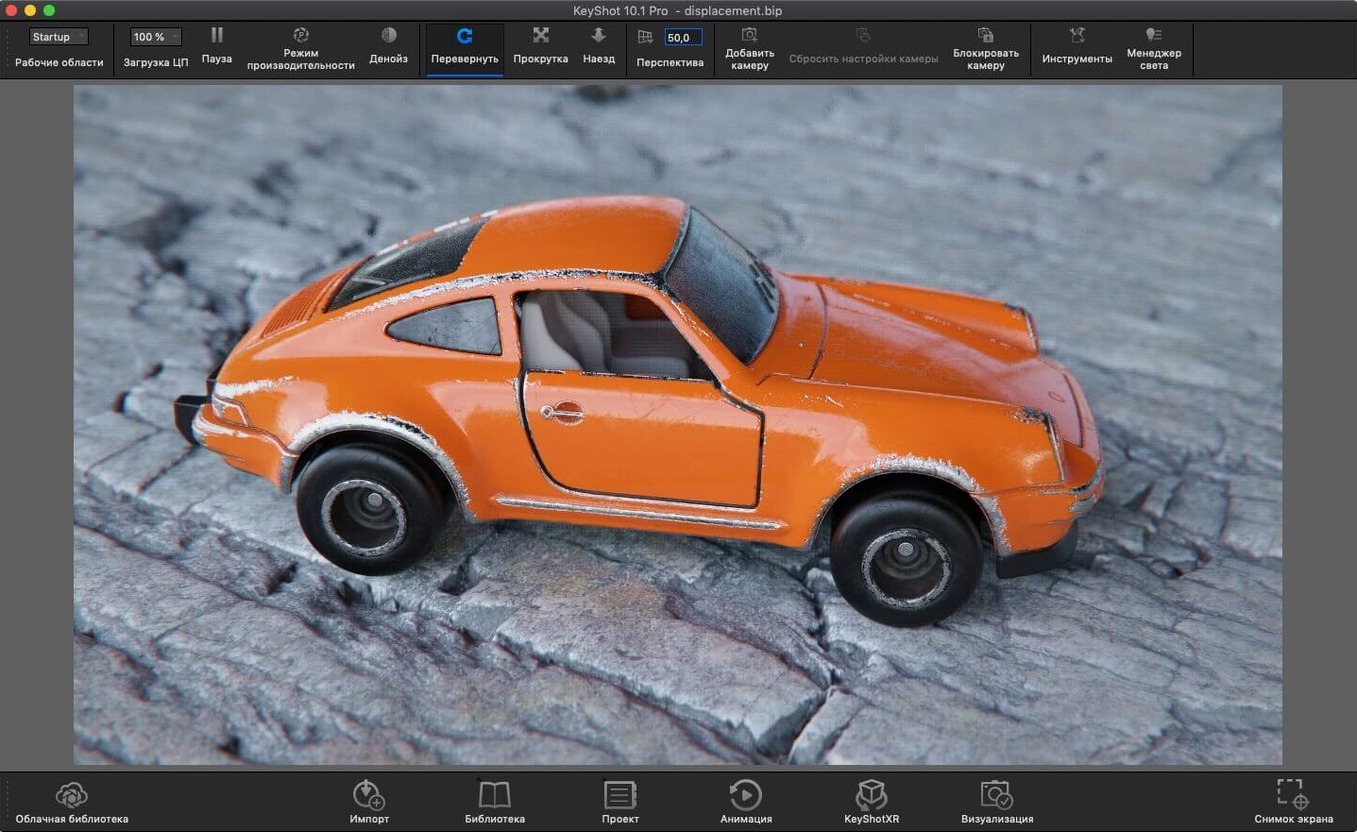
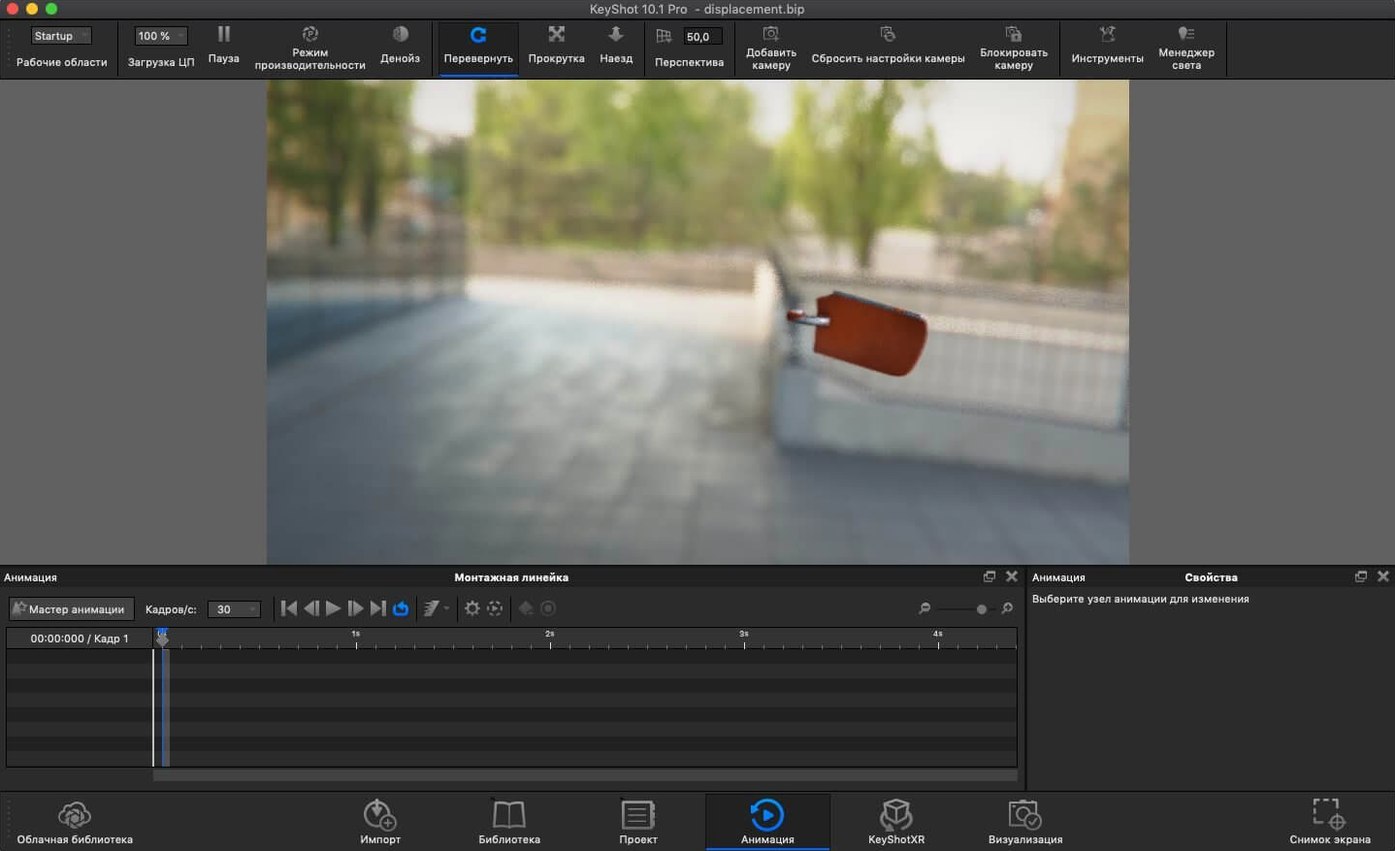
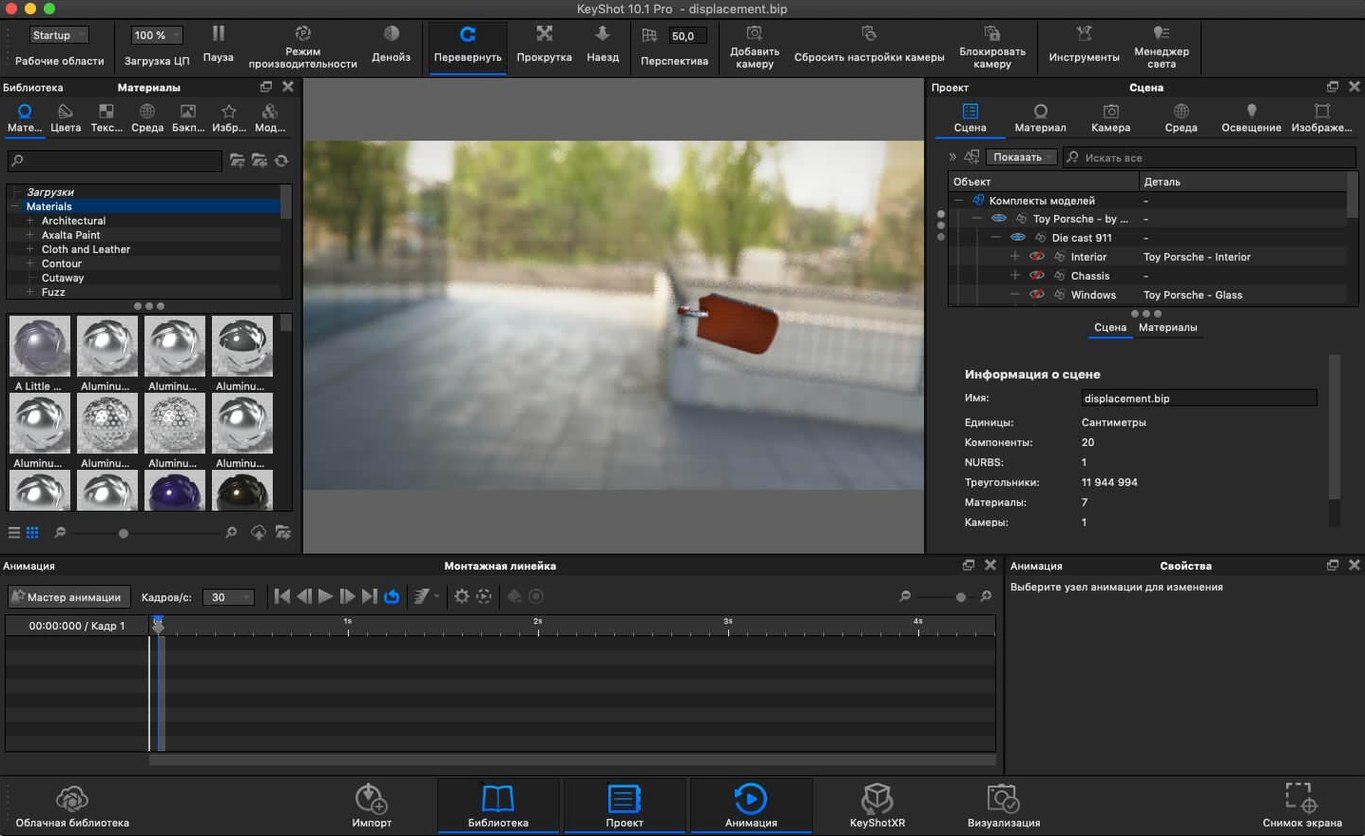
The new Light Tool in KeyShot Studio 2025.1 changes how you place Physical Lights. Instead of dragging and guessing, you click a surface and the light aims itself. I pulled in a SolidWorks assembly of a desk lamp, applied an anodized aluminium material, and dropped a Physical Light right on the bulb geometry. The light scattered across the desk surface exactly as it would in a workshop.
Next came the animation. I needed a slow turntable render to show the lamp from every angle. The timeline let me set rotation keyframes in under a minute — no graph editor wrestling, just two clicks per axis. While that cooked, I tested the new USD export. A single menu command wrote out the whole scene, materials and lighting included, ready for a colleague on a different pipeline.
One surprise was the Planar Light material. I assigned it to a thin rectangle hovering above the lamp, and it turned the object into a soft overhead panel — no separate light fixture needed. The real-time viewport updated instantly, so I could nudge the glow temperature warmer without re-rendering.
The Add Studio hotkey is one of those tiny additions you almost skip past, then use twenty times a day. Tap Cmd+Shift+A and a new studio appears without reaching for the menu. If you juggle five or six lighting setups per project — product shots, mood variations, close-ups — the seconds saved stack up quickly.
A few other shortcuts worth knowing:
The most common hiccup is a blank viewport after import. Usually the model arrived tiny or miles from the origin. Hit F to frame the active object, or right-click the part in the scene tree and choose Frame Selection. If the model still looks faceted, head to Edit > Re-tessellate — the 2025.1 Scripting API now exposes this tool, so you can build a button for it or trigger it across multiple parts at once.
Another gotcha is Physical Lights appearing black in the final render. Nine times out of ten, the light is buried inside geometry. The new Light Tool helps — when you click a surface, the light sits just in front of it — but if you moved things afterwards, check the light’s position in the scene tree. A quick nudge of 0.5 mm away from the surface fixes it.
With the AR exports, some people find the USDz file hangs on loading. The culprit is usually a material with a non-Latin character in its name. Rename anything with Cyrillic, CJK, or accented characters before exporting, and the file opens smoothly on an iPhone or iPad.
The glTF and USD exports quietly changed how studios share work. Before, you would render a turntable video and hope the client’s screen was calibrated. Now you send a glTF file and they orbit the model themselves — reflections and all. It is a small workflow shift that makes design reviews feel more like holding the object.
The Re-tessellate support in the Scripting API matters more than it sounds. If you process fifty STEP files a week, you can now write a script that re-tessellates every imported part to a consistent triangle count automatically. No more remembering to do it by hand, and no more curved surfaces that look like stop signs in close-up renders.
One subtle improvement — the Physical Light placement in the new Light Tool respects surface normals more intelligently. An area light dropped on a curved car body panel now angles itself to match the local slope, rather than defaulting to world-up. It cuts down the manual rotation tweaking that used to eat the first ten minutes of every automotive studio setup.
Yes, KeyShot Studio 2025.1 supports both Apple Silicon and Intel 64-bit Macs running macOS 12 or later.
You can import ALIAS, AutoCAD DWG/DXF, CATIA V5, Creo, Inventor, NX, Pro/ENGINEER, Rhinoceros, SketchUp, Solid Edge, SolidWorks, and Maya files directly.
Yes, version 2025.1 adds AR export in USDz and GLB formats, plus standard USD and glTF export.














Chat 0
Hop in or make an account to join the chat.
Quiet in here so far. If you have used this build, tell me what the install actually did.