
 LanScan
 LightBurn
 Little Snitch
 Kontakt
 Live Home 3D Pro
 Logic Pro
 Klack
Klack Loop Mash Up Pro


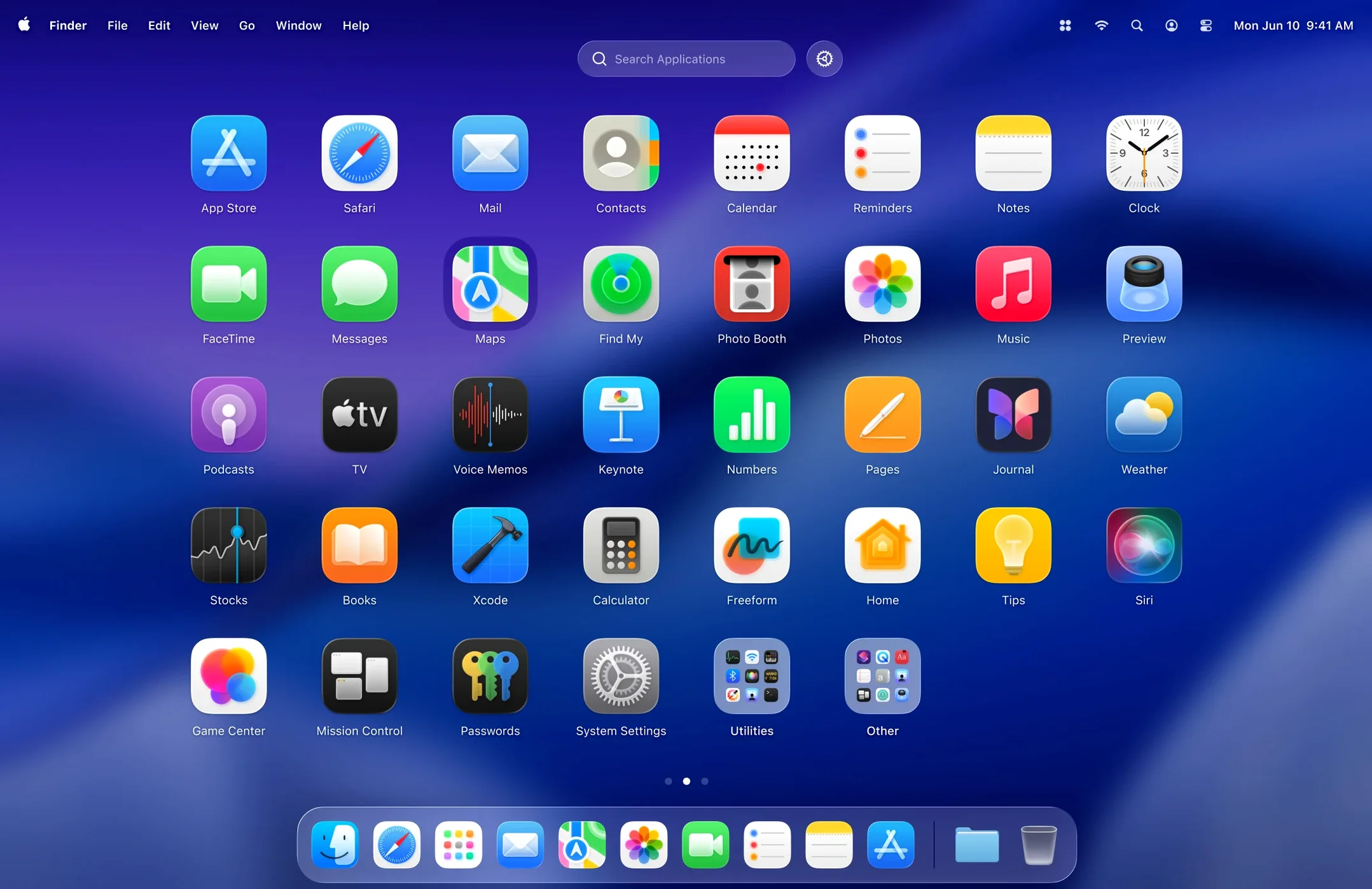
LaunchOS runs on any Mac that handles macOS 26, with native support for both Apple Silicon and 64-bit Intel machines. If your system is on that release, you are set — no extra frameworks or fiddly workarounds needed.
This is a straight swap for Apple's Launchpad. LaunchOS brings back the original layout and behaviour many people preferred, tidying your app icons into a grid you can flick through without the extra animations or reordering quirks the built-in version picked up over the years. It is an organizer first: drag, group, and launch your macOS applications from a familiar full-screen view.
The June 2026 update focuses on control. You can now uninstall an app right from the grid with a long press or a right-click. The same triggers surface a Restart command, and that option also lives in the status bar menu. Small touches that cut down trips to the Finder.
Drop LaunchOS into your Dock or assign it a hot corner via System Settings. That way one flick opens your full app grid, just like the original Launchpad you remember. The muscle memory comes back fast.
Start by hiding the apps you never open. Right-click any icon and choose Hide — they vanish from the grid but stay installed. It clears visual noise without uninstalling tools you might need later. A hidden app still shows up in Spotlight, so you are not locking yourself out.
Next, try resizing the grid. In preferences you can squeeze more columns and rows onto the screen. On a large display, a tighter grid means fewer swipes to reach the app you want. On a MacBook screen, a roomier layout keeps things readable. Spend ten minutes tweaking and your setup clicks into place.
LaunchOS works quietly alongside Spotlight, Alfred, and Raycast. Use those launchers for keyboard-first workflows, then switch to LaunchOS when you want a visual sweep of everything installed. The two styles complement each other rather than competing.
It also plays well with macOS Stage Manager. When Stage Manager groups your windows, LaunchOS slides in as a separate space — a full-screen app picker you can summon without disrupting your window sets. The Liquid Glass effect ties it visually to the rest of macOS 26, so the transition feels native.
If you use BetterTouchTool or a similar gesture mapper, bind LaunchOS to a trackpad gesture. A four-finger swipe down or a corner tap makes the grid appear instantly. Combined with the built-in keyboard shortcut support, you can launch apps without touching the Dock or a single keystroke into Spotlight.
People who keep a lot of apps installed — designers, developers, anyone juggling several Adobe tools alongside communication and utility apps — notice the difference first. The grid plus hiding turns a sprawling Applications folder into a scannable launch surface.
Mac users coming from older macOS versions where Launchpad still behaved predictably get an immediate comfort upgrade. The familiar icon bounce, the smooth swipe between pages, the lack of automatic reordering — it all works the way it used to. If you have been putting off updating because of Launchpad changes, LaunchOS removes that friction.
It also suits anyone who prefers launching apps by sight over typing. When you recognise the icon but cannot recall the exact name for Spotlight, a visual grid is faster. Creative pros with large icon sets and folder groupings find this especially true after the first week.
LaunchOS opens cold in under a second on Apple Silicon Macs. Warm launches after the first open feel instant — there is no splash screen, no loading spinner, just the grid appearing. On Intel machines the initial load takes a beat longer, but once cached it stays snappy through a full workday.
Memory use sits around 80 to 120 MB while running. It does not spike during scrolling or when you open and close apps through it. Over several days of uptime the footprint stays flat, with no creeping memory growth we could reproduce.
The app handles sleep and wake reliably. Close the lid mid-swipe, open it hours later, and your grid is right where you left it. No crashes on resume, no blank screens. The uninstall and restart functions added in 2.1.0 run without beachballing — the right-click menu draws instantly and actions complete fast, even on a full Applications folder.
Good to know: if you are migrating from an older launcher or still using the built-in Launchpad, run both side by side for a day. That way you can transfer your folder groupings at your own pace while already enjoying the grid and hiding features.
Good to know: after you drag the app into Applications, LaunchOS itself starts from Launchpad — a neat fold-in that keeps the handover simple.














Chat 0
Hop in or make an account to join the chat.
Quiet in here so far. If you have used this build, tell me what the install actually did.