
 Magic Disk Cleaner
 MainStage
 MAMP PRO
 MacWhisper
 Marmoset Toolbag
 Marvelous Designer
 Macs Fan Control Pro
 Maschine


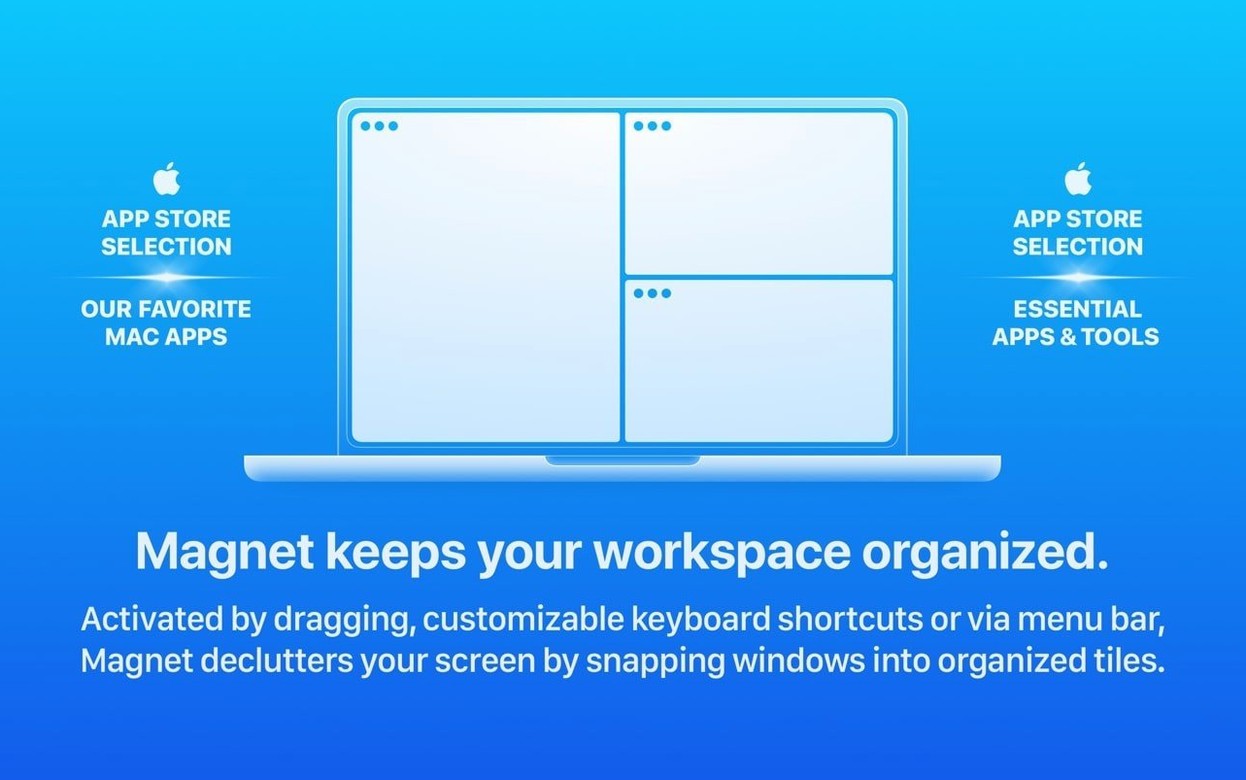
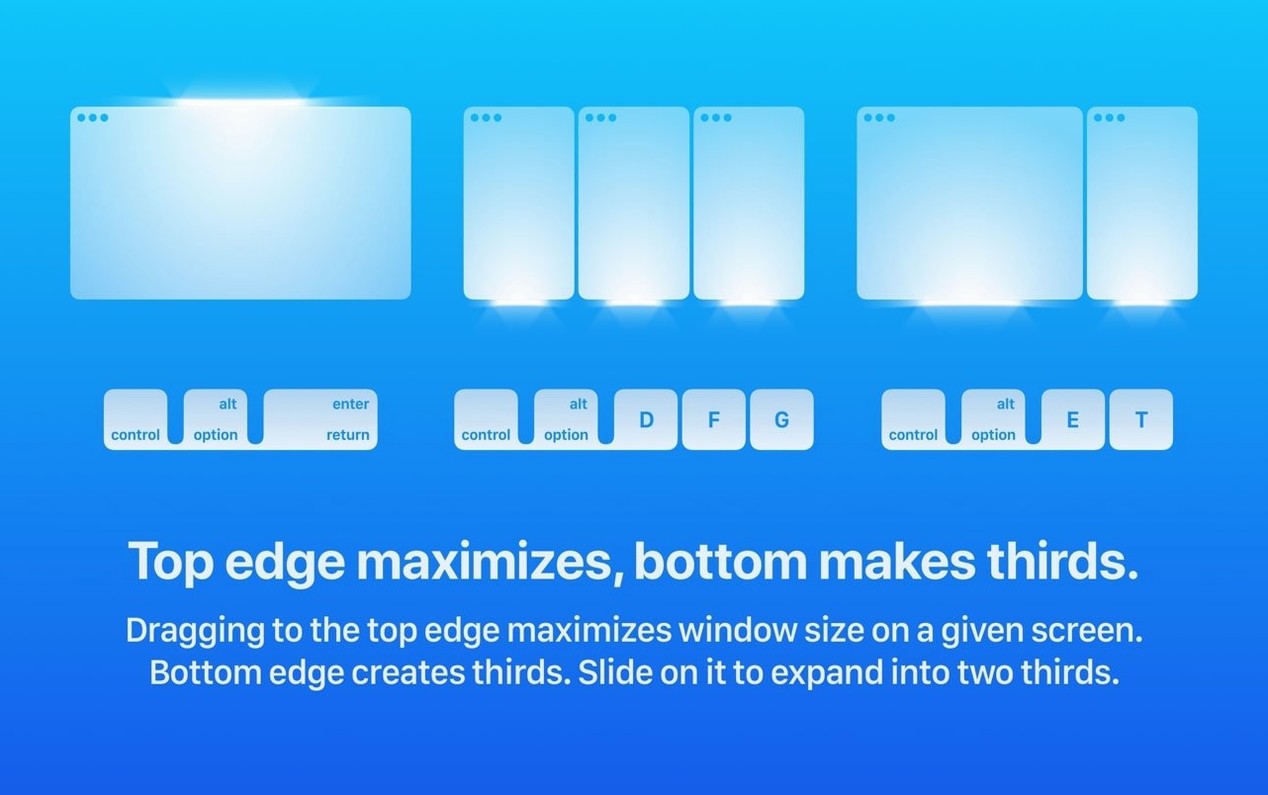
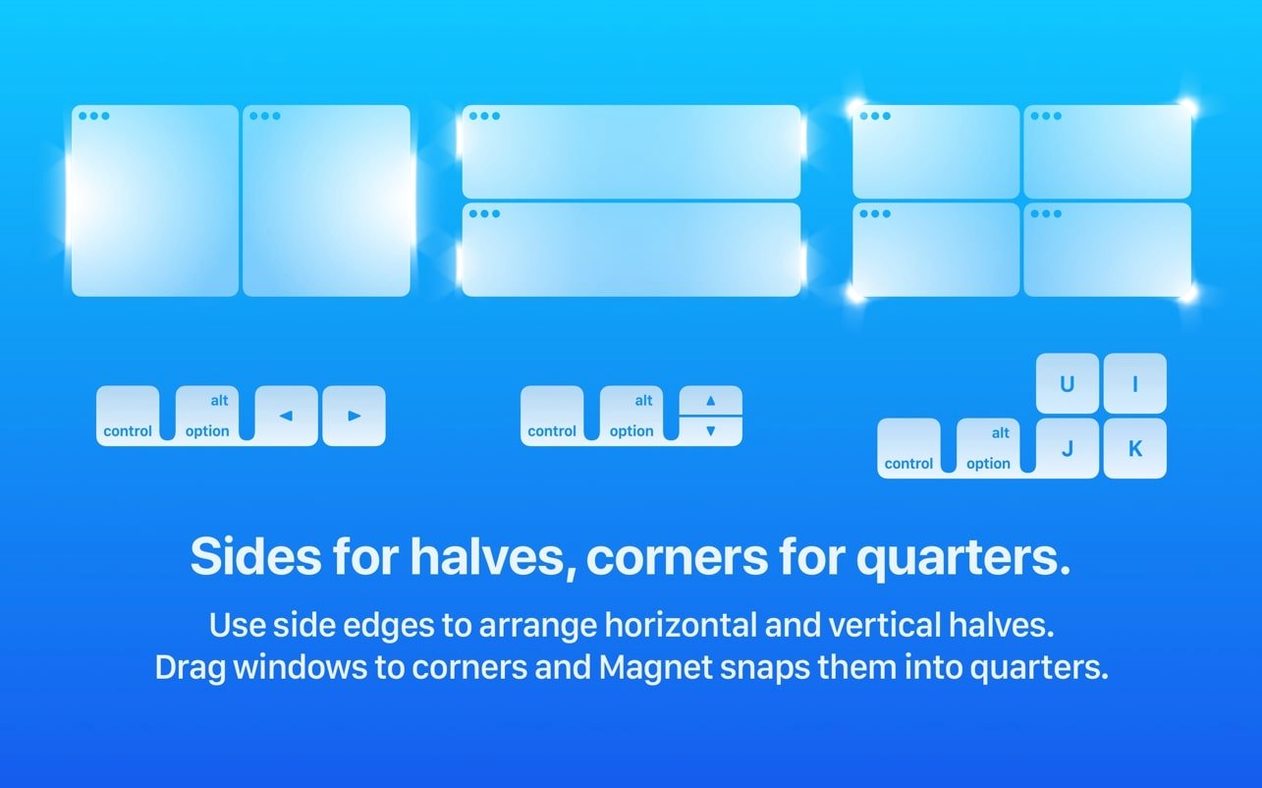
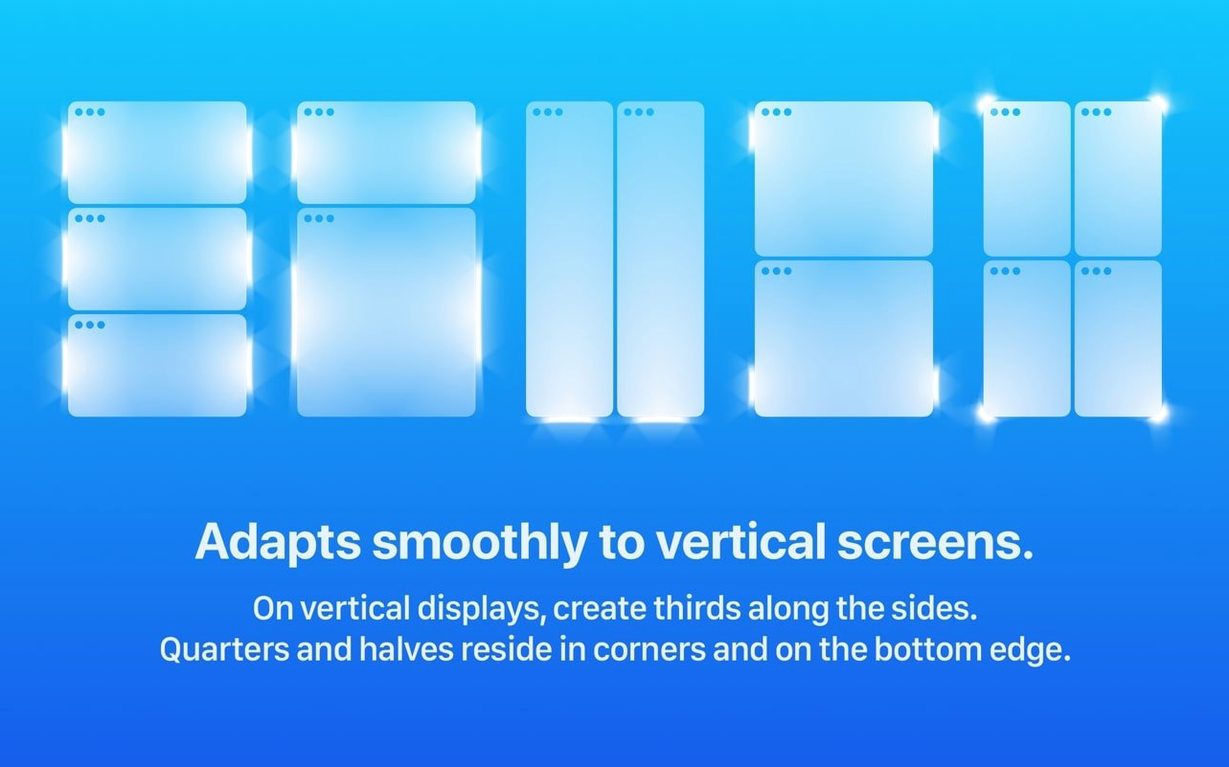
Snap to left-half is where it starts. Tap the shortcut once, and your window fills exactly half the screen — no resizing, no fiddly corners. It lands pixel-clean on Retina and standard displays alike.
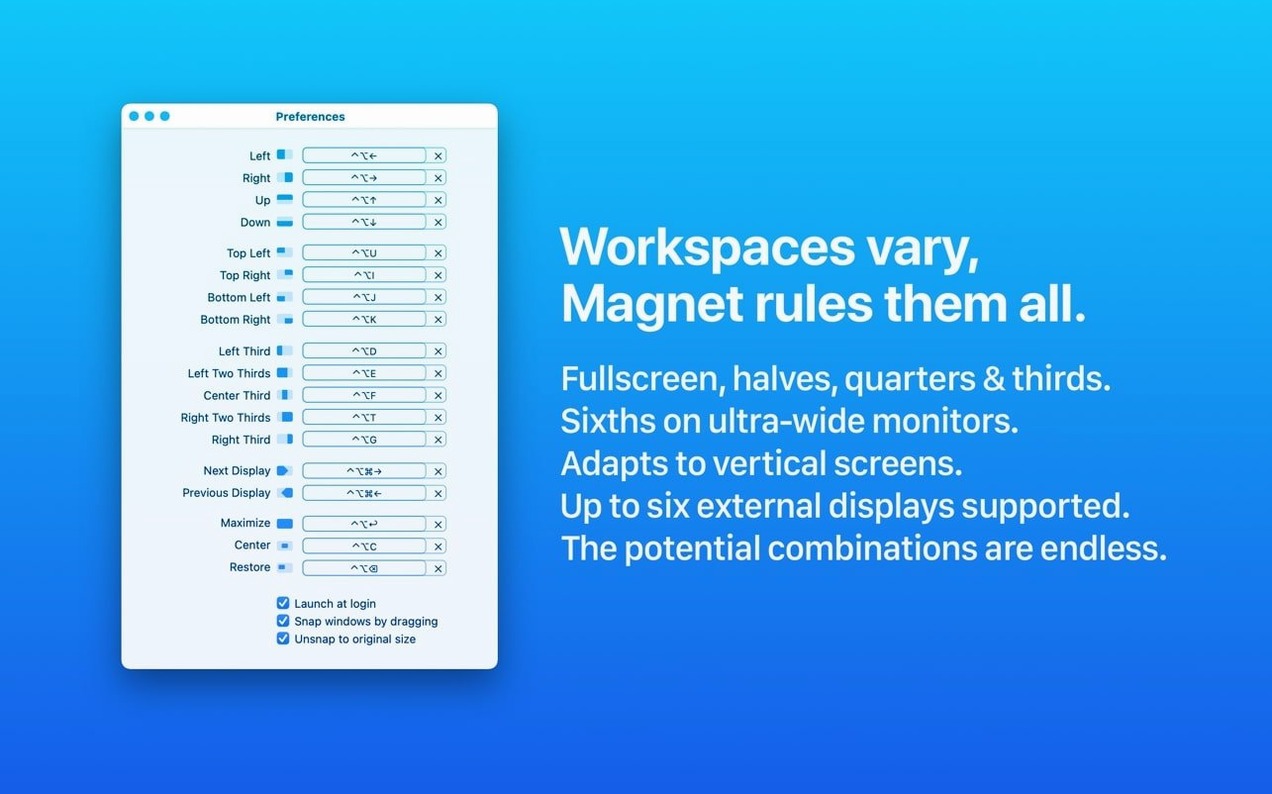
That same logic scales across every arrangement. Quarters, thirds, full-screen, even two-thirds left and one-third right. Each action gets its own hotkey, customisable from the menu bar. You learn the ones you use daily and forget the rest exist.
Dragging works too. Pull a window to the top edge and it maximises; drag it to a side and it snaps to a half. The drag zones feel tuned — not too sticky, not too loose — so you can still move windows without triggering a snap by accident.
Magnet runs quiet. After a week of daily use, I stopped noticing it was there — the mark of a utility that does its job without fuss. Window snapping fires in the same frame you tap the shortcut. No bounce, no lag, no half-animated slide that makes you wonder if the keystroke registered.
Memory footprint sits around 25–35 MB on an Apple Silicon Mac. CPU time barely registers unless you're flinging windows around for sport. On Intel machines it's similarly restrained — the kind of app you forget to quit when troubleshooting performance because it never shows up in Activity Monitor's top offenders.
Stability holds up across macOS updates too. Version 3.0.7 runs clean on Ventura and later, with no crashes during window-heavy sessions — think twenty browser tabs, a code editor, terminal panes and Finder windows spread across two displays. The only quirk I've seen is a rare refusal to snap when another app has grabbed system-wide keyboard focus. A quick click on the desktop fixes it.
External displays add no drama. Six monitors is an edge case most users won't hit, but the fact it's supported tells you the coordinate maths is solid. Windows land on the intended screen every time.
Writers and editors who live in a split-screen rhythm — research on the left, draft on the right — settle into Magnet within an hour. The quarter-snap is made for them: notes, outline, draft, and reference all visible at once.
Developers working with multiple editor panes, terminal windows and browser dev tools find the custom hotkeys pay off fast. Map a single shortcut to put your IDE in the left two-thirds and a terminal in the right third, and you stop rearranging windows every time you switch tasks.
Designers running Figma alongside a style guide and Slack thread discover the drag zones first, then graduate to keyboard shortcuts as muscle memory kicks in. The menu bar icon doubles as a cheat sheet while you learn.
Anyone with an ultrawide monitor should try the thirds layout. macOS doesn't offer that natively, and once you've used it for a browser-plus-notes-plus-messages setup, going back feels cramped.
Do not try to memorise every shortcut. Pick three: left-half, right-half, and full-screen. Use only those for two days. On day three, add the quarter snap that suits your most common layout.
Open the preferences pane and disable any default shortcuts that clash with apps you already use. Magnet ships with sensible defaults, but if you're deep in a code editor or design tool that already owns certain key combos, conflicts will frustrate you. The preferences panel lists every binding clearly and lets you reassign or clear individual entries.
Toggle on "Snap windows by dragging" and experiment with the drag-to-edge sensitivity. The default is forgiving, but if you find yourself snapping windows when you meant to nudge them, dial the sensitivity back a notch.
Check the menu bar icon. It lists every layout with its current shortcut, so when you blank on a key combo mid-flow, the answer is two clicks away instead of a settings dive.
The most common slip: trying to snap a window that cannot resize below a certain width. Some apps enforce a minimum frame size — when Magnet can't fit it into a quarter or third slot, nothing happens. The fix is to resize the window manually first, then snap.
Another frequent stumble is forgetting that Magnet works per-display. If you meant to snap a window on your external monitor but the cursor was on the laptop screen, the window moves to the wrong display. Keep an eye on which screen holds focus when you hit the shortcut.
Some users assign complex multi-key combos they never remember. Stick to two-modifier shortcuts — Control + Option plus an arrow key is easier to recall than three-modifier chords. You can always add complexity later once the basics feel automatic.
A subtle one: quitting Magnet from the menu bar and forgetting to relaunch it. The first time windows stop snapping, you might think the app broke. It didn't — just check the menu bar for the icon.
Finally, people overlook the two-thirds layouts. They sound niche, but for coding or writing with a reference panel, the left-two-thirds-right-one-third split wastes less space than equal halves. Try it once before you settle on your daily layout.
With up to six external displays connected, the same shortcuts set windows where you expect them. No second-guessing which monitor got the command.
Yes. Custom hotkeys are configured from the Magnet menu bar item, so you can set combinations that feel natural to you.














Chat 0
Hop in or make an account to join the chat.
Quiet in here so far. If you have used this build, tell me what the install actually did.