
 Marmoset Toolbag
 Maschine
 MAMP PRO
 MainStage
 MAXON Cinema
 Magnet
 MediaMate
 Magic Disk Cleaner


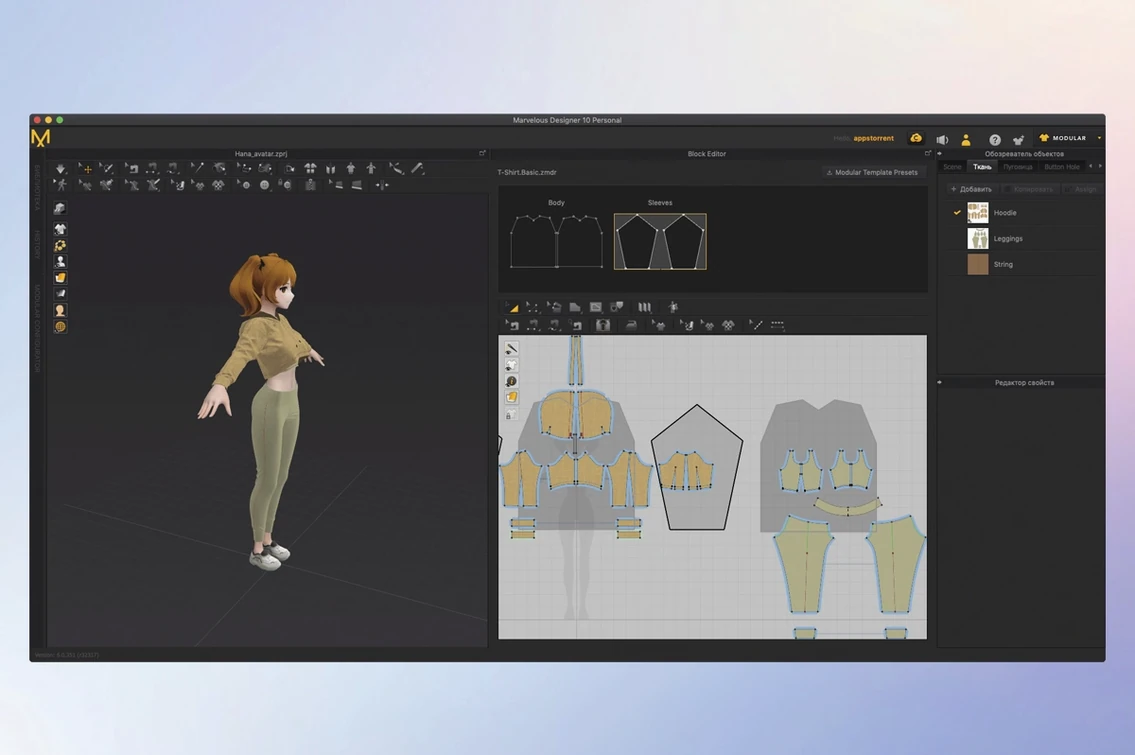
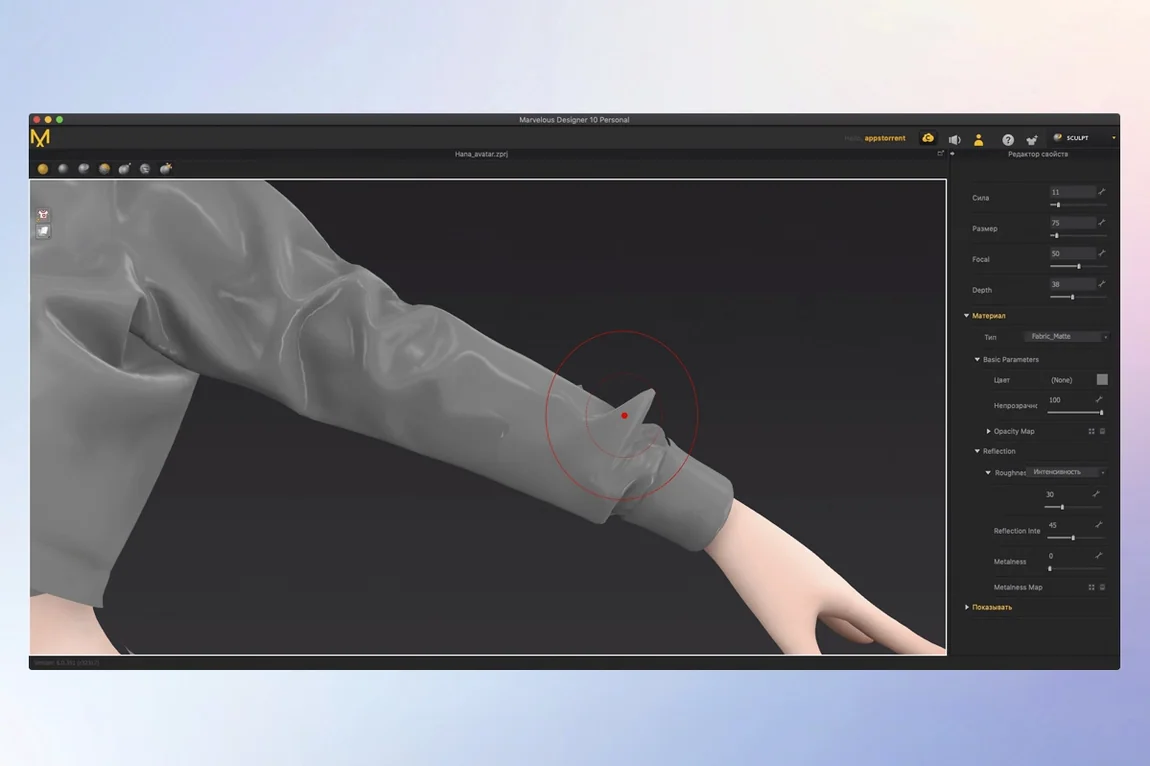
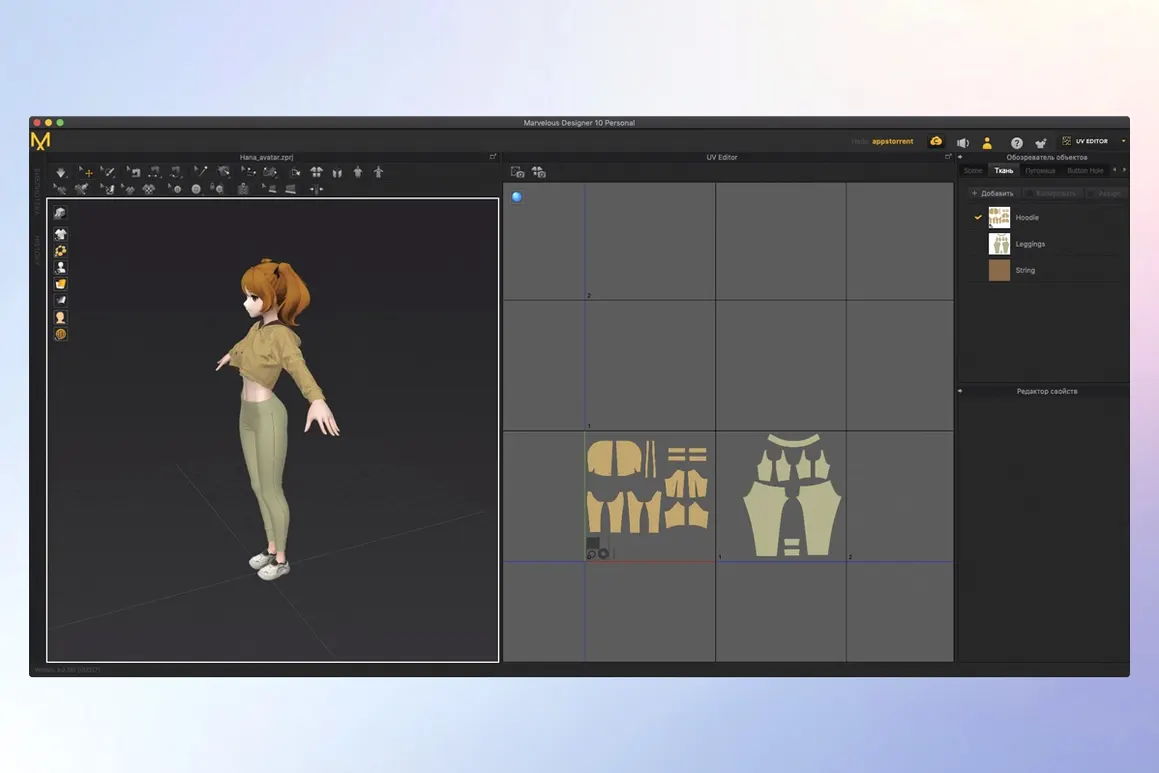
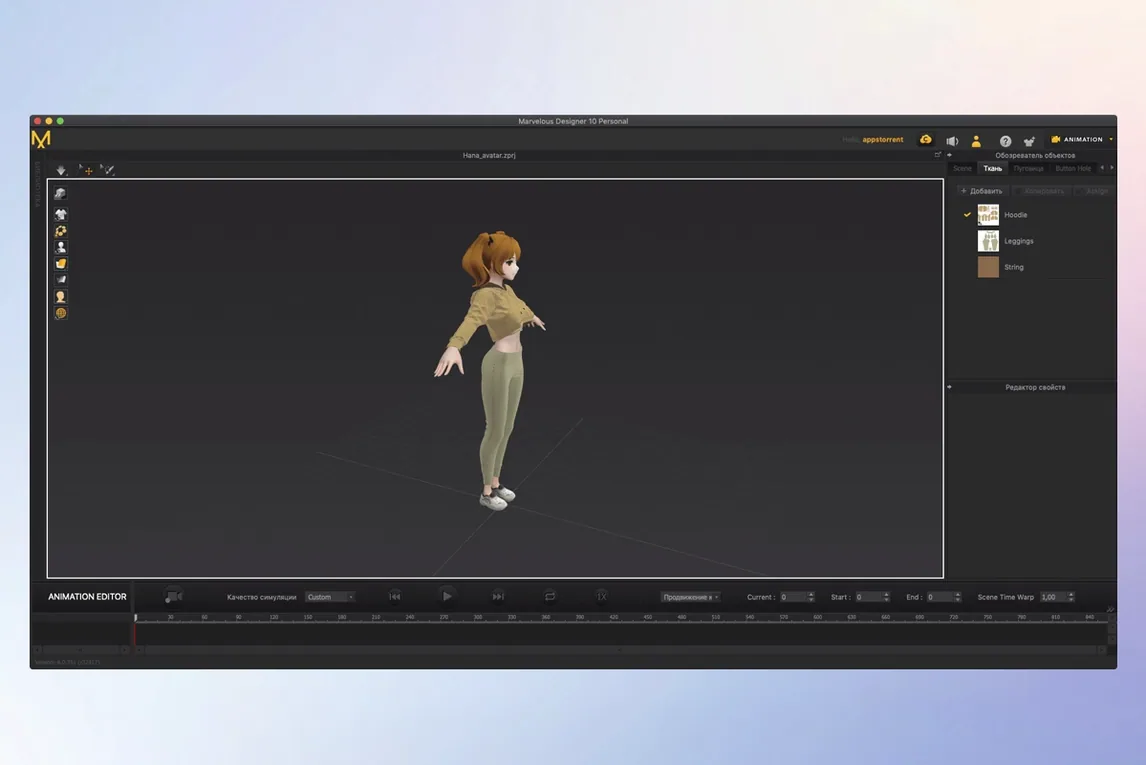
Freehand polygon editing and a directional sewing tool do the heavy lifting. You draw flat patterns, then watch them drape across an avatar with accurate gravity and fold resolution.
Set seam allowances and stitch vectors so fabric pulls correctly around arms and seams lie flat.
Create and edit polygonal shapes directly on the 2D board. From a simple tee to a lined trench coat, every panel starts as an editable boundary.
Start with the default female avatar and switch to the 2D pattern window. Draw a front torso panel using the polygon tool — keep vertices sparse, around six to eight points. Mirror it across the centre line for the back piece. Add two sleeve panels as simple tapered rectangles.
Arrange the panels around the avatar in the 3D view, then use the segment sewing tool to stitch shoulder seams, side seams, and sleeve caps. Click simulate. The fabric drops into place, and you can tug hem vertices to adjust length while the cloth settles in real time.
Switch fabric presets from cotton poplin to jersey and watch the drape soften immediately. Fine-tune particle distance to 8 mm for quicker previews, then drop to 4 mm for the final version before exporting an Alembic cache.
Garment passes through the avatar. Raise the collision thickness in the simulation properties panel. A value of 2–3 mm usually stops skin peeking through without adding stiffness.
Seams pop open under tension. Shorten the sewing line or reduce the simulation step interval. Sometimes a wild vertex just needs selecting and smoothing with a quick right-click reset to 2D position.
Fold pattern looks jagged. The default particle count can make tight curves look blocky. Select the pattern piece, open the property editor, and increase the particle density locally rather than globally — saves simulation time on simpler panels.
If Marvelous Designer stutters on a complex scene, freeze accessory trims and buttons while you work on the base garment. Unfreeze them only for the final draping pass.
Simulate high-accuracy cloth on static poses or moving avatars. Export the result as USD or Alembic for Maya, ZBrush, and Modo pipelines.
Yes, the application includes online learning materials that walk beginners through basic pattern creation and simulation workflows.
It imports and exports USD and Alembic, and can exchange data with Maya, 3ds Max, Softimage, Modo, and ZBrush.














Chat 0
Hop in or make an account to join the chat.
Quiet in here so far. If you have used this build, tell me what the install actually did.