
 MainStage
 Marmoset Toolbag
 Magnet
 Marvelous Designer
 Magic Disk Cleaner
 Maschine
 MacWhisper
 MAXON Cinema


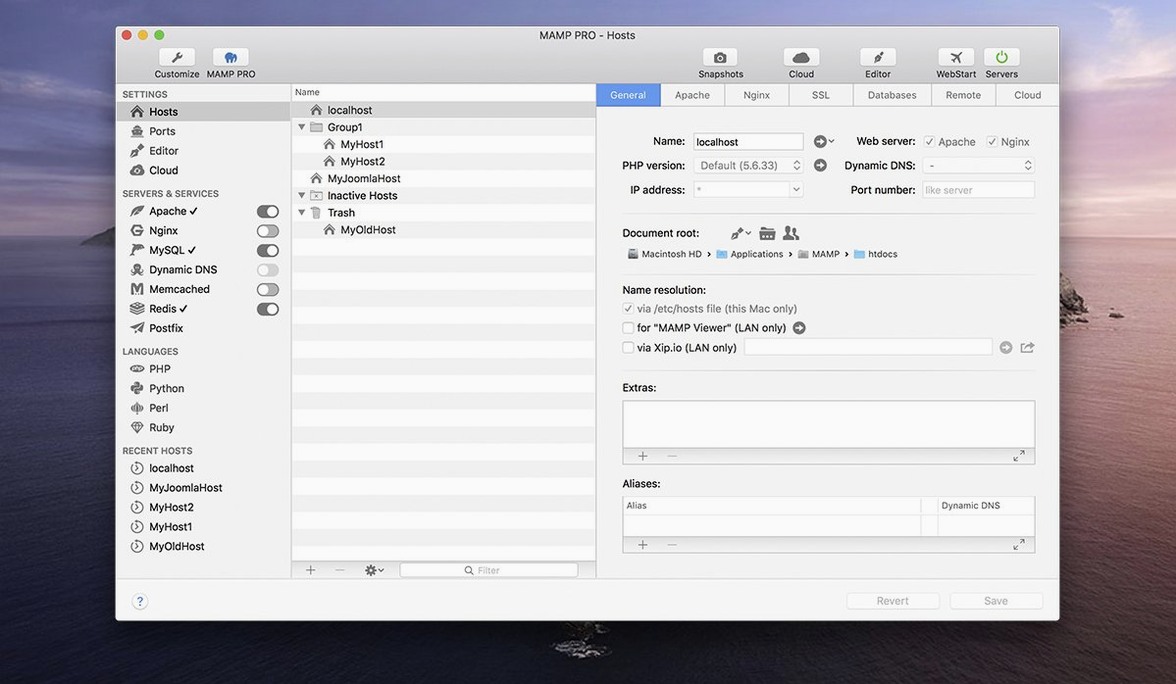
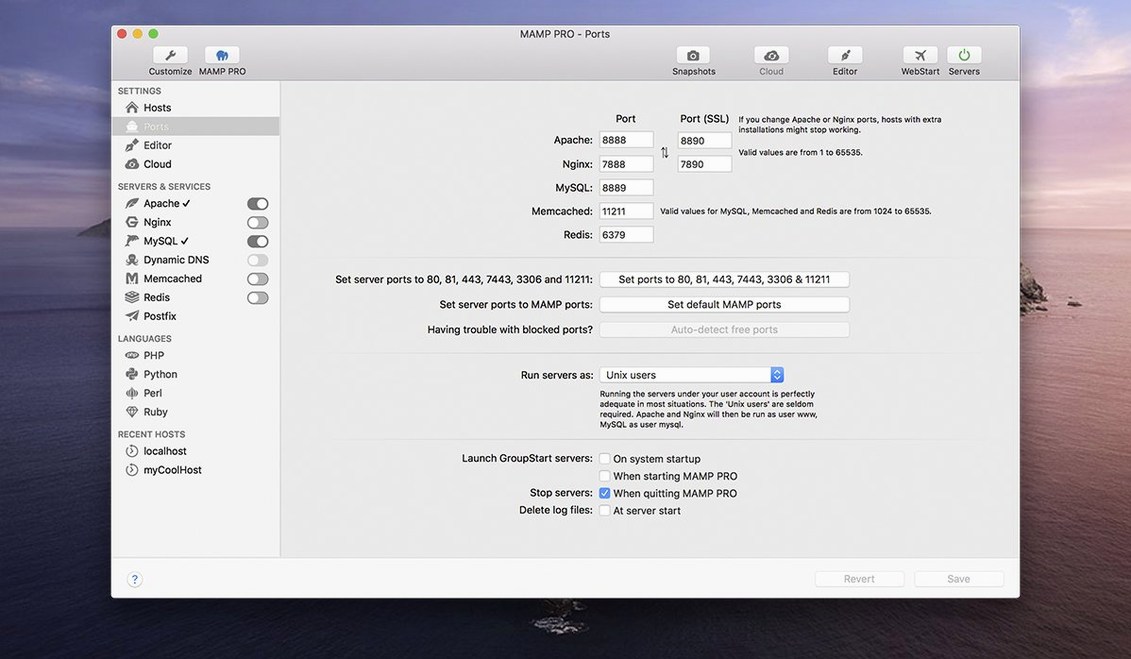
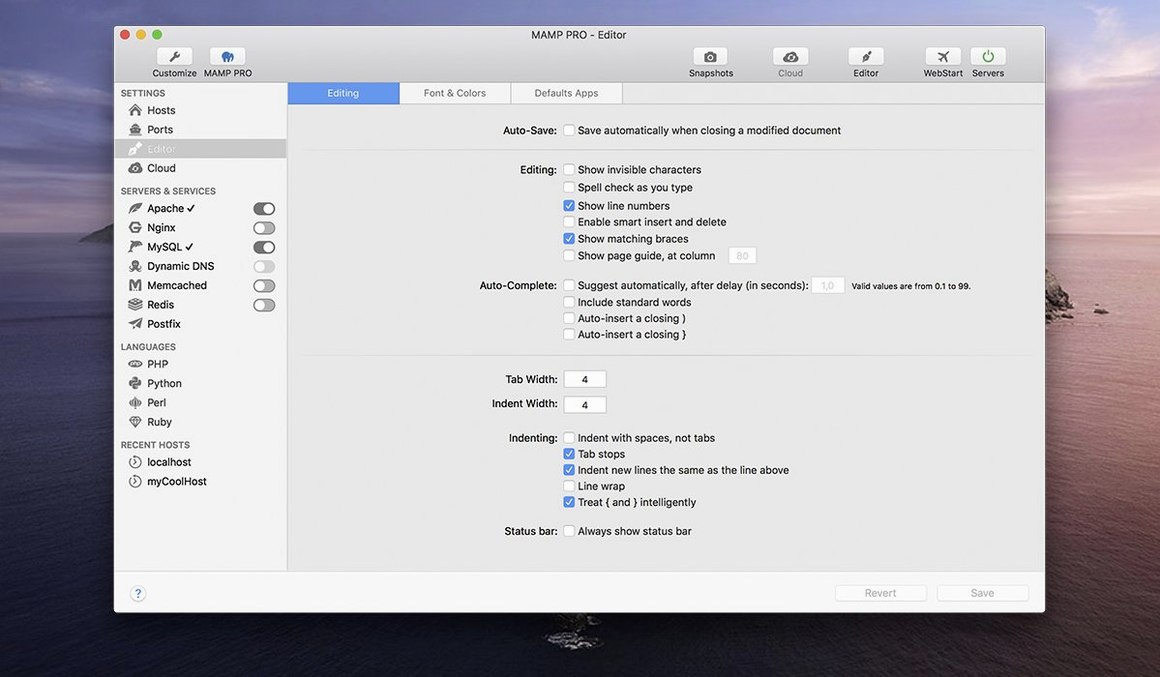
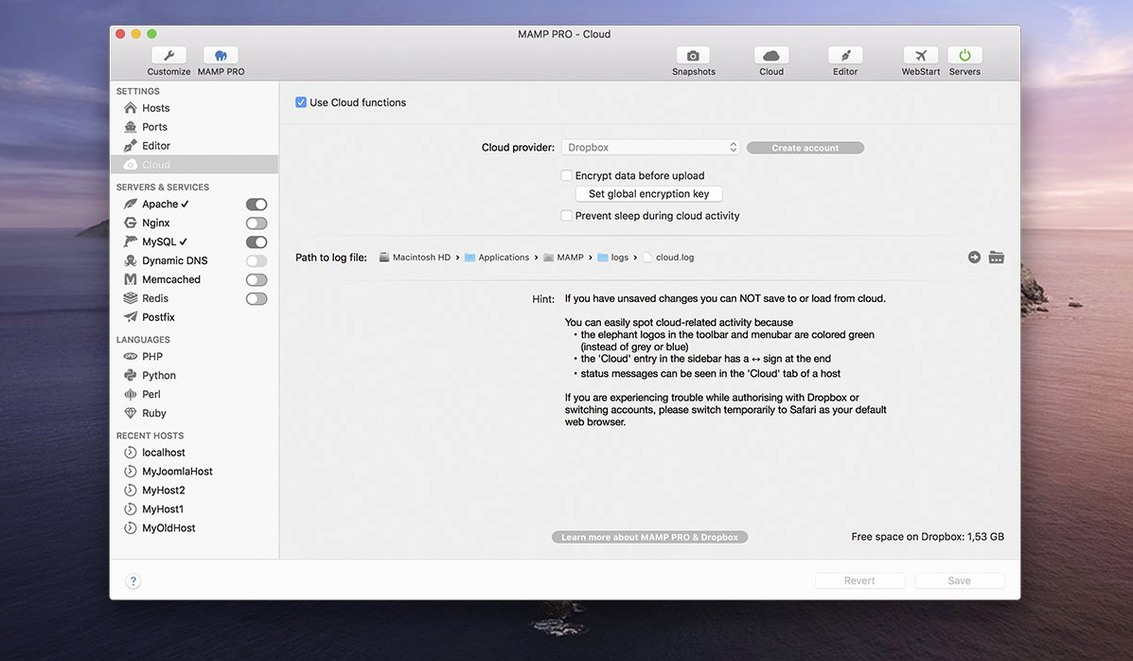
Host-specific server config is stable now — the crash that could trip you up in earlier builds is fixed. That alone makes 6.9 worth the update, but it also clears the way for a handful of first-run moves that turn MAMP PRO from a stack into a proper local workshop.
Start with a single host, get WordPress running, then layer in a server import or Redis. In twenty minutes you have a local mirror that behaves like production.
MAMP PRO’s toolbar got a quiet redesign, but a few shortcuts hide just under the surface. Right-click any host in the sidebar and you can open its folder, restart its services, or jump straight to phpMyAdmin without hunting through menus. The host ordering feature is drag-and-drop — grab a host and slide it up or down to group client projects, staging mirrors, and quick experiments in a way that makes sense at a glance.
Remote editing is another one you might not stumble on by accident. Turn it on for a host, and you can edit its files from another machine on the same network. I’ve seen front-end devs keep a MacBook Air on the couch while MAMP PRO runs the stack on an iMac in the next room. No syncing, no USB sticks, just a direct line to the docroot.
Port conflicts with the built-in server. If you already have the free MAMP running, MAMP PRO will grumble about port 8888 and 8889 being taken. Quit the free version first, then launch PRO — the two don’t share nicely. On a fresh install of mamp pro 6.9, I set Apache to 80 and MySQL to 3306 straight away. It saves head-scratching later.
phpMyAdmin alias not resolving. The 6.9 notes mention an alias fix, but occasionally a host-specific alias still doesn’t open. The quickest workaround: go to the host’s overview tab, copy the MySQL socket path, and open phpMyAdmin from the toolbar’s general entry instead. That always routes correctly.
WordPress import stalls on large uploads. Pulling a hefty live site? Give it a few minutes before you assume it is frozen. The import dialog doesn’t show a progress bar, and a site with a chunky uploads folder can look stuck. Check the host’s log tab — if rows are still scrolling, it’s working.
Imagine someone who builds brochure sites for small businesses — three or four WordPress installs a month, always starting from a local staging area. She keeps a base host called “wp-blank” with a clean WordPress install and her favourite starter theme already activated.
When a new job lands, she duplicates that host, renames it to the client’s domain, and swaps the PHP version if the client’s host runs something older. Then she imports the client’s existing live site — pulling posts, media, and plugin settings straight into the local copy. The import tool in MAMP PRO crack Mac builds handle the database migration without asking her to touch phpMyAdmin or wp-config.
She works through the redesign over a few afternoons, grabbing screenshots from the toolbar to send for approval. Once the client signs off, she publishes the finished site back to the live server. The whole loop — duplicate, import, redesign, screenshot, publish — stays inside one app. No separate migration plugin, no manual database dumps, no FTP client cluttering the dock.
Good to know: If you duplicate a host, MAMP PRO copies its folder structure but not its database content. For a full mirror with data, export the database from the original host’s phpMyAdmin first, then import it into the copy.














Chat 0
Hop in or make an account to join the chat.
Quiet in here so far. If you have used this build, tell me what the install actually did.