
 Studio One
 Super Vectorizer Pro
 SuperDuper!
 Sweet Home
 SwiftServer - Monitoring & SSH
 Steinberg Nuendo
 Swinsian
 SwitchResX


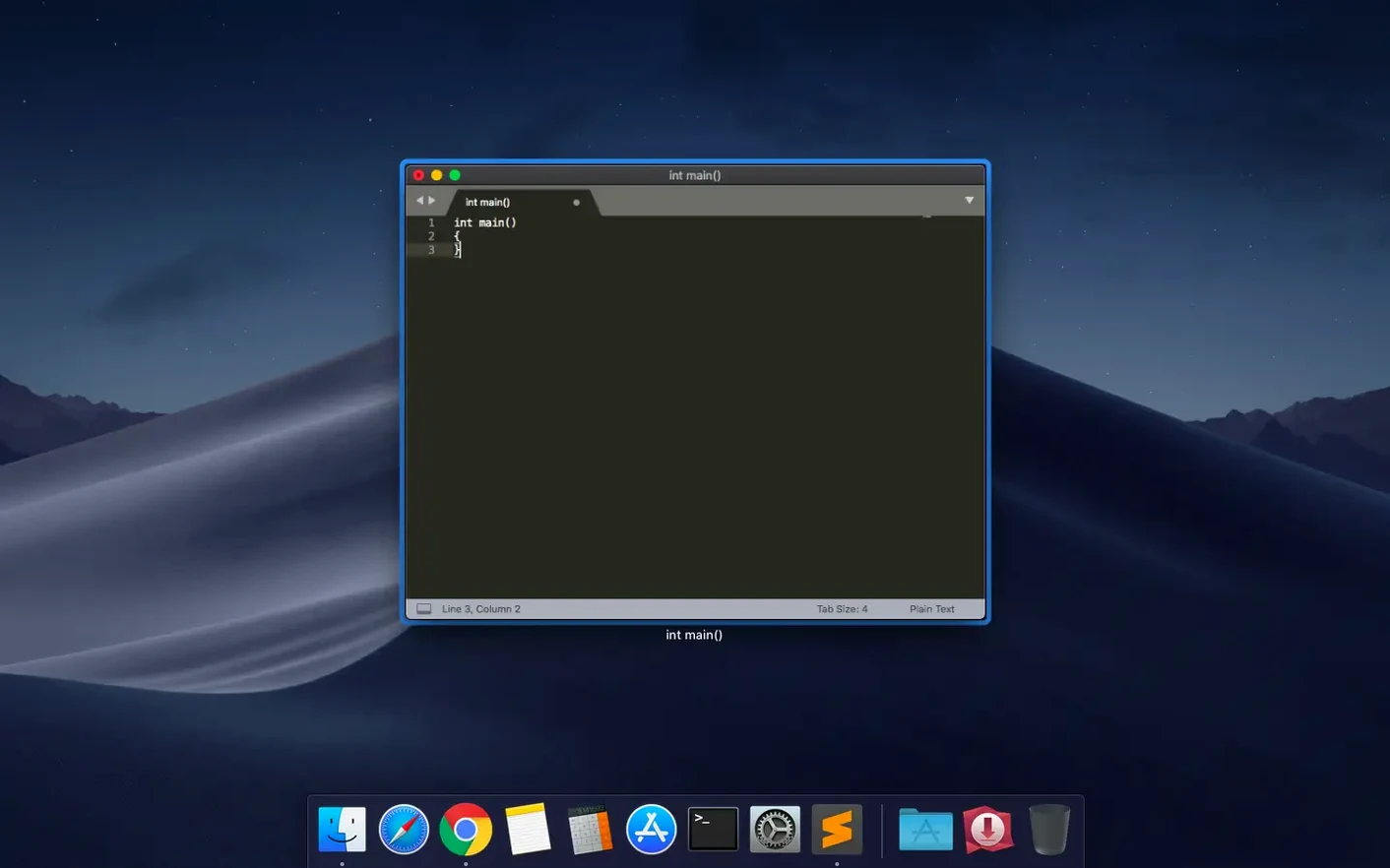
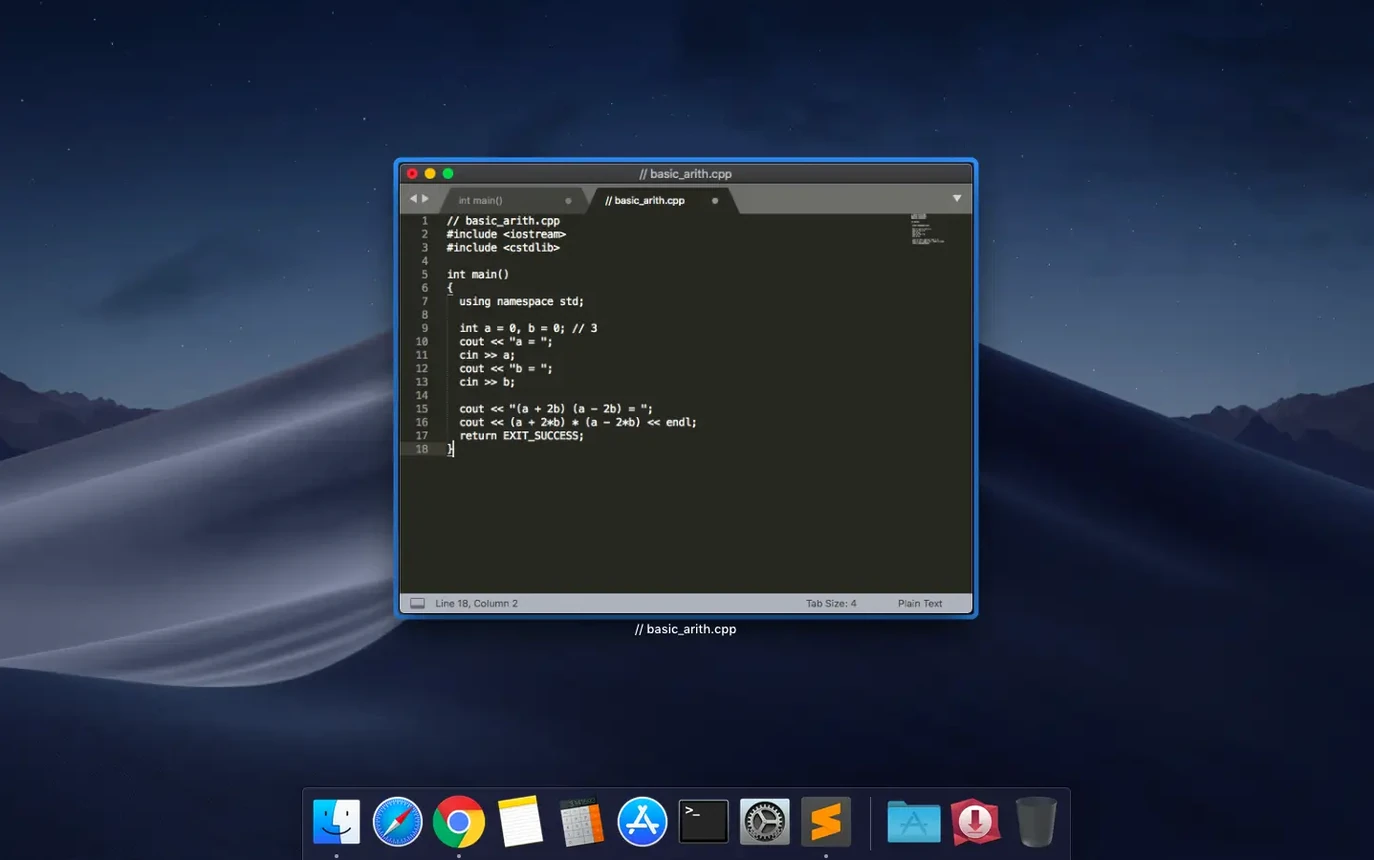
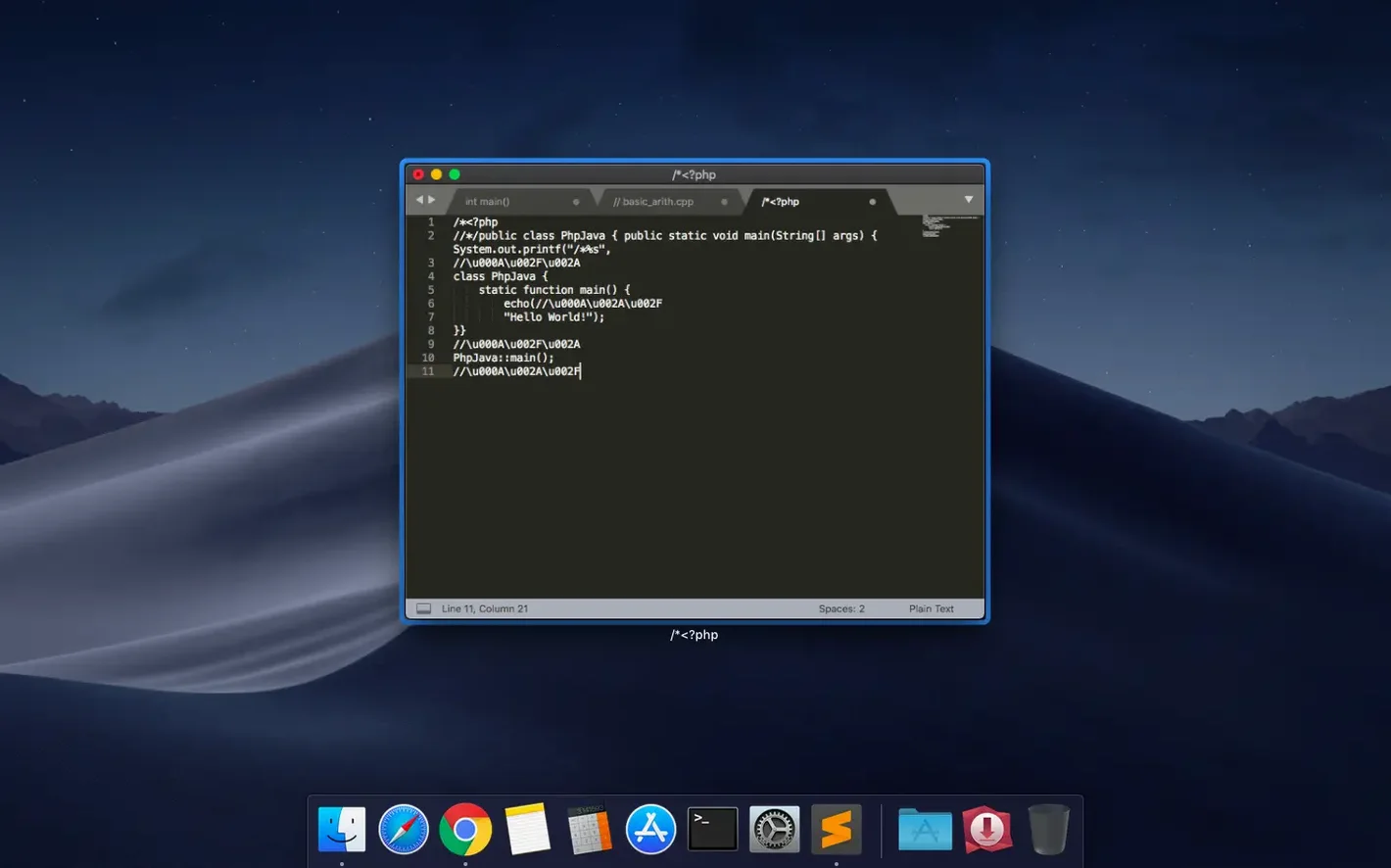
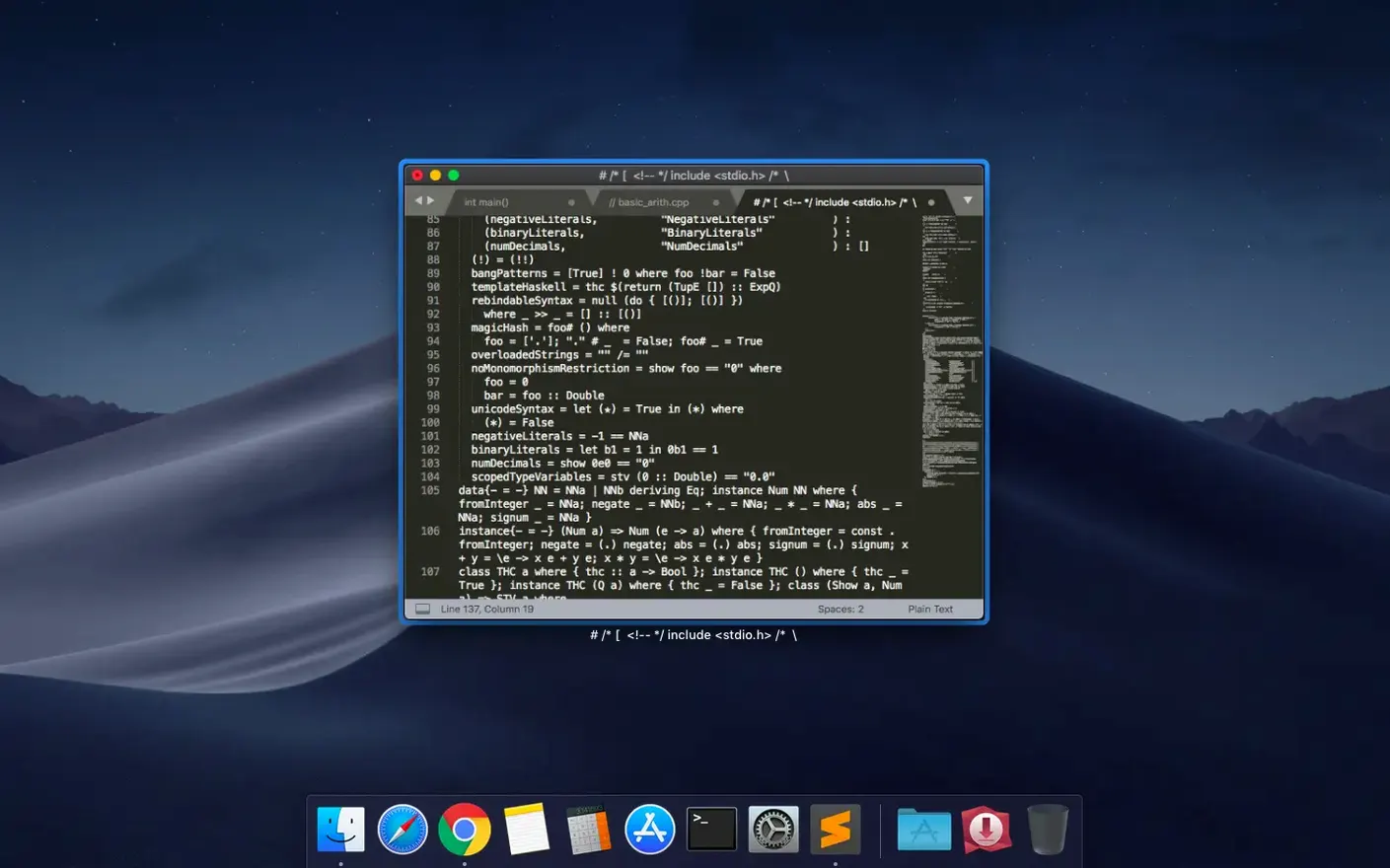
You open a messy JSON file that needs the same edit in seventeen places, and you'd rather not do it seventeen times. Sublime Text is the editor people reach for when they want a light tool that stays out of the way until they ask it to do something clever.
Autocomplete picks up your variables as you type, auto-save catches changes in the background, and the visual theme is yours to swap whenever the mood hits. It works the same way on macOS, Windows and Linux, so you won't need to relearn anything if you switch machines.
Sublime Text slots into a Mac workflow without much fuss. Drop a project folder onto the Dock icon and it opens as a workspace — sidebar, open tabs, unsaved changes, all remembered. The subl command-line tool lets you launch files or entire folders from Terminal: subl . opens the current directory. Pair that with git and you can jump from a diff to an edit in seconds.
On the design side, people sometimes use it alongside Sketch or Figma when they need to tweak exported SVGs by hand. The minimap on the right gives you a zoomed-out view of long files — handy when you are hopping between a markdown readme and a CSS file in a four-pane split. macOS Services and Quick Actions can also pipe selected text straight into Sublime Text if you set up a shortcut in Automator.
New users often ignore the command palette. They click through menus looking for a command that is two keystrokes away: Cmd+Shift+P brings up fuzzy search for every action the editor knows. Another common slip is treating Sublime Text like a word processor — dragging to select lines when Cmd+L selects the whole line and multiple cursors let you edit all of them at once.
Many beginners also skip the package manager entirely. They try to manually install a syntax highlighter for a language like Elixir or TypeScript, not realising the package manager handles that in a few clicks. And if you save a blank file without setting the syntax, autocomplete and highlighting won't kick in — switch the language from the bottom-right menu or save with a recognised extension first.
Another trap: loading too many plugins and wondering why startup feels sluggish. A lean set of packages keeps the editor snappy.
On a daily-work machine, Sublime Text 4 launches almost instantly — even with a dozen files from the last session reopening. Memory use stays modest. A project with 200 source files and a couple of plugins installed typically hovers around 150–200 MB of RAM, which leaves plenty of room for a browser, a design tool and a local server all running together.
The text rendering pipeline handles large files well. A minified JSON dump or a 50 MB log file scrolls without stutter, and the search-as-you-type stays responsive. Crashes in daily use are rare; the editor tends to sit quietly in the background for weeks without needing a restart. The build 4215 release tidied up a couple of edge cases — a broken keybinding in vintage mode and a compatibility snag on older macOS installs — so behaviour on High Sierra and Mojave is now steady again.
When you do push it — say, with a heavy linting plugin checking 3d text as you type — you might notice a brief pause on save, but the UI never locks up. That balance of light footprint and quiet reliability is why it keeps showing up on developer machines year after year.
Yes, it checks repositories for new versions of installed packages and downloads updates automatically.
It runs on macOS 10.13 and later, with a recent fix for compatibility on 10.13 and 10.14.














Chat 0
Hop in or make an account to join the chat.
Quiet in here so far. If you have used this build, tell me what the install actually did.