
 Tenorshare UltData
 Termius
 TG Pro
 TablePlus
 System Dashboard Pro
 SwitchResX
 Swinsian
 SwiftServer - Monitoring & SSH


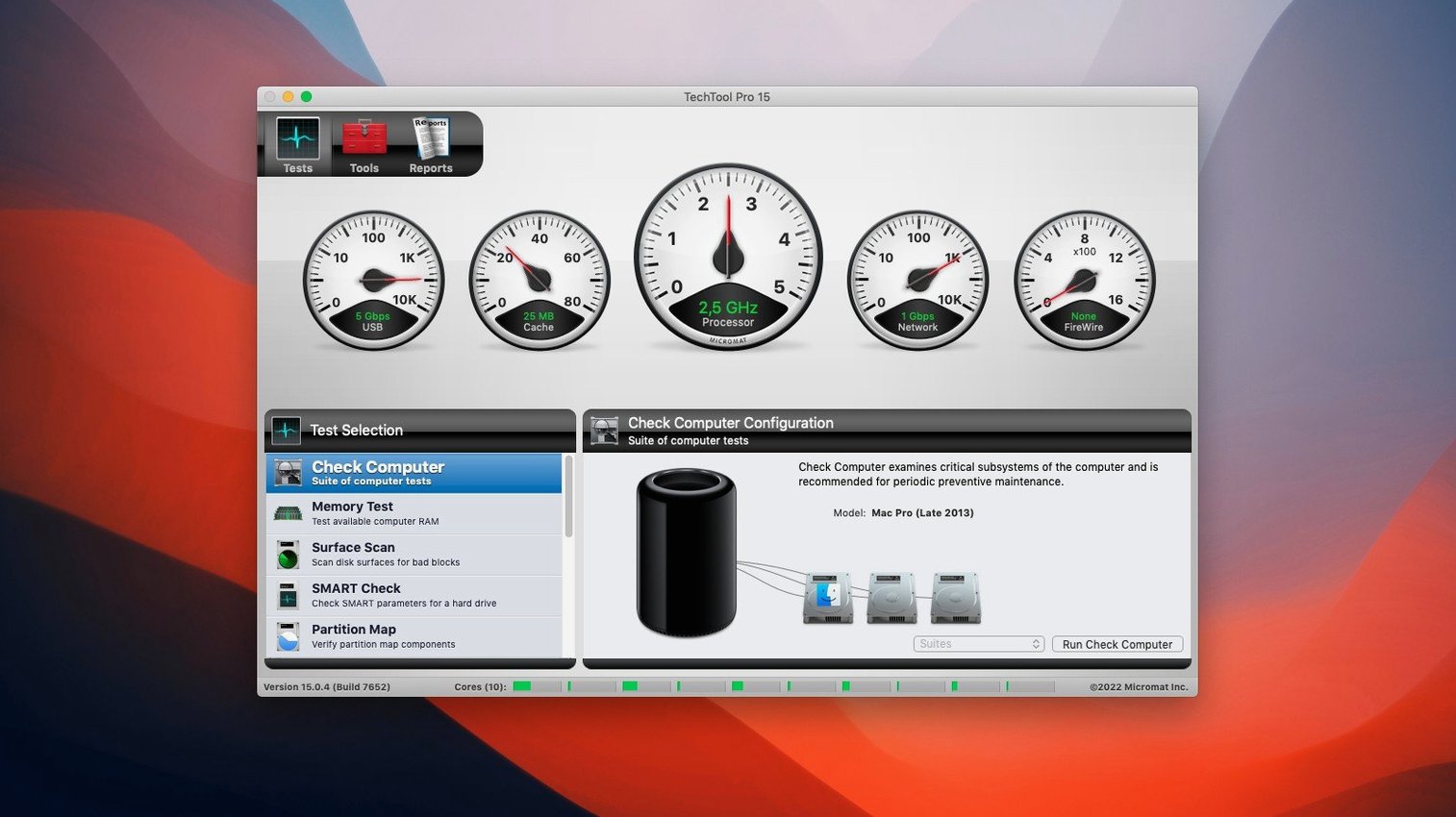
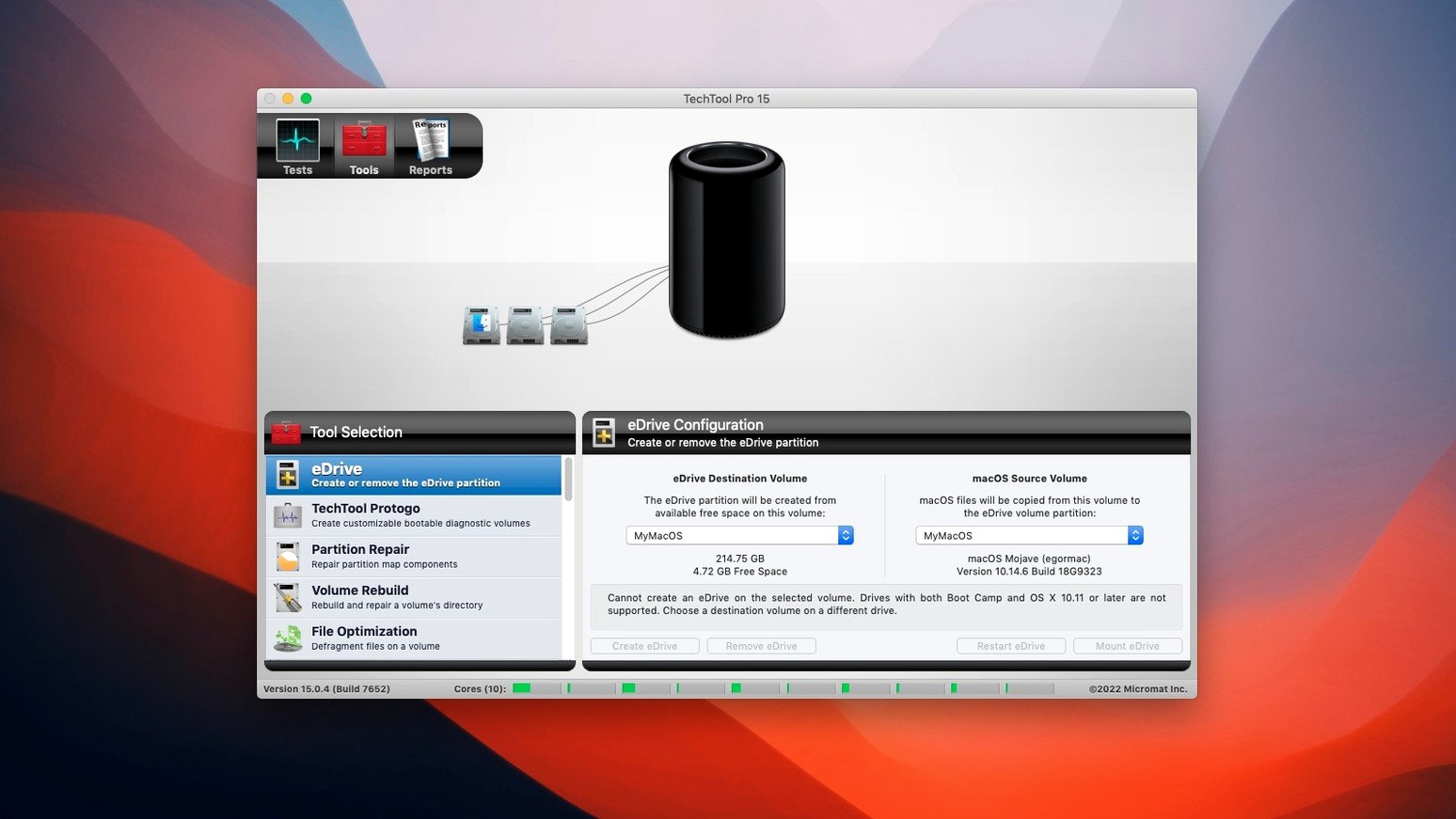
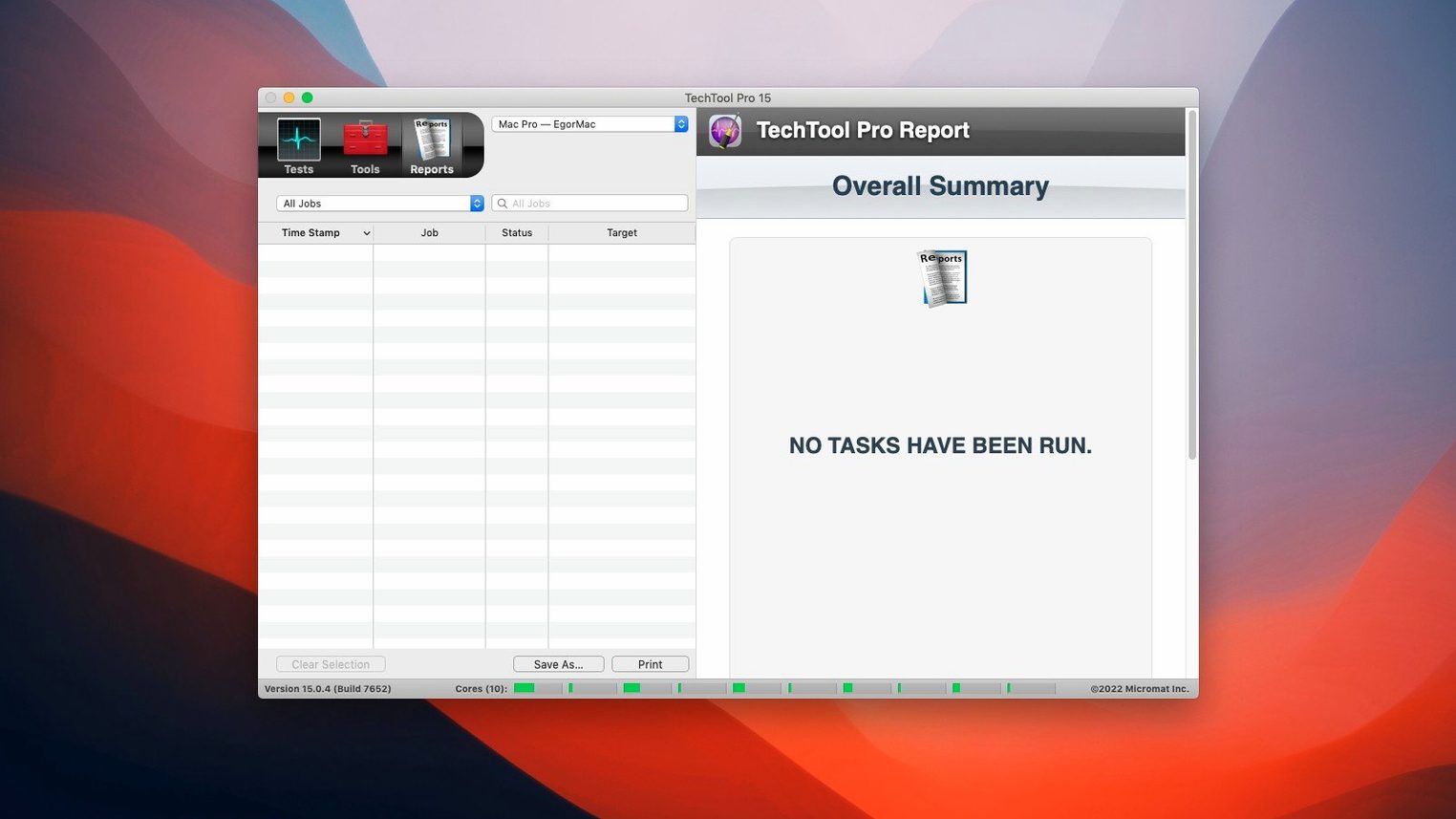
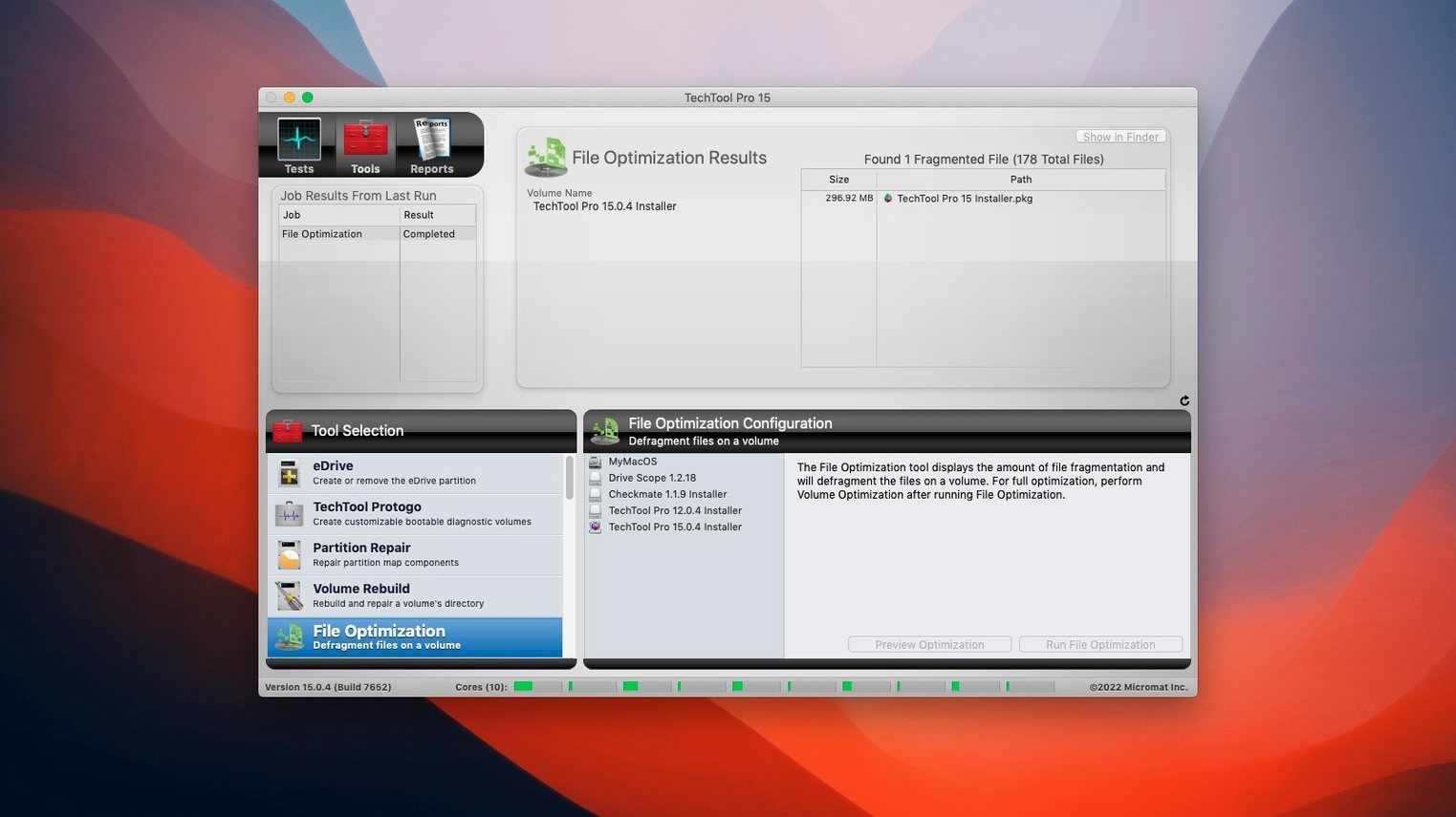
IT admins and support techs reach for Techtool Pro when a Mac acts up. It bundles hardware tests, volume repair, and file recovery into a single window, so you can chase down a fault without juggling five different utilities. Here's one common job: rescuing files from a drive that's started throwing read errors.
Plug in the external drive and open the Surface Scan tool. Techtool Pro checks every block, flagging the ones that won't hold data. A map builds on screen — red clusters mark physical damage. The scan runs in the background if you set Techtool Protection to keep watch automatically.
Once the bad blocks are mapped, switch to the file recovery module. Point it at the damaged volume and let it reconstruct what it can. Files sitting on healthy sectors copy out cleanly. For anything straddling a bad block, the tool pulls partial data — often enough to save a document or a photo. When the recovery finishes, you can repair the volume structure or clone what's left to a fresh drive before the old one fails completely.
Most people launch Techtool Pro and head straight for the big test suites. A handful of smaller shortcuts sit tucked away and make the day smoother once you spot them.
Option while clicking Stop during a long suite. The app offers a partial report of what passed before you interrupted it, handy when a single sub-test hangs and you don't want to lose the earlier results.Control key and click the results header. You can overlay a previous report from the same machine to highlight what changed.Shift-Command-P at launch. Techtool Pro updates the tools on that volume without rebuilding it from scratch.Fresh out of the box, Techtool Pro leans conservative with its background monitoring. Two quick tweaks make Techtool Protection far more useful without getting noisy.
First, open Preferences and switch the SMART notification threshold from "Failing only" to "Degrading or failing." Mechanical drives often signal trouble through reallocated sectors long before they formally fail. Catching that early gives you a window to clone the drive before files vanish. On all-SSD Macs the setting still matters — a dropping wear indicator triggers the same heads-up.
Second, turn on Free space monitoring and set it to 15 GB. macOS gets cranky when the boot volume dips below a few gigabytes, and Techtool Protection will ping you with enough runway to clear caches or offload large projects before performance tanks.
A freelance Mac tech arrives at a photography studio. One iMac kernel-panicked twice overnight. The photographer needs it stable for an afternoon client delivery.
The tech plugs in a Protogo drive, boots from it, and runs the full hardware suite. Memory tests come back clean. The Surface Scan finds nothing physical on the internal SSD. But the Volume Structure check flags three catalog errors on the boot container. Repairing them takes under two minutes. Before handing the machine back, the tech clones the volume to an external drive with File Sync — a clean, bootable safety copy that sits on the studio shelf in case the panic returns.
Back at the bench, a second job sits on the counter: an old Thunderbolt RAID that won't mount. The tech connects it, drags the phantom volume onto Techtool Pro, and watches the SMART screen populate one drive with yellow warnings. A quick scan maps three bad blocks. File recovery pulls the client's Lightroom catalog off healthy sectors, and the tech copies everything to a new enclosure before lunch.
Yes, it includes repair tools for damaged volumes, including SSD volumes, alongside its bad block detection and file recovery features.














Chat 0
Hop in or make an account to join the chat.
Quiet in here so far. If you have used this build, tell me what the install actually did.