
 WiFi Explorer Pro 3
 Winclone Pro
 WinZip Mac Pro
 Wipr
Wipr Wirecast Pro
 WALTR PRO
 Wondershare Filmora
 Wondershare Recoverit


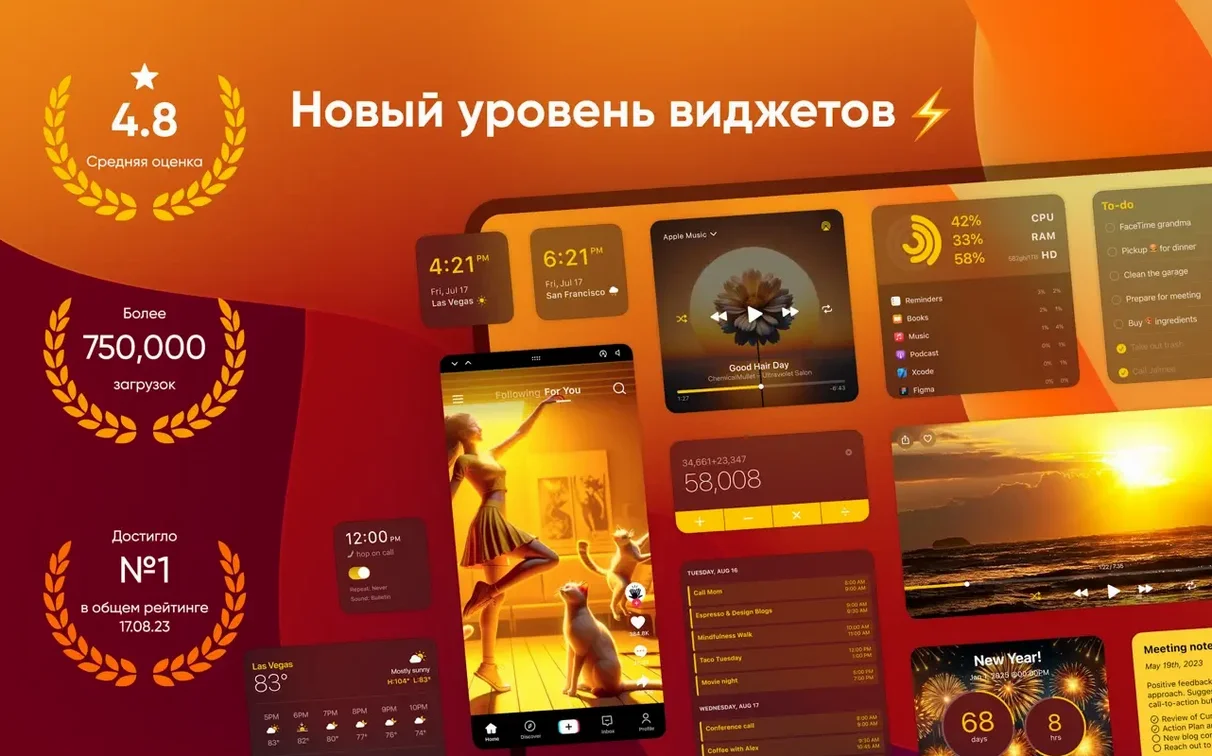
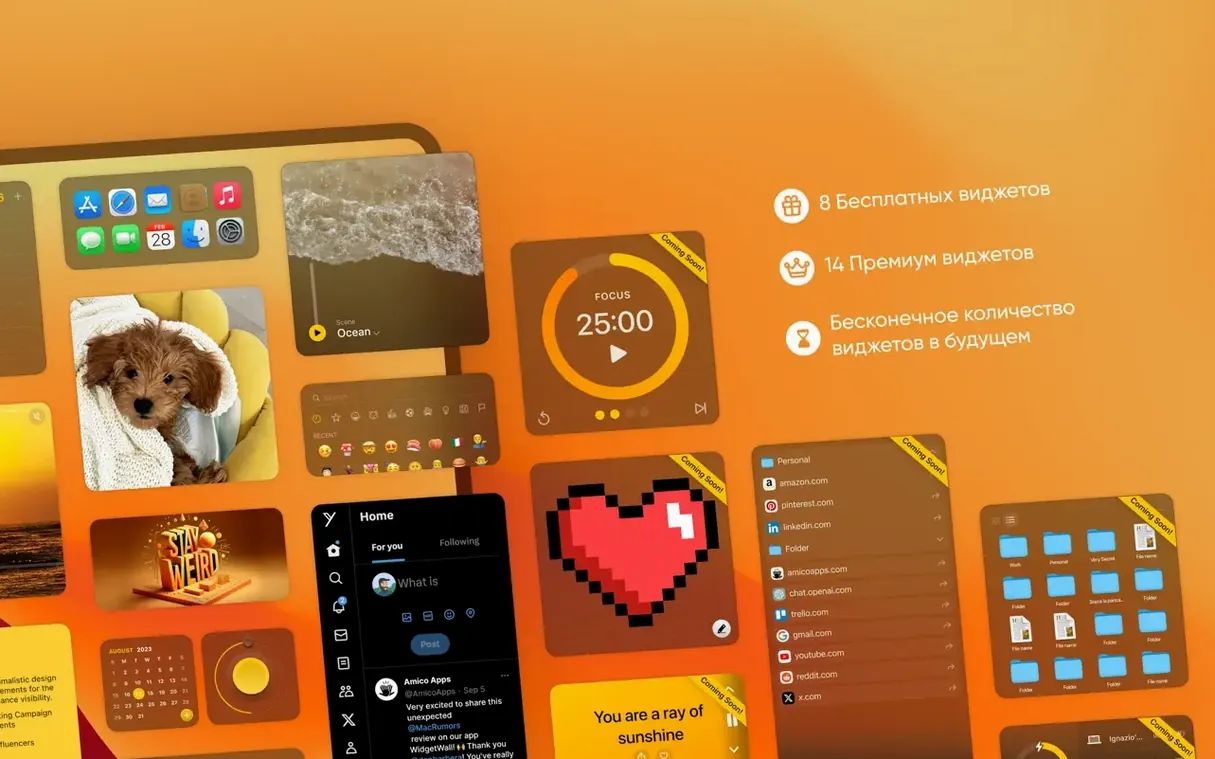
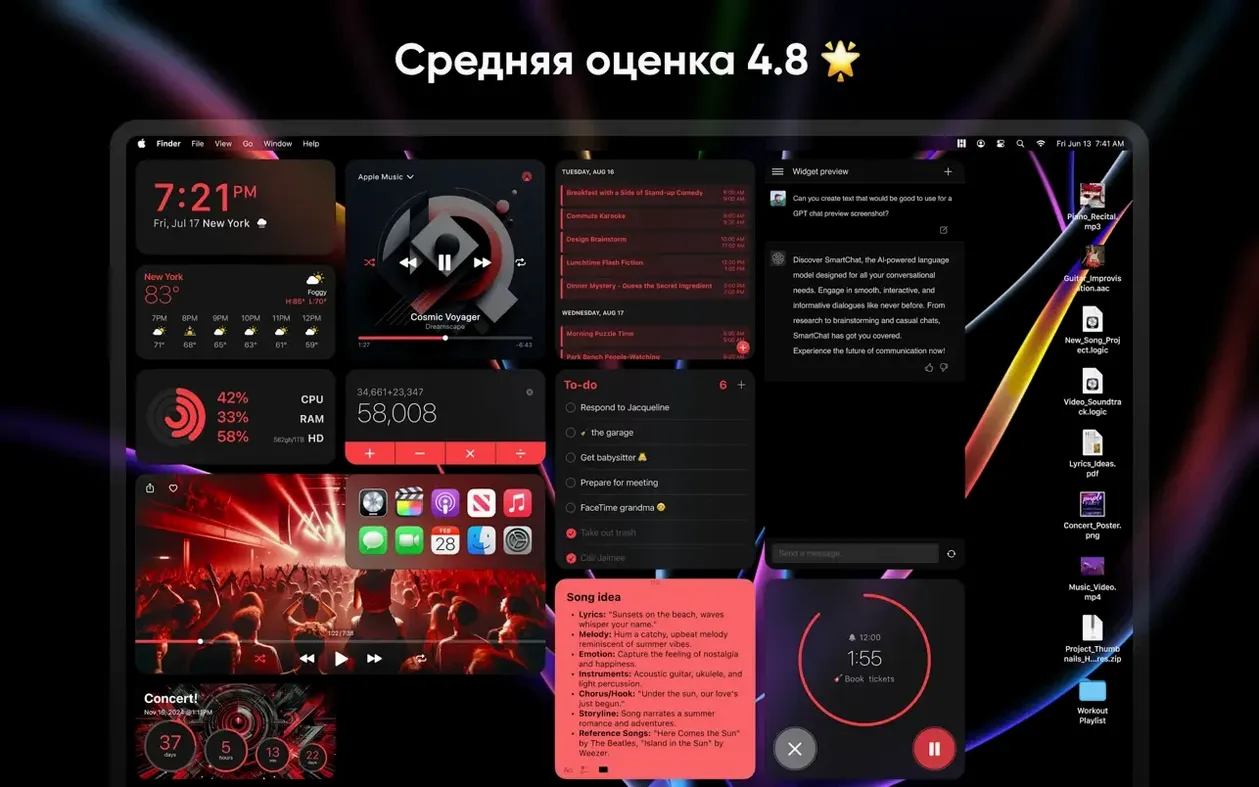
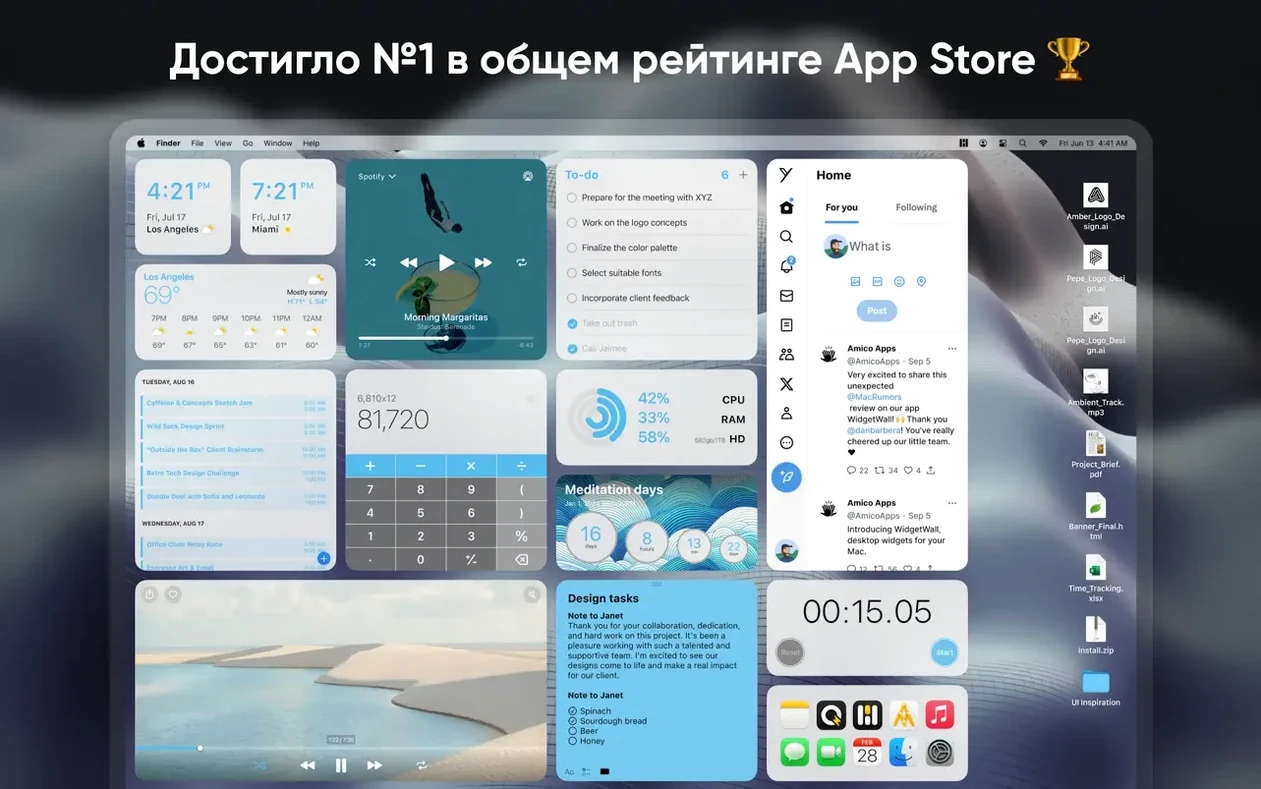
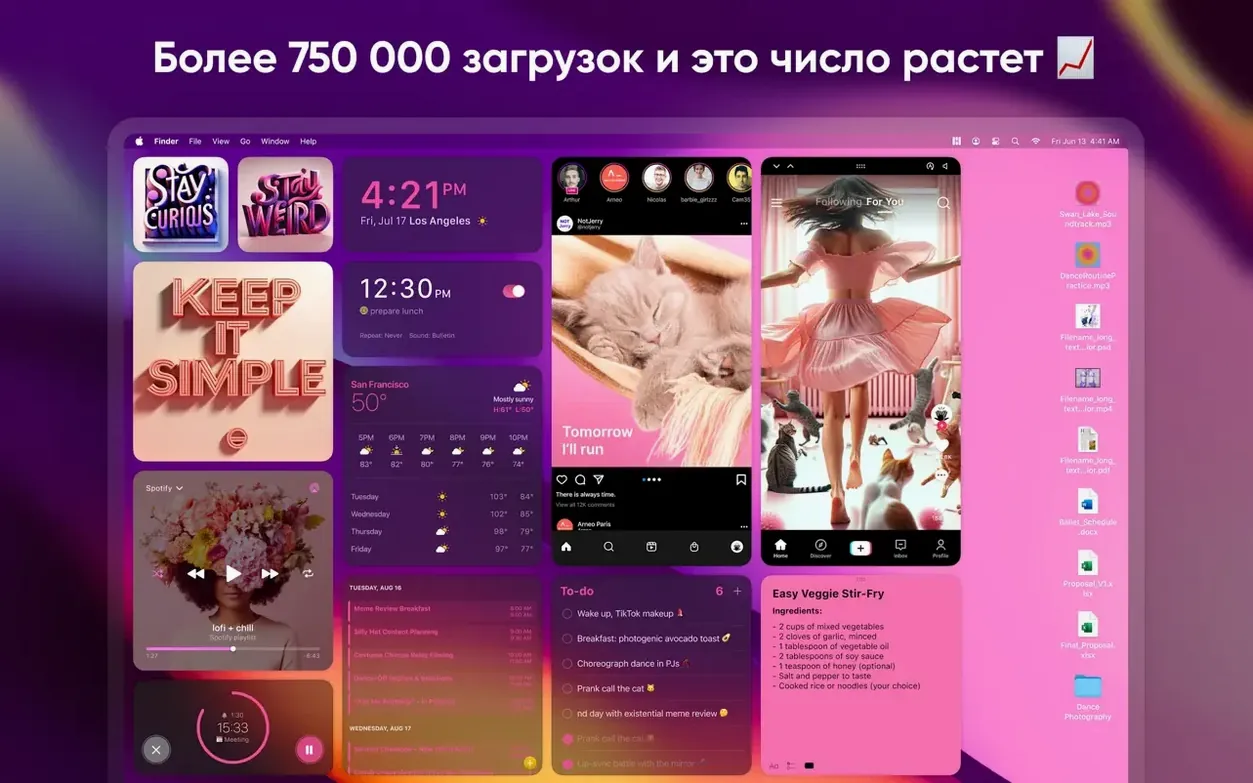
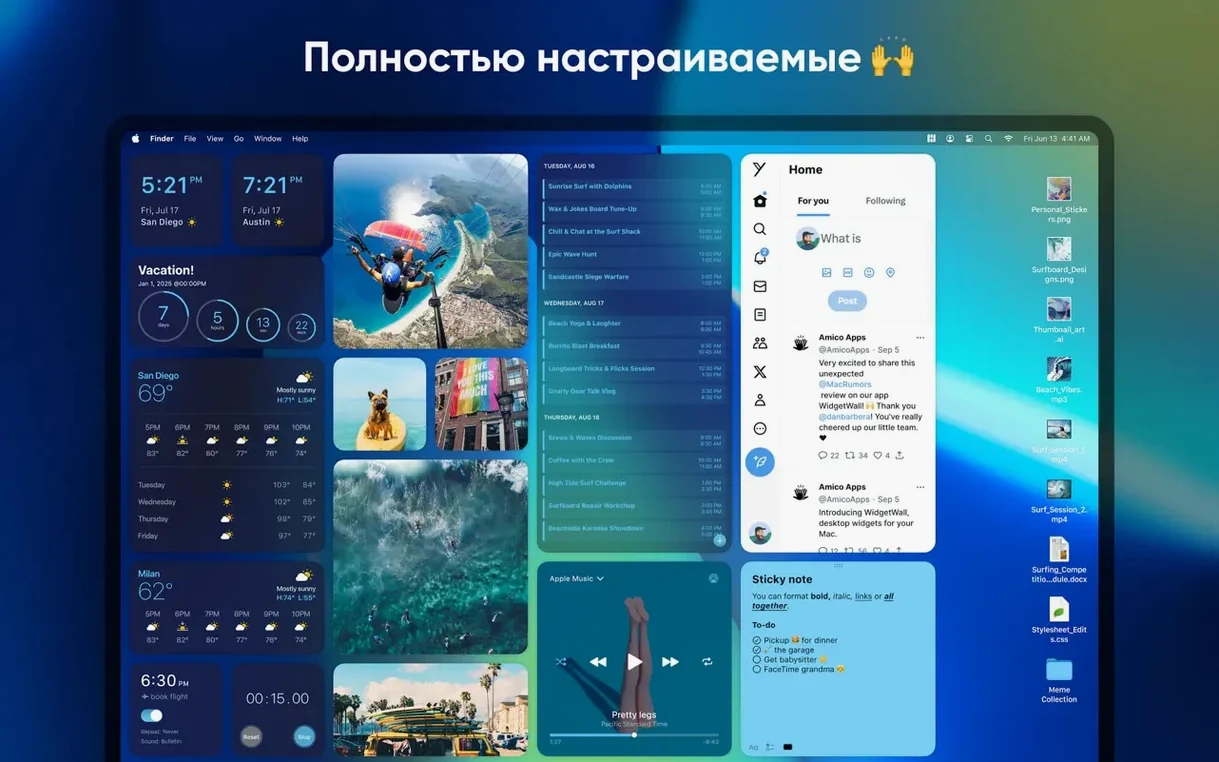
You know how Dashboard used to tuck handy calculators and calendars one swipe away? WidgetWall brings that same helper instinct straight onto your main desktop. It sits next to your regular apps, dropping a few well-chosen widgets into view right after setup.
| Detail | Info |
|---|---|
| Developer | Amico Apps LLC |
| Mac support | Apple Silicon & Intel 64-bit |
| Languages | English, French, Spanish, Russian, Traditional Chinese |
Once it's running, you get a tidy layer of glanceable info without switching contexts. Think of it as a quiet desktop upgrade: your calendar, weather, or a scratchpad live exactly where you can see them, between your Finder windows and the apps you already use. The layout stays out of your way until you need a quick look. It works on both Apple Silicon and Intel Macs, and the developer recommends keeping the app on its latest version to keep those widgets running smoothly.
Version 3.15.2 smoothed out a few friction points that crept into everyday use. The Clock widget no longer drifts behind the system time after your Mac wakes from sleep — a small fix that removes that low-grade annoyance of glancing at a wrong hour. The Weather widget now refreshes location data more reliably when you move between Wi‑Fi networks, so you stop seeing yesterday's forecast in a new city.
The Pomodoro Timer gained a visual nudge: the widget border pulses gently when a session ends, which helps if you keep sound off during focus blocks. Under the hood, memory use at idle dropped noticeably on Apple Silicon Macs running macOS 14, something you feel as snappier widget redraws when you swipe between Spaces.
After dragging the app to Applications and opening it, WidgetWall places a default set on your desktop. Give it five minutes before rearranging — the initial layout is a sampler, not a final arrangement. Right‑click any widget and pick a size. Start small for widgets you only glance at (Weather, Clock) and reserve Large for interactive ones like Notes or the Browser.
If you use multiple displays, position utility widgets on the secondary screen. A Countdown Timer tracking a project deadline or a Stats widget showing CPU temperature fits neatly where you look less often but still want the data nearby. The White Noise widget is surprisingly handy pinned just off‑centre on a work display — one click starts rain or cafe chatter without pulling up a separate app.
A few things trip people up early on. Widgets vanishing after a restart usually means WidgetWall isn't set to launch at login. Open System Settings > General > Login Items and add it there. The app itself needs to be in /Applications for that to stick.
If the Reminders or Calendar widgets show empty lists, check that WidgetWall has Calendar and Reminders access in System Settings > Privacy & Security. Granting that once fills the widgets immediately — no relaunch needed. On older Intel Macs, the Video widget can stutter with high‑bitrate files. Dropping the widget size to Medium usually clears it up, since the decoder works in a smaller buffer at that scale.
The TikTok widget occasionally goes blank after a macOS point update. A quick toggle — switch the widget to another size, then back — forces a reload and restores the feed. And if widgets feel sluggish after you've added a dozen, try removing the Confetti widget first. Its animation loop is the heaviest draw on the renderer, and pulling it often brings everything back to speed.
Yes, the app runs on Apple Silicon and Intel 64-bit Macs with macOS 12 or later.
Yes, once you set it up, WidgetWall installs several desktop widgets for you right away.














Chat 0
Hop in or make an account to join the chat.
Quiet in here so far. If you have used this build, tell me what the install actually did.