
 Absynth
 Ableton Live
 Adguard
 A Better Finder Attributes
 1Password
 Adobe Premiere Rush
 Affinity Designer
 Affinity Photo


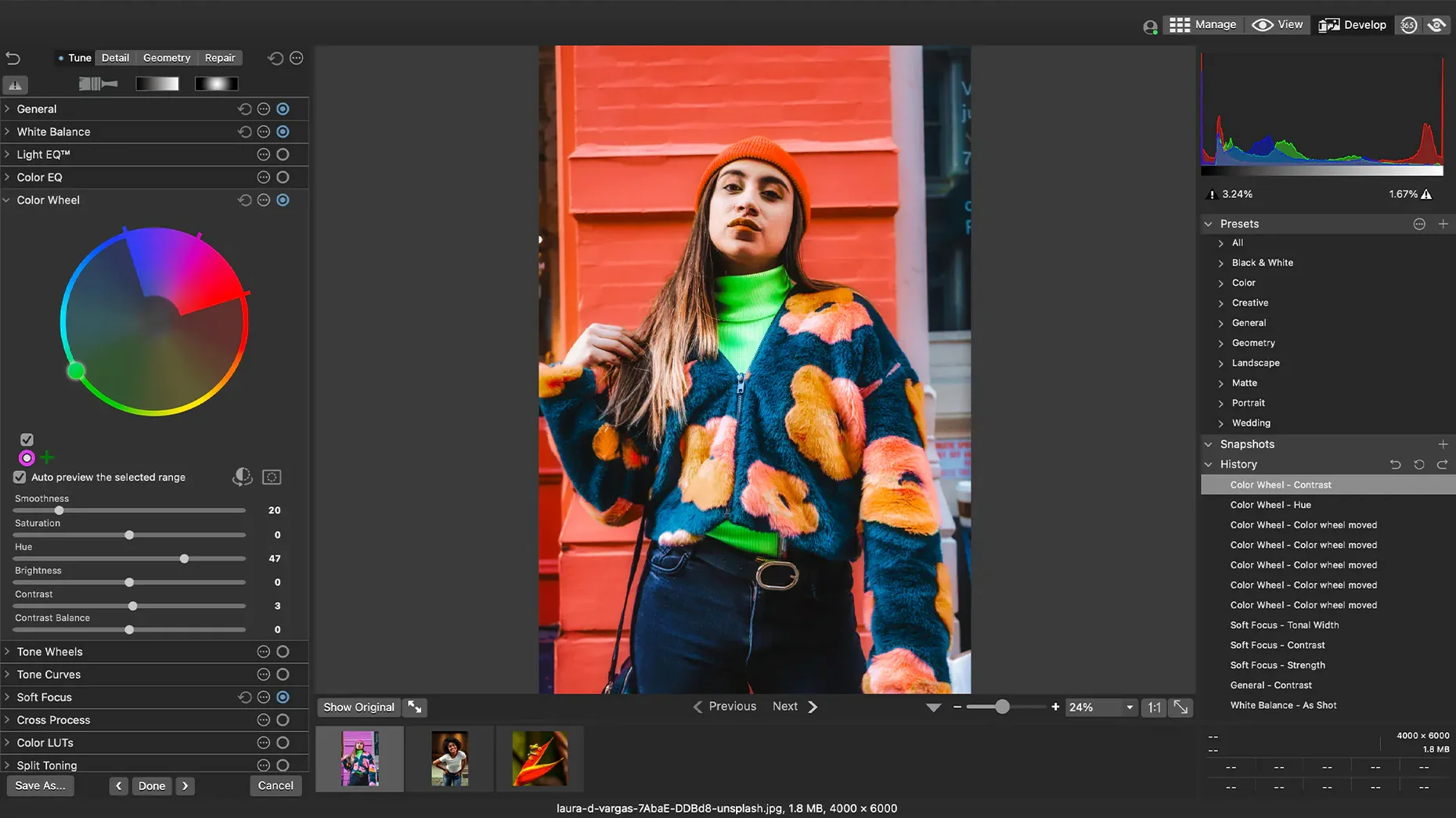
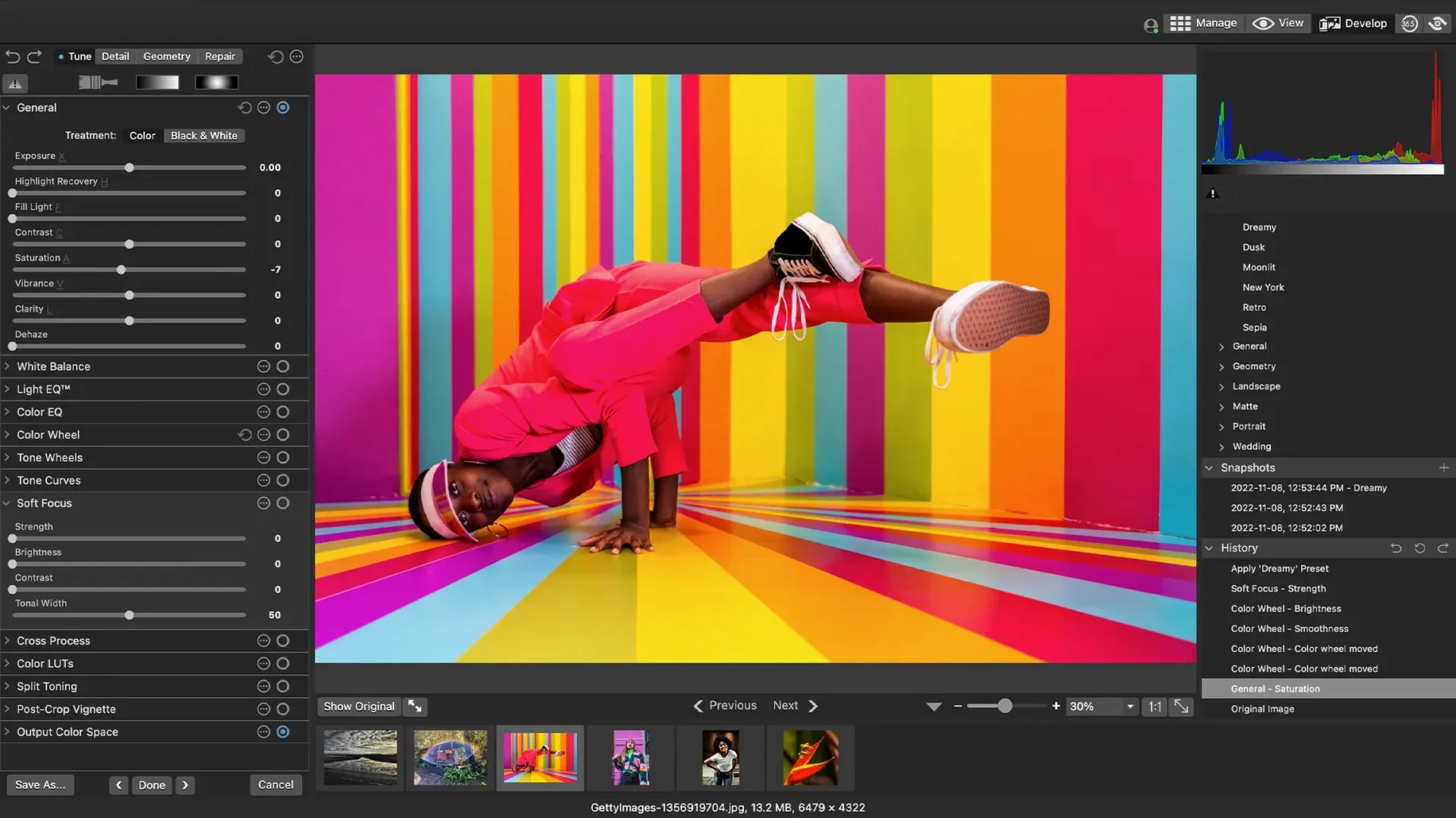
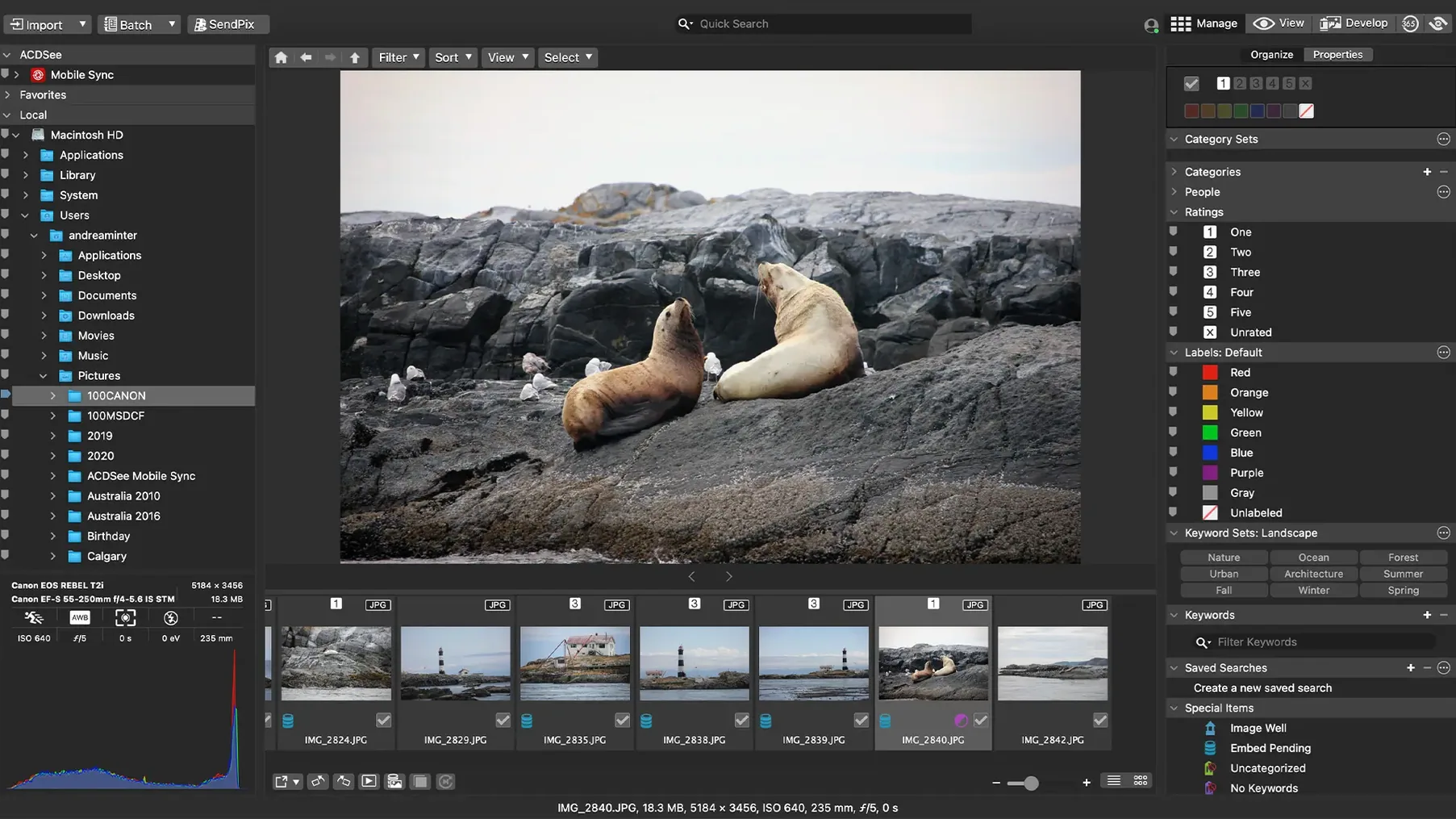
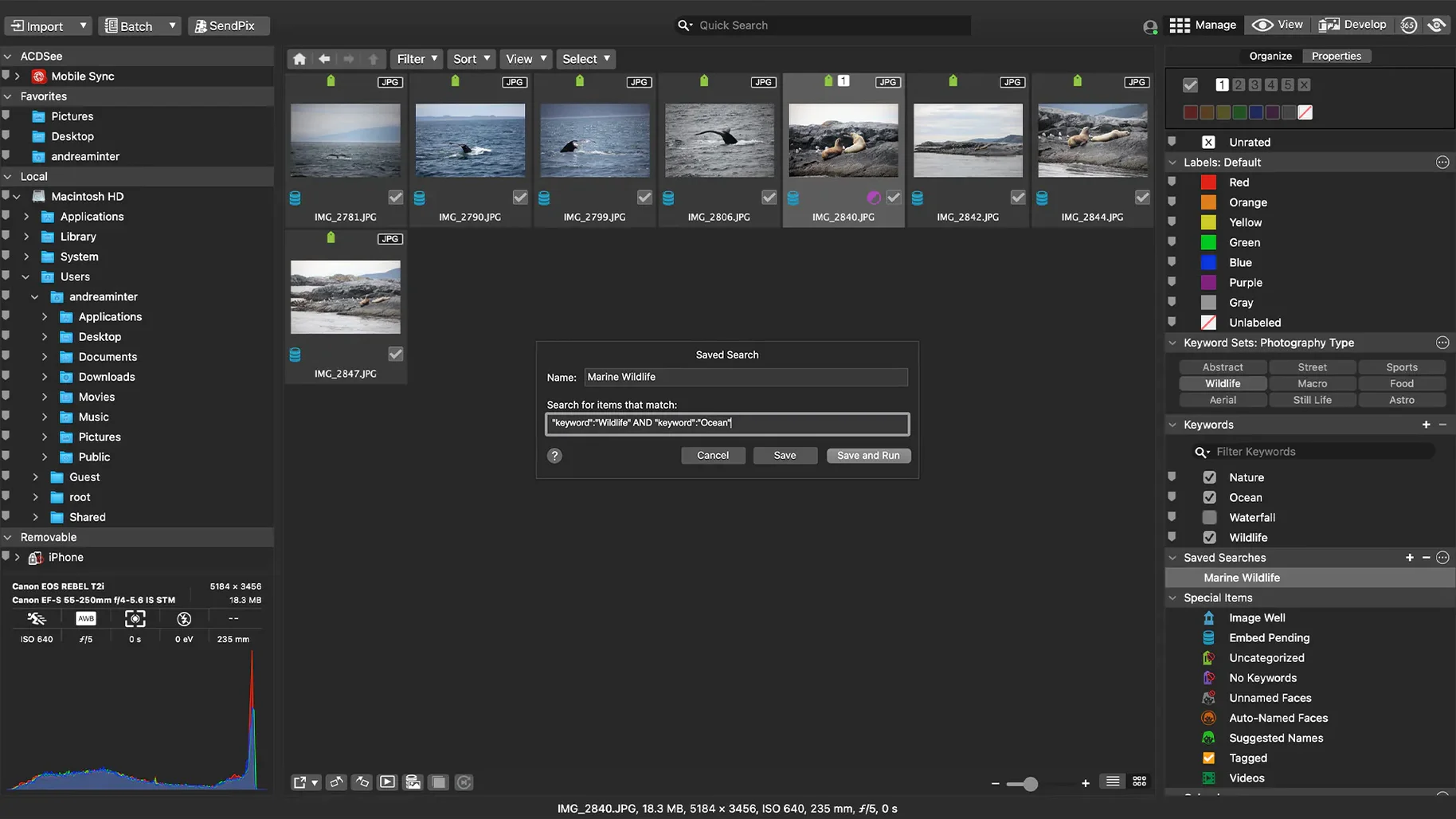
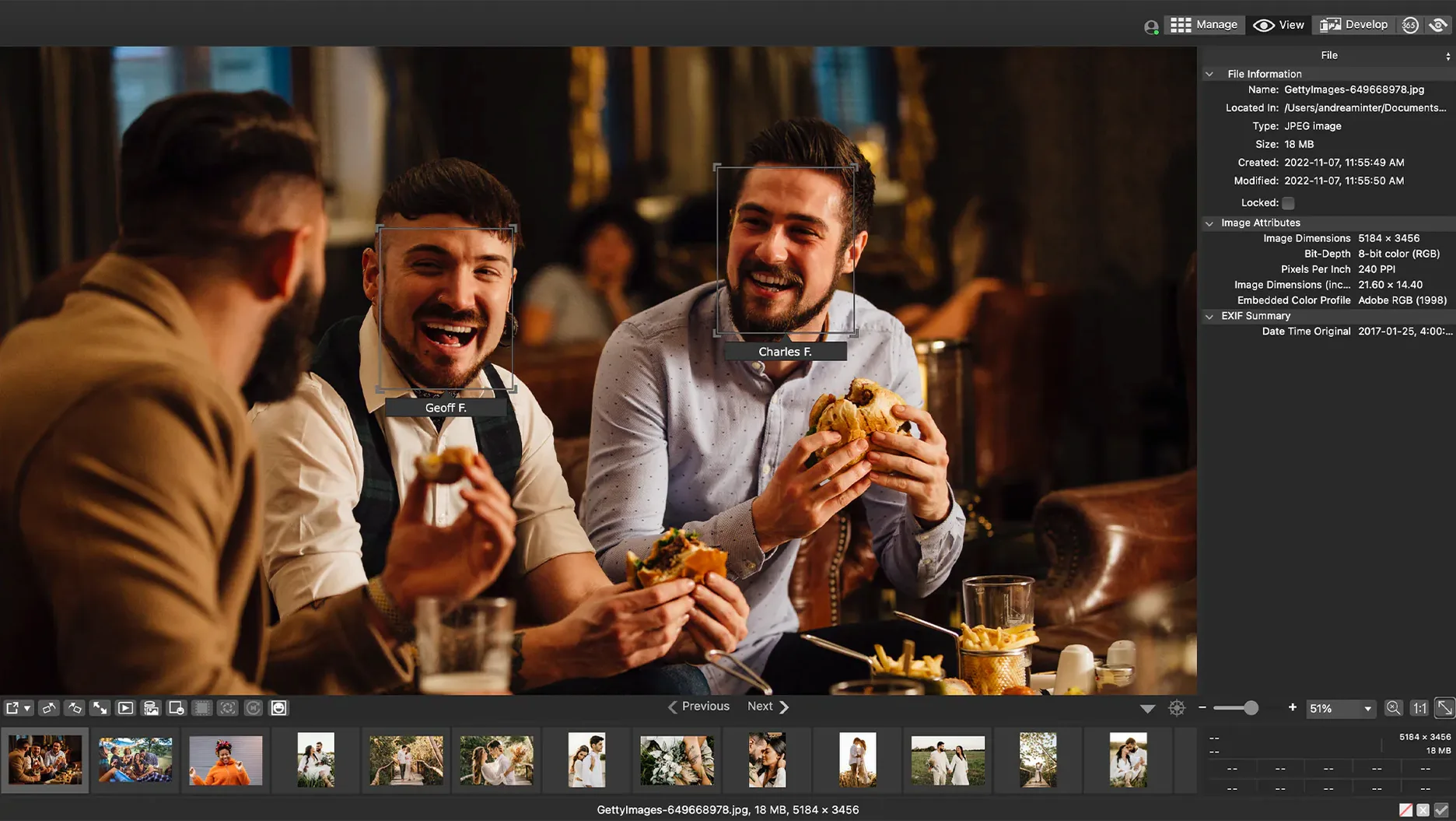
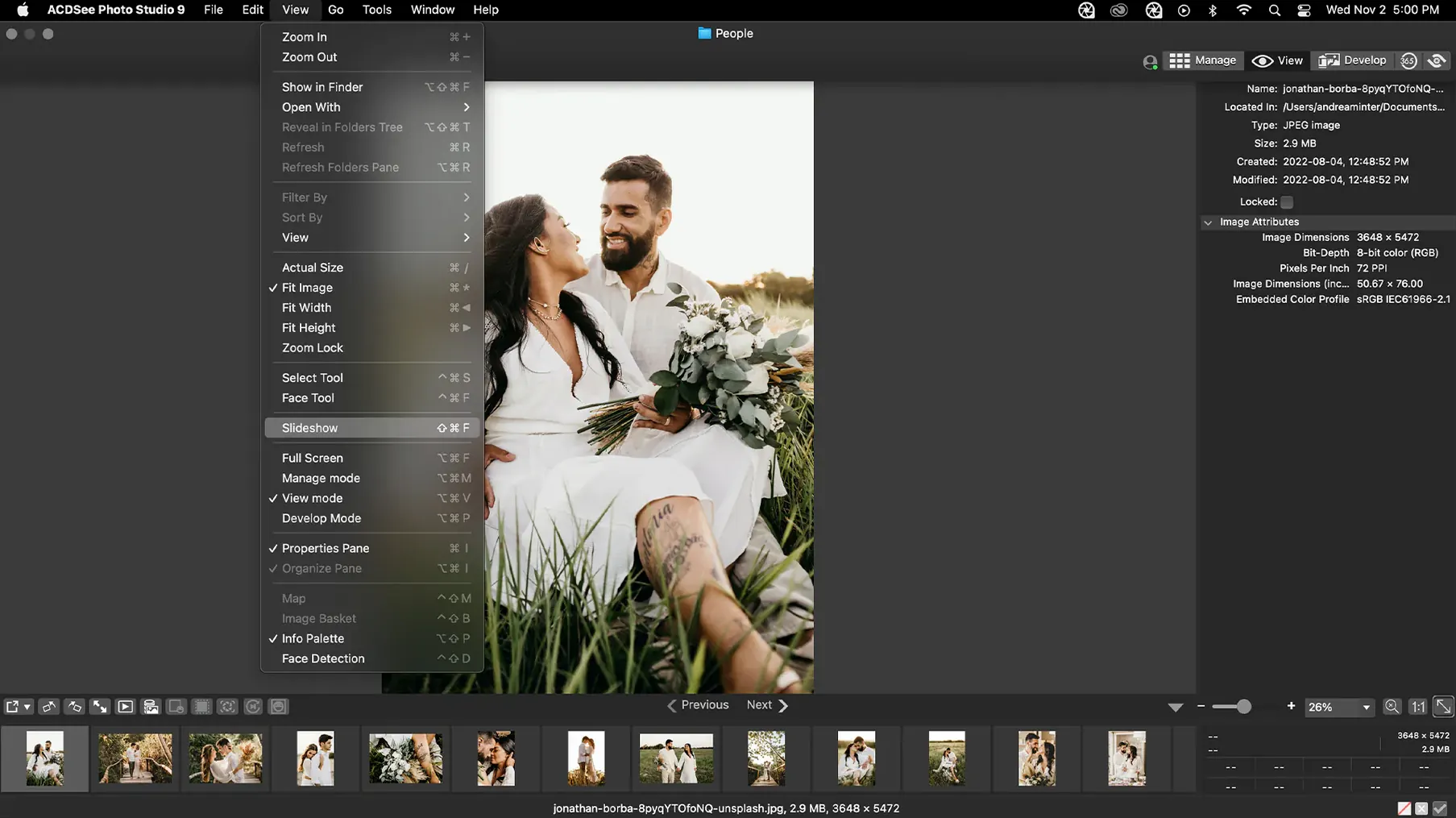
ACDSee Photo Studio is a photo management and editing app built for macOS. Think of it as a central hub where your image library lives, with tools to cull, tag, and tweak files without jumping between separate utilities.
The organisation side is what sets it apart from a simple editor. You can rate images, sort by date, and edit EXIF or IPTC metadata directly. The duplicate finder is handy when you have years of shoots scattered across folders — it surfaces copies you forgot about, saving drive space without manual hunting.
It also plays well with workflows you already have. Drag-and-drop search lets you grab a photo from Finder or a reference image from a browser and instantly see visually similar shots in your library. If you rely on iCloud to sync between devices, the latest update smoothed out integration quirks that used to interrupt sorting.
RAW shooters will appreciate the recent fix for file ratings — inaccurate reads in certain scenarios are now resolved, so your in-camera picks carry over correctly. Small touches like that make it feel more like a considered Mac app and less like a port.
A typical Sunday morning import goes like this: I drag a card dump into a watched folder, and ACDSee builds thumbnails while I pour a coffee. By the time I sit down, the grid is ready. First pass is a cull — arrow keys flick through images, and I tap Cmd+1 through Cmd+5 to assign star ratings. No dialogue box, no pause. Rejects get a one-key shortcut I assigned to a red colour label, so they vanish from the working view with a quick filter toggle.
Once the keepers are rated, I batch-add keywords. Select twenty shots from a portrait session, hit the Keywords pane, and type golden hour, backlit, 85mm — it applies to all selected files in one go. The recent fix for crashes when adding child keywords means I can build a nested category tree (like Clients > 2024 > Sarah) while files are still indexing, which used to trip the older build.
From there, a saved batch preset resizes, sharpens, and appends a watermark to the final selects. The whole process — from card to client-ready proofs — clocks in under twenty minutes.
I'm halfway through editing a set of landscape shots from a foggy morning at Lamington National Park. The light was flat, so the RAW files look milky straight out of camera — exactly the kind of scenario where ACDSee's non-destructive adjustments earn their keep.
I open the first keeper in Develop mode. The histogram is bunched in the midtones. I pull the black point down until the tree silhouettes snap into contrast, then lift the exposure a third of a stop. The clarity slider adds bite to the wet rock textures without haloing the edges. I'm working on an M1 MacBook Air, and the adjustment preview renders at full resolution with no lag — the Apple Silicon build makes a difference here.
While I tweak, the app writes adjustment sidecar files to the same folder as the RAWs. Later, I can copy the whole folder to an external drive, open it on another Mac running ACDSee, and every edit travels with the files. No catalogue lock-in, no proprietary database that breaks if you move things.
Three images into the set, I notice the white balance is slightly cool across the batch. Instead of fixing each individually, I copy the settings from the current photo (Cmd+Shift+C), select the rest of the fog series in the filmstrip, and paste only the white balance and exposure adjustments (Cmd+Shift+V). The paste dialogue lets me tick exactly which parameters to apply — I leave sharpening and noise reduction unchecked because those vary per frame.
Half an hour later, the set is done. I rate the finals, apply a category called Portfolio 2024, and let the duplicate finder scan the folder. It flags a few TIFF versions I exported last week and forgot to delete. A right-click sends them to the trash from inside the app. One less Finder window to manage.
Yes, and version 26.0.3 fixed a bug where RAW file ratings were read inaccurately in certain scenarios.
It includes a duplicate finder that helps you locate and remove copies scattered across your library.














Chat 0
Hop in or make an account to join the chat.
Quiet in here so far. If you have used this build, tell me what the install actually did.