
 djay Pro
 Disk Drill
 Dorico Pro
 Drama
Drama Default Folder
 DriveDx


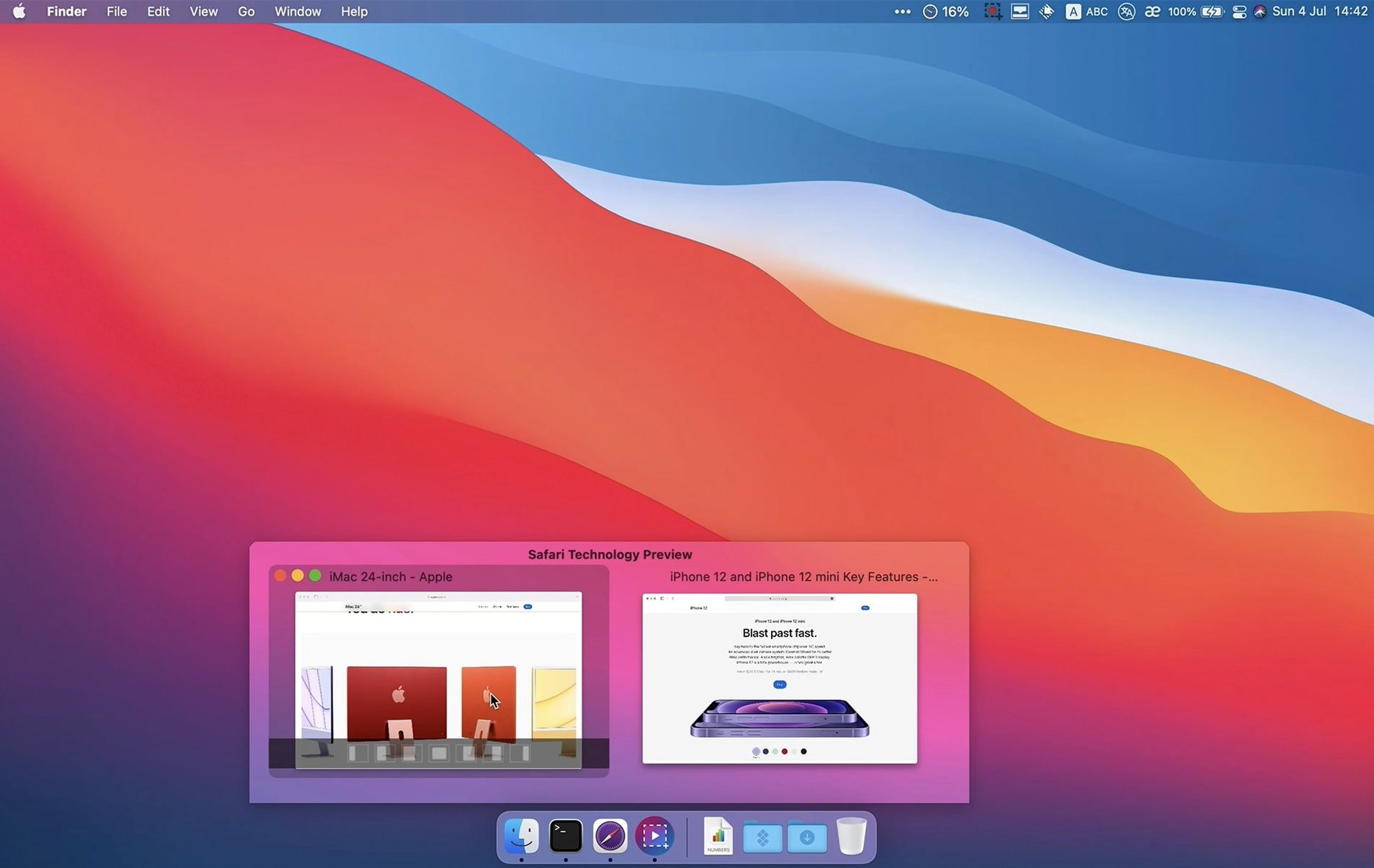
Anyone who keeps a handful of windows open in one app — a browser with three projects, a Finder with four folders — knows the flick-and-pray routine. DockView cuts through it by adding live window previews right above a Dock icon.
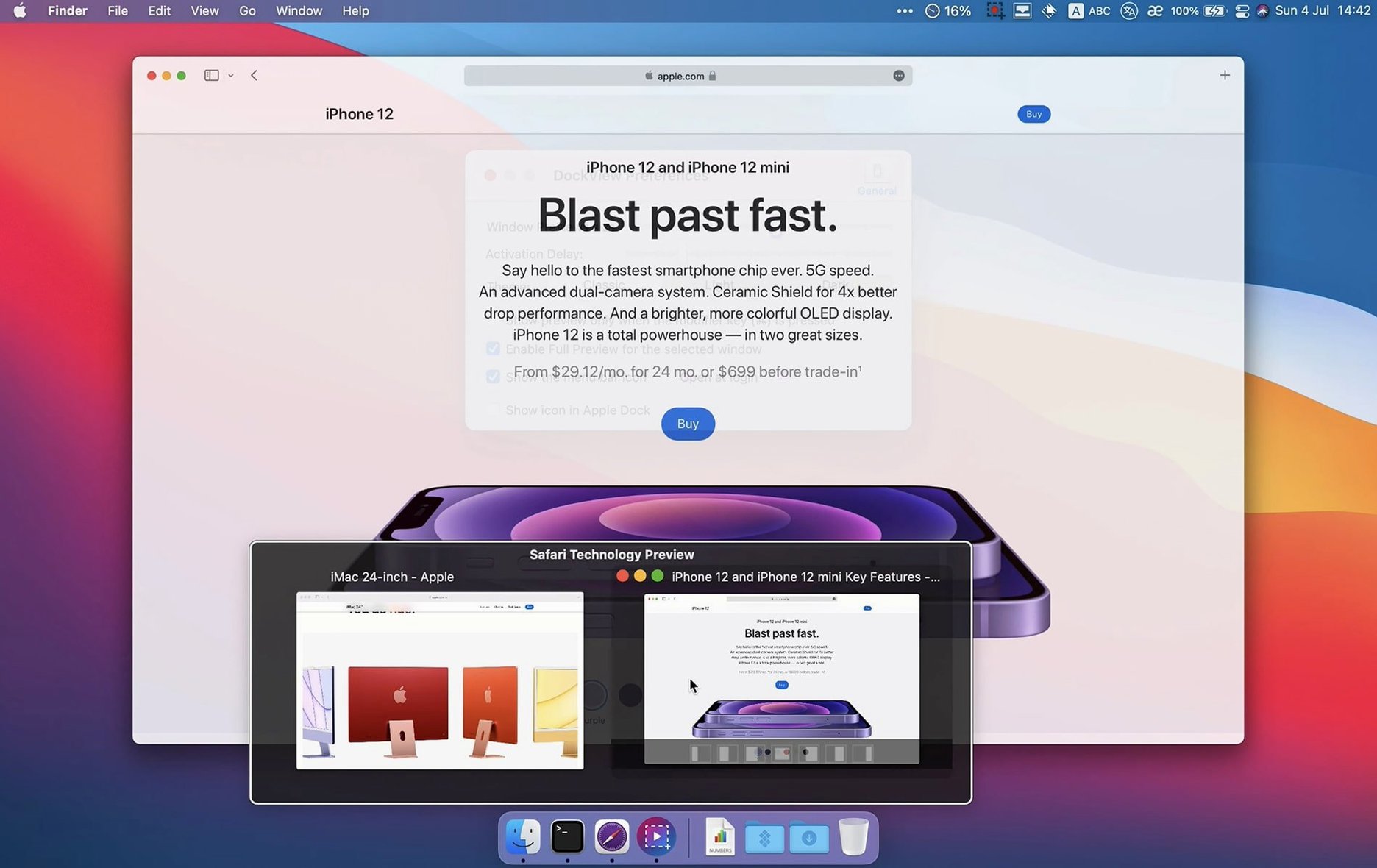
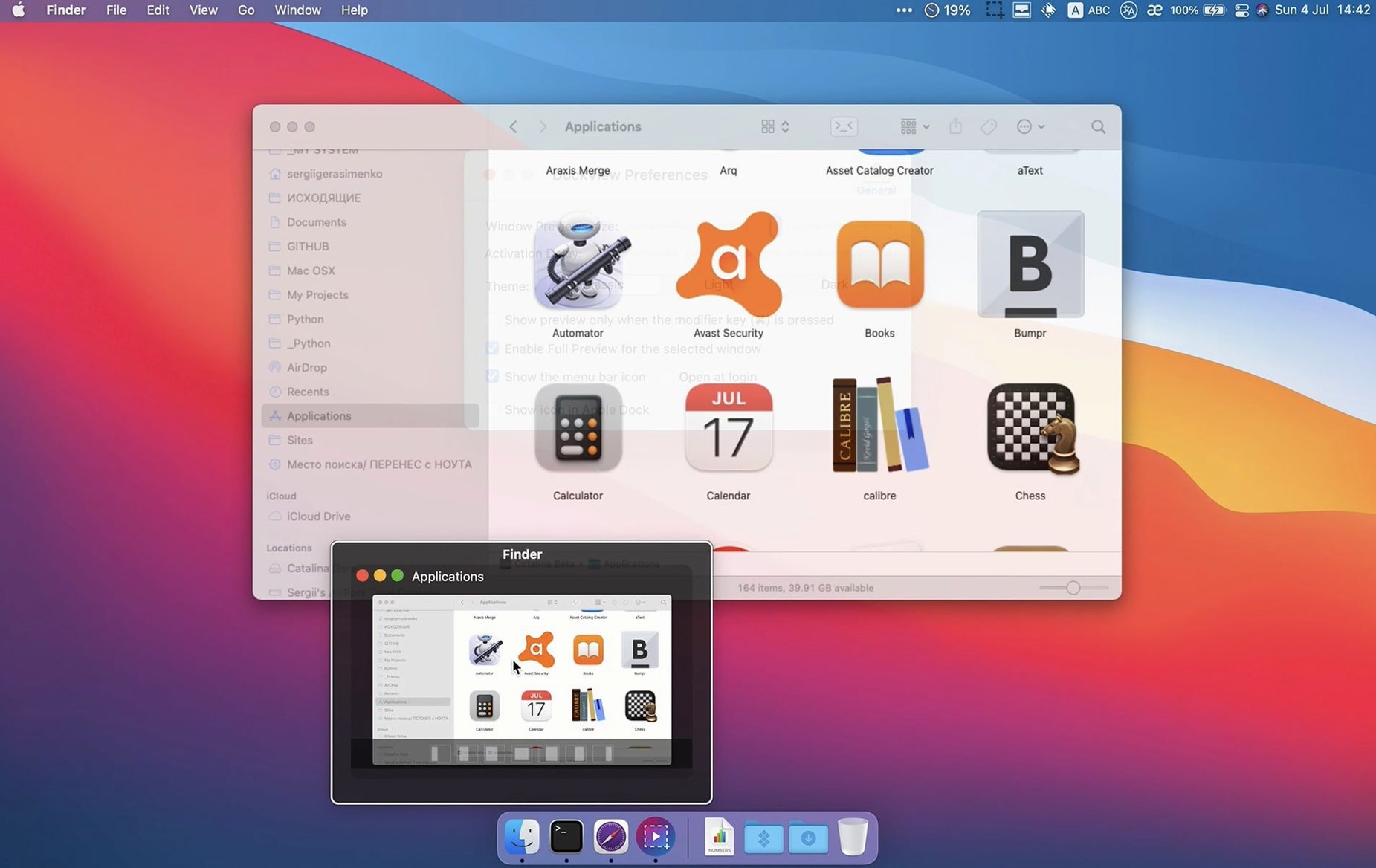
Hover over any app icon and DockView shows thumbnails of every window that app has open. One click switches straight to the one you want.
Minimise, maximise, or close a window directly from the preview panel. Numbered shortcuts keep your hands on the keyboard when that feels faster.
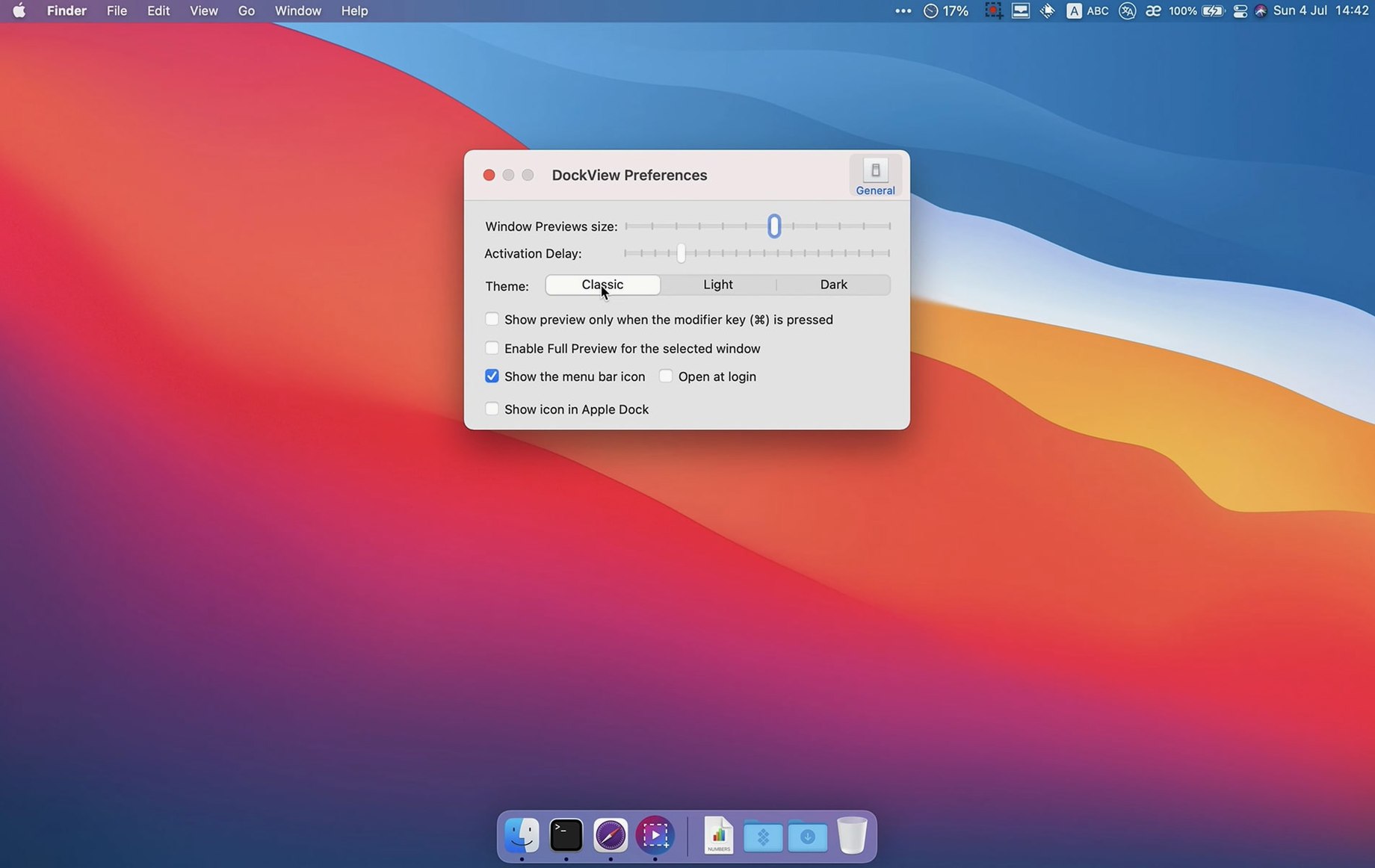
Version 2.2.4 tidies up preferences into two tabs — Preview and Appearance — so adjusting thumbnail size, spacing, or the hover delay feels less like a hunt. A new Show All Windows button in the panel gives you the same information with a click instead of a hover, whichever suits your rhythm.
Good to know: DockView needs Screen Recording permission for window titles and previews, and Accessibility permission for window switching. It sits alongside the Apple Dock without modifying any system files.
In a full morning of switching between code editors, Figma and a pile of Finder windows, the app barely registers. Memory use sits around 30–50 MB on an Apple Silicon Mac, with no spikes when previews refresh. Thumbnails pop in fast — a short hover, maybe half a second by default, and they are there. I have not seen it trip over Spaces or Stage Manager; windows on other desktops appear just as cleanly.
A common scenario: you have eight Safari windows open, each holding a different reference page for a design brief. Hover over the Safari icon and the preview panel shows them all at a glance. Scan the thumbnails, spot the window with the colour palette you need, click it — done. If one window is just a duplicate, hover again and tap the close button right on its preview. No hunting through the Window menu, no cycling with Command-`. For an even quicker flow, hit the numbered shortcut that matches the window position in the panel. In less than ten seconds you move from a cluttered workspace to the exact reference you wanted, and the panel disappears the moment you click away.
Good to know: if you use dockview mac across multiple displays, previews follow the Dock on whichever screen you hover on, so the panel always appears right where your cursor is.
Version 2.2.5 arrives with targeted bug fixes and subtle performance tweaks that keep previews feeling snappy.
No, it works as an addition to the Apple Dock. It doesn't modify the Dock or any system file.
Screen Recording permission is required for window titles and previews, and Accessibility permission is needed for window switching to work.
Yes. You can minimise, maximise, and close windows directly from the thumbnail panel, and numbered shortcuts speed things up further.














Chat 0
Hop in or make an account to join the chat.
Quiet in here so far. If you have used this build, tell me what the install actually did.