
 Fork
Fork FotoMagico
 FontLab
 Folder Tidy
 FxFactory Pro
 Folder Preview Pro
 Garden Planner


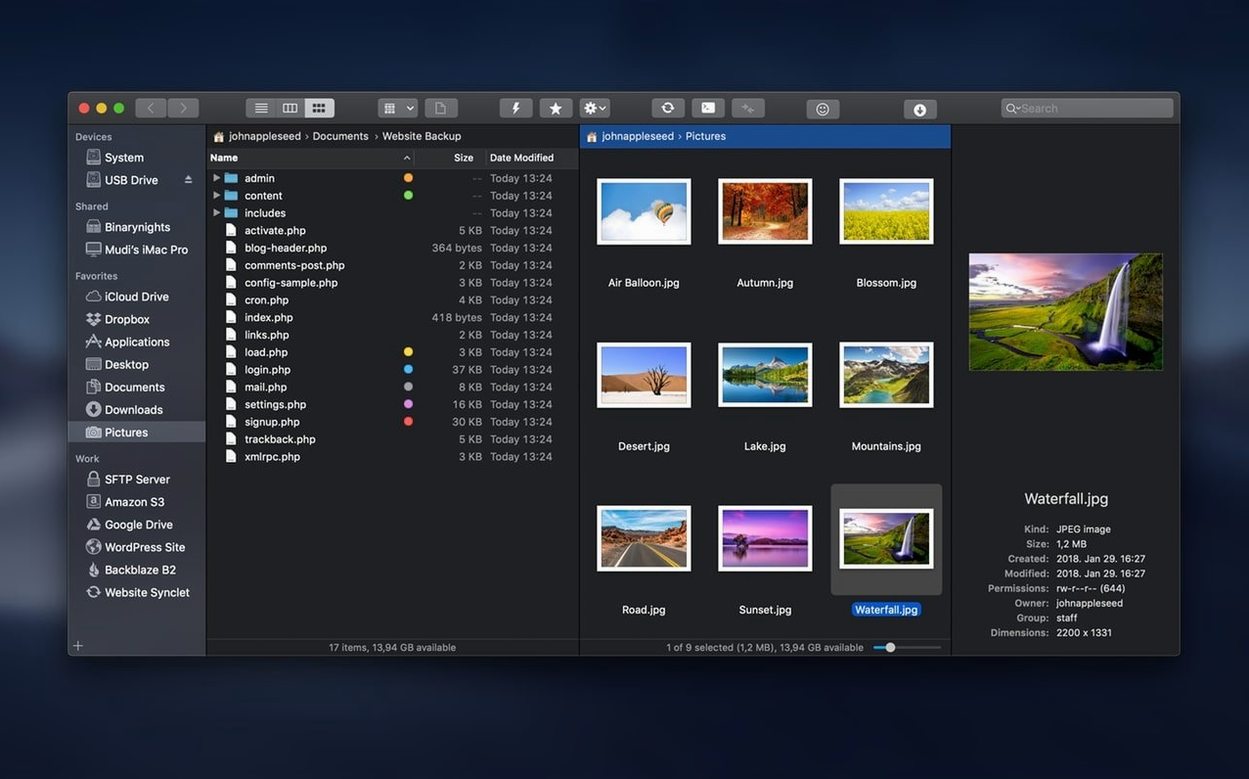
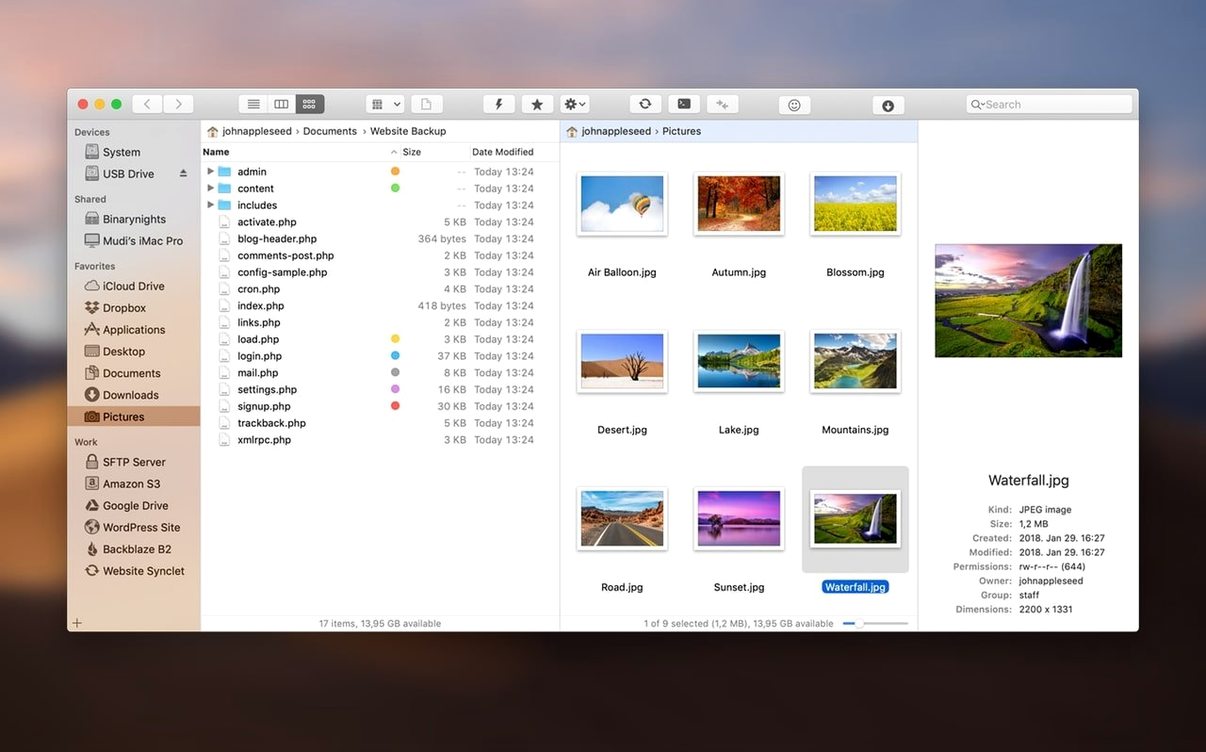
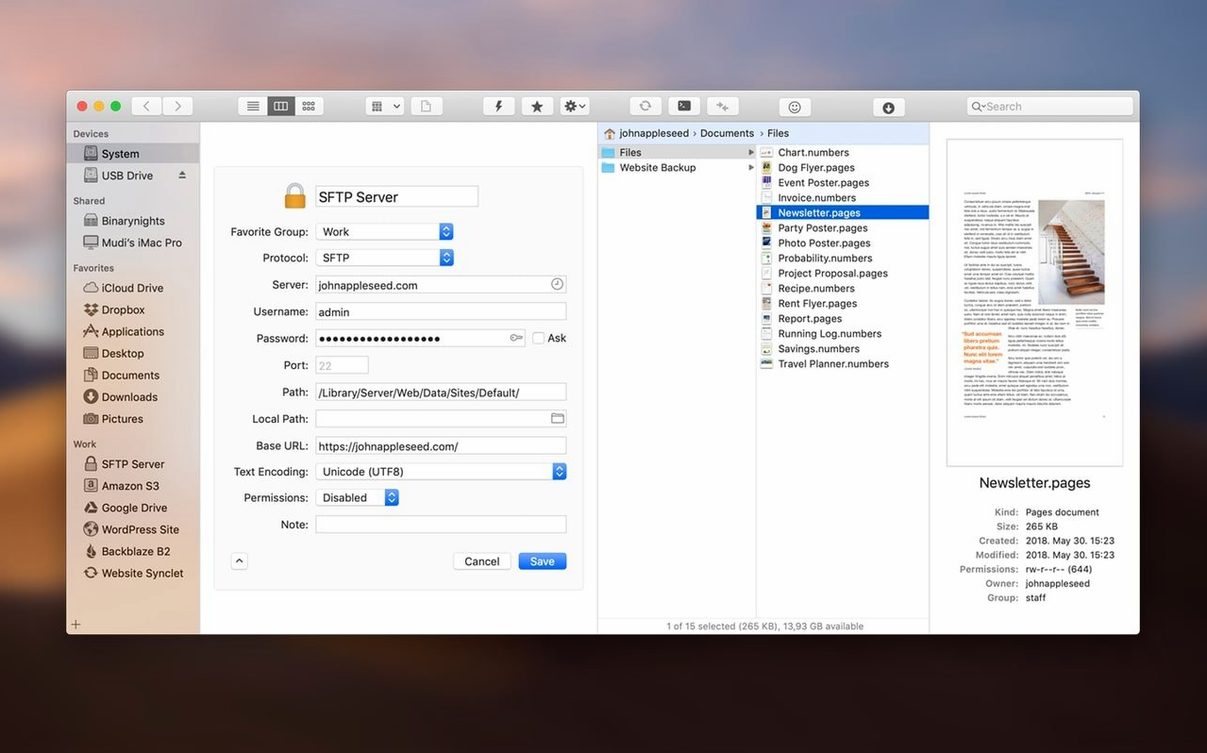
If Finder feels fine until you need to wrangle files across servers or sync folders, ForkLift 4 shows what a Mac file manager can do with two panes and a direct line to your remote servers. It looks familiar at first, then quietly adds tools under the surface. Here are a few concrete things to try once you launch it.
Later, you might browse archives as if they were ordinary folders or connect to multiple servers at the same time. The first hour is about moving faster between local and remote places without switching apps.
ForkLift sits comfortably between Finder, your terminal, and a handful of cloud services. Apple’s built-in file browser does the simple stuff well, but this one adds a layer that plays nicely with macOS tags, Spotlight comments, and Quick Look. The preview pane in ForkLift leans on the same system-wide preview engine, so anything that renders in a Finder Quick Look window — images, PDFs, plain text files — shows up without opening another app. Drag a file from a remote SFTP server onto a local tag in the sidebar, and that tag sticks to the local copy the same way it would if you had downloaded it through Safari.
The integration with terminal apps goes deeper than a shortcut. When you pop open iTerm or Terminal from within ForkLift, the session starts in the exact directory you were browsing locally, or on the remote server if the connection protocol supports it. It means editing configuration files on a remote machine can flow from browsing in ForkLift to tweaking in vim or nano without a single cd command. The same works with Hyper if you lean toward newer terminal emulators. If you juggle multiple remote servers, keeping a terminal tab pinned to each one becomes a two-click routine.
ForkLift also understands SMB and AFP volumes the way Finder does. Connect to a network share in either app, and it appears in ForkLift’s volume list. The dual-pane layout makes copying between a local folder and a network-attached storage device feel less like a file transfer operation and more like tidying a desk. You can even treat Amazon S3 buckets and WebDAV shares as regular volumes, which means backup workflows that involve dragging a local project folder into a dated bucket folder become muscle memory.
A few rough edges show up for new users, and they are mostly about macOS permissions and connection quirks. One frequent hiccup: after mounting the disk image and dragging the app to Applications, launching it triggers a Gatekeeper warning. The install steps cover the terminal command to bypass it, and it only needs doing once. On machines with System Integrity Protection fully locked down, you might hit a prompt about SIP. Disabling it is not always necessary, but if the app refuses to open after the Gatekeeper step, a quick check in Recovery Mode usually clears the logjam.
Remote connections can trip people up when the server expects a specific SFTP key path that ForkLift does not guess. By default, it looks in ~/.ssh for standard key names. If you use a non-standard key or a passphrase-protected identity, adding it manually in the connection bookmark’s advanced settings saves a lot of retries. For SMB shares that refuse to mount, switching the SMB protocol version in the bookmark — sometimes dropping back to SMB2 from SMB3 — resolves handshake failures on older NAS boxes. The error messages are sparse, so knowing where that dropdown lives is half the battle.
A more subtle snag involves the archive browsing feature. ForkLift treats .zip, .tar.gz, and .rar files like folders, but if you try to open a password-protected archive, it simply shows nothing inside. There is no prompt for a password. The workaround is to extract the archive with a dedicated utility first, then browse the contents. A few users hunting for a ForkLift Mac alternative might also come across a ForkLift torrent or a ForkLift crack, where the clean version from the developer sits right alongside those builds.
Out of the box, ForkLift picks sensible defaults, but three tweaks make it feel more like home. The first is the default editor for local and remote files. The built-in text editor is serviceable for quick notes, but pointing it to BBEdit, Sublime Text, or VS Code under Preferences → Editing turns the remote editing feature into a proper development setup. When you save a file in your external editor, ForkLift pushes the changes back to the server without an extra step.
The second is the dual-pane layout orientation. The default vertical split works for wide screens, but on a laptop, a horizontal split often gives more usable space per pane. Switch it in the View menu or with a keyboard shortcut, and the file lists breathe a little more. While you are in the View settings, enabling Show Hidden Files with a single toolbar toggle saves trips to the terminal when you need to tweak .htaccess or .env files on a remote server.
Third, configure favourite folders aggressively. ForkLift lets you drop any local or remote directory into the sidebar, and those shortcuts become global across all connections. A remote project folder on an SFTP server can sit right next to a local Downloads folder, and switching between them is a single click. If you regularly search through server logs, adding a saved search filter that scopes by file extension and modification date turns a recurring chore into a saved query you can trigger with a toolbar button. These small adjustments pile up, and after a week, the app feels less like a utility and more like the central hub it was designed to be.
Yes, you can open and save text files on local and remote servers without downloading them separately first.
It compares local and remote sources before a sync, so you can review the differences before any files are copied.














Chat 0
Hop in or make an account to join the chat.
Quiet in here so far. If you have used this build, tell me what the install actually did.