
 Luminar Neo
 Loopback
 Lunar Pro
 Loop Mash Up Pro
 MacBooster
 MacCleaner Pro
 MacDroid Pro
 Logic Pro

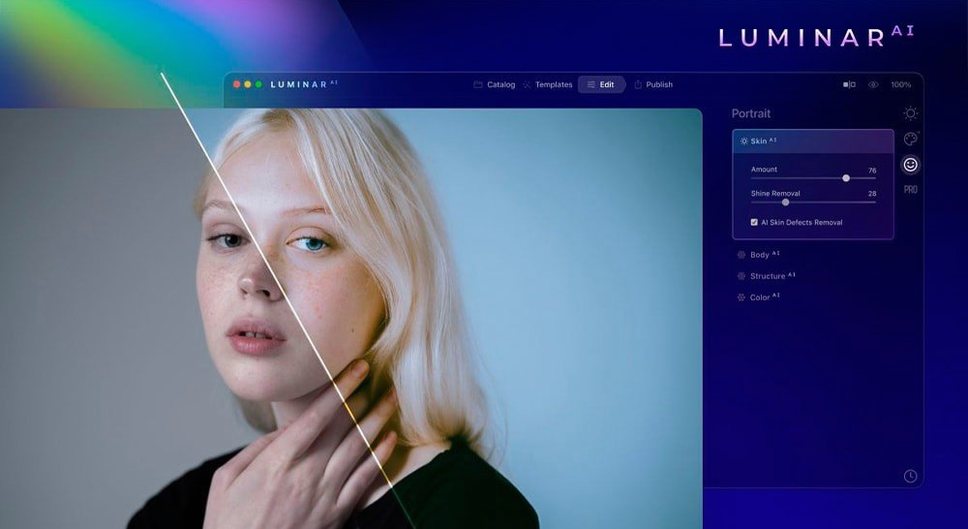
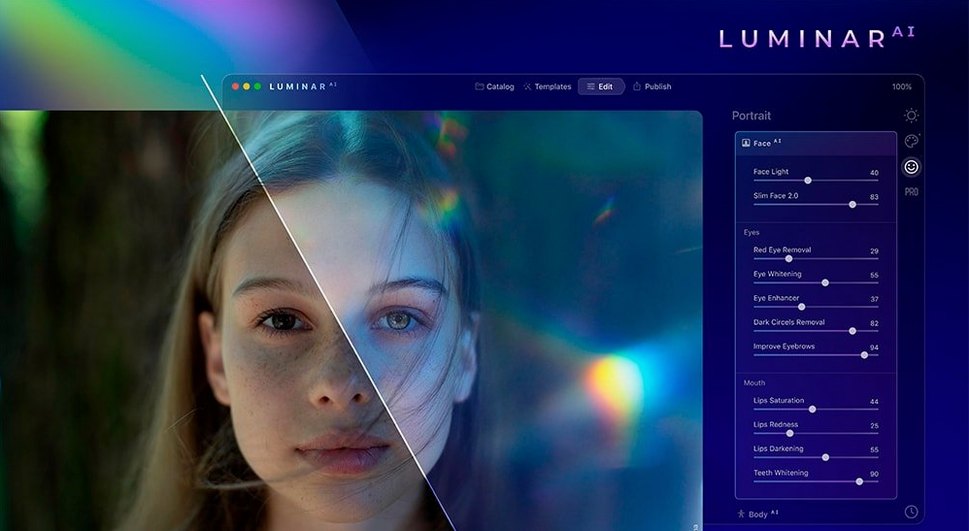
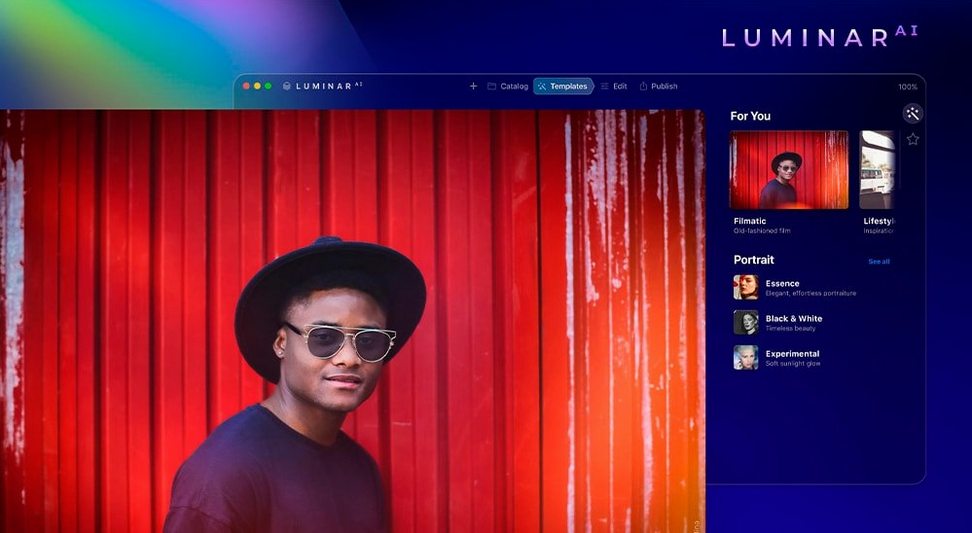
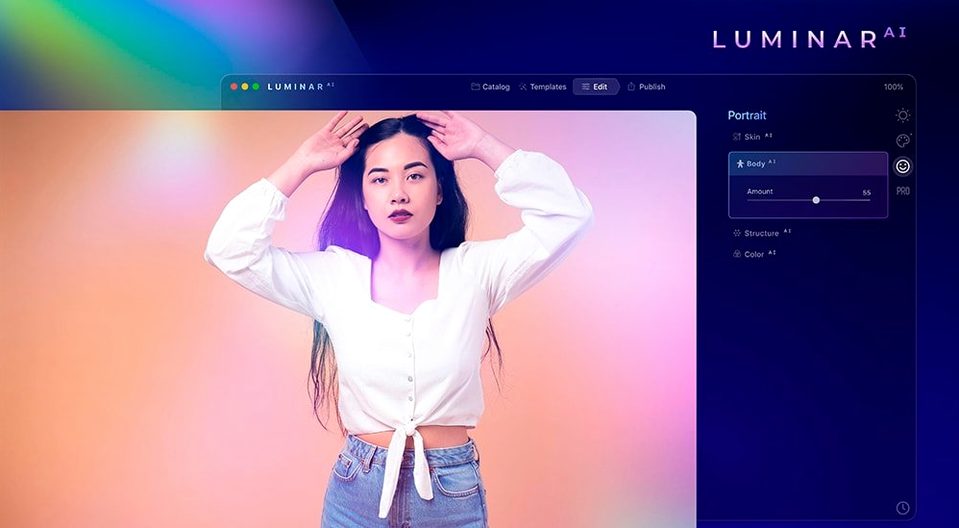
Luminar AI is a photo editor where the heavy lifting is handled by artificial intelligence, available as a standalone app and a plugin for other tools you already run.
You can launch it on its own for a full session, or call it as a plugin from Lightroom Classic or Photoshop. That means you keep your existing catalog and simply hand off an image when you want the AI-driven adjustments.
Composition AI crops to a recognised rule set. Structure AI lifts detail in people, water, sky and solid objects without touching the areas you want left smooth. Iris AI sharpens and brightens eyes in a few clicks, while Atmosphere AI layers in fog, drizzle, haze or steam without masks.
It supports macOS 10.13.6 and up, and runs natively on both Intel and Apple Silicon machines. The interface is localised in eleven languages, including English, German, Japanese and French.
Version 1.5.5 (13797) tightened a handful of everyday behaviours rather than adding splashy new sliders. The most noticeable fix: Sky AI now holds its edge detection on horizon lines with trees or buildings that used to bleed a faint halo into the replacement sky. You spot the difference fastest in backlit shots where branches cross a bright cloud bank.
Performance nudged forward too. Switching between the Catalog and Edit modules feels snappier on M1 and M2 Macs, and the app no longer stutters briefly when you scrub the Accent AI slider across a high-resolution RAW. If you run luminar ai 1.5.5 as a Photoshop plugin, the round-trip from Lightroom Classic is a fraction quicker — Skylum smoothed the handshake that sometimes left a blank preview thumbnail hanging for a beat.
Template previews inside the Templates panel load incrementally now, so you can flick through looks without waiting for every thumbnail to resolve first. Small change, but it makes browsing the library feel less like a loading screen.
Three names tend to circle the same conversations: Pixelmator Pro, Photomator, and ON1 Photo RAW. Each approaches AI-assisted editing from a different angle.
Pixelmator Pro leans hard into machine learning for colour adjustments and layer-based compositing. Its ML-based Super Resolution and automatic subject selection rival Luminar AI's precision, but the toolset expects you to understand layers and masks. Luminar AI strips that complexity away — templates and sliders do the job without touching a layer panel. If you want speed and a flat learning curve, Luminar AI wins. If you layer textures and composite manually, Pixelmator Pro gives you more control.
Photomator (from the same team as Pixelmator Pro) focuses squarely on photo repair and colour grading. It handles RAW development beautifully, and its auto-enhance is genuinely tasteful, but it lacks the portrait-specific AI tools Luminar AI builds around: no Body AI, no Iris AI, no Skin AI that preserves pore texture. For a quick landscape edit, Photomator holds its ground. For a portrait session, Luminar AI saves you an hour of spot-healing and dodging.
ON1 Photo RAW sits closest in ambition — it bundles AI sky replacement, portrait retouching, and layers into one package. Its cataloguing and masking tools run deeper than Luminar AI's, yet the interface feels busier. Luminar AI prioritises picking a template and tweaking three sliders; ON1 rewards users who want to build a mask stack from scratch. Both produce polished results, but Luminar AI gets you there with fewer decisions.
Luminar AI was designed to slide between other apps without forcing a new file structure. Drag a RAW into the standalone window, apply Atmosphere AI and a Skin AI pass, then export a TIFF straight into an Apple Photos album. The edited file appears in Photos alongside the original, ready for sharing or further cropping.
If you use luminar ai mac alongside Lightroom Classic, the plugin route keeps your catalogue intact. Send a headshot from Lightroom, run Face AI and Bokeh AI, and Luminar returns the layered result to your stack. No sidecar files to chase later.
macOS integration runs deeper than the plugin paths. The app respects system-wide colour profiles, so a display calibrated in System Preferences translates faithfully to the canvas. Quick Look previews work on exported JPEGs and PNGs without a metadata hiccup. And because the app is Apple Silicon-native, it plays nicely with iPad Sidecar — you can park the Templates panel on a secondary screen while the main canvas fills your Mac display.
For anyone grabbing the latest build, the install flow is straightforward: mount the disk image, launch the Gatekeeper-friendly app, and drag it into Applications. The current release carries the TNT team's signature, which keeps activation quiet on Intel and Apple Silicon machines alike.














Chat 0
Hop in or make an account to join the chat.
Quiet in here so far. If you have used this build, tell me what the install actually did.