
 Mountain Duck
 Movavi Video Converter
 Movavi Video Editor
 Movavi Video Suite


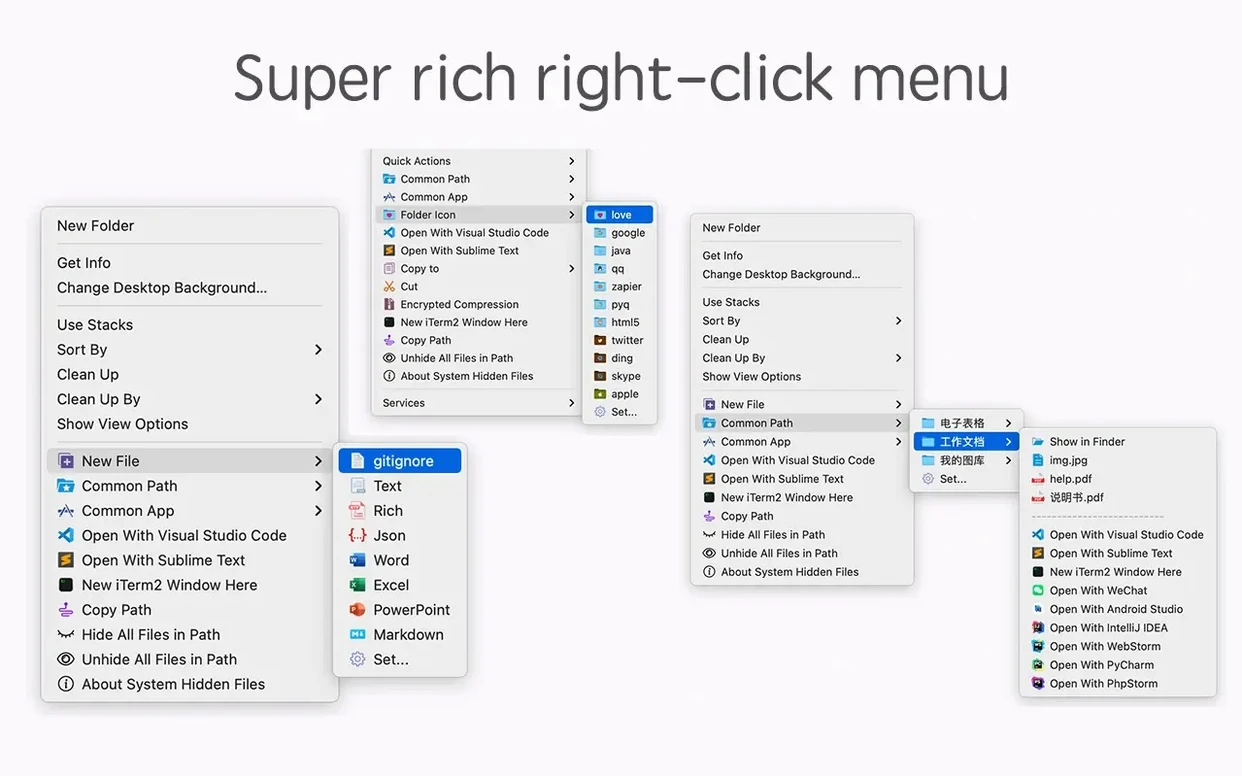
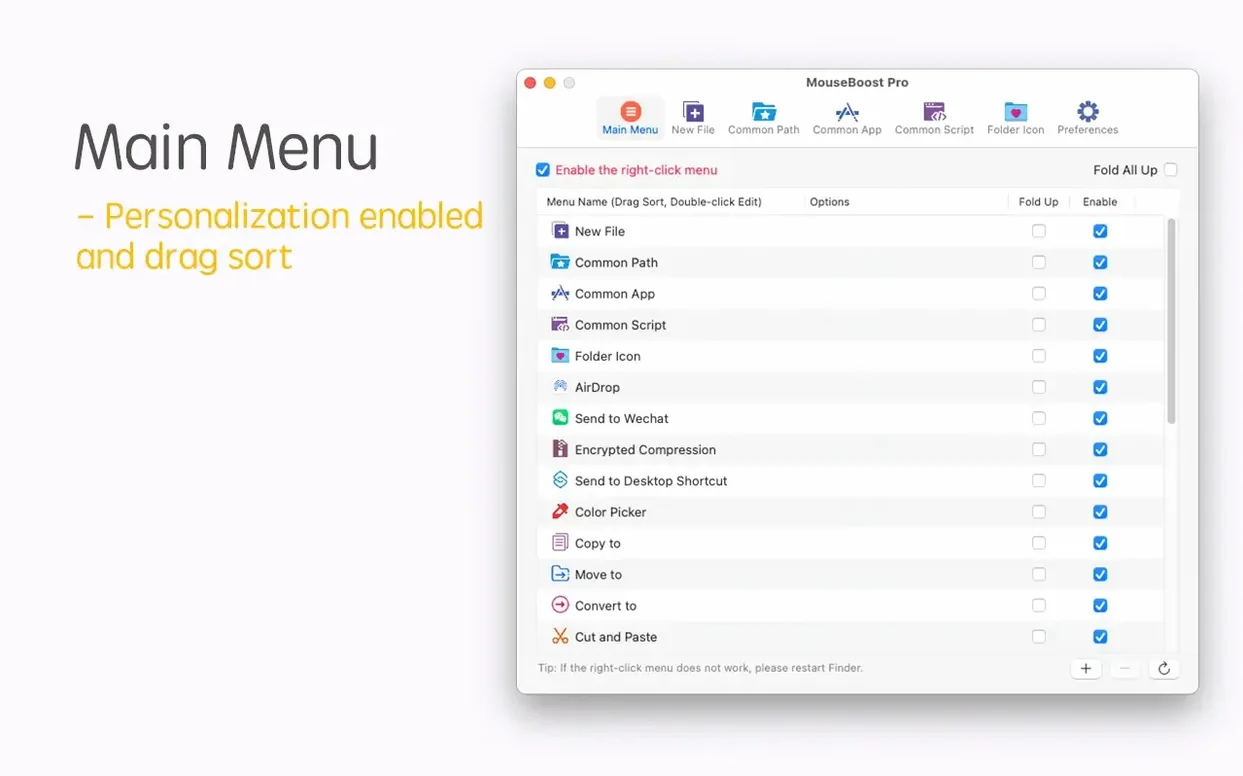
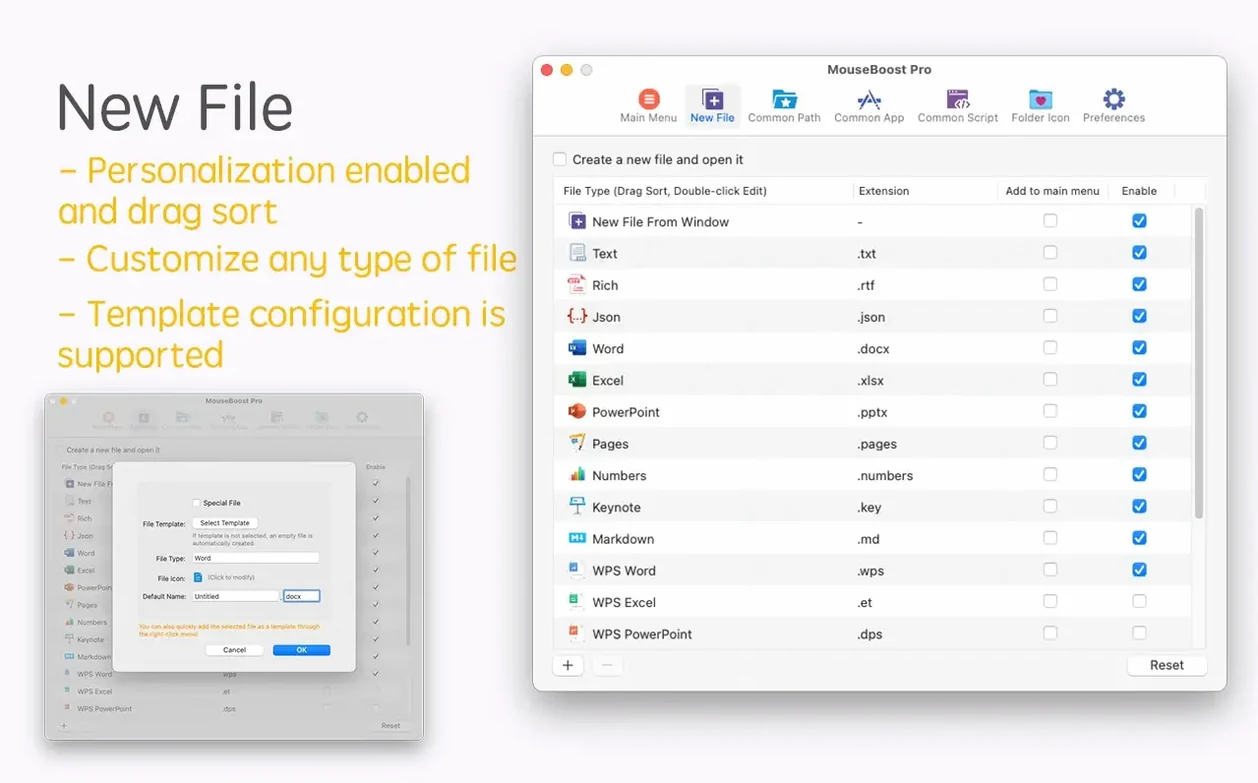
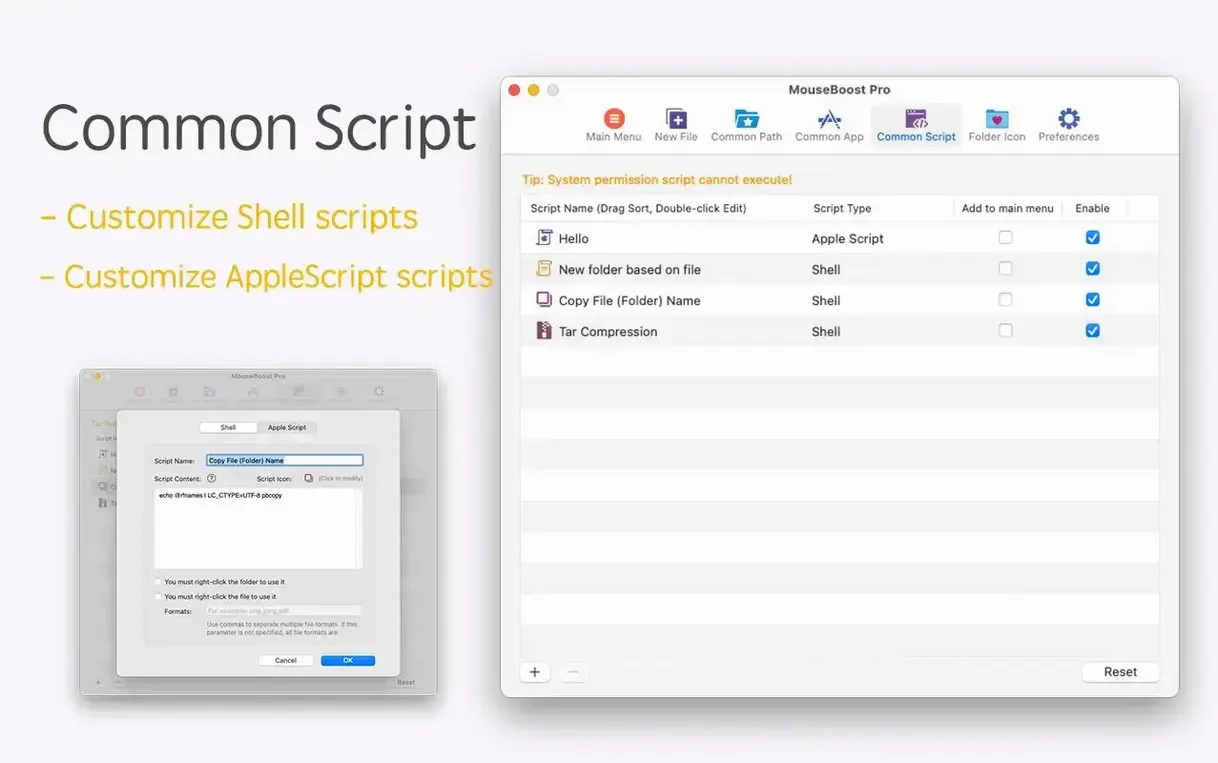

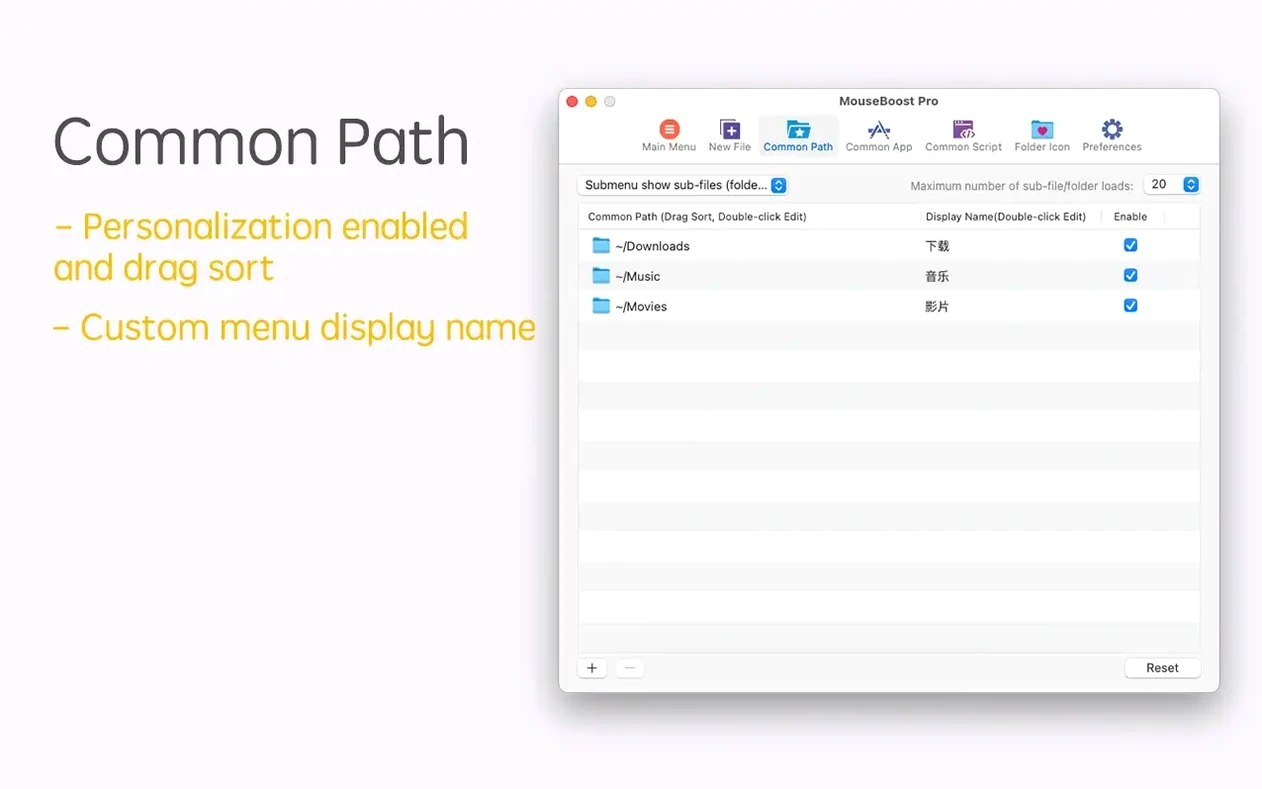
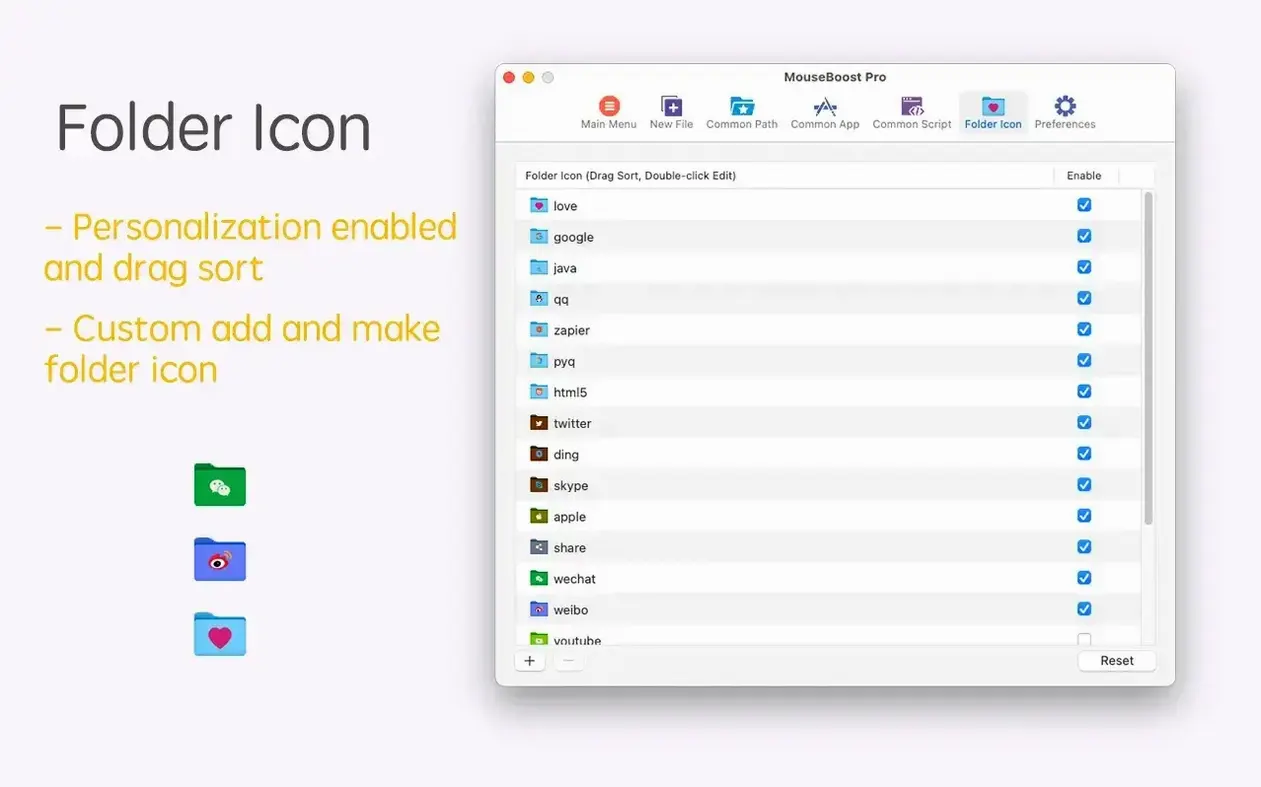
MouseBoost Pro is a Finder extension that puts file actions and utilities right inside your right-click menu.
Right-click menu — extra commands appear when you control-click a file or folder in Finder, sitting alongside the system’s default options.
Path copy — grab the full file path as plain text without opening a Terminal window.
File checksums — calculate MD5, SHA1, or SHA256 hashes from the menu to verify downloads or spot duplicates.
Open in editor — send a file straight to VSCode, Sublime Text, or Emacs.
File visibility — hide and show specified files without touching Terminal commands.
Secure delete — permanently remove files so they skip the Trash and can’t be recovered with basic tools.
Encrypted zip — compress files and protect them with a password, all from a right-click.
After a week of having it installed, you stop noticing MouseBoost Pro as a separate app. Right-clicking a folder and hitting the iTerm2 shortcut feels as natural as ⌘C. The tools load without a splash of lag — menus draw instantly on an M1 Mac, and the app itself idles around 30–40 MB of RAM with zero CPU spikes when it’s just sitting in the background. If you trigger five or six actions back-to-back, like generating checksums on a batch of video files, the progress is immediate and the Finder stays responsive.
On older Intel machines that still meet the OS X 10.11 floor, the memory footprint hovers closer to 60 MB. That’s still featherweight for a utility that bundles 30-odd functions into a single extension. I’ve seen no beachballs, no Finder restarts, and no mysterious hangs — just a quiet helper that does its job and gets out of the way.
The most common slip is leaving every single action enabled. The menu swells into a long scroll that buries the macOS defaults you actually use. A clean setup takes two minutes: open preferences, uncheck anything you don’t need daily, and drag the keepers into a logical order. Treat it like a toolkit drawer, not a museum.
Another early misstep is relying on “permanently delete” before checking the file’s dependencies. A lot of design-build workflows spit out temporary config files that sit next to source folders — MouseBoost Pro’s secure delete will happily vaporise them with no trash buffer. Good habit: verify the file path in the menu’s “Copy path” line before you commit to wiping it.
New users also overlook the custom file-type creator. It’s easy to type a filename with a dot-prefix and expect a hidden file, but the tool needs the “hide specified files” toggle turned on separately. If the file stays visible, that’s the fix — not a bug.
Version 5.2.8 added a few touches that shift mouseboost pro from a pure context-menu gizmo into something closer to a lightweight file inspector. The folder tree preview shows a collapsible hierarchy right in the quick-look panel — great when you’re peeking into project directories without opening a full Finder window. Batch renaming got smarter too: you can now insert text at a chosen character position across dozens of files, or feed in a plain-text list of new names and let the tool match them line-by-line.
The scrolling capture improvements and auto-OCR copy are less about Finder menus and more about the built-in screen utility, but they’ve tightened up the workflow for designers who grab reference shots. Aspect ratio selection means the capture respects proportions without manual cropping, and the OCR copy drops recognised text straight onto the clipboard — no need to open a separate tool.
The maximum depth setting for file trees keeps exports tidy. Instead of a bottomless directory dump, you can cap the listing at two or three levels, which makes the output readable at a glance. Combined with the fixes for known crashes in earlier builds, 5.2.8 feels like the point where mouseboost pro mac polished its rough edges without adding bloat.
You choose which actions appear. The menu is customisable, so it stays lean next to the apps and utilities you already use daily.
No, it extends it. The standard macOS options stay in place, and MouseBoost Pro adds its own section.
Yes. The app includes a toggle to hide and show specified files directly from the right-click menu.
It can calculate MD5, SHA1, and SHA256 hashes, plus display other file information.














Chat 0
Hop in or make an account to join the chat.
Quiet in here so far. If you have used this build, tell me what the install actually did.