
 Mountain Duck
 MouseBoost Pro
 Movavi Video Converter
 Motion

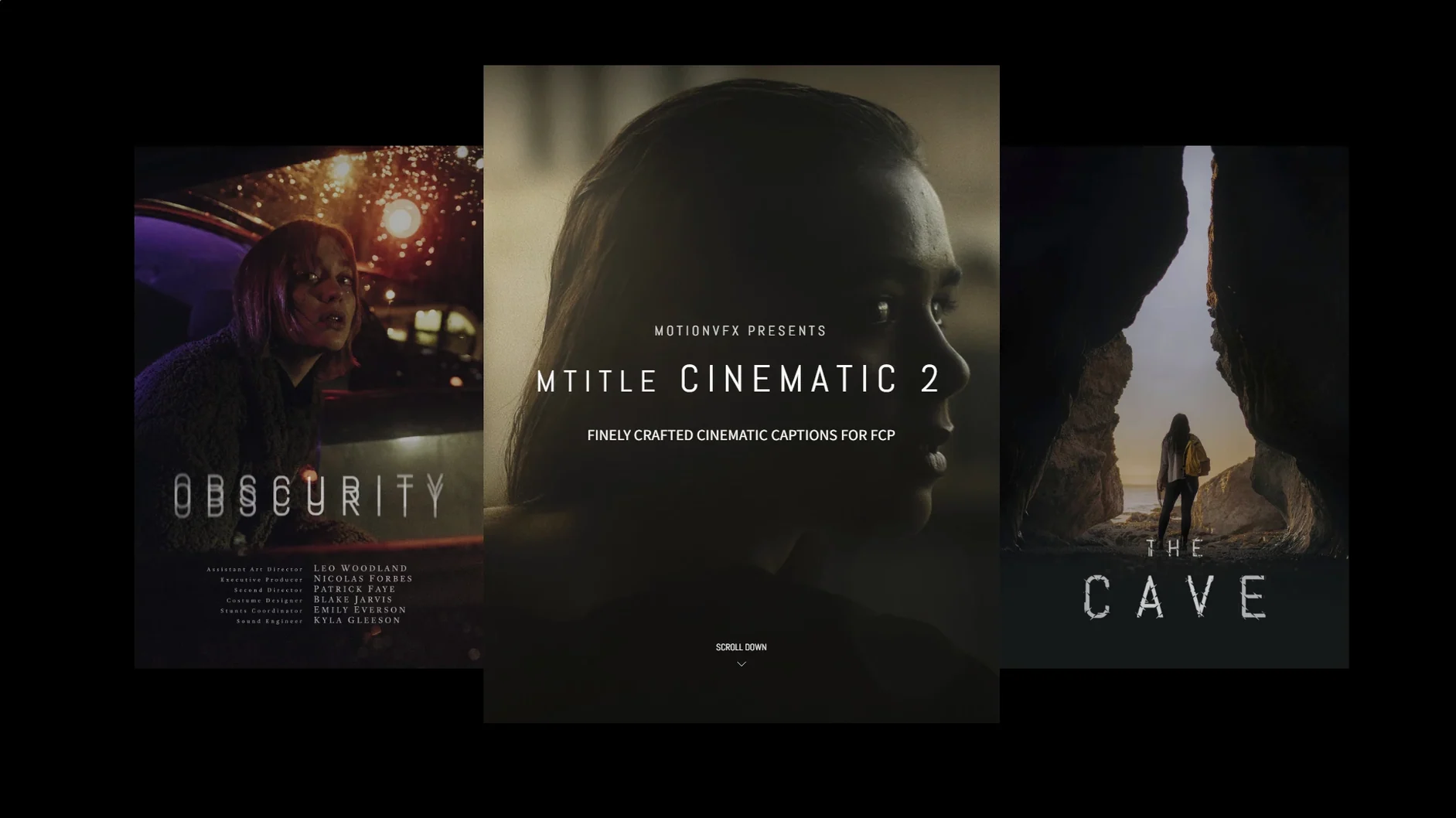
Plain captions can flatten a carefully edited sequence. mTitle Cinematic from motionVFX is a set of 50 animated titles built to give Final Cut Pro projects the weight and movement of film openers and scrolling credits, without leaving the timeline.
Each title comes with built-in animation, so you drop it on the timeline and adjust the text and timing. The set leans into controlled pacing and wide-screen composition, matching the mood of trailers, title sequences and end rollers. Motion 5.4.3 users can open the templates and tweak the animation curves further if the default moves need a lighter or heavier touch.
A handful of small touches inside mTitle Cinematic are easy to walk straight past on the first few edits. Tapping the ⌥ (Option) key while dragging a title in the timeline nudges it by sub-frames instead of snapping to the nearest frame boundary. It is the quickest way to land a credit exactly where a music swell peaks. Another quiet helper is the ⇧ (Shift) + F shortcut when a title clip is selected: it jumps straight to the template’s published parameters inside the inspector, bypassing the usual scroll through transform and crop sections you rarely need for a pre-built animation.
If you often stack two or three mTitle Cinematic captions in a project, give the template folder a predictable structure early. Inside /Movies/Motion Templates/Titles, group the 50 titles into subfolders like Openers, Lower Thirds and End Rollers. Final Cut Pro mirrors those folder names inside the title browser, so you spend less time hunting for a specific style mid-edit. The templates ship as a flat set; the organising step is manual but takes under two minutes.
A few defaults reward a quick tweak before you start building out a sequence. Open the inspector and check the Scale behaviour. Some of the wider cinematic layouts default to “Fit” instead of “Fill”, which can leave thin black bands on a 16:9 timeline if the template was designed with a slightly wider aspect ratio in mind. Switching to Fill cleans it up instantly.
Next, look at the Motion Blur toggle inside the published parameters. It ships off for most titles to keep previews snappy on older Macs, but turning it on and setting samples to 16 or 24 brings the movement much closer to what you would see in a rendered film sequence. The difference is especially noticeable on the fast credit rolls and whip-pan openers.
The Text Tracking slider is worth a small nudge too. Several templates default to a fairly tight letter spacing that reads well in English but can feel cramped with longer words in other languages. Bumping tracking from 0 to 2 or 3 opens the type just enough without breaking the cinematic proportions.
A common early snag is the template appearing greyed out in the title browser. This is almost always a folder path issue. The files must sit directly inside /Users/username/Movies/Motion Templates/Titles, not inside an extra wrapper folder that some unzip utilities create. Double-check that you see the individual title folders — not a single parent folder containing them — when you browse the path in Finder. Restart Final Cut Pro after moving them and the titles appear ready to use.
Another small hiccup shows up when editors copy a title from one project to another and the animation timing suddenly feels off. This happens because the template’s internal keyframes are tied to the original clip duration. If your new timeline uses a different frame rate, stretch or compress the title clip by a few frames and the motion re-syncs to the new length. The on-screen controls won’t show this; you just feel it snap back into rhythm.
People working with a mtitle mega pack dvr setup sometimes notice duplicated entries in the browser. That is not a bug: if you have an older mTitle collection installed alongside mTitle Cinematic, Final Cut Pro reads both sets. Renaming the older folder with a leading underscore — _Old_mTitle — hides it from the browser without deleting the files, keeping the list clean while you test the new pack.
When a title refuses to animate in the viewer, check the Opacity fader inside the published controls. A few templates ship with the fader at 0% to let you animate the reveal manually. Slide it to 100% and the built-in animation plays as expected. The same panel often holds a Background checkbox that adds a subtle dark gradient behind the text, useful when a title gets lost over bright footage without needing a separate solid layer underneath.
On machines running Final Cut Pro 10.4.6, the mtitle cinematic 2 free download files pull their preview thumbnails from the template’s first frame. If a thumbnail looks blank, open the template in Motion 5.4.3, move the playhead to a frame where text is fully visible, and save. The thumbnail updates in Final Cut Pro the next time you launch it.
You need a Mac running macOS 10.14.4 or later, with Final Cut Pro 10.4.6 or Motion 5.4.3 installed.














Chat 0
Hop in or make an account to join the chat.
Quiet in here so far. If you have used this build, tell me what the install actually did.