
 QuarkXPress
 RAR Extractor - unzip
 QSpace Pro
 RAR Extractor
 QLab
QLab Raycast Pro
 ProPresenter
 Prizmo Pro


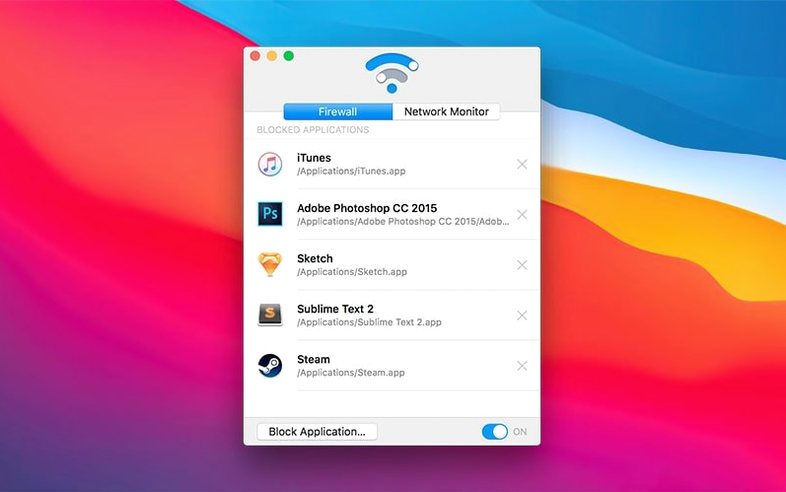
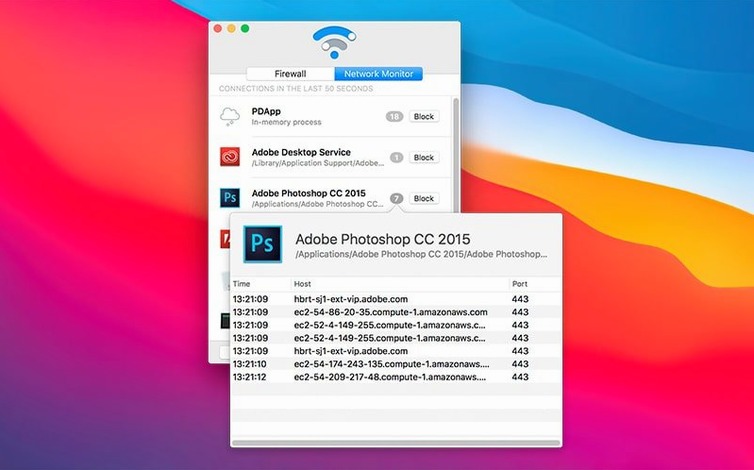
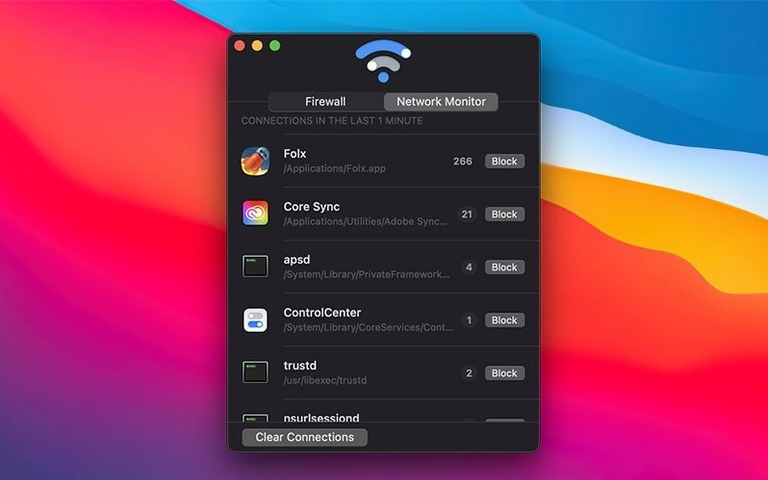
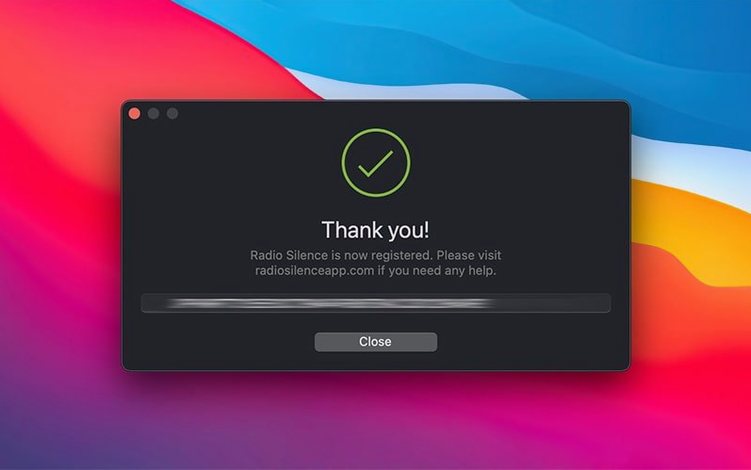
Version 3.4 is built for macOS Tahoe and smooths out the install. Permission errors and missing-helper hiccups now get a dedicated help view if something trips at launch. It still runs on macOS 10.15 and later, across Intel and Apple Silicon Macs.
| Detail | What you get |
|---|---|
| Real-time monitor | Lists connections apps start, no menu bar icon needed |
| Blocking | One-click Block Application button; Firewall tab shows blocked apps |
| Architecture | ARM and x86 64-bit |
| Pause | Firewall can be paused temporarily |
| Language | English |
Radio Silence sits quietly beside the rest of your toolkit. It does not add clutter to the menu bar—connections appear in a simple list you open when you need it. Tapping the Block Application button stops an app from phoning home, and the Firewall tab keeps a tidy record of what you have cut off. If you just need a break, pause the firewall and everything resumes. It is the sort of tool that makes sense next to a clipboard manager or a launcher: small, focused, and out of the way until you want it.
Most people wonder whether Radio Silence will clash with a VPN or a corporate firewall. It sits alongside them without fuss — it only cares about which apps can talk to the network, not how they route once they are allowed through. If you use Little Snitch or another firewall, you would normally pick one or the other. Running two application firewalls at once can make troubleshooting messy.
Another common worry is whether blocking an app breaks its functionality. The answer depends on the app. A text editor that syncs via iCloud will still open local files, but its cloud features go quiet. A weather widget simply stops updating. Radio Silence does not fake a connection or trick the app; it just shuts the door. If you pause the firewall, the app picks up exactly where it left off.
People also ask about resource use. The app runs lean — no menu bar icon means no constant redraw, and the connection list only refreshes while the window is open. On an M1 MacBook Air it barely registers in Activity Monitor. There is no background service chewing through battery.
Finally, some users want to know if it catches everything. Radio Silence monitors TCP and UDP connections that apps initiate. It is not a deep packet inspector. For most people, that is exactly enough — you see which apps reach out and you decide whether they get to.
Little Snitch is the name most people think of first. It offers rulesets, per-connection prompts, and a detailed map of every handshake. That power comes with noise — pop-ups asking you to allow or deny individual connections. Radio Silence keeps it simpler. You block an app or you do not. There are no profiles to manage and no onboarding wizard to wrestle with.
Tripmode works differently again. It is built for metered connections — hotspots, tethered phones, stingy hotel Wi-Fi. You whitelist only the apps you want online and everything else gets blocked until you switch modes. Radio Silence is not mode-based; it runs silently in the background and your blocked list stays active until you pause it. Tripmode suits people who move between networks. Radio Silence suits people who want certain apps to never connect, full stop.
Lulu is the closest in spirit — a free, open-source firewall that also blocks per-app. It asks more questions during setup and shows alerts when new connections appear. Radio Silence trades those alerts for a quieter approach. You open the window, you scan the list, you block what you want. No prompts, no decision fatigue.
Say you have downloaded a screen recording utility from a small developer. You want it to save local files but you would rather it did not check for updates or send analytics. Here is a workflow that takes about thirty seconds.
Open Radio Silence. The connection monitor lists active apps that have recently reached out. Launch the screen recorder and watch the list — within a second or two its name appears alongside the remote addresses it has contacted. Select the app in the list and click Block Application. That is it.
Now open the Firewall tab. You will see the screen recorder sitting in the blocked list. Its icon sits there as a reminder. If you later decide you do want updates, select it and remove it from the list, or pause the whole firewall while you check for a new version. No digging through plists, no terminal commands.
The monitor keeps showing attempted connections from blocked apps as greyed-out entries. You can see the app trying to phone home and Radio Silence holding the line. That visibility is useful when you are testing whether a block is too aggressive.
Imagine a technical writer who drafts documentation in a Markdown editor that syncs to a team server. She prefers to work offline until a piece is ready to share, but the editor connects every time she opens it. Radio Silence blocks just that editor. She writes all morning and the app never syncs. When she is ready, she pauses the firewall, lets the sync complete, and blocks it again. Her draft stays local until she chooses otherwise.
She also keeps a design tool blocked permanently — it has no business online for her work, and she prefers it that way. The Firewall tab shows three apps in total. She checks the monitor once a fortnight, curious if anything new has crept in. It is a small ritual that fits neatly into a Friday tidy-up session.
Good to know: the app does not add a menu bar icon, so if you want to stay aware of its state, pin the Firewall tab in your regular window set. A quick glance shows whether the wall is up.














Chat 0
Hop in or make an account to join the chat.
Quiet in here so far. If you have used this build, tell me what the install actually did.