
 Serato DJ Pro
 Serato Studio
 Shadowrocket
 RubyMine
 Sidebar
 Sketch
 SketchUp Pro
 RightFont


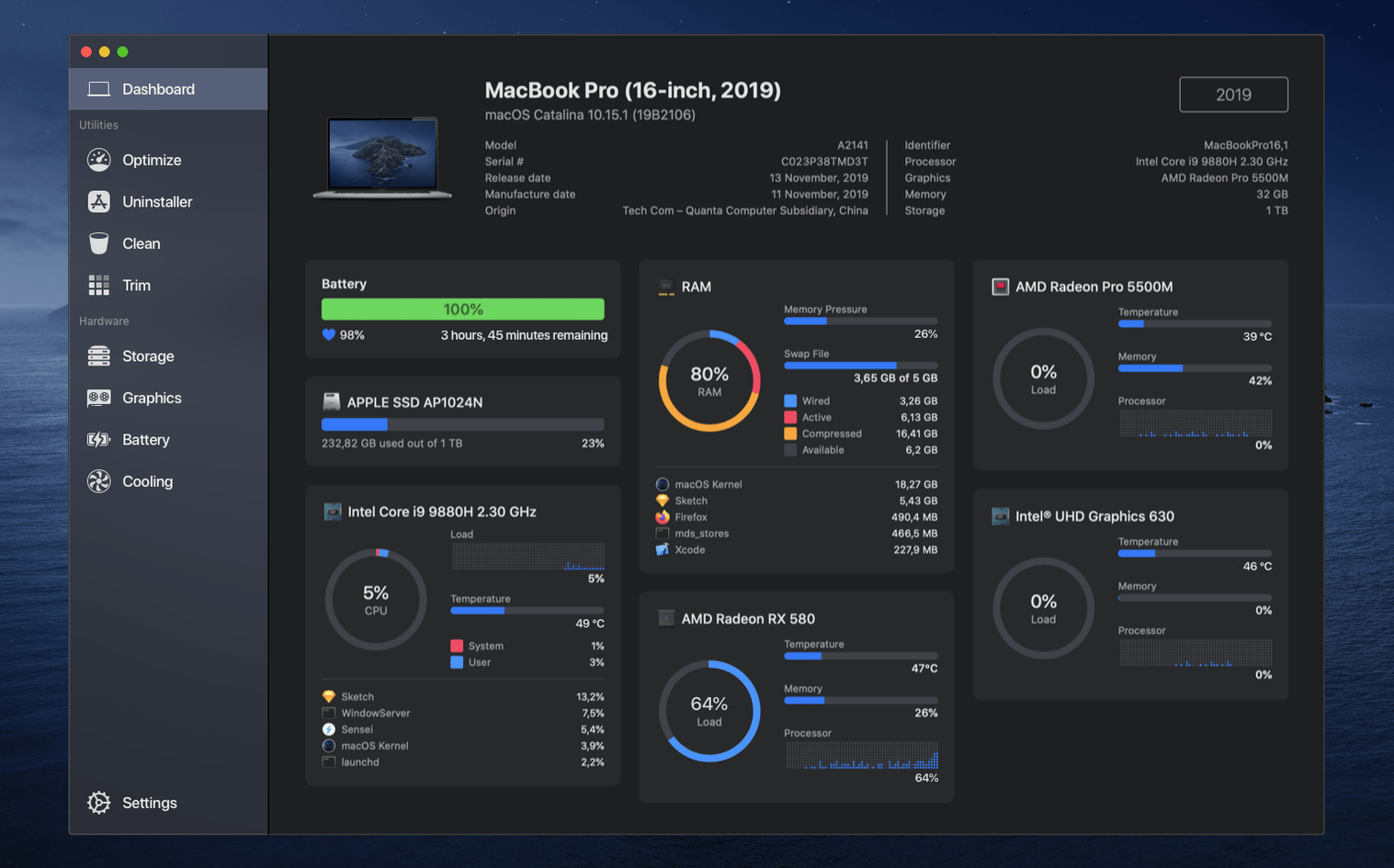
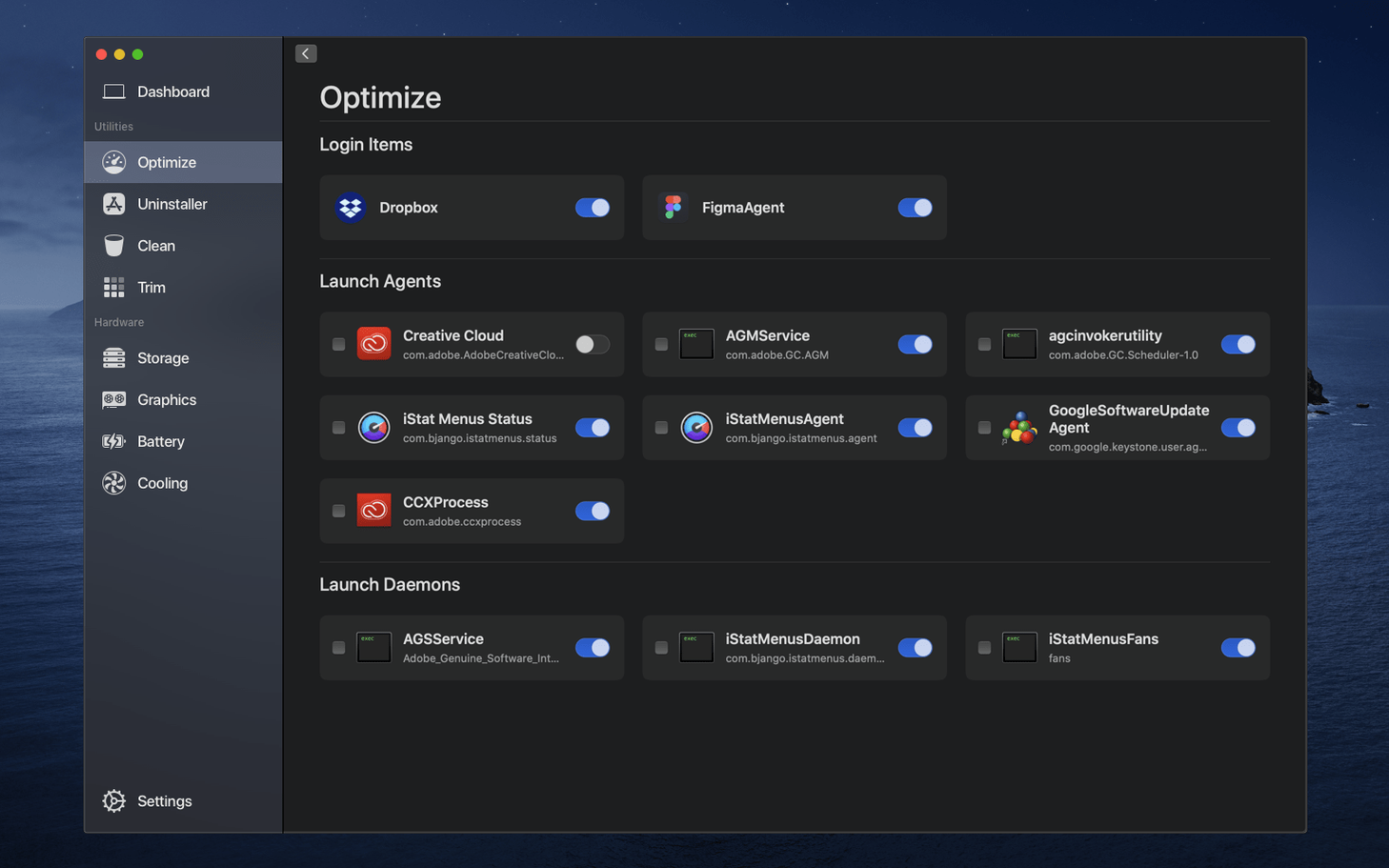
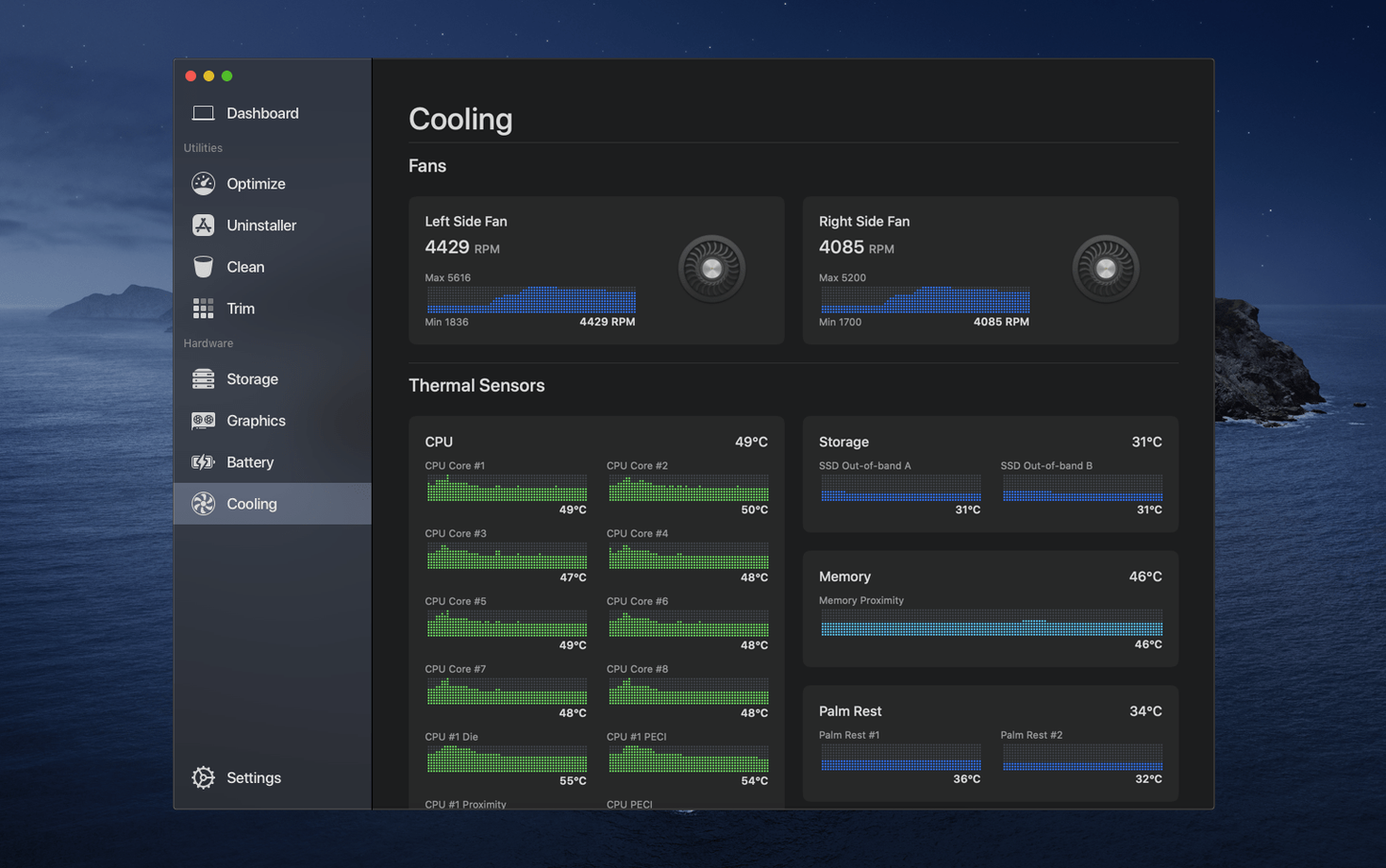
The Temperature Monitor is a gentle way in — a live reading of what your Mac’s internals are doing without any clutter. From the menu bar it sits quietly, just a number and a tiny graph, until you click for the full snapshot.
Once you’re comfortable, open the main window and head to the Clean section. It scans for system junk, old caches and leftover files with a single click. The results are laid out in plain groups, so you can approve or skip each category before anything gets removed.
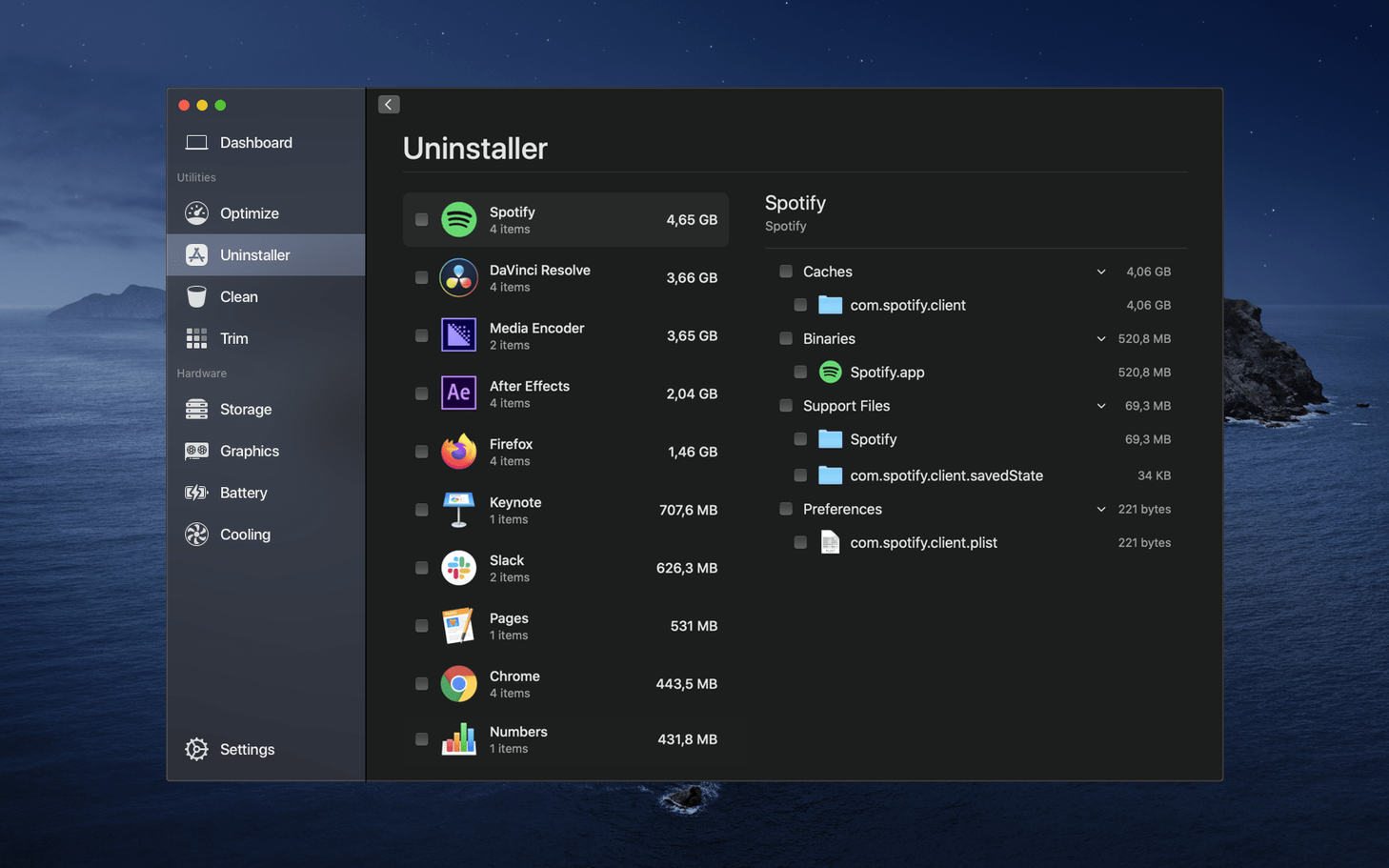
While you’re there, the Uninstaller is worth a look. It finds apps and their scattered support files — preferences, containers, logs — and clears them out together. Much tidier than dragging an icon to the bin and hoping for the best.
Everything lives in the one window. Monitoring, cleaning and uninstalling share the same clean interface, so you’re never hunting through separate tools. Between the menu bar monitor and a quick clean, you’ll have a cooler, lighter Mac in a few minutes.
A freelance video editor sits down to a machine that’s been chugging through proxy renders all night. The fans are at full tilt and the laptop case is warm to the touch. Before opening the timeline, they check the menu bar — CPU cores are all above 85% and the SSD temperature is nudging 50°C. Sensei’s Dashboard confirms the GPU has been pinned since 3am. They launch the Clean tool, clear out 23GB of render caches from three different NLEs, then switch to the Fan Control pane and bump the curve up for ten minutes to pull the heat down faster. Within a quarter of an hour the machine is quiet again and ready for client review notes.
Next to CleanMyMac X, Sensei feels more like a hardware monitor that also cleans. CleanMyMac leads with its scanning assistant and malware scanner; Sensei gives you raw sensor data and TRIM status before you ever touch a cleanup. If you want a friendly guide through junk removal, CleanMyMac fits. If you want to see why your Mac is lagging before you delete anything, Sensei is the sharper tool.
iStat Menus digs deeper into menu bar monitoring — you can build a full strip of CPU, network and disk indicators. But iStat Menus doesn’t clean or uninstall. Sensei bundles monitoring with a capable cleaner and a thorough uninstaller, so you get two categories in one app instead of wiring together a monitoring suite and a separate cleanup utility.
MacBooster 8 targets the same overlap but loads its interface with big status dials and optimization promises. Sensei stays quieter: the menu bar monitor is a single temperature reading or a compact stat, and the cleaning tool gives you a straightforward list rather than a health score to chase.
Hardware‑curious users who like knowing their SSD wear percentage, battery cycle count and whether TRIM is active get the most from Sensei. The sensor panels reward a quick daily check without demanding deep terminal knowledge.
Freelancers and remote workers who rely on one Mac for editing, code compilation or 3D work will lean on the menu bar monitor. Spotting a thermal spike while a render is running lets them decide whether to pause and cool down rather than push through and throttle.
Anyone managing multiple Macs in a household — a family iMac plus a personal MacBook Air — can use Sensei to keep track of battery health on the portable and clear accumulated caches on the desktop with the same familiar tool. The uninstaller alone saves them from hunting down helper files when the kids drag‑and‑drop apps to the bin.
If you’re the sort of person who already glances at Activity Monitor but wants a clearer picture, Sensei rewards you with exactly the detail you’re after and nothing more.
Yes, the System Monitor runs from the menu bar and shows live temperature readings along with other hardware status details.
Absolutely — it combines performance monitoring, disk cleanup, temperature tracking and app uninstallation in a single app.














Chat 0
Hop in or make an account to join the chat.
Quiet in here so far. If you have used this build, tell me what the install actually did.