
 Sketch
 SketchUp Pro
 Shadowrocket
 Serato Studio
 Serato DJ Pro
 Sensei
 SoundSource
 RubyMine


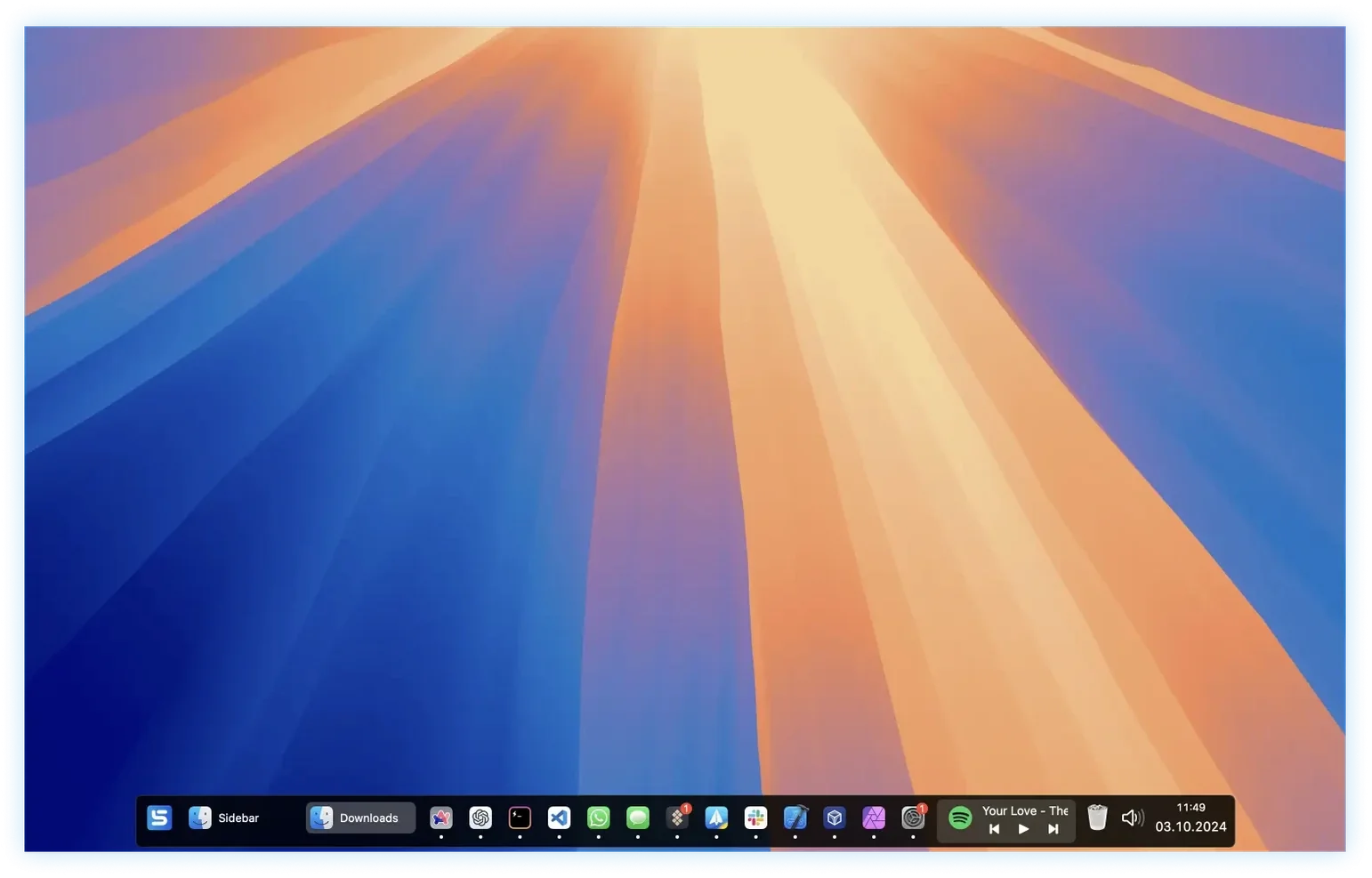
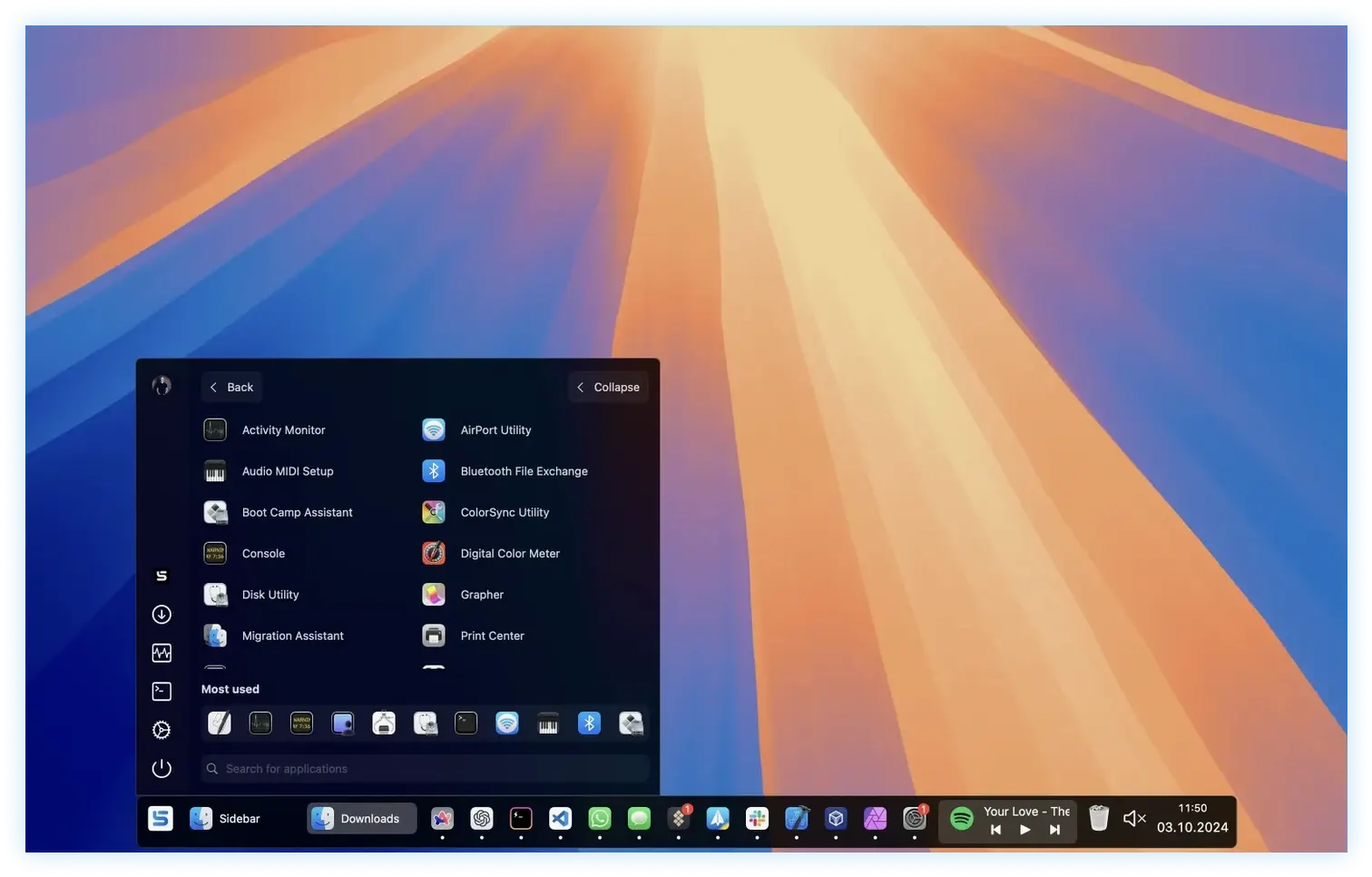
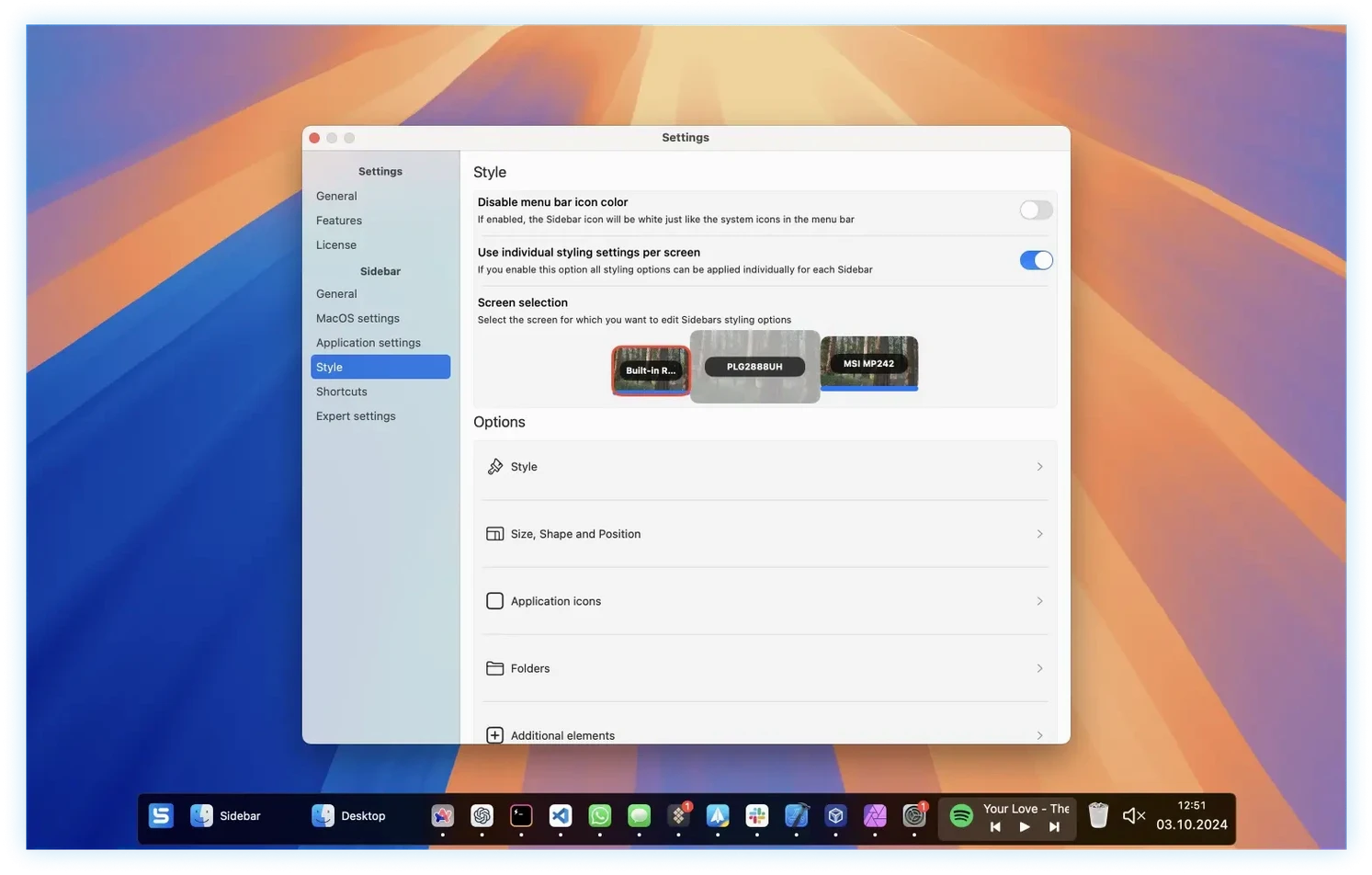
The Dock hasn't always kept up. It sits at the edge, gets in the way of full-screen windows, and doesn't give you much control beyond launching and switching. Sidebar takes that job and does it differently — from the side of your screen, with more finesse.
You'll need macOS 12 or newer. It runs natively on both Apple Silicon and Intel Macs, so your machine is covered.
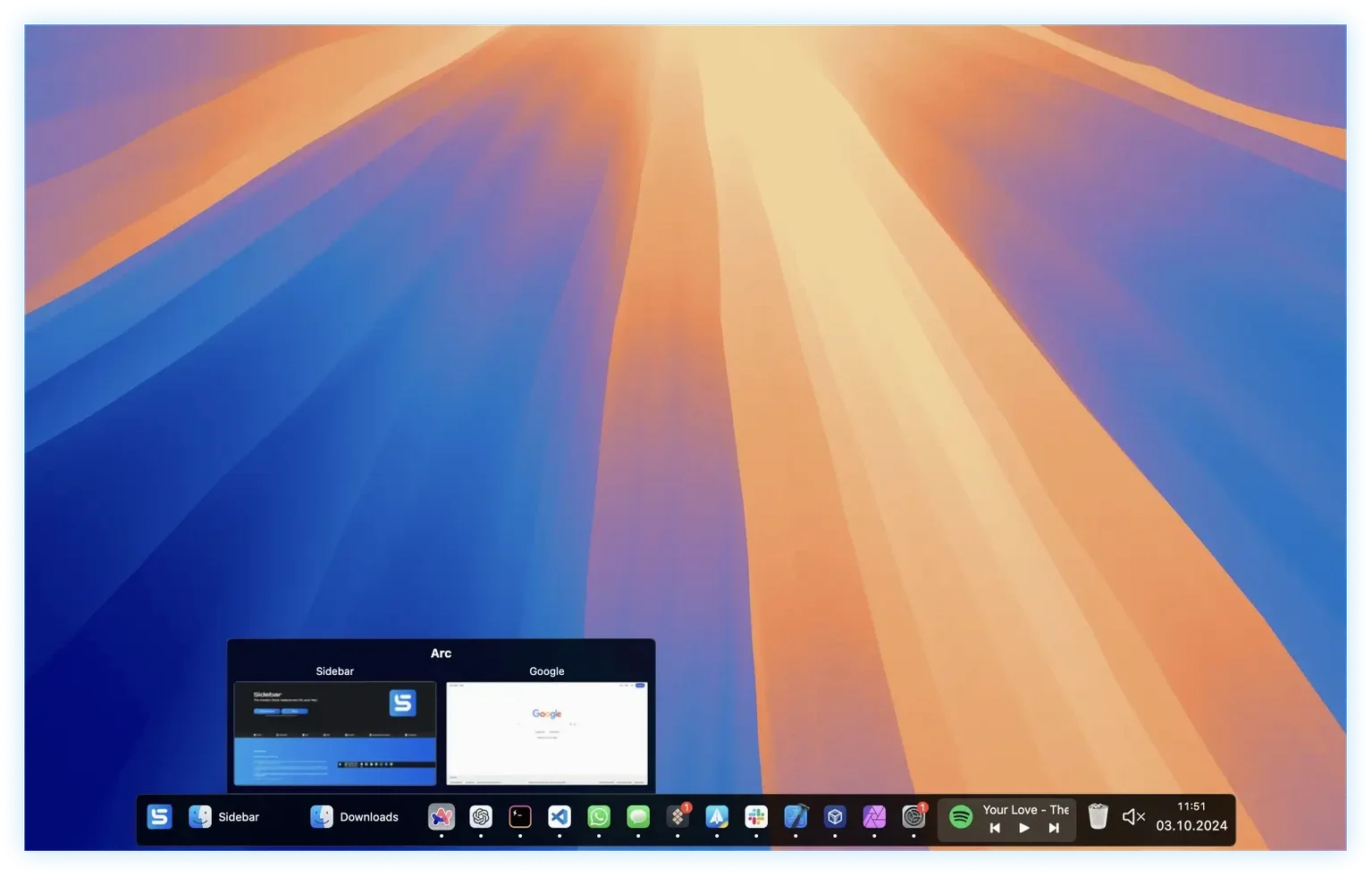
Drag apps and folders into stacks, assign keyboard shortcuts, and hover over an icon to peek at all open windows for that app.
Sidebar reserves screen space so your document windows never slide behind it. Quick controls let you mute sound or manage playback without hunting for the right app.
Sidebar doesn’t live in a bubble — it pulls together bits of macOS you already use. The built-in calendar widget talks to your system Calendar app, so you see today’s events without opening a thing. Volume and mute controls hook straight into macOS audio, matching what you’d do from the menu bar or keyboard keys, just closer to hand. The app launcher respects your existing Launchpad layout, and dragging in a folder from Finder creates a stack that mirrors the real folder — change its contents on disk, and the stack updates.
On a multi-screen setup, Sidebar stays screen-aware. You can pin it to the left edge of your main display while keeping a narrower version on a secondary monitor that only holds playback controls and a few project folders. Because it reserves edge space per screen independently, a maximised Xcode window on your primary display won’t creep underneath the sidebar, but your reference screen stays untouched. This per-monitor memory is something the standard Dock simply doesn’t offer.
You sit down with a coffee and wake the Mac. Sidebar is already visible along the left edge of your main screen — a slim dark strip with your core apps stacked at the top. You tap the Figma icon. It bounces once, then opens. No Dock cluttering the bottom while you work.
Mid-morning, a Slack notification pings. You hover over the Slack icon in Sidebar and a row of window previews fans out — the thread you were in, plus a direct message from design. You click the DM preview and it pulls that single window forward. No cycling through windows with Command-Tilde.
You need a file from a client folder you rarely touch. You click the Clients stack you set up last week, and a clean list drops down. You pick the subfolder, Finder opens right to it. A few minutes later you mute the system sound with a single click on the speaker widget — a contractor’s video call started playing loud in the background. You didn’t have to find the Safari tab or the menu bar icon.
Around lunch, you plug in a second monitor. Sidebar appears there too, but you’ve set it to show only a calendar widget and a small Music playback strip. You skip a track with a tap and glance at the next meeting time. The sidebar on your main screen stays exactly as it was — all your dev tools, untouched.
When you finish, a right-click on the Trash icon empties it. You lock the screen and walk away. Sidebar fades out with the display, ready to pick up where you left off.
Good to know: version 2.2.6 is already showing up in the changelog with a new System Controls widget for even faster access to settings.














Chat 0
Hop in or make an account to join the chat.
Quiet in here so far. If you have used this build, tell me what the install actually did.