
 Squash
 SoundSource
 Steinberg Nuendo
 Studio One
 Sublime Text
 Super Vectorizer Pro
 SuperDuper!
 SketchUp Pro


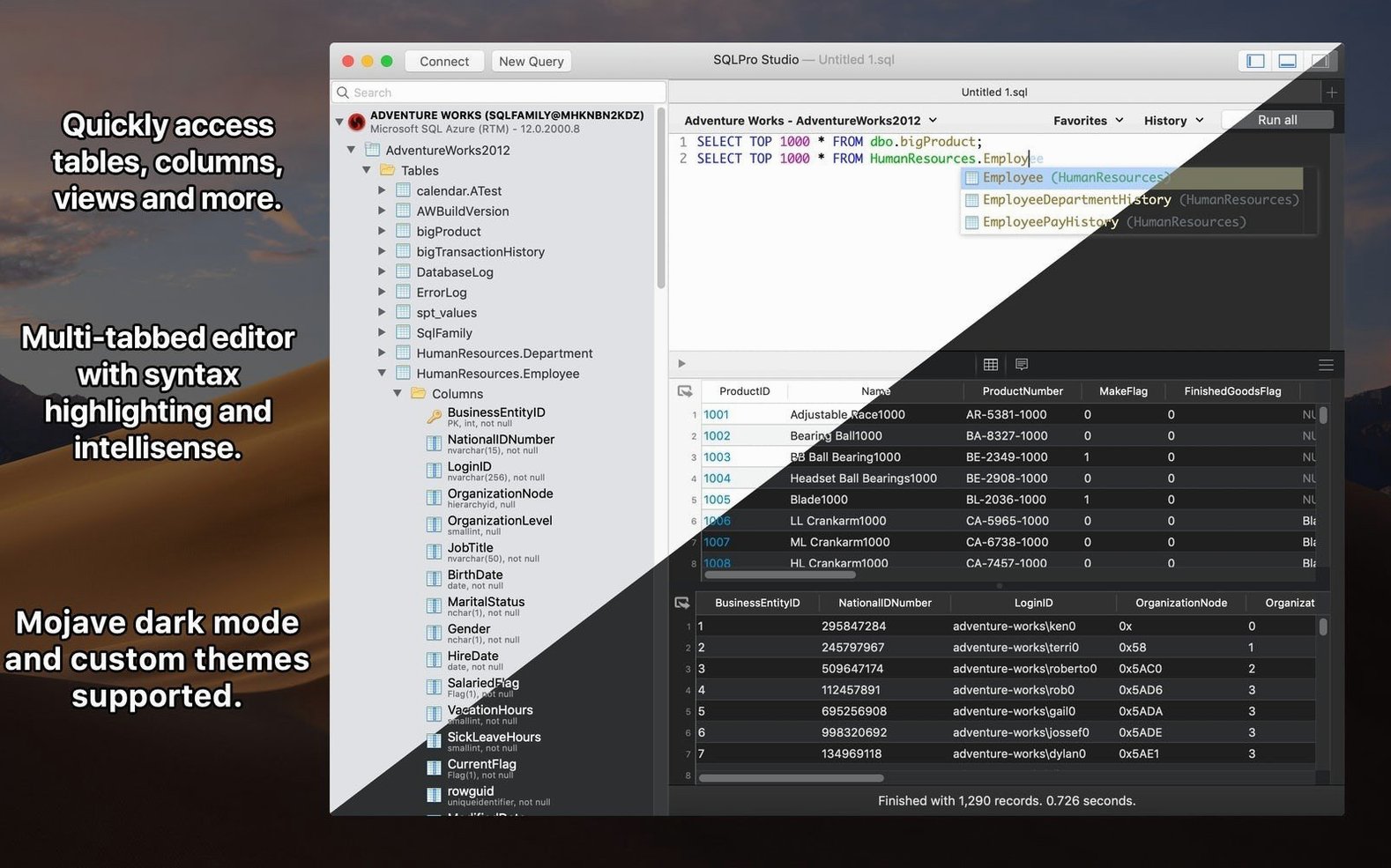
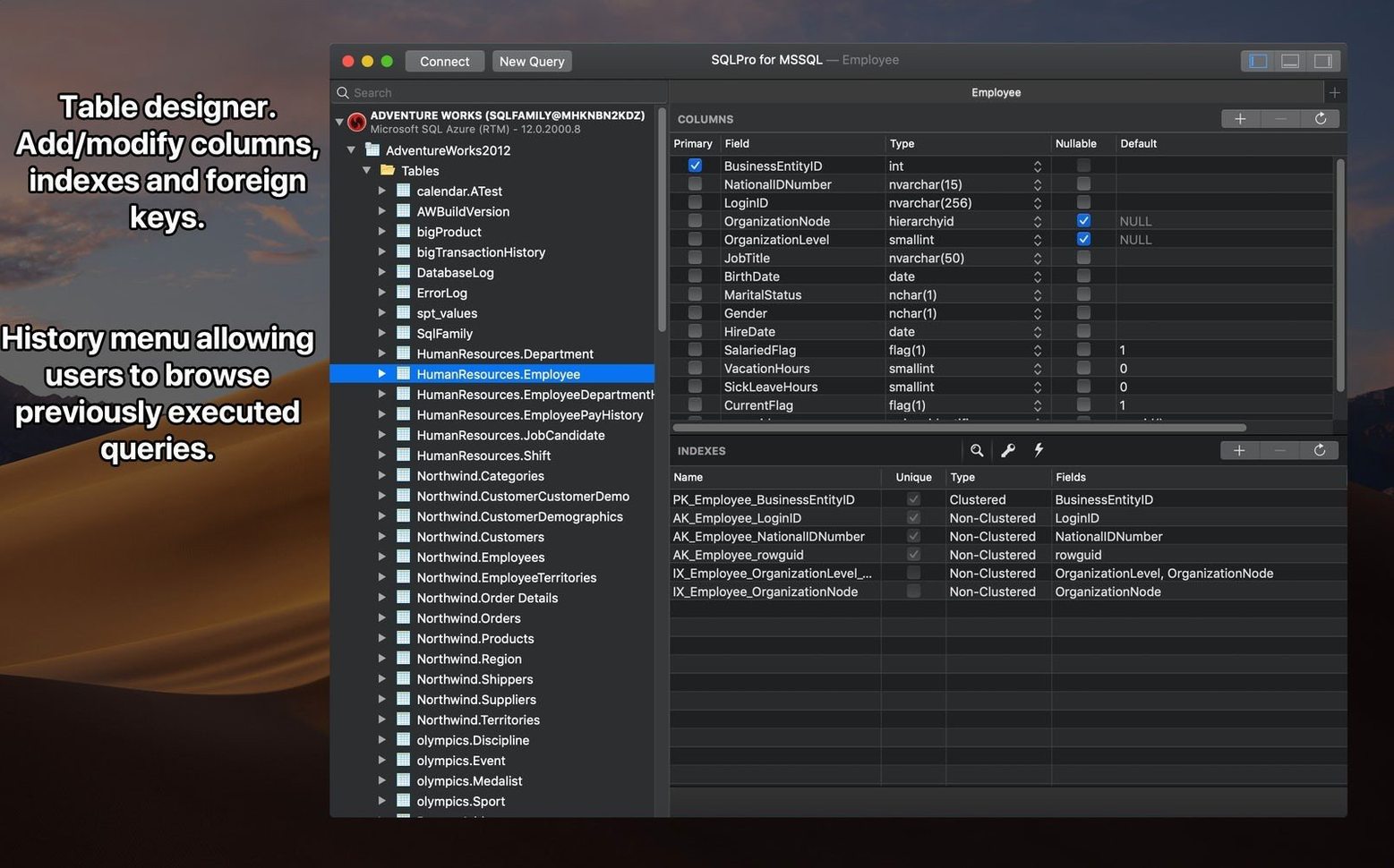
You have a staging MySQL box, a production PostgreSQL cluster, and a local SQLite file you use for quick experiments. Instead of juggling three separate tools, you open SQLPro Studio and connect to all of them in one window. The tabbed layout means each database sits in its own lane, and switching contexts is a single click rather than a mental gear change.
The app is a native build for both Apple Silicon and Intel Macs, so it runs directly on the metal without Rosetta overhead. You need macOS 13.5 or later. There is no web layer, no Electron wrapper, and no Java runtime to chase down — just a straightforward Mac app that launches quickly and respects the interface conventions you already know. Handoff support connects the desktop experience to the iOS version, letting you move between devices mid-task.
SQLPro Studio talks to MySQL, MariaDB, PostgreSQL, Microsoft SQL Server, SQLite, Oracle, Snowflake, and Amazon Redshift. As you type a query, autocompletion offers up table and column names, which is handy when you cannot quite remember whether that field was called user_email or email_address. Selecting cells in the results grid triggers a small aggregates strip that shows count, sum, average, minimum, maximum, median, and mode for the highlighted data — no need to write a separate SELECT just to sanity-check a value. You can also search across an entire database, navigate the table tree with context-aware menus, and select multiple tables at once for bulk operations.
SQLPro Studio plays nicely with the macOS clipboard — copy a result set and paste it straight into Numbers or a draft in Mail without losing formatting. The Handoff tie-in means you can browse a schema on your iPhone, then pick up the same connection on your Mac. Cloud instances from Heroku, Amazon RDS, and Microsoft Azure slot in as easily as a local server, so your connection list mirrors where your data actually lives. If you already use other SQLPro apps, the interface feels familiar; the shared preferences file keeps your colour themes and shortcuts consistent across the suite.
You open the app and your saved connections appear instantly — double-tap the staging PostgreSQL entry. The database tree expands, so you right-click a table and choose “Select Top 1000.” Rows fill the results pane while you type a WHERE clause, and autocompletion nudges you toward the right column name. You highlight a numeric column, glance at the aggregates strip to confirm the average, then copy the filtered rows. Over in the SQL Server tab, you paste the data into an INSERT template and run both queries side by side to compare. Before closing, a quick database-wide search locates the stray stored procedure you needed to update — no digging through menus.
It covers MySQL, MariaDB, PostgreSQL, Microsoft SQL Server, SQLite, Oracle, Snowflake, and Amazon Redshift.














Chat 0
Hop in or make an account to join the chat.
Quiet in here so far. If you have used this build, tell me what the install actually did.