Version 3.3.0 lands with better macOS Sequoia compatibility and under-the-hood performance tweaks. If you just downloaded Squash, a few quick moves will show you why this native Swift app feels so snappy on Apple Silicon. Here's where to start.
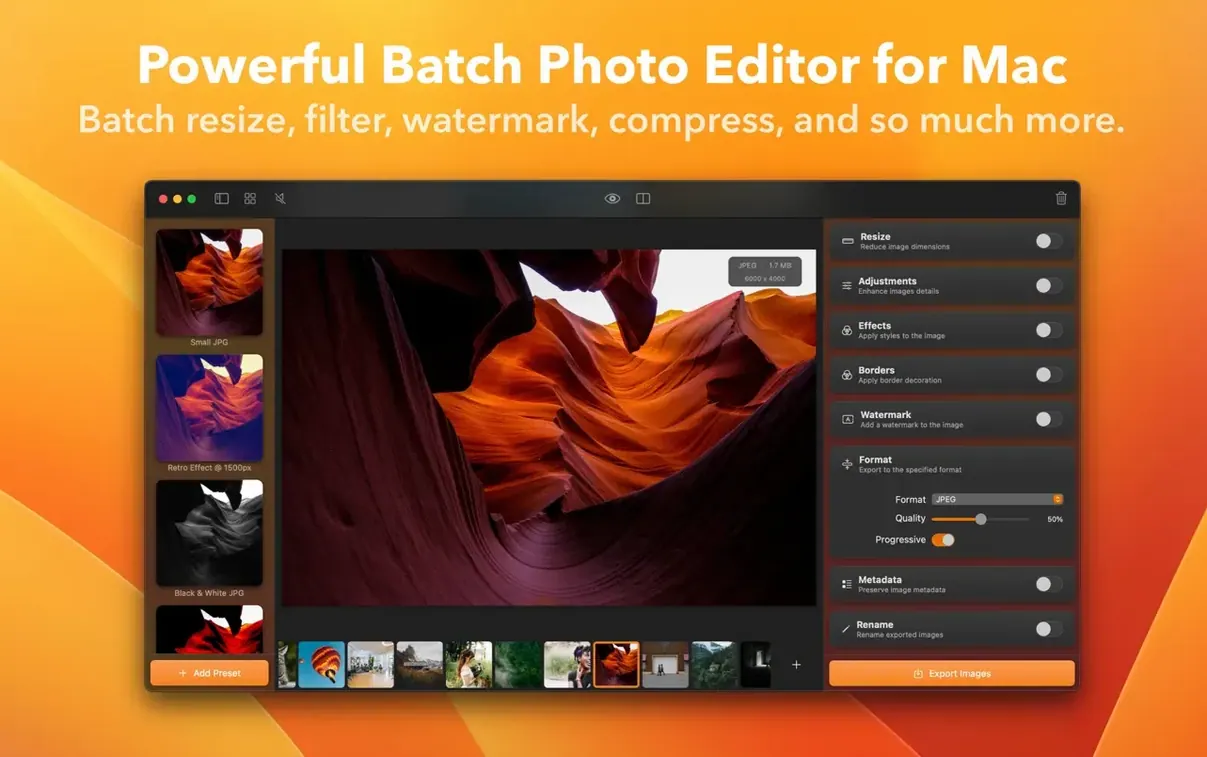
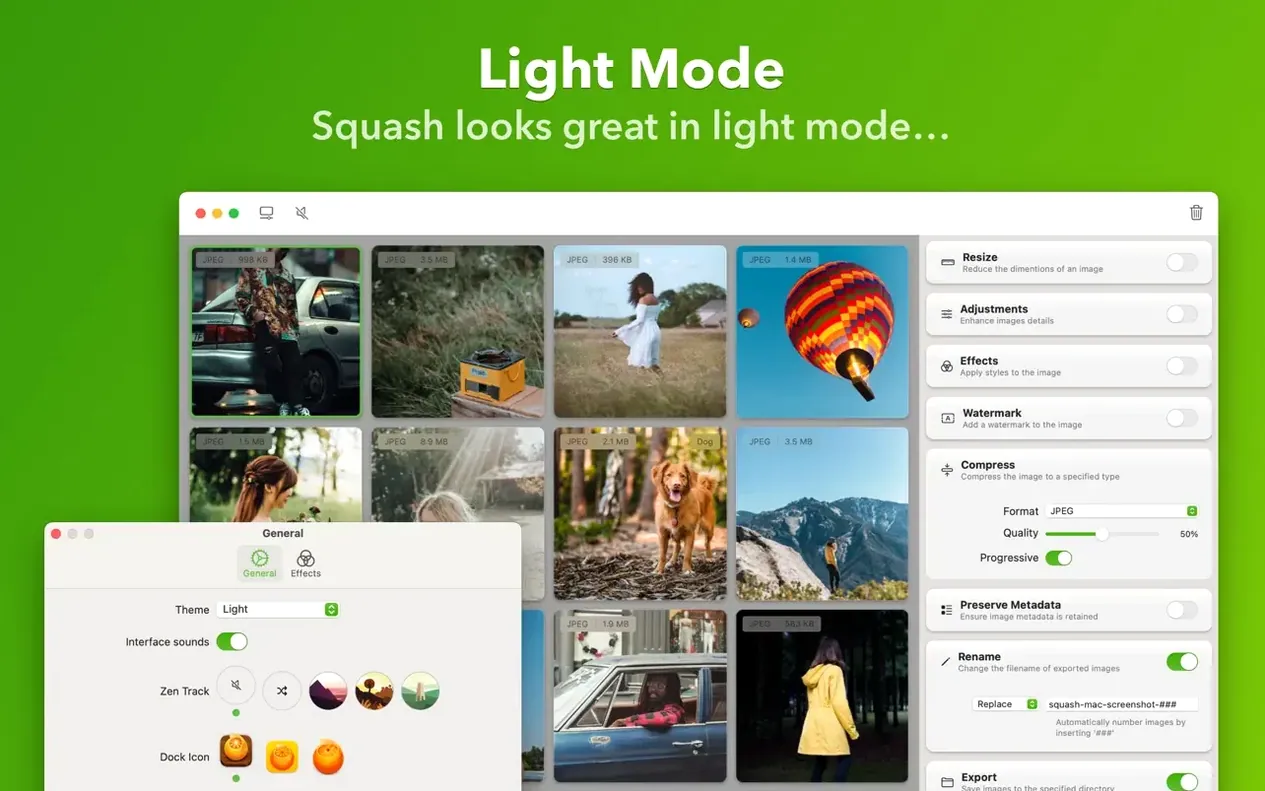
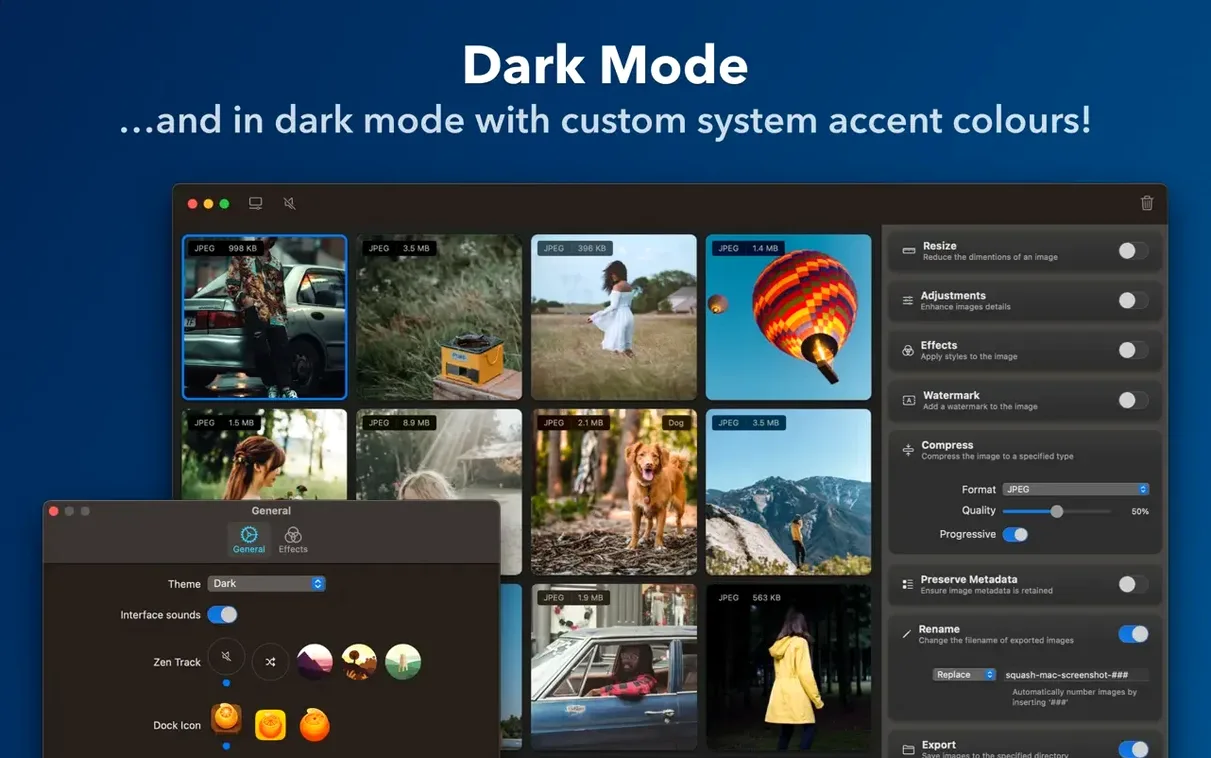
Drag a folder straight in. The batch engine handles mixed formats without blinking. Drop a whole project folder and watch the size savings appear beside each original.
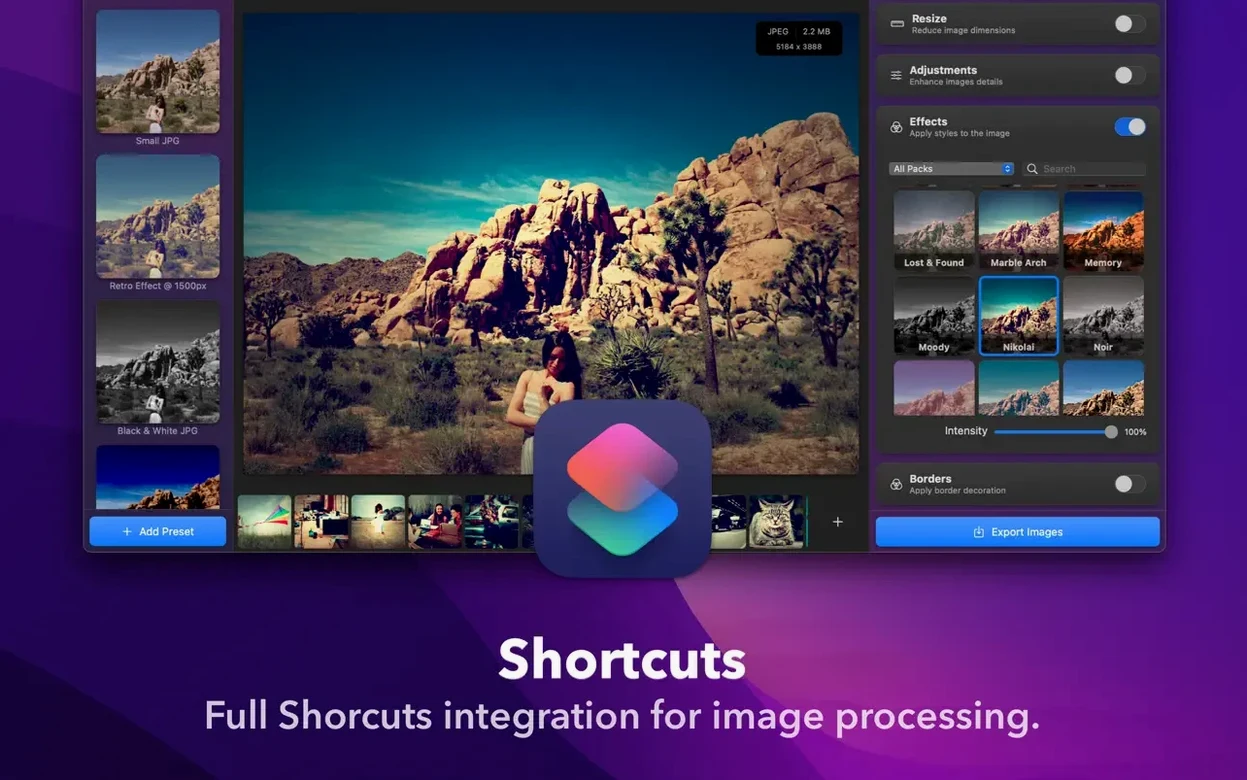
Set up a Shortcut. Squash talks to Apple Shortcuts, so you can build a right-click workflow that compresses images without opening the main window.
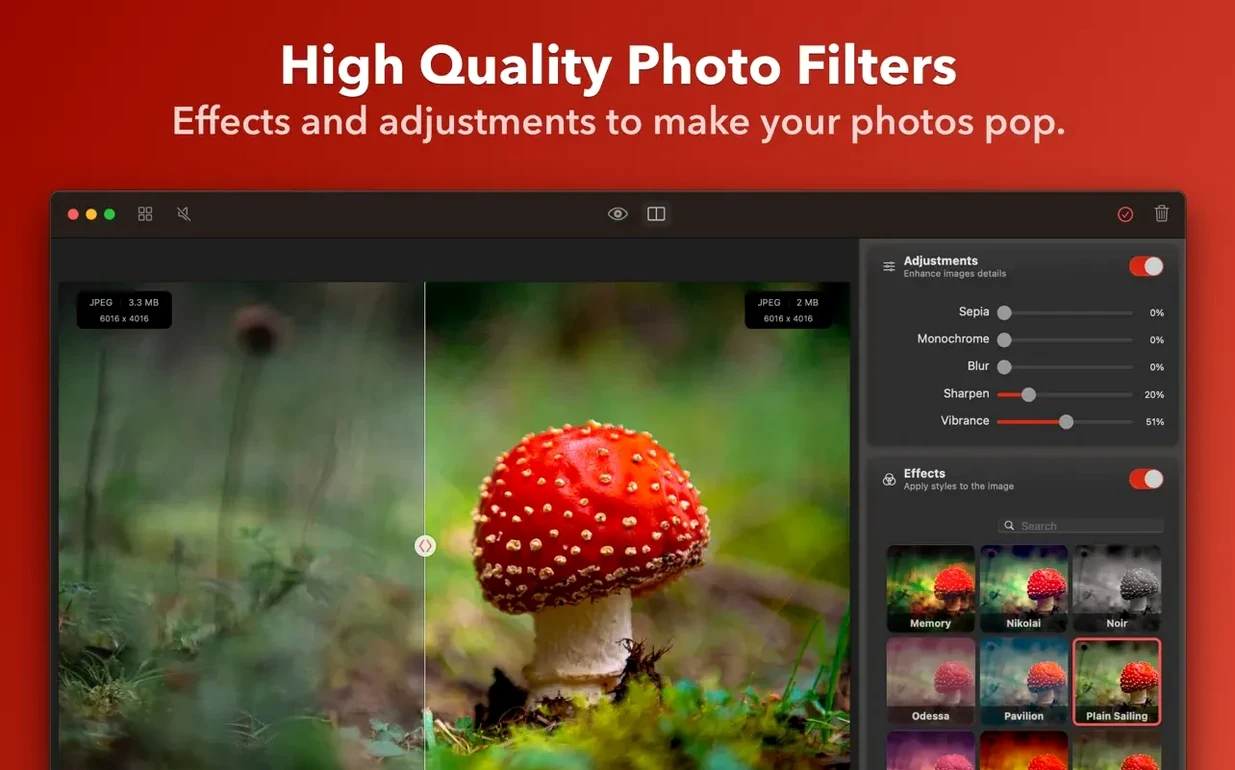
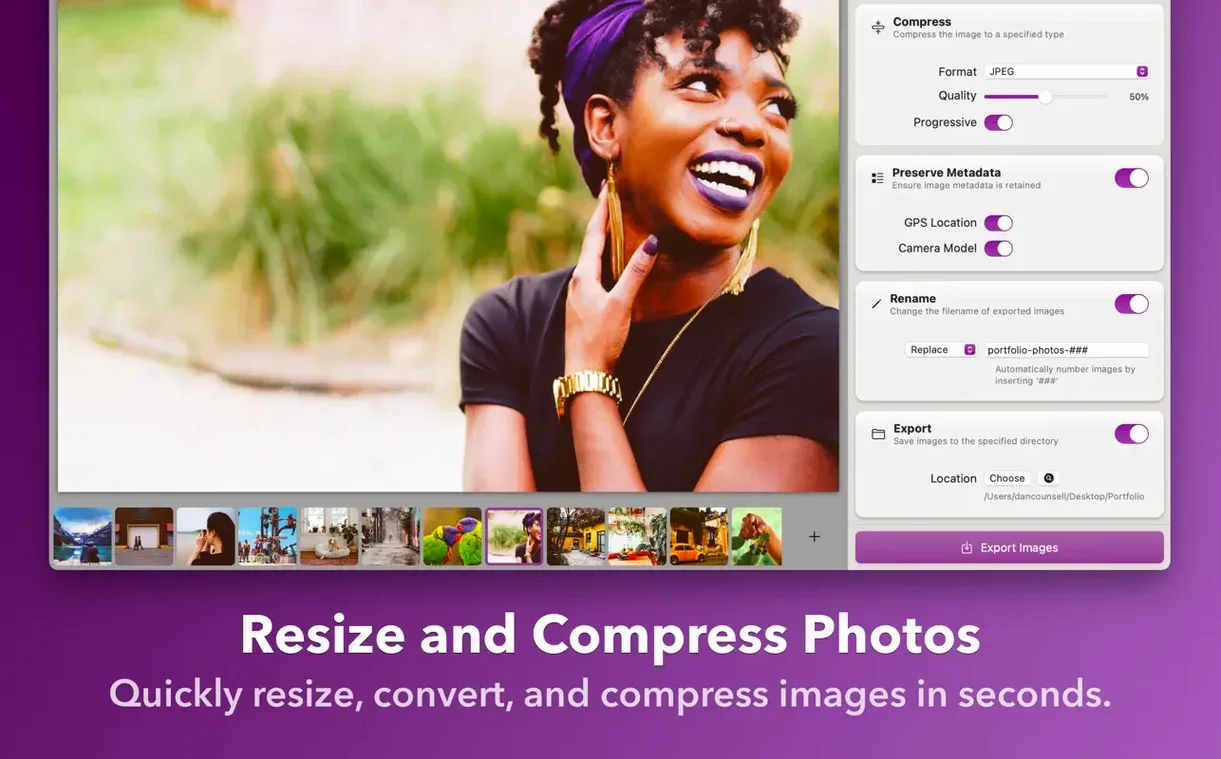
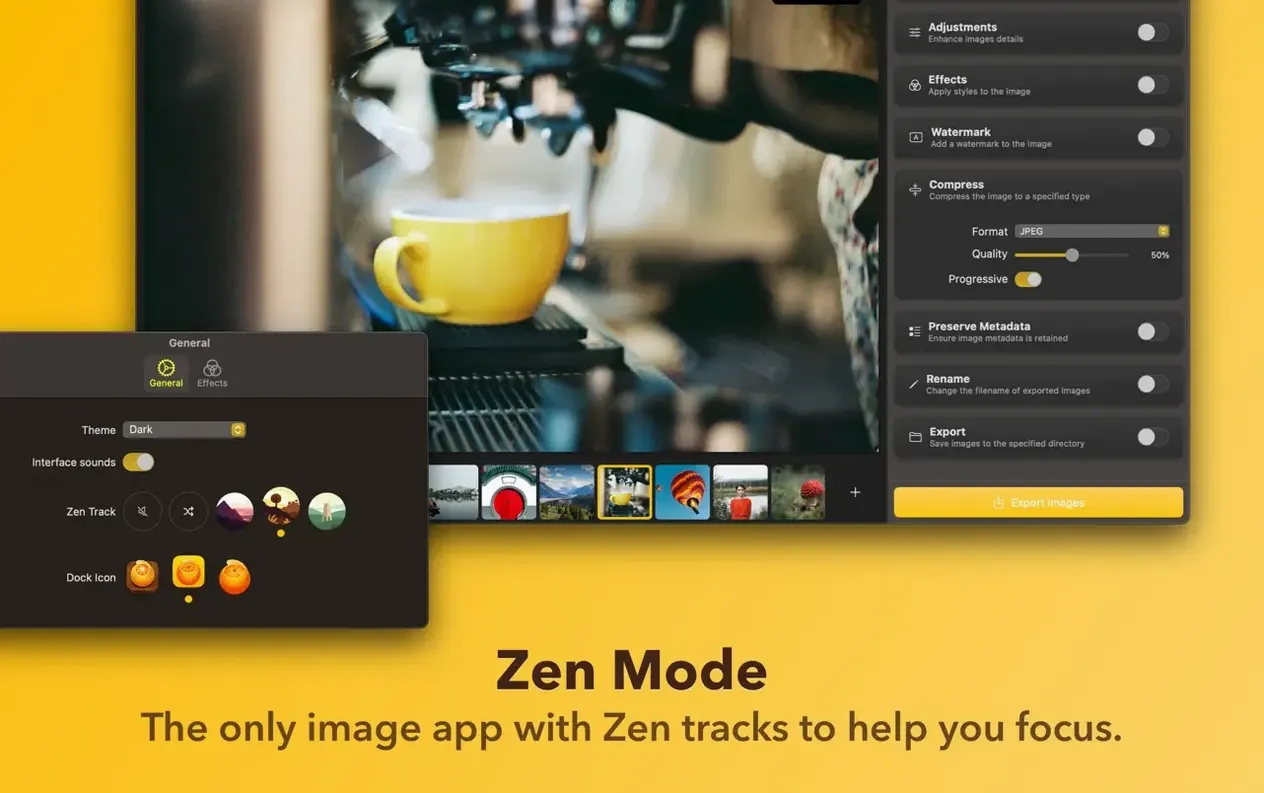
Play with the quality slider. Rather than typing numbers, drag and see a live preview update. It's the quickest way to find the sweet spot between file size and sharpness.
Switch output formats on the fly. Need JPGs turned into PNGs or WEBPs? Pick a new format from the dropdown before you hit save—no extra conversion step needed.
Rename with the pattern tool. Add a suffix like "-compressed" or a sequence number across a batch in one hit. Clean filenames, no manual labour.
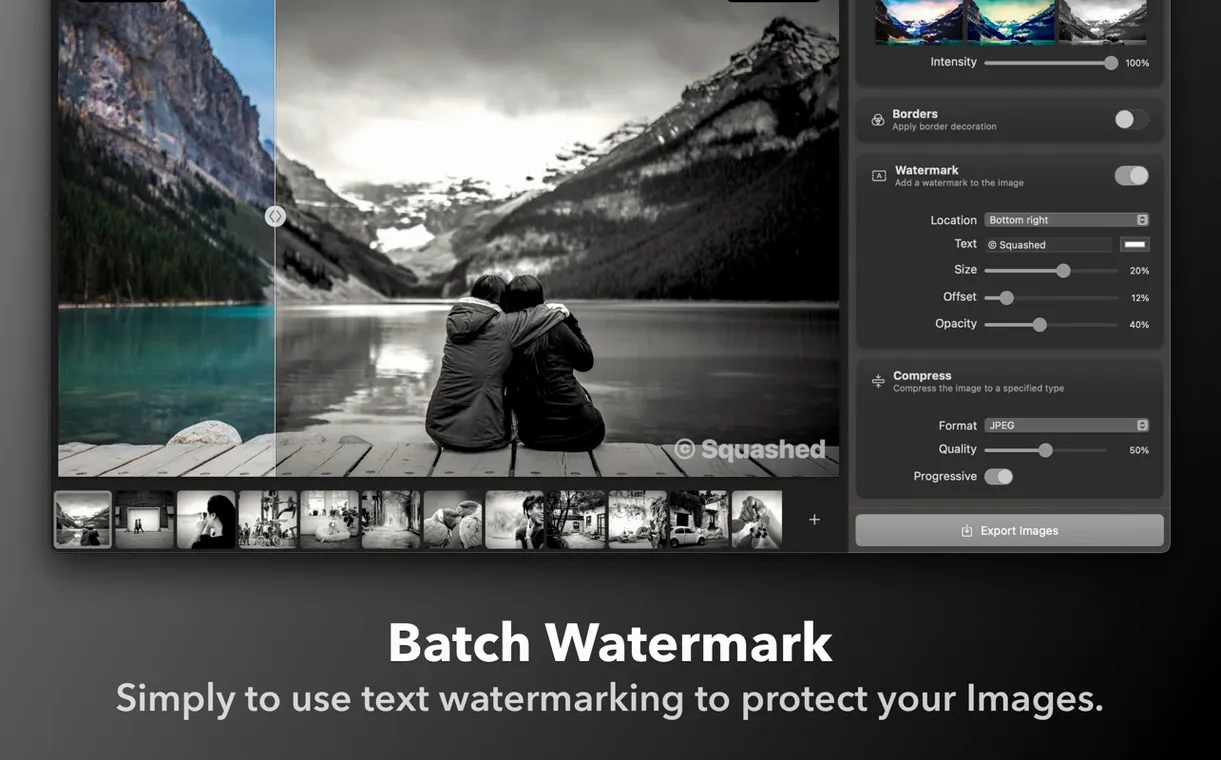
Once you've run your first batch through Squash, you'll notice it doesn't just crunch pixels. The app keeps metadata intact by default, but you can strip location data or camera info in preferences if privacy matters. A simple set of controls that does exactly what you ask.
Sequoia window resizing and folder drag fixes
The 3.3.0 release tightens a few things you might have brushed against before. Sequoia users will spot smoother window resizing and fewer odd pauses when dragging large folders onto the dock icon. Realmac also squashed a handful of edge-case bugs — one where HEIC files occasionally stalled the queue, and another that misread colour profiles on certain Intel Macs. The performance bump is modest but welcome: batch previews now populate roughly 20% faster on M-series chips, which adds up when you're chewing through a wedding shoot or a full product catalogue export.
Pin the Finder right-click workflow
Once the drag-and-drop novelty settles, a couple of habits make Squash feel more like a tool and less like a toy.
Pin a Finder plug-in workflow. Right-click any image and choose Squash from the Services menu. Set your defaults once — format, size, destination — and every subsequent compression is a two-second job. Perfect for blog graphics and social posts.
Keep an eye on the preset save button. If you find yourself reusing the same settings for client deliverables, save them as a named preset. Switching between "newsletter" and "full-res backup" takes one click instead of dialling in sliders each time.
Watch the file-size preview column. It's easy to miss, but the list view shows estimated savings per image before you commit. Great for spotting outliers — like that one layered TIFF still hiding in a folder of JPEGs — before they bloat your upload.
Improved compatibility with macOS Sequoia
Performance improvements
Bug fixes
macOS 12 or later
Apple Silicon or Intel 64-bit Mac
English interface
Questions I get
Yes, Squash runs natively on Apple Silicon and Intel 64-bit Macs, and version 3.3.0 is fully compatible with macOS Sequoia.
Squash handles common image formats like JPG, PNG, and WEBP, letting you switch output formats quickly from the dropdown during batch processing.

 SQLPro Studio
 Steinberg Nuendo
 SoundSource
 Studio One
 Sublime Text
 Super Vectorizer Pro
 SuperDuper!
 Sweet Home
















Chat 0
Hop in or make an account to join the chat.
Quiet in here so far. If you have used this build, tell me what the install actually did.