
 AIMP
AIMP Airflow
 Aiarty Video Enhancer
 Airfoil
 Aiarty Image Enhancer
 AI Transcription
 Alcove
 AlDente


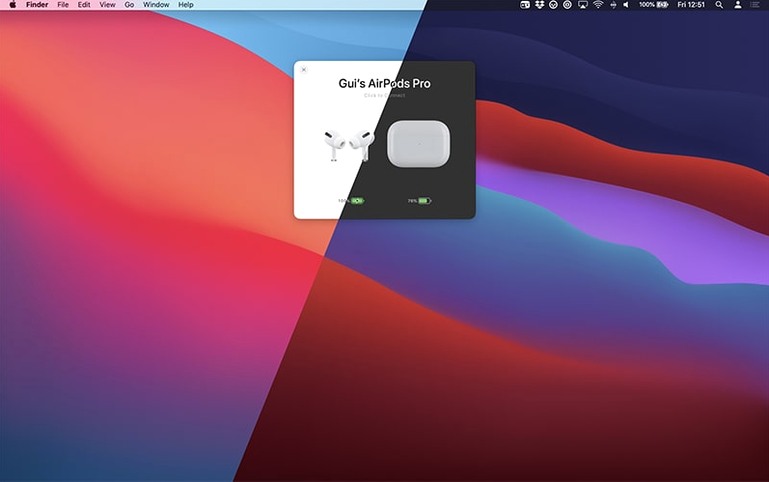
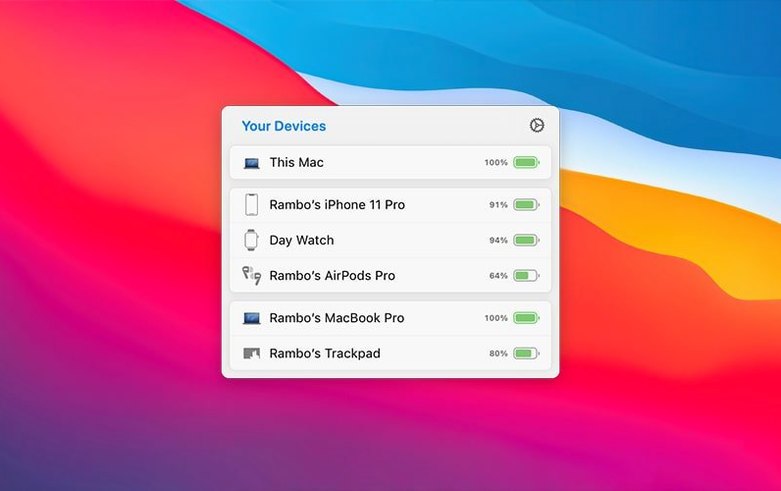
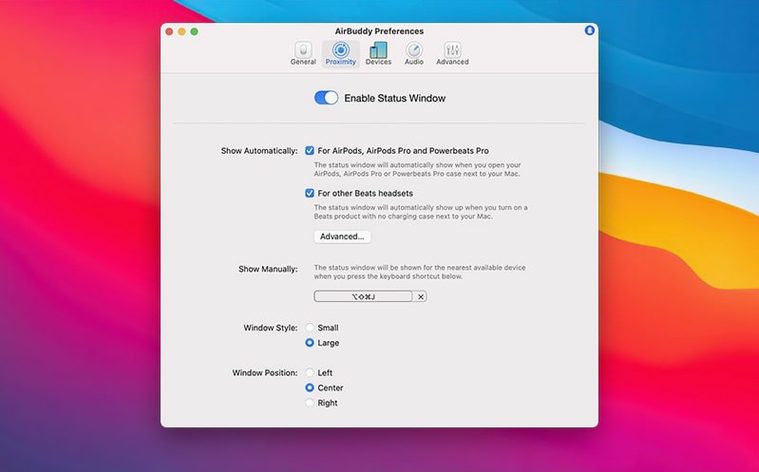
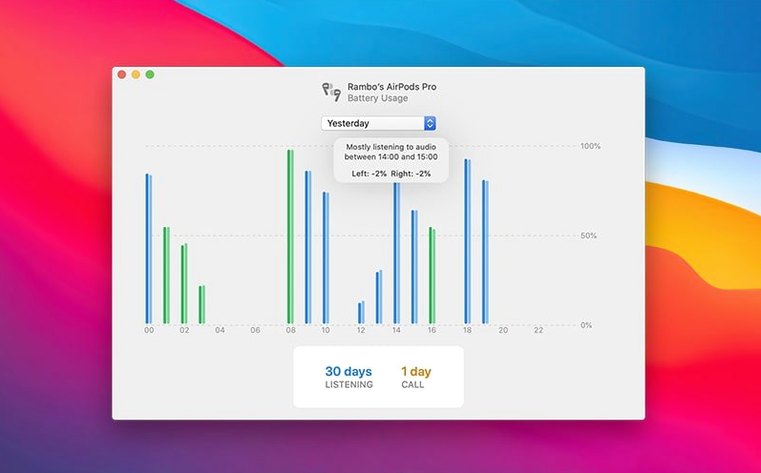
Twelve hours of usage history, broken down by listening and talk time. That’s the kind of detail AirBuddy surfaces the moment your AirPods case opens nearby.
AirBuddy 3 extends the same proximity smarts to your desktop peripherals. Magic Handoff lets you move a Magic Mouse, trackpad, or keyboard between Macs as soon as they’re close, cutting the cable-repairing tango you’d normally face. The status window comes in small and large designs, and a menu bar icon option now covers the app icon, a battery indicator, or no icon at all. macOS 14 or later is required.
Out of the box, AirBuddy does most of the heavy lifting, but a few tweaks make it feel properly yours.
Task: start a Zoom call on your Mac with AirPods Pro, then switch to your iPhone mid-call without fumbling settings.
Before the call, open AirBuddy’s preferences and create a connection mode called “Calls.” Set it to transparency mode, volume at 40%, and mic active. Assign it as the default when your AirPods connect to the Mac. Now when you flip open the case near the computer, AirBuddy connects them and applies those settings immediately — no Control Centre digging.
Mid-call, you need to grab coffee and take the conversation on your iPhone. Pop one AirPod out and back in; the iPhone picks up the audio within a second or two. AirBuddy’s status window on the Mac confirms the disconnection, and when you return to your desk, one click on the AirPods entry reconnects them and re-applies your “Calls” mode.
After the call, glance at the usage history panel. That one-hour block now shows a split between listening time and talk time — useful if you’re tracking how much of your day is spent in meetings versus focused work.
You sit down at the desk and wake the Mac. AirBuddy’s menu bar icon blinks a small battery ring for your AirPods Pro — still in their case, still at 72%. You open the case, and the popover slides in from the menu bar: left bud, right bud, case, all with their own circles. The right AirPod is two percentage points lower than the left, flagged with a subtle amber tint.
You tap connect in the popover. Your pre-set “Desk” mode engages: noise cancellation on, volume at a moderate 35%, mic off because the desk mic handles calls. The status window collapses, and you start a two-hour deep-work block.
Around the 90-minute mark, you pause playback from the compact status window — a quick click on the pause glyph that hovered near your cursor when the AirPods were active. You check the 12-hour usage timeline. The bar shows a solid stretch of listening with a tiny sliver of talk time from a quick phone call earlier. It’s a satisfying sanity check: roughly seven hours of focused audio and only 20 minutes of chatter.
When you pack up and move to the couch with an iPad, AirBuddy’s Magic Handoff kicks in. Your Magic Trackpad appears on the nearby MacBook’s screen almost instantly, and you drag the AirPods connection across with a single click. The session ends without a single trip into System Settings.
Good to know: the beta release added that menu bar flexibility, so you get the current version’s full set of status-window and icon choices.
It requires macOS 14 or later and runs on both Intel and Apple Silicon Macs.
Yes — AirBuddy shows individual battery levels and highlights when left or right is draining faster.
Magic Handoff moves a Magic Mouse, trackpad, or keyboard between nearby Macs without re-pairing through Bluetooth settings.














Chat 0
Hop in or make an account to join the chat.
Quiet in here so far. If you have used this build, tell me what the install actually did.