
 Color Finale
 Compressor
 Coherence X
 CorelCAD
 Cocktail Sequoia Edition
 CorelDRAW
 Cockos REAPER
 CloudMounter


Commander One PRO is a dual‑pane file manager that gives your Mac a faster, more flexible way to move files around.
Work across two panels side by side without tabbing back and forth. Drag files between local drives, cloud accounts, or network servers in one clean view.
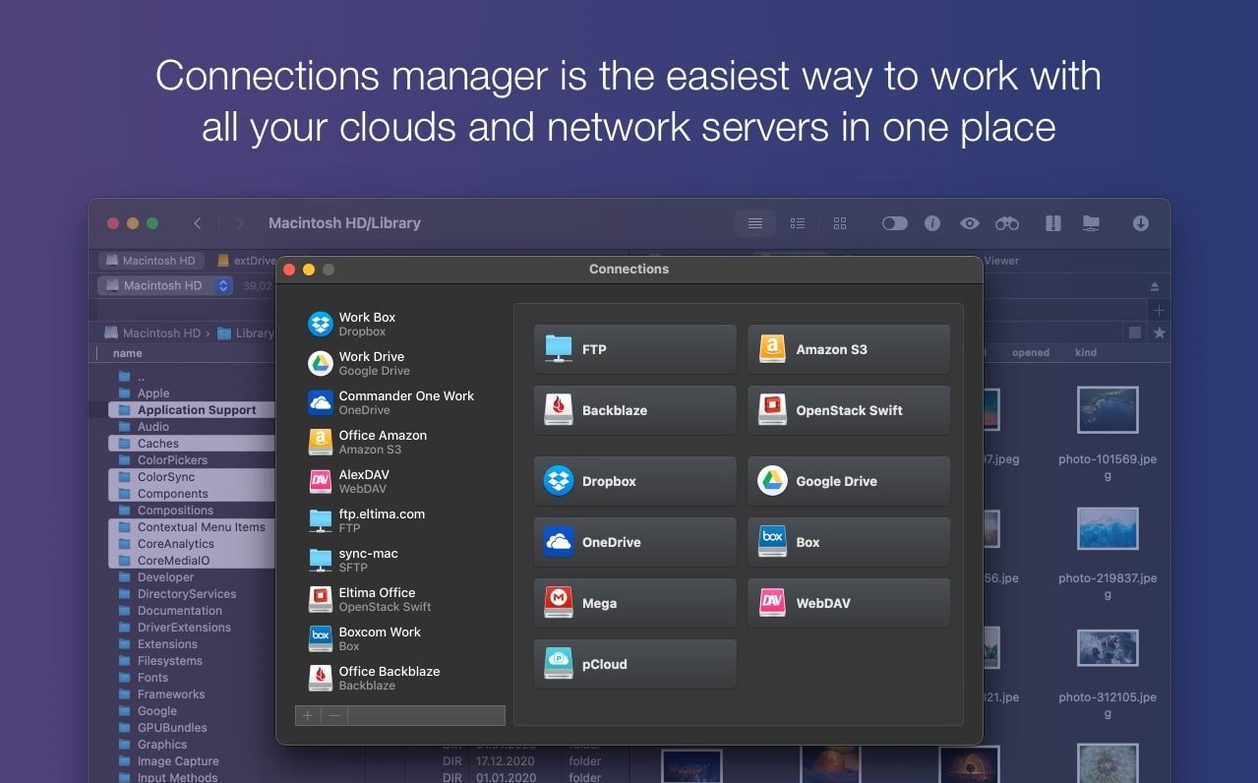
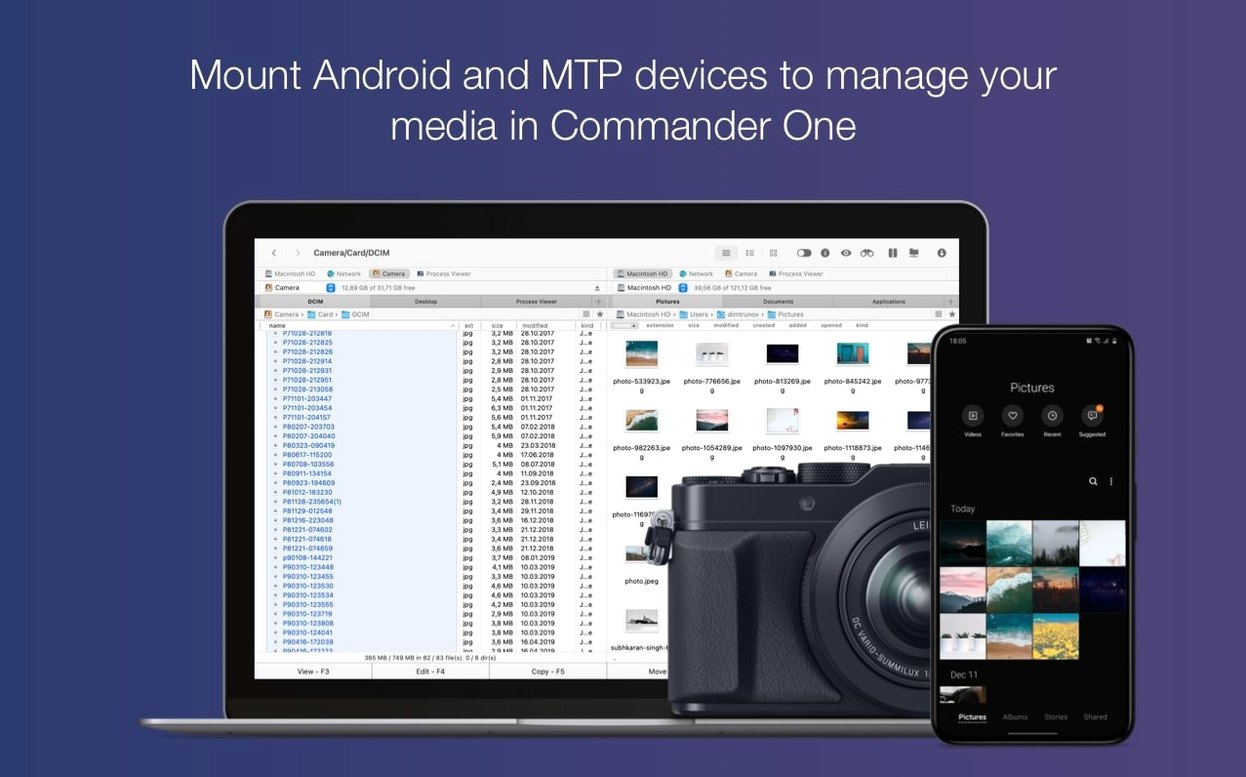
Pull in FTP servers, Amazon S3 buckets, or your Android device over MTP and treat them like local folders. Archive handling covers ZIP, RAR, TBZ, TGZ, and 7z in either pane.
Jumping straight into complex connections trips up most first-time users. People set up an FTP shortcut before they understand how Commander One PRO handles paths, then wonder why uploads land in the wrong folder. Spend ten minutes dragging local files between panes first — it builds the muscle memory that makes remote work feel natural.
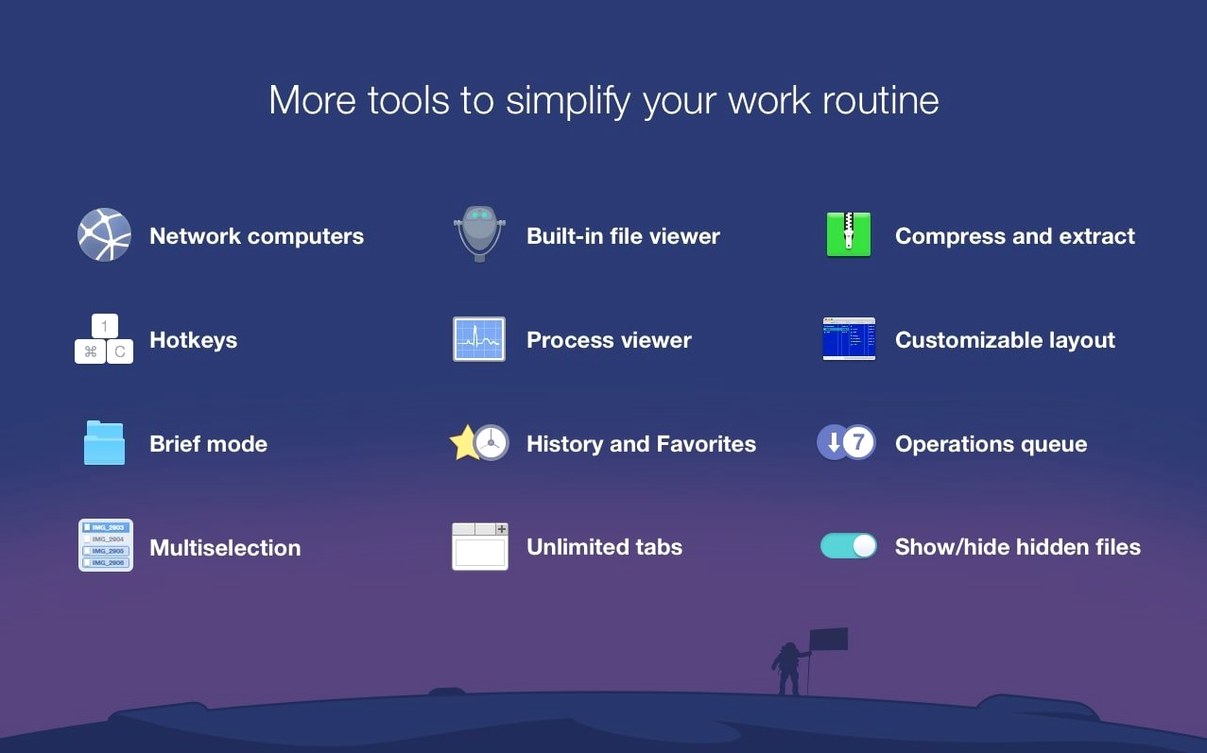
Another common stumble: leaving Brief Mode off when sorting a messy downloads folder. Brief Mode strips the view down to compact rows, so you can spot duplicate filenames and stale ZIP archives at a glance. Without it, the default icon view buries the same information under thumbnails.
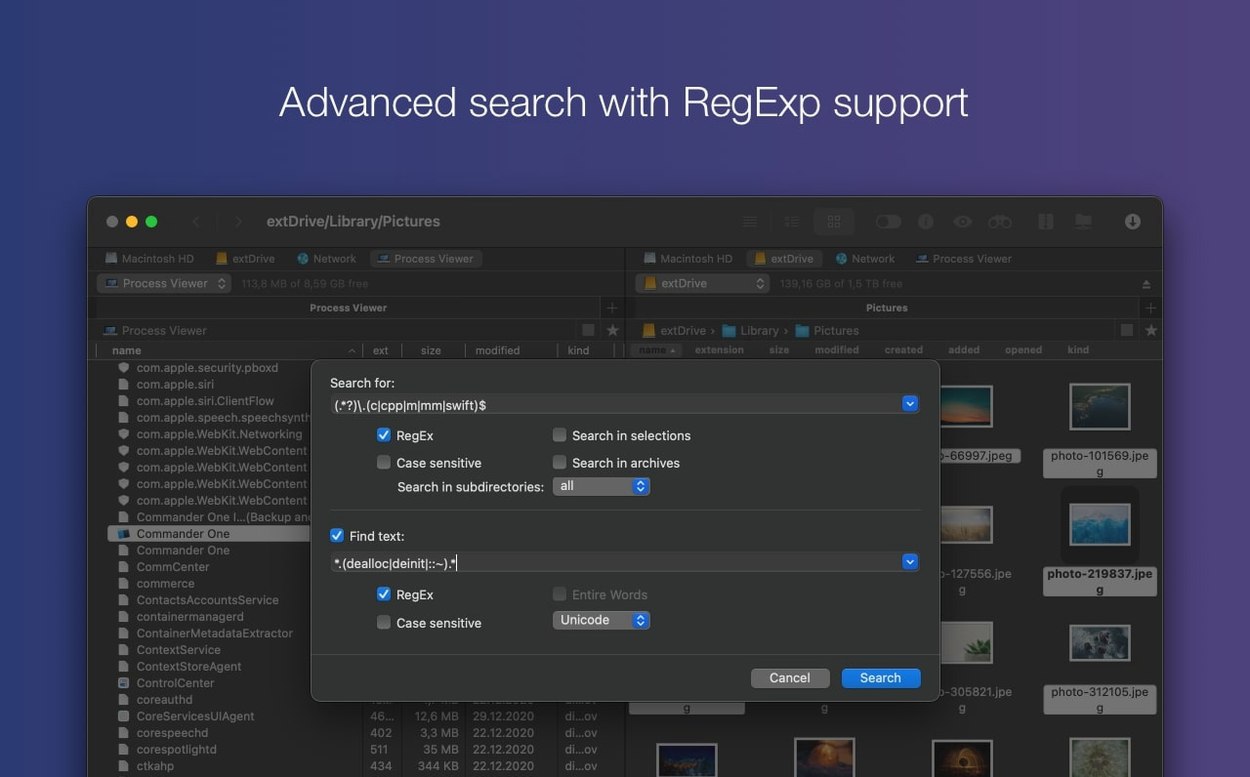
Beginners also forget the regex search toggle sits right in the find bar. Typing a plain string with regex switched on returns zero results, which looks like a bug. Check that little switch before you re‑type the query three times.
Hidden files catch people out too. Commander One PRO respects macOS visibility settings, so .config folders and .DS_Store clutter stay out of sight unless you flip the setting. If a folder looks empty when you know there are files inside, the hidden‑files toggle is the first thing to check.
Opening the app on an Apple Silicon Mac feels near‑instant — the Swift build launches without the bounce‑and‑wait some Electron‑based managers suffer. Once running, the dual‑pane renderer stays smooth even when one pane points at a sluggish S3 bucket and the other is crunching a local 7z archive. Memory sits around 180–220 MB during normal use, creeping up slightly when the Process Viewer polls every few seconds.
Copy queues are where the app shows its edge. Dragging a 40 GB folder between two local SSDs saturates the bus without the progress bar freezing, and cancelling mid‑transfer actually stops the operation instead of leaving half‑written files behind. FTP transfers over spotty Wi‑Fi recover cleanly after a drop, though the timeout can feel a little patient before it declares a connection dead.
Stability in version 3.18.0 is solid on both Intel and ARM Macs running Ventura or later. Hotkey handling with non‑English keyboard layouts has been tightened up, so shortcuts like Cmd+F5 copy‑to‑other‑pane work reliably across Russian, German, and Japanese input sources now. The only noticeable quirk: dragging files directly onto a Dock icon when the app is hidden sometimes bounces the Finder instead — a small macOS‑level friction rather than a crash.
Start by pinning your most‑used folders as favourites. Commander One PRO lets you save local and remote paths into a sidebar list that sits independently from the Finder sidebar, so your work folders and that one shared NAS don’t get mixed up with iCloud shortcuts.
Next, map one cloud account — Dropbox or Google Drive — and compare it side‑by‑side with a local folder. Seeing cloud files treated as a plain directory tree, with the same copy, rename and archive options as local storage, is the quickest way to unlearn Finder’s siloed approach.
Set the archive handler early. Go into preferences and confirm Commander One PRO opens ZIP, RAR, and 7z by default. Out of the box macOS will still try to hand archives to Archive Utility, which defeats half the convenience of browsing inside a tarball without unpacking it first.
Lastly, customise the toolbar. The default set is clean but misses quick buttons for Brief Mode, hidden files, and the Process Viewer. Dragging those three onto the bar turns the app into a one‑click power tool from day two. A little upfront tweaking means you spend the rest of the week moving files instead of hunting through menus.
The built‑in Process Viewer lists active Mac processes right inside the app, handy when a stuck task is hogging resources.
Yes, it connects to cloud accounts and network servers including Amazon S3, so you can manage remote files alongside local ones in a dual‑pane layout.














Chat 0
Hop in or make an account to join the chat.
Quiet in here so far. If you have used this build, tell me what the install actually did.