
 Garden Planner
 Ghost Buster Pro
 FxFactory Pro
 Glyphs
 FotoMagico
 ForkLift
 Guitar Pro
 Fork
Fork


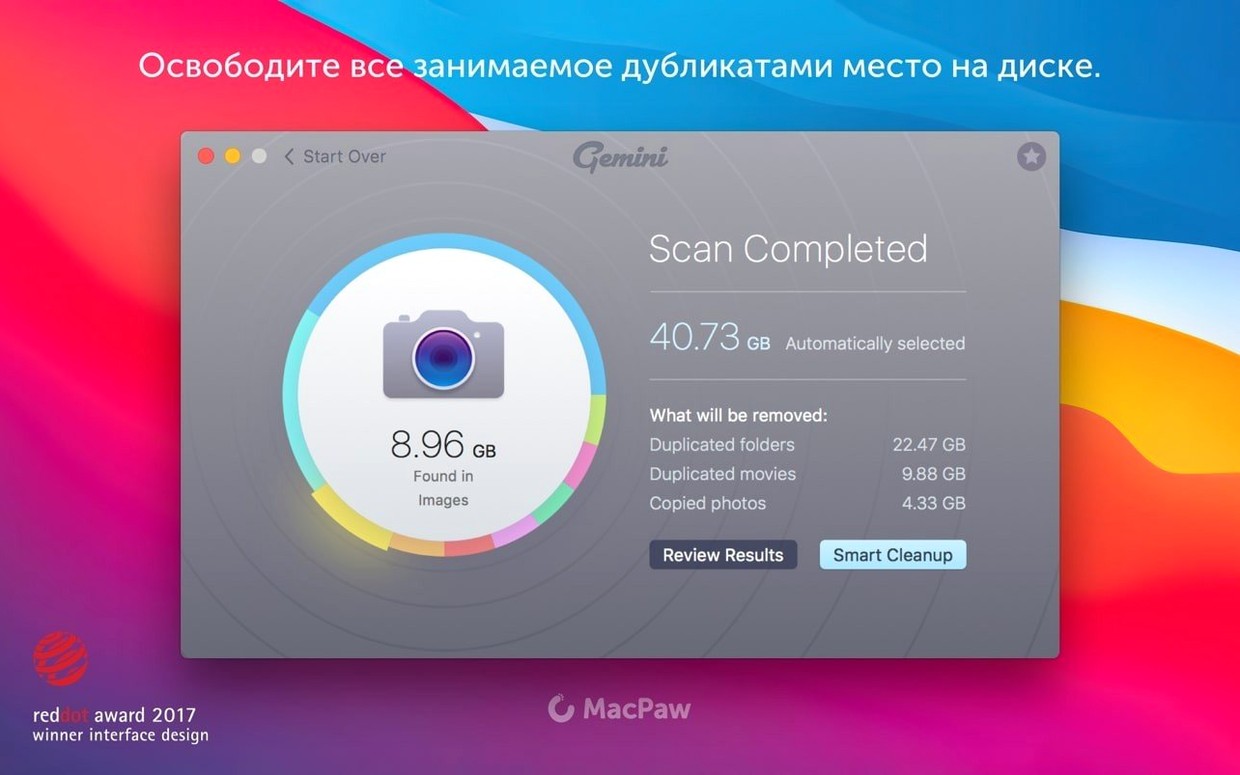
Gemini is a Mac app that finds and helps you delete duplicate and similar files scattered across your system.
It digs into your hard drive, old folders, iTunes and Photos libraries to surface exact copies and files that look nearly identical. The scan reaches remote corners of your system you might never check manually.
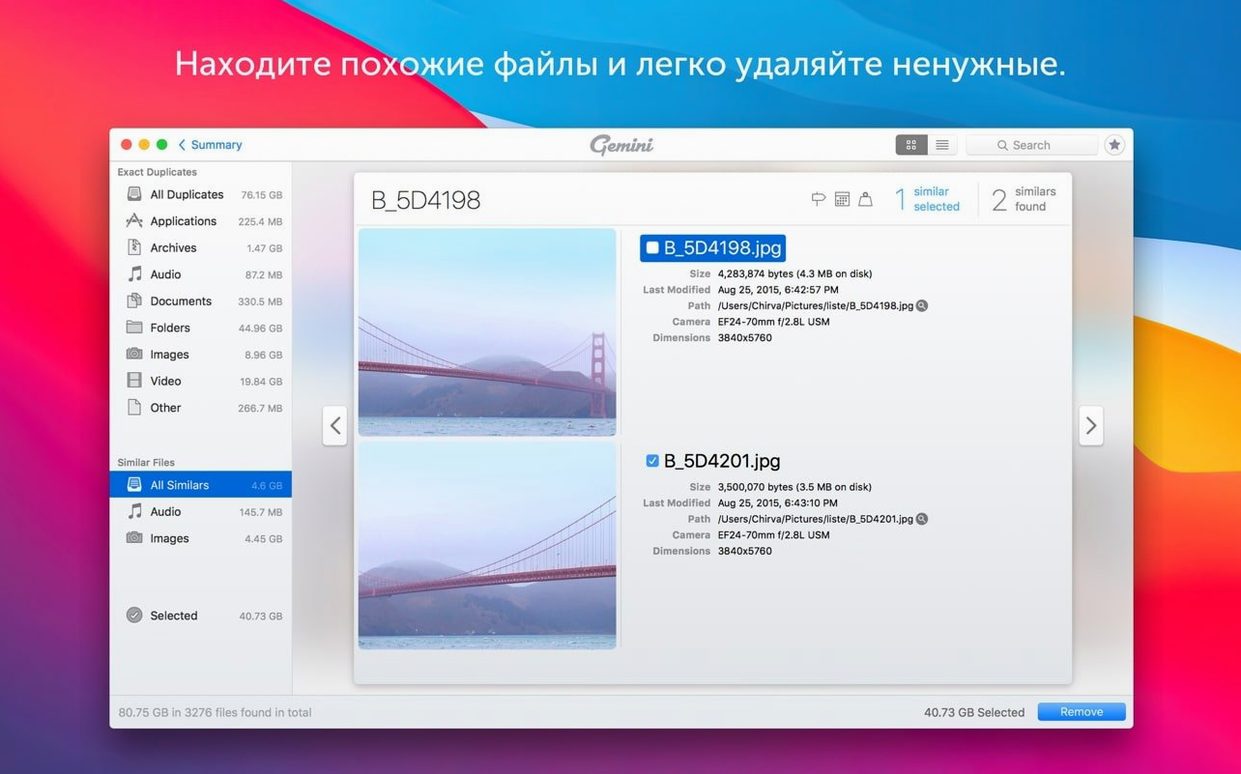
Gemini groups images or documents that share a close resemblance, not just bit-for-bit matches. You review the set and decide what stays, then move the rest to the Recently Deleted area for safety.
The core workflow remains quick and visual — select, group, and clear duplicates with a few clicks. Full support still starts at macOS 10.13 High Sierra, while an older build handles machines stuck on 10.10 through 10.12.
People often rush the first scan and delete everything Gemini suggests without checking. Smart Select learns your habits, but on day one it has no history to work with. Look at each group yourself.
A common slip is scanning only the obvious folders — Desktop, Downloads, Documents — and ignoring the system-wide scan option. Duplicates hide deep in Library folders, old app caches and backup remnants. The full scan finds payloads you would miss.
Another headache is deleting similar images too quickly. Gemini groups shots taken a split second apart. The blurry one might be the photo you actually wanted once you zoom in. Enlarge the preview before deciding.
Some macOS users mistakenly drag the app to the Trash thinking that uninstalls it completely, then wonder why residual scans remain. Mount the disk image again and follow the install steps properly if you need to set it up fresh.
Version 2.10.2 tightened the scan logic so results surface faster on large drives. The interface now loads huge duplicate groups without the lag that appeared in earlier builds running on older Intel machines. Scrolling through hundreds of near-identical photos feels snappier.
Smart Select got noticeably less aggressive. Earlier releases sometimes preselected original files in a group alongside their copies — a recipe for deleting everything by mistake. The newer build is cautious about leaving at least one version untouched unless you explicitly overrule it.
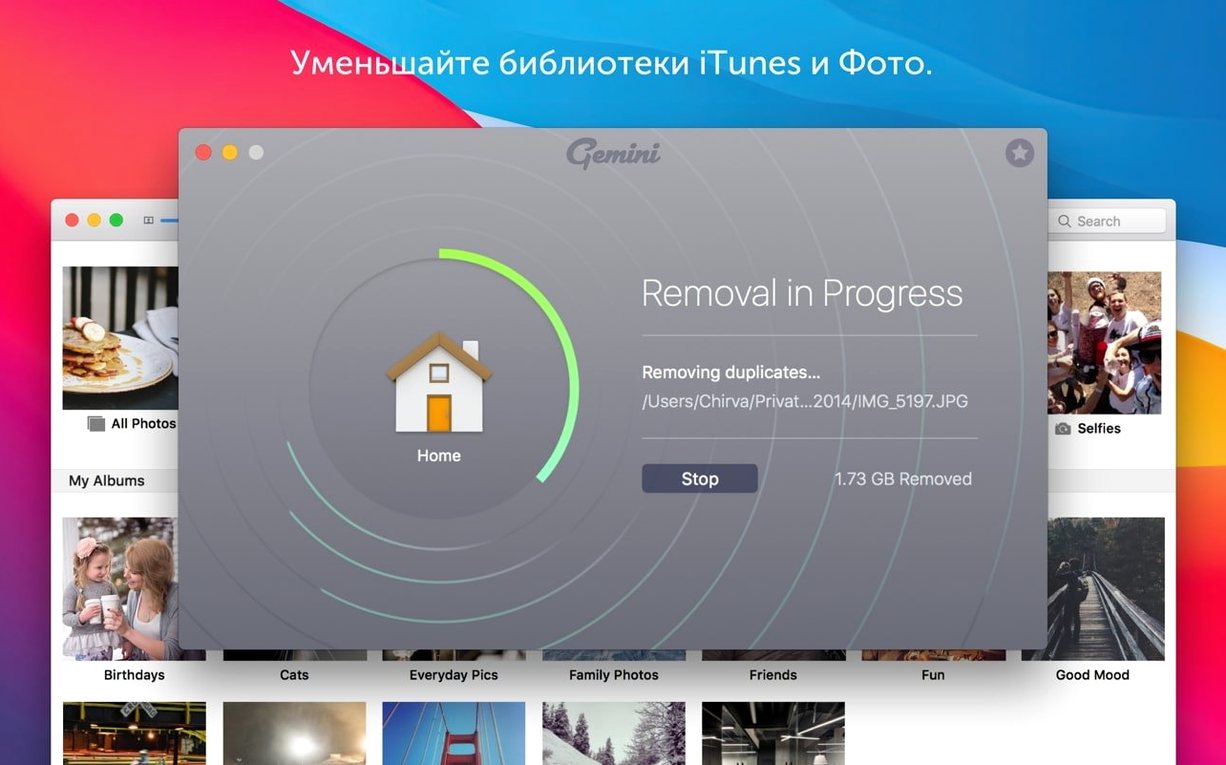
The Recently Deleted area now retains files for a consistent window across restarts. Previously, a Mac reboot could occasionally clear the list before you had a chance to restore anything. That quirk is gone in the current version.
Support for Photos libraries improved too. Gemini no longer stalls when scanning libraries with thousands of burst-mode sequences. It still works best on x86 64-bit Macs running macOS 10.13 or later — the same requirement the support site lists for full compatibility.
Start with a small, targeted scan rather than the entire drive. Pick your Downloads folder or an old backup directory. This gives Smart Select a chance to learn your deletion preferences before you throw a million files at it. The app's learning engine picks up patterns quickly when the sample is clean.
Adjust the similarity threshold before scanning Photos or image-heavy folders. The default setting catches obvious duplicates, but lowering the slider surfaces near-matches you might actually want to review — screenshots with tiny differences, resized exports, and half-edited versions.
Keep the Recently Deleted area open in the sidebar for the first week. Restoring a file takes one click from there. Once the list grows long, you can clear it permanently, but give yourself a buffer while you build trust with the tool.
If you grabbed a gemini torrent or a gemini 2 torrent to test the waters, double-check you installed the latest build. Some earlier cracked builds shipped with a bug where the scan engine would skip external drives entirely. The current 2.10.2 release handles USB drives and network volumes without issue.
Let's say you imported five years of iPhone shots into the Photos app and copied backups to two external drives. Your library is full of duplicates and similar-looking bursts.
Open Gemini and choose the Photos library scan option from the sidebar. Do not select the whole hard drive — restricting the scan to the library keeps results focused and the scan fast.
Once the results load, sort the duplicate groups by file size rather than name. Large video duplicates eat space quickly, so tackle those first. Drag a group open and use the preview pane to compare the clips side by side. Smart Select will leave one copy untouched by default.
Switch to the similar files tab next. Burst-mode photos and edited versions appear here. Select all the near-identical shots except the sharpest frame. Right-click and choose to move the rest to Recently Deleted.
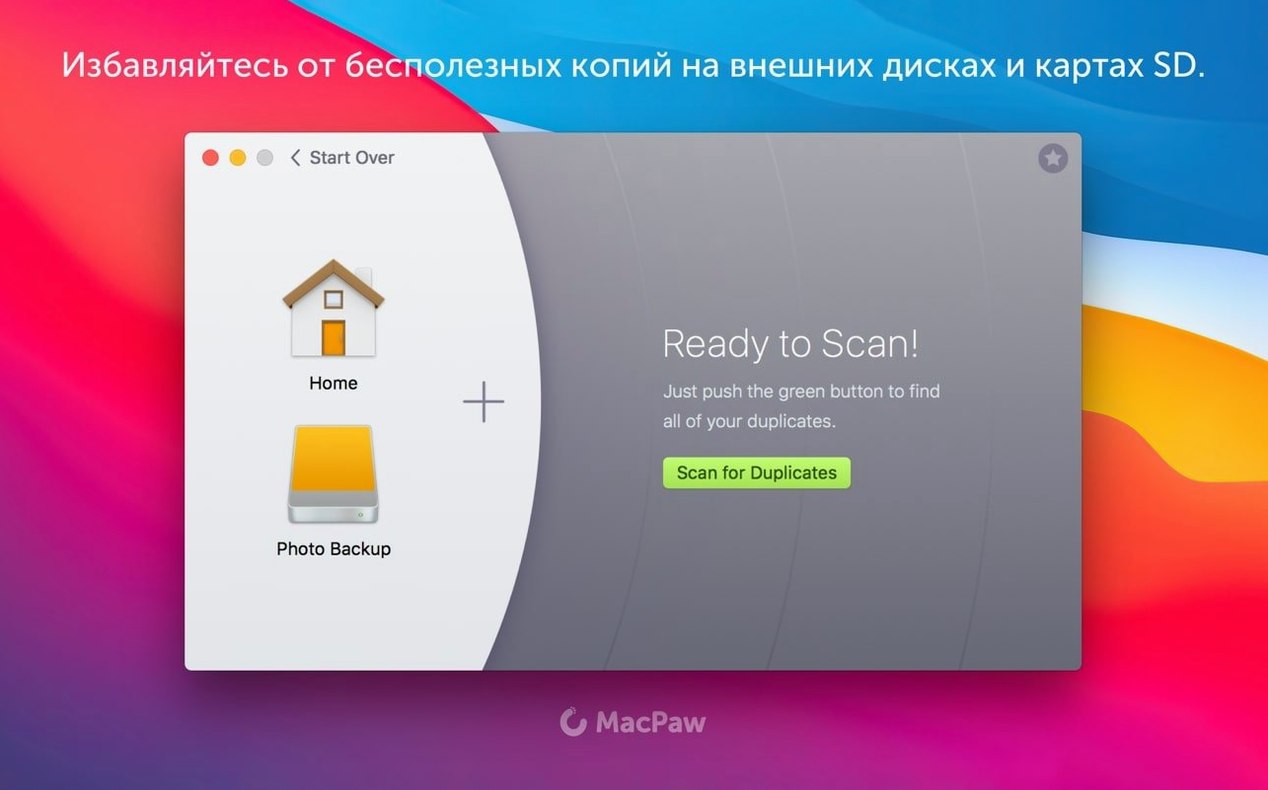
When the library is clean, run a second scan on the external drives. Gemini will now cross-reference the library's remaining files and flag any duplicates already stored on the Mac. Move those external copies to Recently Deleted, then eject the drive and clear the deleted items permanently. The whole process takes less than ten minutes on a moderately sized library.
Yes. The Recently Deleted area holds removed files so you can restore anything you deleted by accident before it's permanently gone.














Chat 0
Hop in or make an account to join the chat.
Quiet in here so far. If you have used this build, tell me what the install actually did.