
 Trimma
 Traktor Pro
 TouchDesigner
 TunesKit iPhone Unlocker
 Tuxera NTFS
 Typeface
 Typinator
 Topaz Video AI


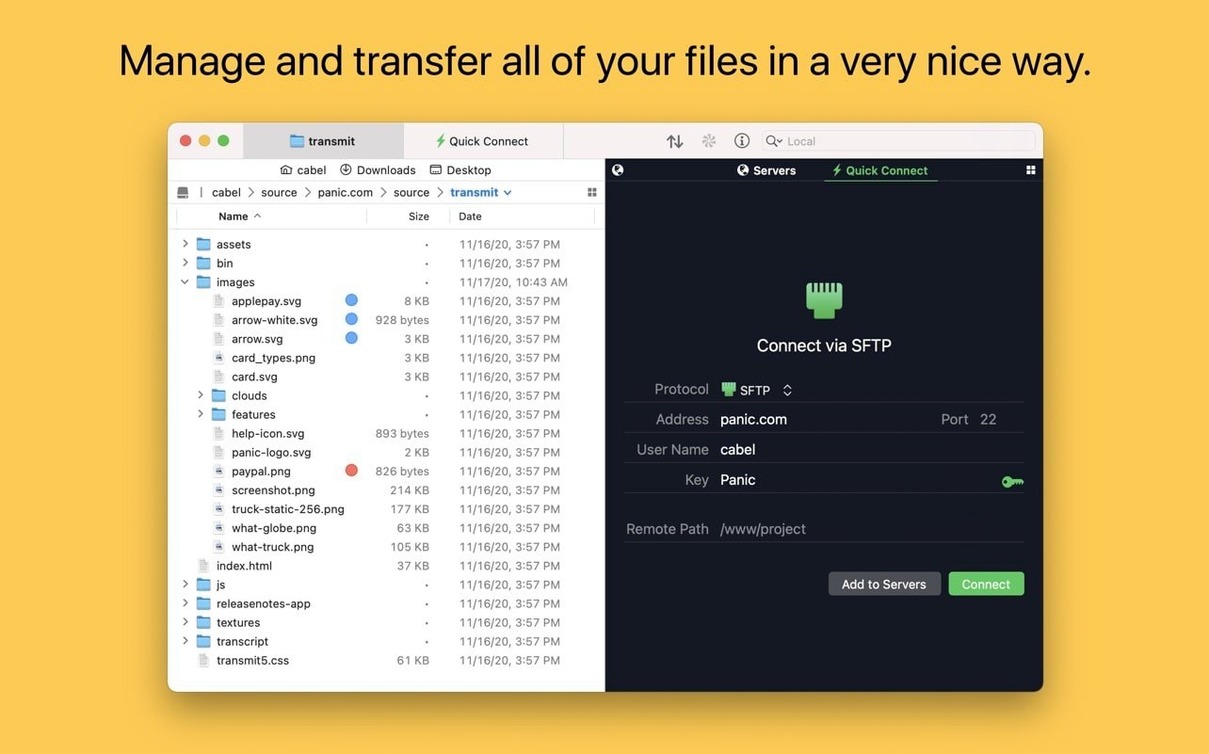
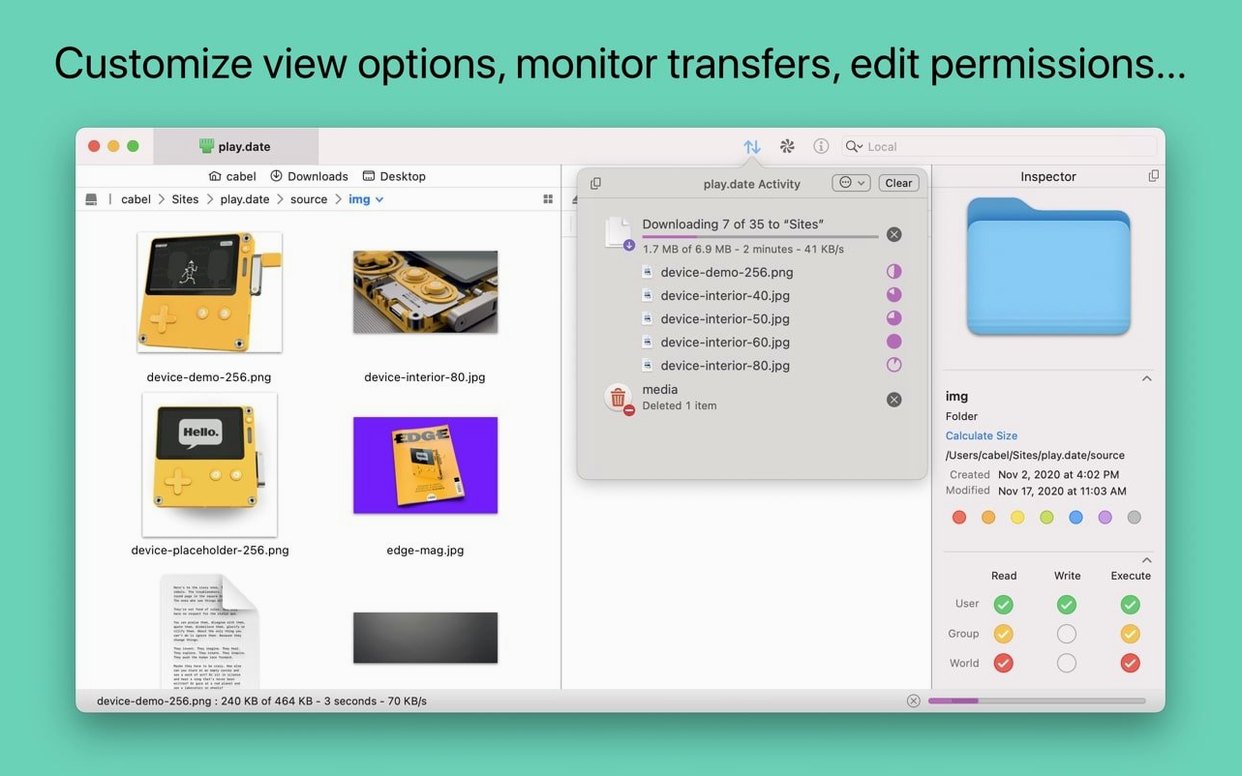
You can run Transmit 5 on any Mac with macOS 13 Ventura or later, and it works just as well on Intel machines as it does on Apple Silicon.
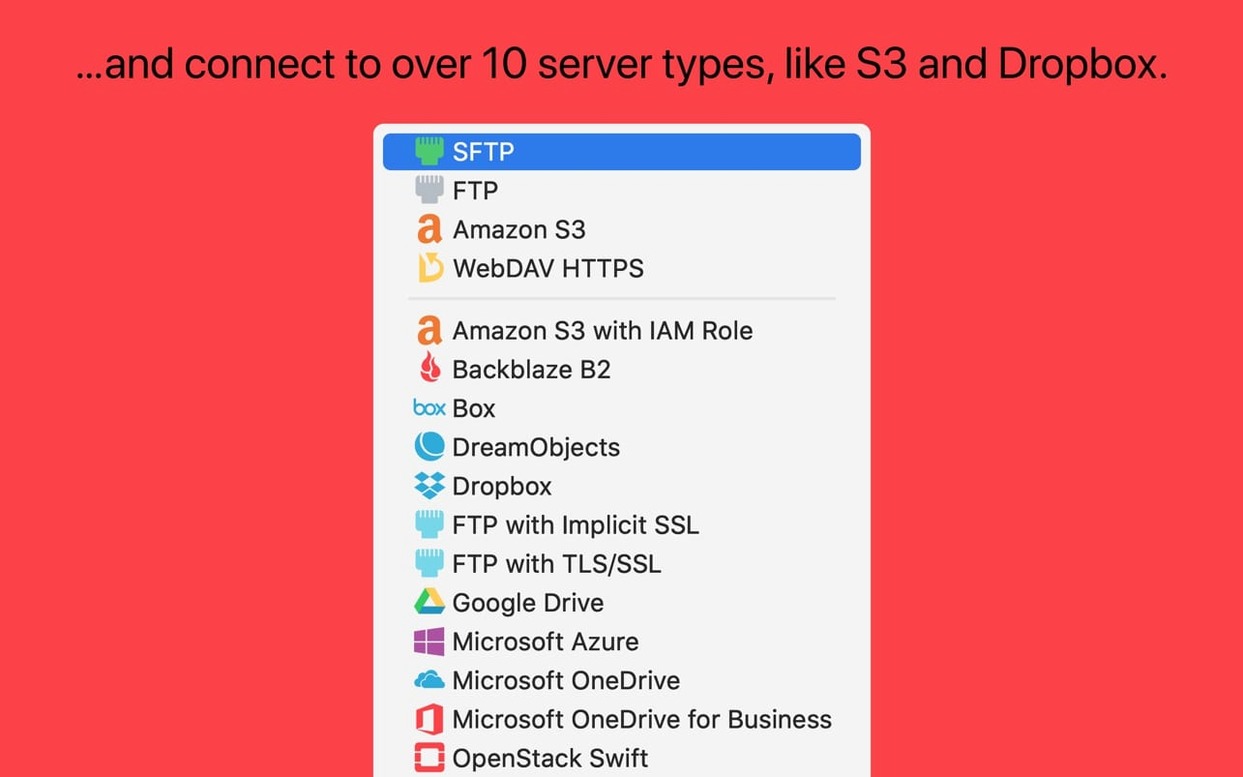
If Finder feels a little light for moving files between servers and cloud accounts, Transmit slots right in. It speaks FTP, SFTP, S3, and WebDAV, and connects directly to services like Dropbox, Google Drive, Box, Backblaze B2, and Microsoft Azure. The Places Bar keeps your most-used folders one click away, and you can open the current remote location in Terminal without switching windows. Tags, Panic Sync for site settings, and built-in key generation mean fewer trips to other utilities.
Small touches add up. The Get Info toolbar button is ready the moment you launch the app. Dragging files into IntelliJ no longer causes a crash, and S3 uploads now report errors clearly when a file is too large. German text entry fields on the File Rename sheet have more room, which makes renaming a bit less fiddly. It feels like an app that knows it shares your dock with other tools and tries not to get in the way.
Say you've got a fresh build of a static site sitting in a local folder and you need to push it to your web host. Open Transmit and connect to the server via SFTP — your credentials and key are already saved from last time. In the left pane, navigate to your local _site or public folder. In the right pane, open the remote public_html directory.
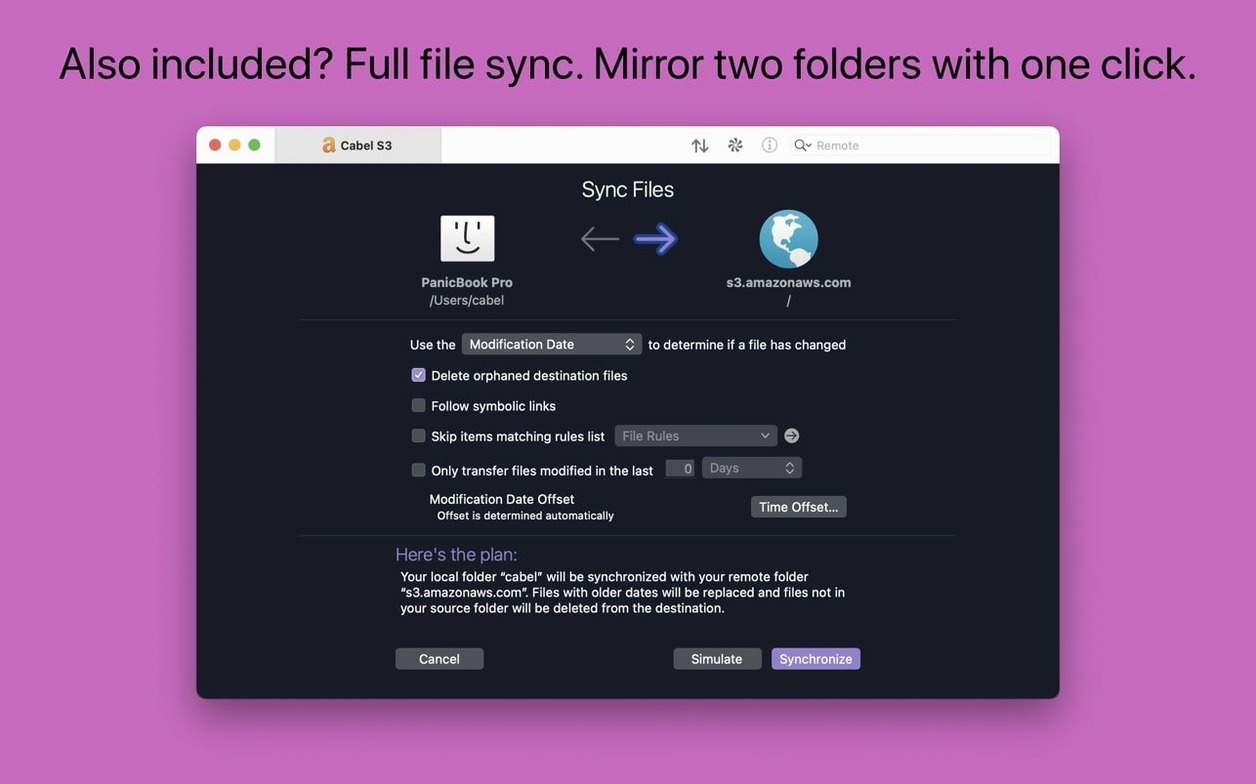
Before you drag anything across, right-click the remote pane and choose Sync. Set the direction to upload newer files only and tick Delete orphaned items on destination so stale pages get cleaned up. Transmit simulates the sync first — give it a quick scan to confirm nothing unexpected will vanish — then hit Sync for real. When it finishes, the info sidebar confirms the transfer count and any skipped files.
A few conveniences hide in plain sight. Double-click a remote file while holding Option to download it to your default local folder without navigating there first. The Places Bar accepts drag-and-drop — grab any local folder and drop it onto the bar to pin it for later. If you need to rename a batch of images before uploading, select them, right-click, and choose Rename Items. The sheet that appears handles sequential numbering, find-and-replace, and text insertion, all before anything leaves your Mac.
Tags work across local and remote items too. Tag a set of remote log files red while you review them, then bulk-delete the tagged group once you're done. The Copy URL command sits in the context menu for any remote file, giving you a direct link you can paste into a browser or share with a colleague — handy for S3 buckets with public access.
If an S3 upload fails with an unclear message, check the file size first. Transmit 5.11.6 now flags files that exceed the S3 limit explicitly, but the fix is still on you — either split the file or use multipart upload settings in the server preferences. When dragging from Transmit into IntelliJ caused a crash in earlier builds, the workaround was to drop files onto the desktop first; that's no longer needed, but the habit of using the desktop as a staging area still helps when dragging into apps that don't play nicely with remote file references.
If German umlauts were clipping in the Rename sheet, the larger fields in this release solve it. For any language where text still gets cut off, widen the sheet by dragging its corner — Transmit remembers the size next time. Connections that sit idle for a while can time out without obvious warning. The quick fix is to hit Cmd-R to refresh the listing; if that fails, disconnect and reconnect from the server dropdown. Panic Sync keeps your site bookmarks and keys in step across Macs, but it won't sync your Places Bar favourites — those stay local to each machine.
Transmit 5.11.7 rolls out the developer’s latest round of polish, sharpening everyday transfers and server connections.
It connects to Backblaze B2, Box, Google Drive, DreamObjects, Dropbox, Microsoft Azure, and Rackspace Cloud Files, alongside standard FTP, SFTP, S3, and WebDAV.
Yes, the app includes Panic Sync, which keeps your site details and settings in step between your Macs.














Chat 0
Hop in or make an account to join the chat.
Quiet in here so far. If you have used this build, tell me what the install actually did.